



Introduction
When you manage 10, 25, or 100+ Microsoft 365 client tenants, every calendar request becomes harder to standardize. One client wants shared calendars pushed to mobile devices. Another needs public folder calendars available to field teams. Another wants room, resource, or departmental calendars synced across users without asking every employee to configure Outlook manually.
The problem gets worse when contact sync enters the same workflow. Clients expect accurate caller ID, updated Global Address List contacts, shared mailbox contacts, and calendar data to show up on the devices their teams already use. The MSP is left managing the same request again and again across separate tenants.
That is where manual sync breaks down.
Native Microsoft 365 sharing helps with basic calendar visibility, external sharing, and free/busy lookup. But MSPs often need more than availability. They need a repeatable way to deliver the right shared calendars and contact data to the right users, groups, mailboxes, and mobile devices across separate client tenants.
CiraSync’s 2026 MSP benchmark research found that every MSP surveyed reported saving up to 5 hours per week through automated contact and calendar sync. The same report found that 95% of MSPs say manual sync becomes unmanageable as environments grow, and 89% say manual sync fixes consume valuable engineering resources.
For MSPs, tenant Outlook calendar sharing is not just about visibility. It is about building a repeatable onboarding and service delivery model. The right setup gives clients accurate calendars, shared mailboxes, GAL contacts, enterprise‑grade security, and uptime while giving MSP teams a controlled way to manage sync across tenants.
Source: CiraSync Partner Page
Why native Microsoft 365 falls short for MSPs
Microsoft 365 does support external collaboration and calendar sharing. But those features were not built as an MSP command layer for managing many client tenants from one operational model.
Microsoft Entra cross-tenant synchronization is designed to create, update, and delete Microsoft Entra B2B collaboration users and groups across tenants. It helps with identity, access, and application collaboration. It does not, by itself, sync Outlook calendars, public folder calendars, shared mailbox calendars, GAL contacts, or mobile contact folders.
Microsoft 365 calendar sharing also operates differently from managed calendar sync. Admins can enable external calendar sharing, but native sharing still depends on tenant settings, user-level sharing behavior, calendar permissions, and the Outlook client experience. That can work for basic collaboration. It does not give MSPs a repeatable way to push the right calendars and contacts to the right users across multiple client environments.
Exchange Online organization relationships let admins share calendar availability with an external organization. But this is still mainly an availability-sharing model. Free/busy visibility helps users schedule meetings, but it is not the same as syncing shared calendars, public folder calendars, room calendars, resource calendars, or contact data to users and mobile devices.
For a single tenant, this setup might be manageable. For an MSP managing many client tenants, it creates too many separate admin steps, user decisions, and support edge cases.
The common MSP pain points are clear:
- No central MSP policy layer for calendar and contact sync across clients
- Too much per-tenant setup and maintenance
- User-controlled sharing that does not always match business policy
- Free/busy visibility that does not solve full shared calendar delivery
- Limited value for mobile-first teams that need calendars and contacts in native apps
- No single workflow for Office 365 contact sync, shared calendars, public folders, and enterprise contact sync
Sources: Microsoft Entra Cross-Tenant Synchronization | Microsoft External Calendar Sharing | Microsoft Exchange Organization Relationships | Microsoft Multitenant Organization Settings
What MSPs actually need from tenant calendar sync
Most MSPs do not need another one-off workaround. They need a repeatable system.
A practical tenant Outlook calendar sync model should help MSPs:
- Add and manage client tenants from a partner-level environment
- Sync shared calendars, user calendars, public folders, room calendars, resource calendars, and shared mailbox calendars
- Support Office 365 contact sync and calendar sync together
- Push the right data to native mobile contacts and calendar apps
- Apply repeatable sync policies during onboarding
- Fit Intune-managed mobile workflows where device management is part of the client environment
- Reduce recurring sync tickets and manual fixes
This matters because automation is now a requirement for MSP growth. CiraSync’s 2026 MSP onboarding benchmark report found that 83% of MSPs say automated sync is essential for scaling operations. The same report frames the shift clearly: MSPs are moving from reactive fixes to predictable operations.
Sources: CiraSync Partner Page
How CiraSync solves tenant Outlook calendar sync / sharing
CiraSync is built for Microsoft 365 contact and calendar sync at scale. It gives MSPs a managed way to sync selected Microsoft 365 calendars and contacts to the users, mailboxes, groups, and mobile devices that need them. CiraSync does not replace every native Microsoft 365 sharing feature. It complements Microsoft 365 by giving MSPs a repeatable sync layer for operational delivery.
For calendar delivery, CiraSync pushes Microsoft 365 calendars directly to the native iOS and Android calendar apps employees already use. This includes shared team calendars, on-call rotations, and company-wide event calendars.
CiraSync also supports broader calendar-to-calendar sync use cases. Its calendar-to-calendar solution references separate mailboxes, shared calendars, room resources, and departmental schedules. It also allows teams to choose a Microsoft 365 mailbox, shared calendar, or resource calendar as the authoritative source, then sync to individual users, teams, departments, shared mailboxes, or resource calendars.
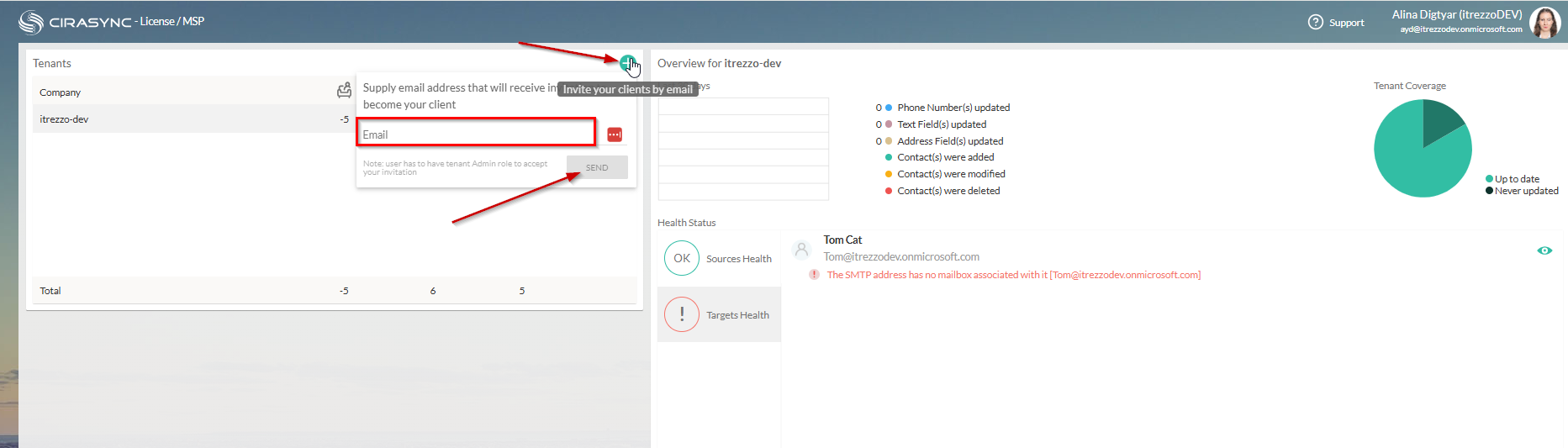
For MSPs, the important point is control. Portal owners can add client tenants they manage through the CiraSync Partner Portal. Partner portal users can also define tenant permissions and add tenant administrators.
This gives MSPs a cleaner operating model to:
- Manage client tenants from a partner workflow
- Create sync tunnels for specific sync policies
- Choose the calendar or contact source
- Choose the target users, mailboxes, groups, or devices
- Run sync manually when needed
- Let automation keep the data current after setup
Sources: CiraSync Partner Page | CiraSync Calendars to Phones | CiraSync Calendars to Calendars | CiraSync Partner QuickStart Guide | CiraSync Sync Tunnels Guide
How CiraSync supports Office 365 contact sync and enterprise contact sync
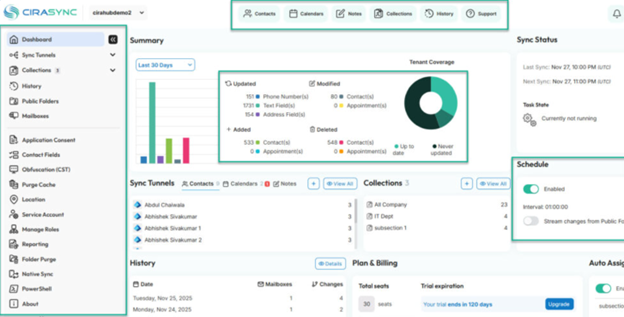
Calendar sync rarely lives alone. Most MSPs also deal with contact sync requests.
Clients want the Global Address List on mobile phones. They want shared mailbox contacts available to the right teams. They want public folder contacts and calendars available without asking users to copy data manually. They want caller ID to work when employees receive calls from colleagues, clients, vendors, or field teams.
CiraSync is a cloud solution for automatically syncing shared contacts and calendars from Microsoft 365 to employee smartphones. It pulls data from sources like the Global Address List, shared mailboxes, public folders, and contact lists.
Users do not need to install anything because CiraSync writes directly to native Contacts and Calendar apps. For shared calendars, admins select the calendar source in the CiraSync dashboard, assign users, and let the system handle updates.
For MSPs, this creates one operating model for both calendar sync and enterprise contact sync. Instead of supporting separate scripts, export files, Outlook instructions, and user-level sharing steps, the MSP defines the source, target, and sync behavior centrally.
Sources: CiraSync What Is CiraSync Guide | CiraSync FAQ
How CiraSync fits Intune-managed mobile workflows
Many MSPs manage mobile devices through Microsoft Intune. That makes Intune contact sync an important part of the conversation.
In CiraSync Cloud, admins create a CiraSync Sync Tunnel, enable Mobile Direct, then download the iOS/iPhone configuration file. In Microsoft Intune, admins create a custom iOS policy, upload the configuration profile file, assign the policy to the target group, and verify that the policy applies to the target devices.
Microsoft’s Intune documentation states that Intune supports custom profiles for iOS, iPadOS, and macOS devices. Microsoft explains that custom profiles are used for settings and features that are not built into Intune by default.
For MSPs, this matters because contact and calendar sync should fit the client’s existing device management model. If a client already uses Intune, the MSP should not need to touch each device or train every end user. The sync policy should map into the device management process already in place.
Sources: CiraSync Mobile Direct | Microsoft Intune Custom Apple Settings | Microsoft Intune Custom Profile Creation
Step by step: setting up tenant calendar sync with CiraSync
Step 1: Sign in to the CiraSync Partner Portal

Start in the CiraSync Partner Portal. Use the partner account that has portal owner permissions. From there, select the client tenant you want to manage or add a new client tenant if this is part of a new onboarding workflow.
Step 2: Confirm tenant permissions and service account setup
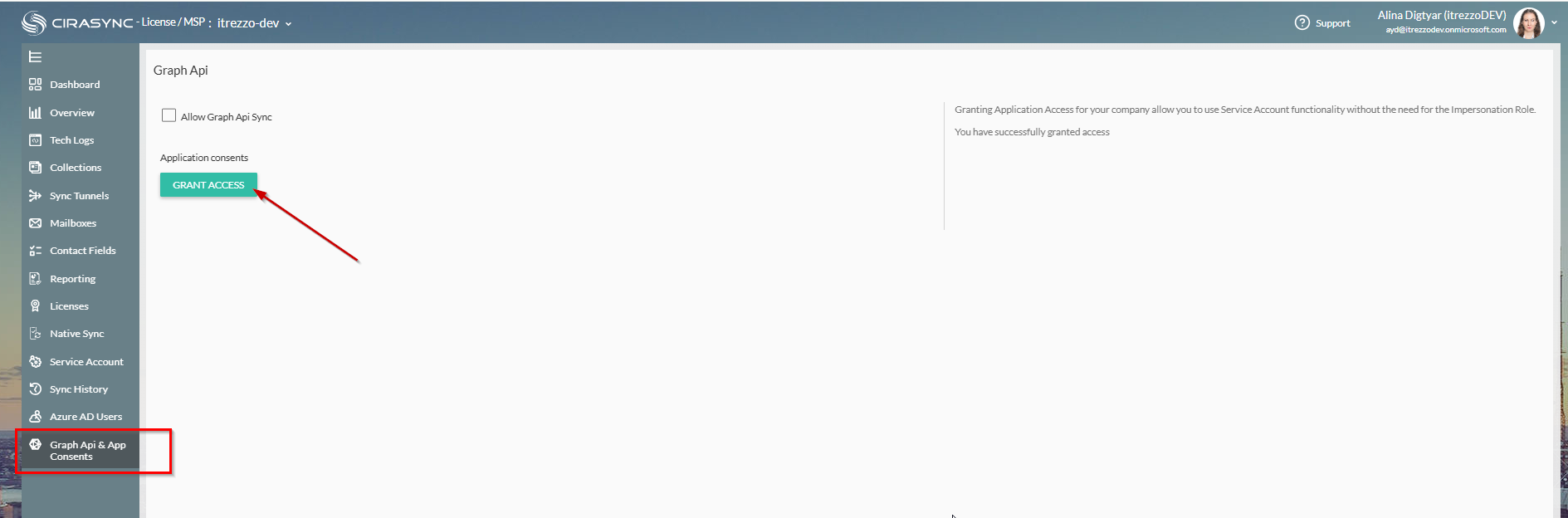
Before creating the calendar sync, confirm that the tenant has the required permissions and service account configuration. A dedicated service account with application consent access should be set for the CiraSync dashboard. Without the right admin account and settings, CiraSync cannot push contact and calendar updates to user mailboxes.
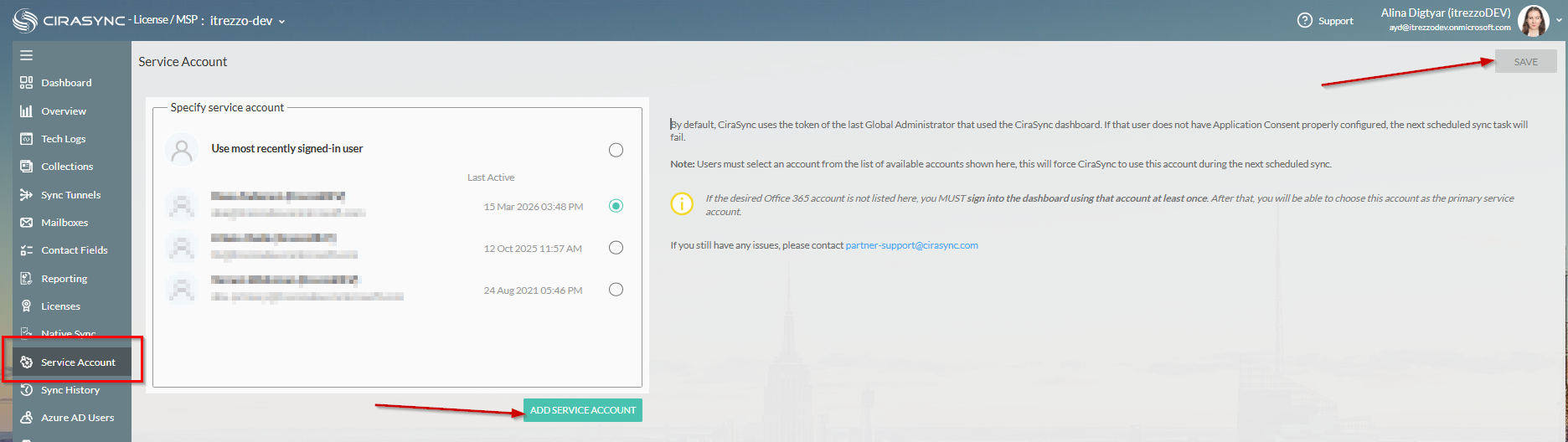
Step 3: Create a new sync tunnel
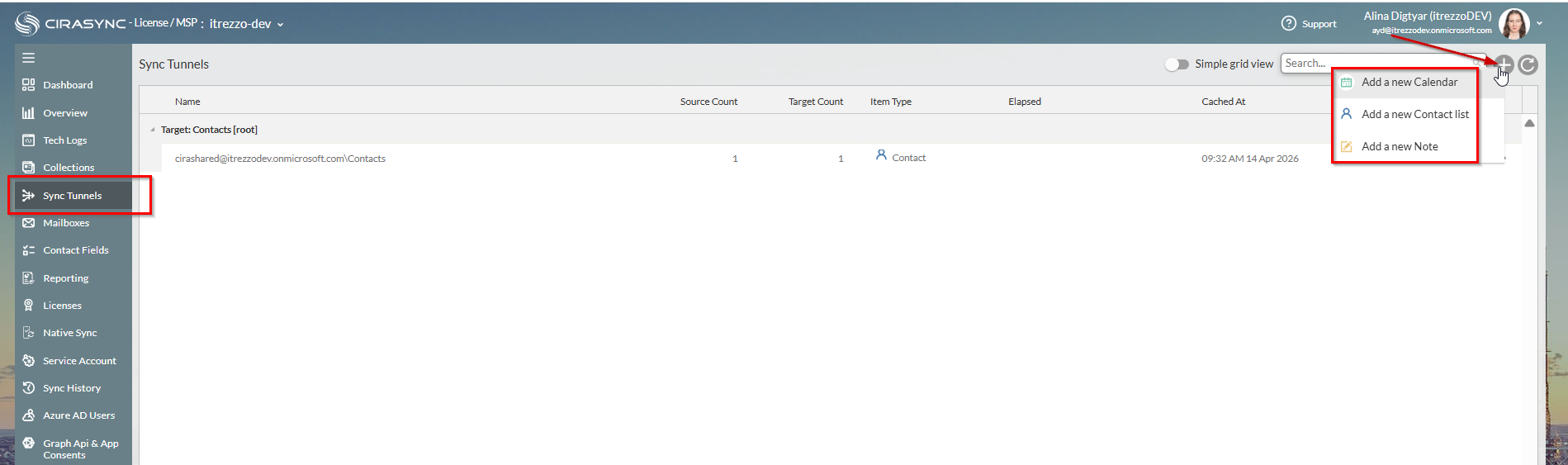
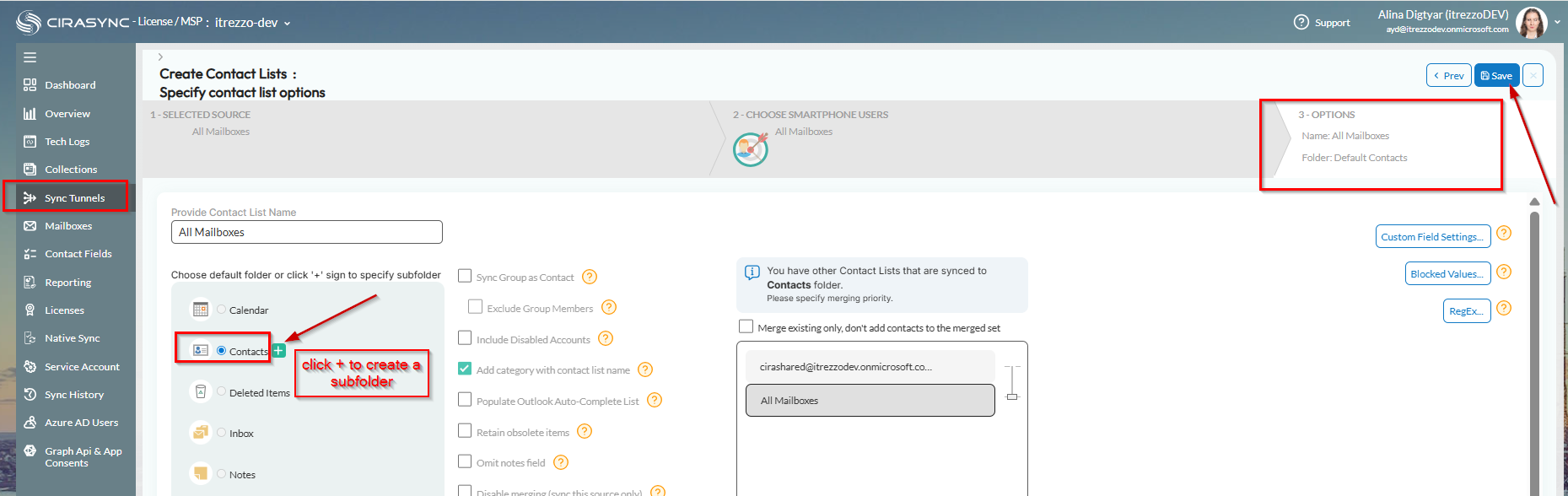
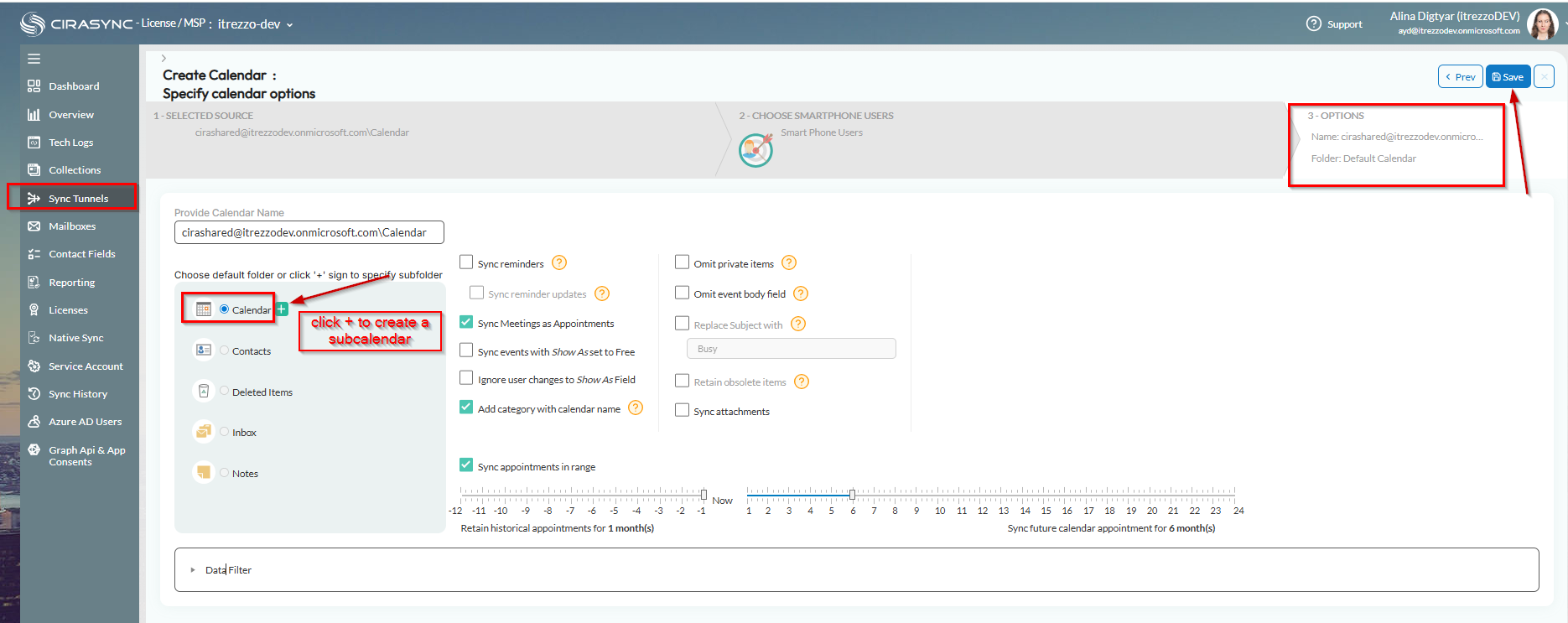
Go to the Tenant Overview Dashboard. Open Sync Tunnels (tasks that tell CiraSync which items should be synced and who should receive them) from the left navigation panel. Click the plus icon to create a new tunnel.
Step 4: Choose the calendar source
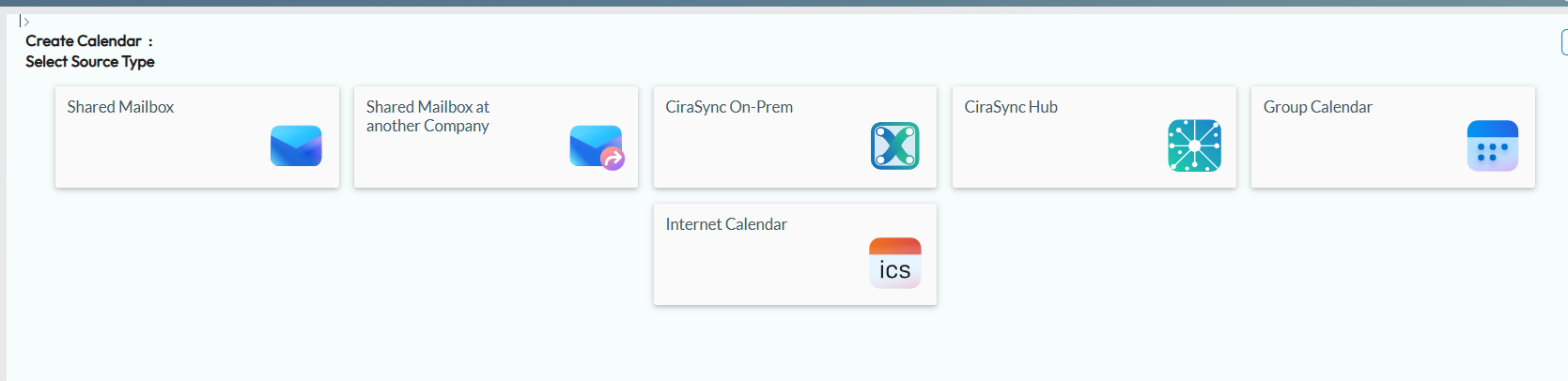
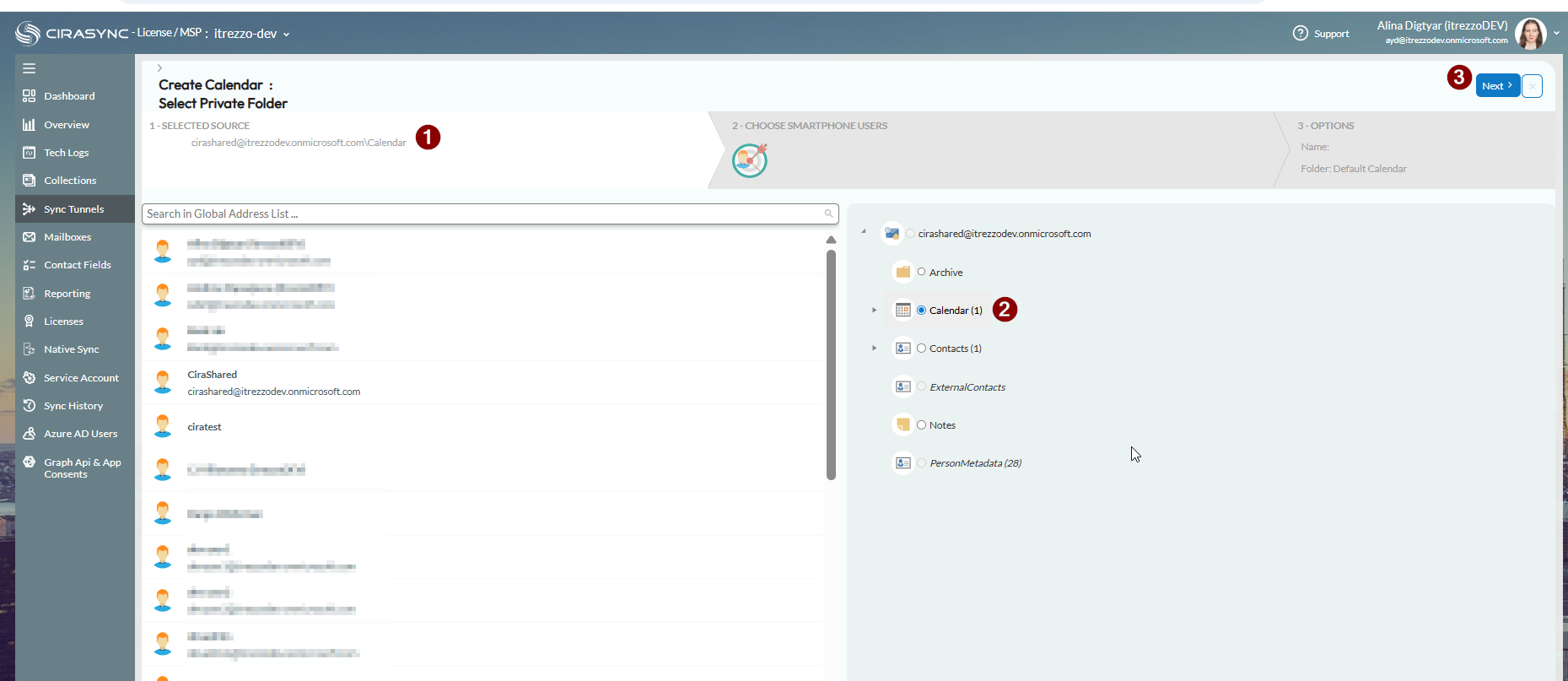
Select the source calendar. Depending on the client environment, this could be a shared mailbox calendar, public folder calendar, internet calendar, shared mailbox from another tenant, Microsoft 365 mailbox, room calendar, or resource calendar.
Step 5: Choose target users, groups, mailboxes, or resources
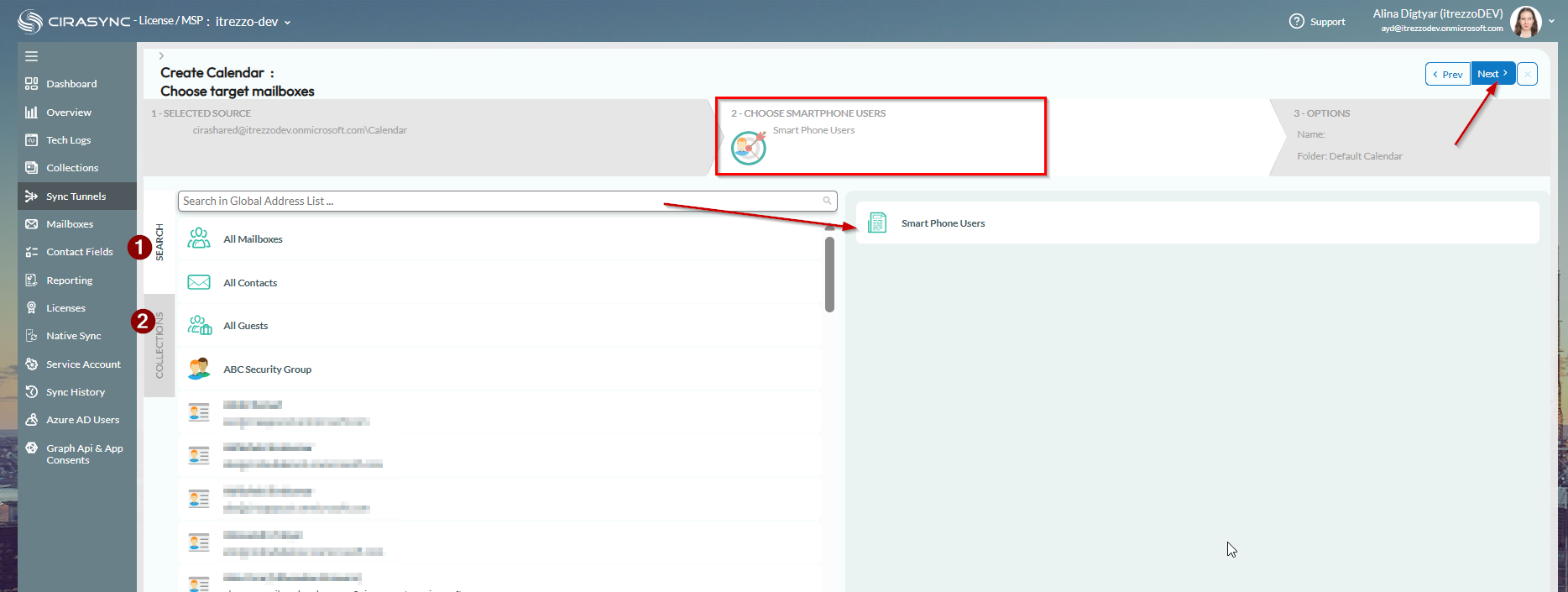
Choose who should receive the synced calendar. This might be all users in a tenant, a support team, a field team, executives, dispatch teams, shared mailboxes, departments, or resource calendars.
Step 6: Configure sync direction and policy options
Set the sync behavior based on the client’s governance model. For some clients, one-way sync is best because the source calendar stays authoritative. For others, two-way or multi-way sync might fit the operational need.
Step 7: Run the sync and monitor the result
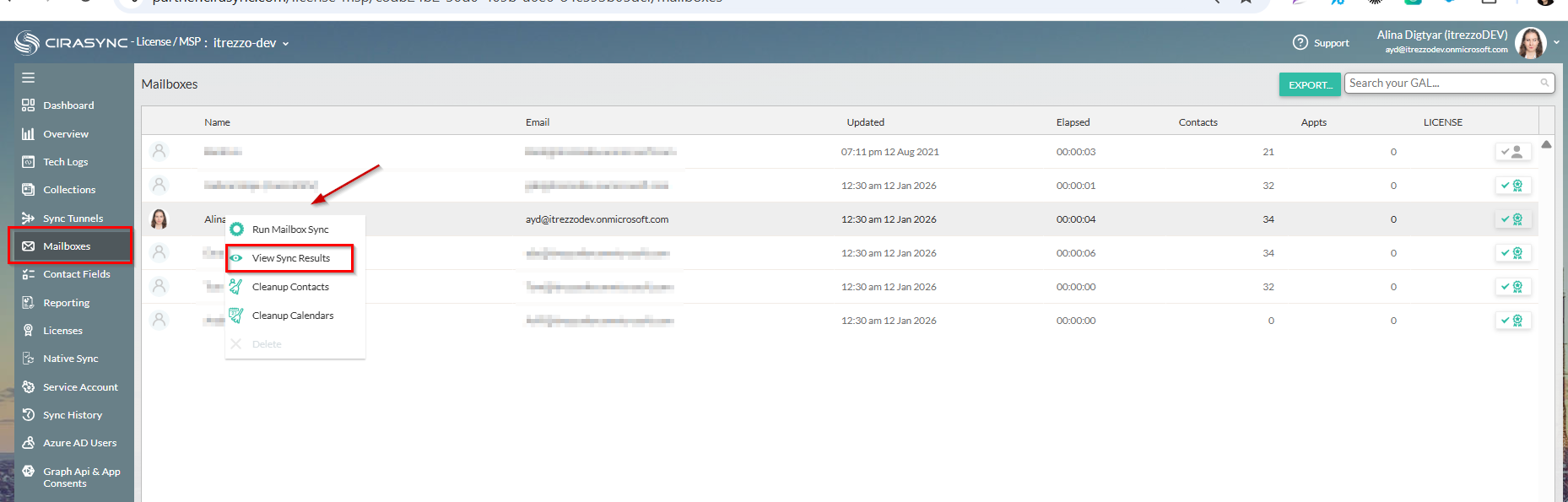
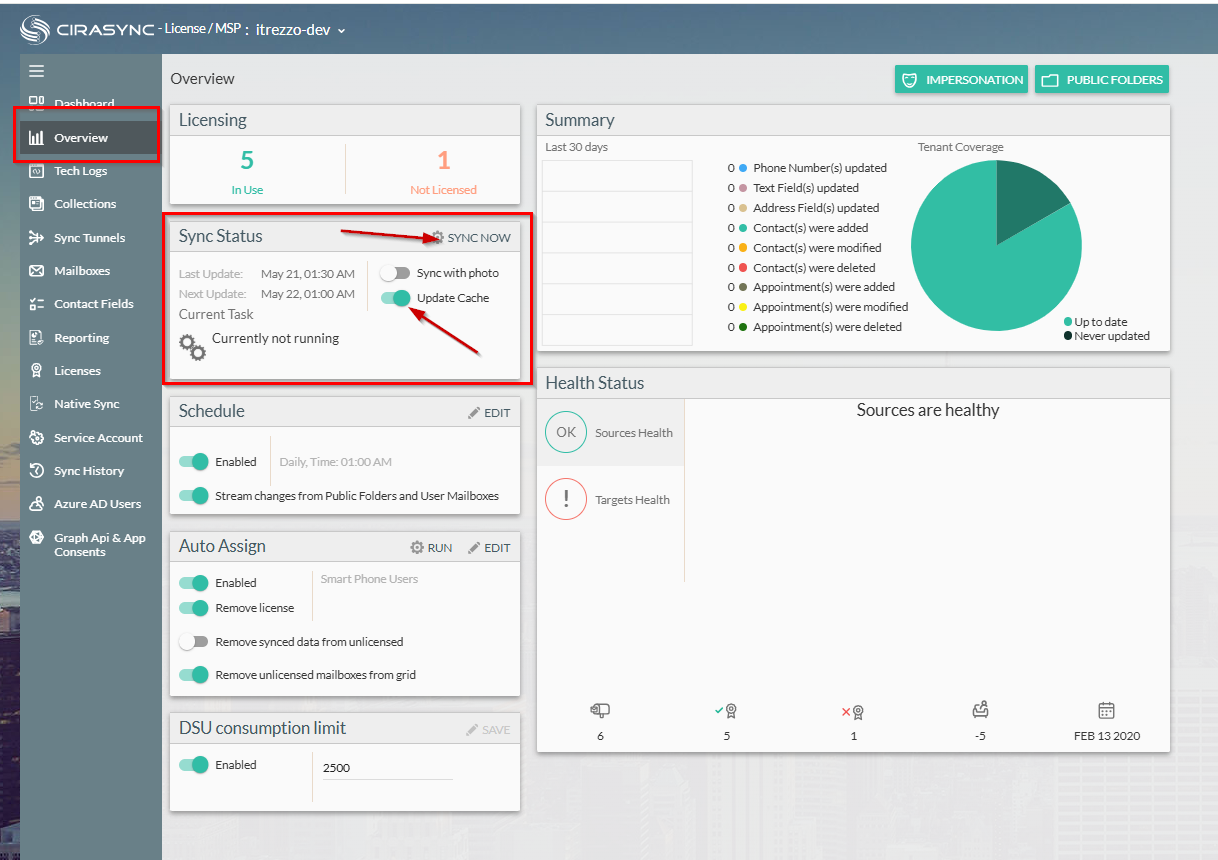
Return to the Tenant Overview Dashboard. Update the cache, run Sync Now, and confirm that the correct users receive the correct calendar data.
Sources: CiraSync Partner QuickStart Guide | CiraSync Sync Tunnels Guide | CiraSync Shared Calendars QuickStart | CiraSync Calendars to Calendars
Real-world MSP use cases
- CiraSync Works Seamlessly for Diverse Client List of Philadelphia-Based IT Consultants, TechBldrs
- One Client, PLN 175K a Year: The Impact of CiraSync for an MSP in Poland!
- The Morse Group Saves IT 500+ Hours Annually with Automated Contact Sync to Smartphones
Why this should be part of every MSP onboarding toolkit
MSP onboarding tools should reduce repeat work. They should not create another manual process for engineers to maintain.
That is the main reason contact and calendar sync belongs in the MSP onboarding playbook. Once a client tenant is added, the MSP should have a standard process for defining calendar sources, contact sources, target users, mobile delivery, sync schedule, and support ownership.
Manual sync might work for a small client. It does not hold up when the MSP grows across more users, more devices, more systems, and more platforms. CiraSync’s MSP report found that 95% of MSPs say manual sync becomes unmanageable as environments grow.
The best MSPs are moving away from reactive fixes and toward predictable systems. CiraSync’s 2026 MSP onboarding benchmark report frames this shift as standardization over customization, automation as infrastructure, and engineering time as a strategic asset.
For calendar and contact sync, that means fewer manual exports, fewer scripts, fewer device-level workarounds, and fewer “why didn’t this update?” tickets.
Final Thoughts
Manual calendar and contact sync does not fail all at once. It breaks slowly.
First, one client asks for shared calendars on mobile. Then another asks for the GAL on every phone. Then a third needs public folder calendars available to field teams. Before long, engineers are spending valuable time fixing the same sync issues across tenants.
CiraSync gives MSPs a cleaner way to manage Outlook calendar sync, Office 365 contact sync, Intune-managed mobile workflows, and enterprise contact sync across client environments.
For MSPs building a scalable Microsoft 365 service model, the goal is not to fix sync issues faster.
The goal is to stop those issues from becoming tickets in the first place.
Talk to the CiraSync MSP team or download the MSP Partner Kit to see how CiraSync fits into your multi-tenant service delivery model.
Frequently asked questions
Does CiraSync support Outlook calendar sync?
Yes, CiraSync supports Outlook calendar sync, enabling organizations to automatically push and maintain calendar data across multiple Microsoft 365 tenants without manual IT intervention.
How does CiraSync work with Intune contact sync?
CiraSync integrates with Microsoft Intune to automatically sync contacts from Microsoft 365 to managed mobile devices, ensuring every user always has accurate, up-to-date directory information without manual updates.
Can MSPs manage enterprise contact sync for all clients from one console?
Yes, CiraSync gives MSPs a single multi-tenant management console to configure, monitor, and automate contact sync across all client Microsoft 365 environments, reducing overhead and streamlining service delivery.
Does CiraSync support shared calendars?
Yes, CiraSync supports shared calendar sync, automatically distributing shared Microsoft 365 calendars to users’ mobile devices and Outlook clients so teams always have visibility into the schedules that matter most.
Which calendar types are supported?
CiraSync supports syncing personal calendars, shared calendars, resource calendars, and room mailboxes from Microsoft 365 Exchange Online to mobile devices and Outlook clients across an organization.
Does native Microsoft 365 calendar sharing replace CiraSync?
Native Microsoft 365 calendar sharing requires manual setup and ongoing user management, while CiraSync automates large-scale calendar distribution to mobile devices and external clients, making it the better choice for IT teams managing sync at scale.

