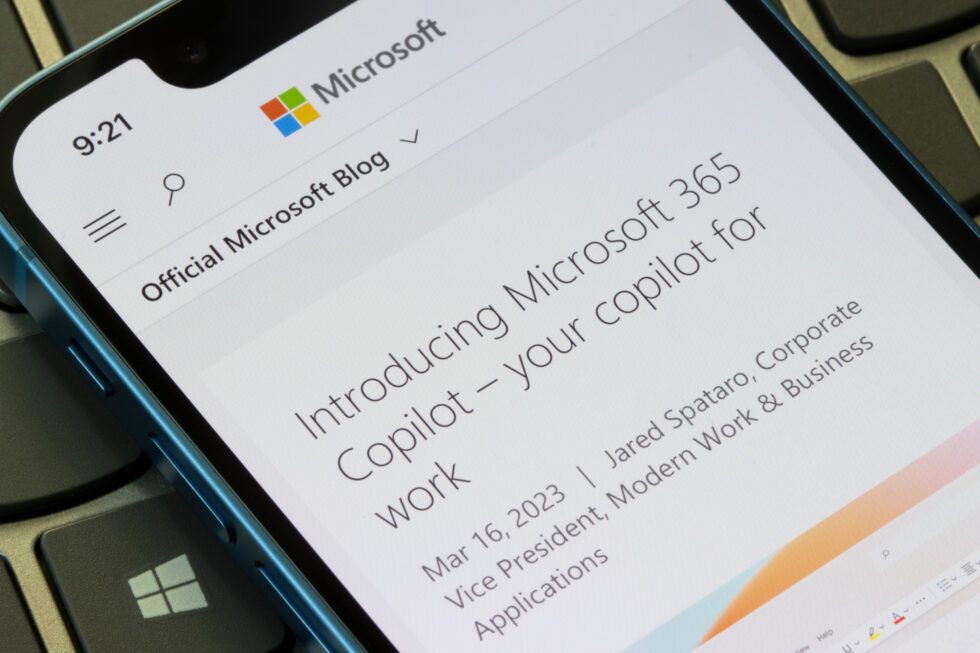
Microsoft 365 Copilot is an AI-powered tool that helps with your work tasks. Users enter a prompt in Copilot and Copilot responds with AI-generated information. The responses are in real-time and can include internet-based content and work content that users have permission to access. Users get content relevant to their work tasks, and in the context of the Microsoft 365 app they are using.
Microsoft 365 Copilot pairs with the Microsoft 365 productivity apps that you use every day, including Word, Excel, PowerPoint, Outlook, Teams, OneNote, Loop, and Whiteboard. It uses content in Microsoft Graph which includes information on users, their activities, and the organization data they can access to personalize responses with a user’s work emails, chats, and documents. Copilot only shows the data that users have permission to access.
Microsoft 365 Copilot is built on a secure foundation that coordinates large language models (LLMs) with your organizational data. Microsoft 365 Copilot uses advanced semantic indexing to understand the meaning and context behind your data, delivering more precise and relevant results than keyword-based search alone.
What is Microsoft 365 Copilot?

Microsoft 365 Copilot is an artificial intelligence feature that assists users with repetitive tasks like writing documents, summarizing emails, and preparing demonstrations. It has the best AI technology using GPT-4 large language model.
It uses the same technology available on Bing Chat.
Some popular Copilot features are Business Chat and its integration with Microsoft apps like MS Word.
Copilot Business Chat is a bot that scans and reads your business data and apps to find the relevant information you need instead of searching and opening documents or waiting for replies from colleagues.
You will be able to access Business Chat in Microsoft 365.com, Bing, and Microsoft Teams.
Without a doubt, the tech giant will continue to announce new copilot features in the future.
Where can you use Copilot?

You can use it on Word, Excel, PowerPoint, Outlook, and Teams, which are tools that many people use on a daily basis. This AI technology displays and works the same in every Microsoft 365 application thanks to an easy and consistent user interface.
Copilot is an advanced processing and orchestration engine that combines the capabilities of LLMs, including GPT-4, with the Microsoft 365 applications and your company’s data in the Microsoft Graph.
Does Microsoft Copilot Work Without Internet? Is It Offline?
Most AI tools, if not all, do not work without an internet connection. So it’s very likely that Copilot will only work if you are connected to the internet.
But the problem is Microsoft 365 Copilot is currently being tested solely by certain individuals and businesses, and it is not available for anyone in public to use, so we cannot firmly say if Copilot will offer an Offline mode.
How to Use Microsoft 365 Copilot
How to Use Microsoft 365 Copilot Across Your Apps
Copilot appears directly within the Microsoft 365 apps you already use. There is no separate application to open. Copilot is embedded in the ribbon or sidebar of each app. Here is how to use Copilot in each major Microsoft 365 application.
How to Use Copilot in Microsoft Word
Copilot in Word helps you create, understand, and edit documents. To use it:
- Open any Word document (desktop or web)
- Click the Copilot icon in the ribbon or type your request directly in the Copilot side panel
- Enter a prompt describing what you need
Example prompts you can use in Word:
- « Draft a project proposal based on the data in this document »
- « Summarize the key points from this 20-page report into three bullet points »
- « Rewrite this paragraph to be more professional »
- « Expand this job description to include Level 1, Level 2, and Level 3 requirements »
- « Suggest edits to improve clarity and tone »
Copilot can also generate entirely new documents from scratch, transform text into tables, and compare differences between two documents.
How to Use Copilot in Microsoft Excel
Copilot in Excel helps you analyze data, generate formulas, and create visualizations without writing complex functions. To use it:
- Open a spreadsheet with data
- Click the Copilot icon in the ribbon
- Ask questions about your data in plain English
Example prompts you can use in Excel:
- « What is the average revenue by region? »
- « Highlight any outliers in the sales data »
- « Create a forecast for Q3 based on the last 12 months »
- « Generate a pivot table showing units sold by product category »
- « Explain what this formula does in simple terms »
Copilot can also suggest formulas, clean data by identifying inconsistencies, and create charts automatically based on your natural language requests.
How to Use Copilot in Microsoft PowerPoint
Copilot in PowerPoint helps you create presentations from documents, prompts, or existing files. To use it:
- Open PowerPoint and start a new or existing presentation
- Click the Copilot icon in the ribbon
- Describe the presentation you need
Example prompts you can use in PowerPoint:
- « Create a 10-slide presentation from this Word document, including speaker notes »
- « Make these slides more visually engaging with better layouts »
- « Summarize this presentation into 3 key takeaway slides »
- « Generate an image for this slide based on the content »
- « Organize these slides into a logical flow »
Copilot can transform a Word document into a complete presentation, suggest design improvements, and generate images to complement your content.
How to Use Copilot in Microsoft Outlook
Copilot in Outlook helps you manage your inbox, draft emails, and summarize conversations. To use it:
- Open Outlook and select an email or conversation thread
- Click the Copilot options in the toolbar (Summarize, Draft, Coaching)
- Choose the action you want or type a custom request
Example actions you can take in Outlook:
- Summarize: Click « Summarize » on a long email thread to get the key points and action items instantly
- Draft with Copilot: Click « Draft with Copilot, » enter a brief description of what you want to say, and Copilot generates a full email
- Coaching by Copilot: Click « Coaching » to get suggestions on tone, clarity, and sentiment before you send
- Reply: Ask Copilot to generate a reply addressing all open questions in the thread
How to Use Copilot in Microsoft Teams
Copilot in Teams helps you stay on top of meetings, chats, and channel conversations. To use it:
- During a meeting, open the Copilot panel from the meeting controls
- In chats or channels, click the Copilot icon
Example actions you can take in Teams:
- « What did I miss in this meeting so far? »
- « List the action items and who is responsible for each »
- « Summarize the key decisions made in this meeting »
- « What are the main points from this 200-message chat? »
- « Draft a follow-up message to the team with next steps »
After a meeting, Copilot provides a full recap including who said what, key decisions, and assigned tasks even if you joined late or missed the meeting entirely.
What is Microsoft Copilot Used For?

You can use Microsoft 365 Copilot by letting it do laborious work for you. Like any AI tool, you just need to enter a prompt, and Copilot will do what you requested.
Think about Copilot as your right-hand man.
Imagine the IT department has added a life-changing feature to the product the company sells to its customers. It’s a feature that customers have been seeking for months, and finally, it’s time to announce it.
You can ask Copilot to draft a feature announcement based on the document that has the details sent by the IT department. The AI copilot will handle this task for you. What if you don’t like what it generates? Simple! Just click Regenerate, and it will come up with something even better.
As you can see, you can use Copilot to do a lot of things. It can create a meeting slide for you, write an email, create a table and graphs, and even summarize a meeting.
Copilot will assist you whether you need assistance managing an Excel Pivot Table or keeping track of your mailbox.
You can find more usage scenarios in the video below from the tech giant.
Can Microsoft 365 Copilot Analyze Data in Microsoft 365 Apps?
Copilot can also be used to analyze data in Microsoft Apps and perform actions, like looking for trends in specific data sets, doing data analysis, producing new sheets and graphs based on it, and even describing how it functions and reaches those conclusions in Excel.
Where Can You Use Copilot?

You can use Copilot in the Microsoft apps you use daily, like Word, Outlook, Excel, Teams, and PowerPoint. The goal is to give you more time to focus on your most important tasks.
Outlook: With Copilot AI assistant, you can now summarize emails or lengthy email threads in Outlook and reply to them almost instantly. You can use it to rewrite or rephrase your email and even add style.
Teams: Copilot can help with team collaboration and scheduling in Microsoft Teams. It can organize meetings and topics and set schedules. Overall, Copilot can help organizations run more productive meetings and organize important discussion topics through Teams.
Word: Copilot can create copies of documents and edit sentences, improve your writing style, and summarize the content of an entire document. This AI platform can also improve users’ writing by giving advice on how to make their points stronger or fix any grammatical mistakes.
PowerPoint: You can even use natural language commands to change layouts and format text to simplify lengthy presentations. Copilot can convert written documents into decks that include speaker notes or can be used to create a presentation from a straightforward prompt, word document, or template.
Excel: Thanks to this integration, analyzing data like numbers in Excel sheets will become easier. This lets you ask queries about your data rather than relying on complicated formulas.
Microsoft 365 Copilot Security, Privacy, and Data Protection
Is Microsoft 365 Copilot Secure?
Security is the top concern for organizations evaluating Microsoft 365 Copilot. Microsoft has built Copilot on the same comprehensive security, compliance, and privacy infrastructure that powers Microsoft 365.
Your Data Stays Under Your Control
Microsoft 365 Copilot inherits your existing Microsoft 365 permissions. Copilot only shows the data that users already have permission to access. It does not expose information to users who could not otherwise see it. When a user asks Copilot a question, the response is grounded only in data that user is authorized to view.
Data Is Not Used to Train Foundation Models
Microsoft does not use your organization’s data to train the underlying large language models that power Copilot. Your business data remains yours and is not used to improve Microsoft’s AI models or shared with other organizations.
Enterprise Data Protection
Microsoft 365 Copilot includes Enterprise Data Protection (EDP), which provides management, compliance, and security controls. This includes:
- Conditional Access and multifactor authentication (MFA) support
- Data residency commitments
- Compliance with GDPR, HIPAA, and other regulatory frameworks
Admin Controls and Governance
IT administrators have full control over Copilot deployment and usage through the Microsoft 365 admin center. Key administrative tools include:
Microsoft Purview: Purview can classify and label your data based on content sensitivity. It can help prevent unauthorized sharing or data leakage and review Copilot prompts and responses for compliance purposes.
SharePoint Advanced Management (SAM): SAM helps reduce oversharing and clean up inactive SharePoint sites. This declutters Copilot’s data sources and improves the quality and accuracy of Copilot’s responses.
Restricted SharePoint Search (RSS): RSS gives administrators time to review and configure correct permissions on SharePoint sites before Copilot can access them. You add reviewed sites to an allowed list that Copilot can search.
Copilot Chat vs. Copilot: Security Difference
The key security difference between Copilot Chat (free, included) and Microsoft 365 Copilot (paid) is data grounding. Copilot Chat provides web-grounded responses only — it does not access your work emails, documents, or meetings. Microsoft 365 Copilot connects to your Microsoft Graph data (emails, files, meetings, chats) to provide personalized, work-grounded responses while maintaining all existing security boundaries.
Microsoft 365 Copilot vs. Copilot Chat: What’s the Difference?
Microsoft offers two Copilot experiences, and understanding the difference is essential before purchasing.
| Feature | Microsoft 365 Copilot (Paid) | Copilot Chat (Included) |
| Price | $18-21/user/month | Included with qualifying M365 plans |
| Chat grounding | Work data + web data | Web data only |
| Copilot in Word | Full experience | Standard or no access |
| Copilot in Excel | Full experience | Standard or no access |
| Copilot in PowerPoint | Full experience | Standard or no access |
| Copilot in Outlook | Full experience | Standard or no access |
| Copilot in Teams | Full experience | Standard or no access |
| Copilot Search | Full AI-powered search | Basic search |
| Notebooks | Available | Not available |
| Agents | Priority access | Limited |
| Enterprise Data Protection | Full | Limited |
Microsoft 365 Copilot is the premium, paid experience that integrates AI directly into your work applications with access to your organizational data. It provides priority access to Copilot chat in Word, Excel, PowerPoint, and OneNote, and includes AI-powered search across all your work data.
Copilot Chat is included at no extra cost with eligible Microsoft 365 subscriptions. It provides web-grounded chat capabilities through the Copilot app, Teams, and browser. While it can answer general questions and help with web-based research, it does not connect to your organization’s emails, documents, or meetings for personalized responses.
Microsoft 365 Copilot Pricing and Licensing
Microsoft 365 Copilot requires two things: a qualifying Microsoft 365 base license and a Microsoft 365 Copilot add-on license.
Base License Requirement
To purchase Microsoft 365 Copilot, you must have one of the following Microsoft 365 plans:
- Microsoft 365 E3 or E5
- Microsoft 365 Business Standard or Business Premium
- Office 365 E3 or E5
- Microsoft 365 A3 or A5 (for education)
Copilot License Pricing
As of 2026, Microsoft offers two primary Copilot license tiers for business:
Microsoft 365 Copilot Business
- Price: $18.00 per user per month when paid annually (discounted from $21.00). Monthly plan is $18.90 per user per month.
- Includes: AI-powered chat connected to your work and web data, access to Copilot in Microsoft 365 apps (Word, Excel, PowerPoint, Outlook, Teams), AI-powered search across all work data including line-of-business applications, pre-built Microsoft agents (Researcher, Analyst, Facilitator), and Enterprise Data Protection
Microsoft 365 Copilot Chat (Included)
- Copilot Chat is included at no extra cost with eligible Microsoft 365 plans
- Provides web-grounded chat only (not connected to your work data)
- Does not include Copilot features inside Word, Excel, PowerPoint, Outlook, and OneNote
- Users can access it via the Microsoft 365 Copilot app, Microsoft Teams, Microsoft365.com, or m365.cloud.microsoft.com
Microsoft 365 Copilot (Enterprise)
Full-featured plan for larger organizations
Includes everything in Copilot Business plus Sales, Service, and Finance agents, agent creation using Agent Builder and Copilot Studio, App Builder and Workflows agents, full analytics to measure adoption and business impact, and SharePoint Advanced Management
Agent usage is metered on enterprise plans
For current pricing, visit the official Microsoft 365 Copilot pricing page.
What’s New in Microsoft 365 Copilot (2025-2026 Update)
Microsoft 365 Copilot is now generally available and continuously updated with new features. Here are the major updates from 2025 and 2026.
The Microsoft 365 Copilot App
The updated Microsoft 365 Copilot app completed its rollout in June 2025. The app is an everyday AI productivity tool for work and school that provides a single place to access Copilot features and capabilities, including search, chat, agents, and more. You can use it as:
- A website at M365Copilot.com
- A desktop app for Windows and Mac
- A mobile app for Android and iOS
Copilot Agents
Agents are scoped or focused versions of Microsoft 365 Copilot that act as AI assistants and can automate business processes. Microsoft provides pre-built agents including:
- Researcher: Deep research agent that investigates complex topics across your work data and the web
- Analyst: Data analysis agent that works with spreadsheets and business data
- Facilitator: Meeting facilitation agent that helps structure and guide Teams meetings
Users can also create custom agents using Agent Builder and Copilot Studio to automate specific business workflows like creating help desk tickets or looking up employee information.
Copilot Pages
Copilot Pages is a collaborative canvas where you and Copilot can work together on content in real-time. It allows multi-user collaboration on AI-generated content, making it ideal for brainstorming, planning, and drafting as a team.
Copilot Notebooks
Copilot Notebooks (available with a Microsoft 365 Copilot license) provides a research workspace where you can compile, organize, and synthesize information from multiple sources over time. It is ideal for deep research projects and ongoing analysis.
Copilot Search
Microsoft 365 Copilot Search is an AI-powered universal search experience across all your Microsoft 365 applications and connected third-party data sources. It is integrated with Microsoft 365 Copilot, so you can find results using search and seamlessly transition to chat for deeper exploration or follow-up tasks.
FAQ on MS Copilot
Is Copilot free?
Microsoft 365 Copilot is not currently available to the public but is unlikely to be free.
Where can I use Copilot?
You can use Copitlot within the Microsoft 365 tools you already use, like Word, Excel, PowerPoint, Teams, and more.
Can I use Copilot on mobile devices like Android?
At the moment, we don’t know if we can use Copilot on Android devices.
Do I have to install Copilot?
No, Copilot will be automatically available for any Microsoft 365 subscription.
Can Copilot write content like blog posts?
Yes, Microsoft 365 Copilot should be able to generate and write blog posts based on the keyword, outline, or question you provide.