

In this comprehensive guide, we will show you how to add and open a Shared mailbox in Outlook. We will also show you how to use and sync it to your organization’s smartphones.
A shared mailbox allows a group of people to send an email under an individual alias.
Let’s see how to add, open, and use it in Outlook.
TL;DR
To open a shared mailbox in Outlook, a Microsoft 365 admin first grants you Full Access. After that, restart Outlook – in classic Outlook the mailbox appears automatically. In new Outlook for Windows, Outlook on the web, or mobile, add it manually by right-clicking your account name and choosing „Add shared folder or mailbox.“ To send from it, you also need Send As permission and the From field visible.
Before You Start: Permissions & Automapping
Before you can open a shared mailbox in Outlook, a Microsoft 365 administrator must grant you the appropriate permissions. At a minimum, you need Full Access permission to view the mailbox. If you also need to send emails from the shared mailbox, you must be assigned either Send As or Send on Behalf permissions.
In many cases, shared mailboxes are added automatically through a feature called automapping. After permissions are assigned, restart Outlook and check whether the mailbox appears in your folder list. If it does not appear automatically, you can add it manually using the instructions for your Outlook version below.
How to Tell Which Outlook You’re Using
Microsoft currently offers two desktop versions of Outlook for Windows: New Outlook and Classic Outlook. The steps for opening a shared mailbox differ depending on which version you are using.
New Outlook
- Features a modern interface that closely matches Outlook on the web.
- Includes a „New Outlook“ toggle in the upper-right corner.
- Uses simplified settings and cloud-based features.
Classic Outlook
- Uses the traditional Outlook desktop interface with the Ribbon menu.
- Does not include the New Outlook toggle.
- Supports advanced features such as COM add-ins, VBA, PST files, and legacy integrations.
If you are unsure which version you have, look for the New Outlook toggle in the top-right corner of the application.
How to Add a Shared Mailbox to Outlook
Prerequisite: A Microsoft 365 administrator must grant you Full Access permissions (and Send As or Send on Behalf permissions if you need to send emails from the mailbox). After permissions are assigned, restart Outlook. In Classic Outlook, the shared mailbox will often appear automatically. If it does not, or if you are using New Outlook, Outlook on the web, or a mobile device, follow the steps below.
New Outlook for Windows: Right-click your account name in the folder pane, select Add Shared Folder or Mailbox, enter the shared mailbox email address, and click Add.
Classic Outlook for Windows: Go to File → Account Settings → Account Settings → Change → More Settings → Advanced → Add, enter the shared mailbox email address, then select OK → Next → Finish.
Outlook on the Web: Right-click Folders, select Add Shared Folder or Mailbox, enter the mailbox address, and add it. Alternatively, use Open Another Mailbox to open the mailbox in a separate browser tab.
Recommended reading: How to Add Email Accounts to Microsoft Outlook?
How to Send a Mail from a Shared Mailbox in Outlook
1. Start Outlook.
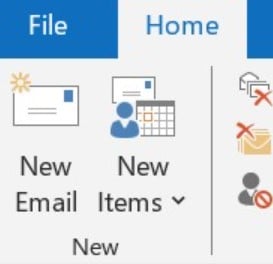
2. Select a New Email.
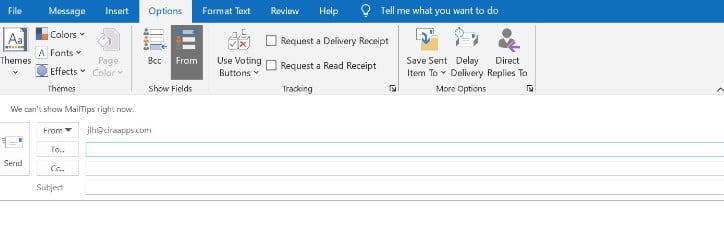
3. Select Options

4. In the message, click „From“ and choose the shared email account. Select Other email address and then enter the shared email address if you are unable to see your shared email address.
5. Select OK.
6. Once you’ve finished writing your message, select Send.
Note: You must add the „From“ field to Outlook in order to transmit from this shared mailbox.
Adding the field:
1. Start a new message
2. Select the Options menu item.
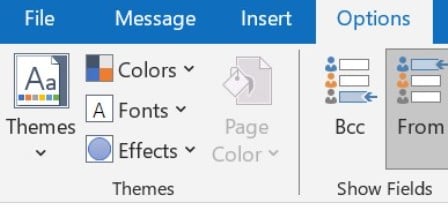
3. Under “Show Fields” choose “From”.
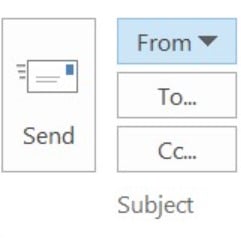
This field will now be visible in any new messages.
Recommended reading: How to Create Outlook Contact Folders?
How to Reply to a Mail in a Shared Mailbox in Outlook
1. Start Outlook.
2. Open the email message you want to reply to.
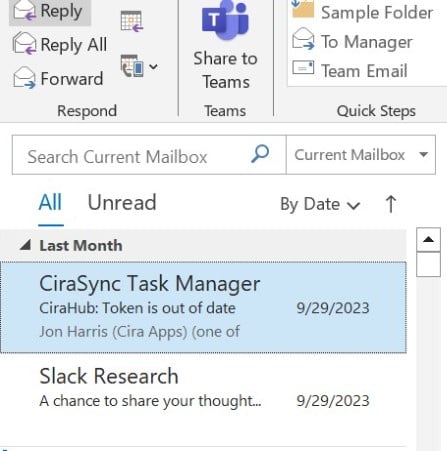
3. The name of your shared mailbox should appear in the From area at the top of your message. If not, select your shared mailbox from the From dropdown menu.
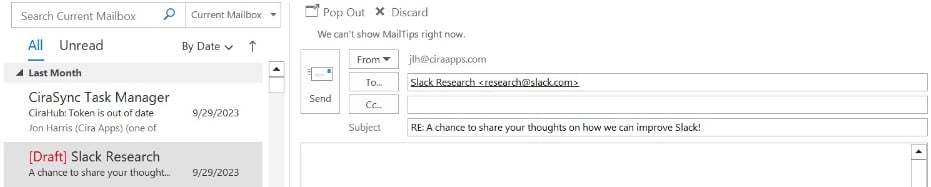
4. Once you’ve finished writing your message, select Send.
How to View and Use a Shared Contact List
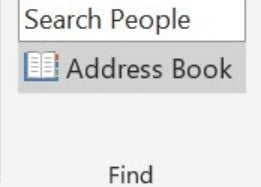
1. Select the People icon from the menu at the bottom of Outlook.

2. Your personal contacts are shown by default. Select Address Book from the Find group of the ribbon to see various address books.
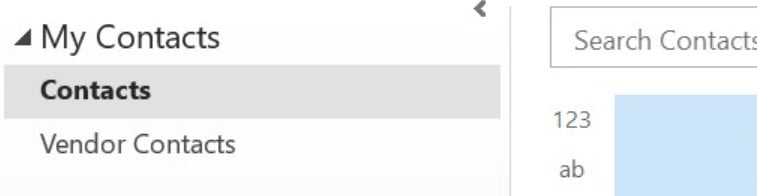
3. To view all of your organization’s address books and contacts lists, use the drop-down menu next to Address Book.
How to View and Use a Shared Calendar
1. Click Home after selecting the Calendar icon.
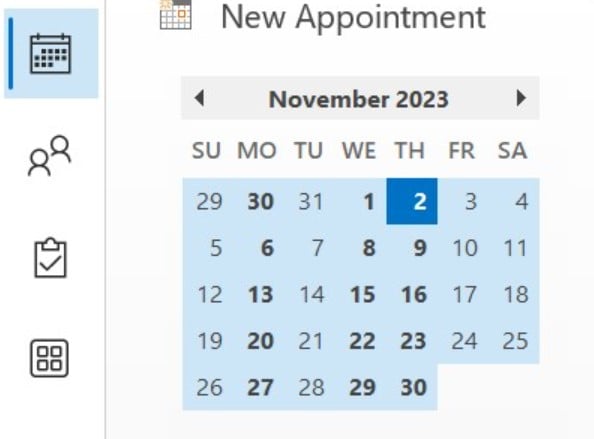
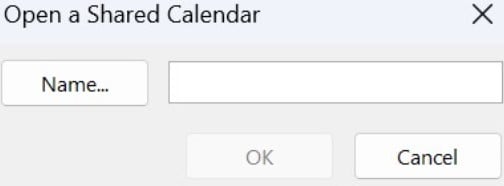
2. Click Add Calendar in the Manage Calendars section, and then select Open Shared Calendar.
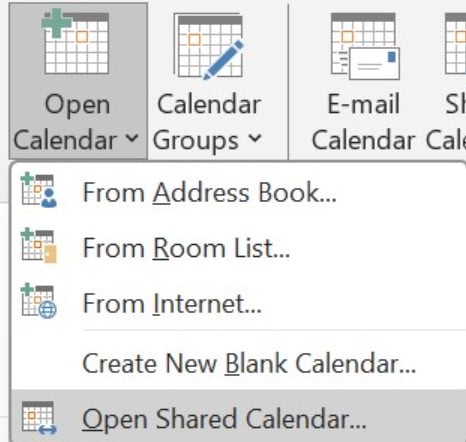
3. You may either click Name to choose a name from the address book or type a name into the Name field to create the calendar.
Search Items within the Shared Mailbox
1. Start Outlook.
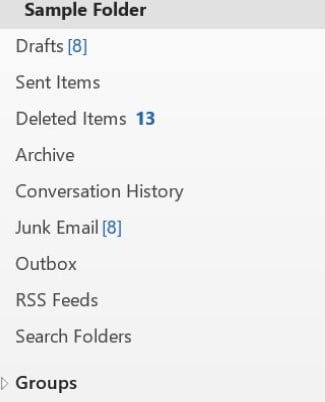
2. From the Folder Panel on the left, choose a folder from the Shared Mailbox.
3. Type the query in the Search Box on top of the Ribbon (Tool Bar).Search Box
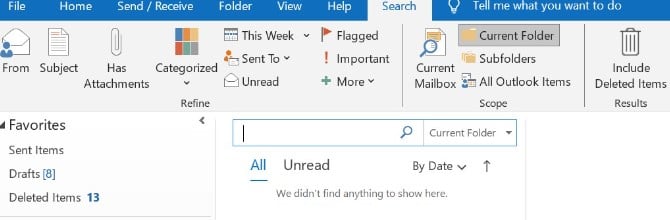
4. Execute the Search by pressing Enter or clicking on the Magnifier Button on the right of the Search Box.
Access and Use a Shared Mailbox on Outlook Mobile
Use these methods to access a shared mailbox on a mobile device.
1. Open Outlook on iOS or Android and sign in to your primary account.
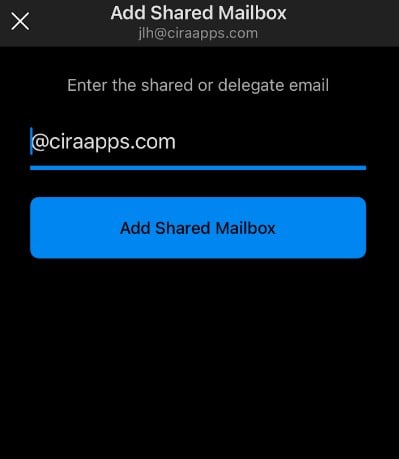
2. On iOS/Android, open Outlook → Settings → tap your account → Add Shared Mailbox, then enter the address. (Auto-mapping doesn’t apply on mobile, so this manual step is always required.)
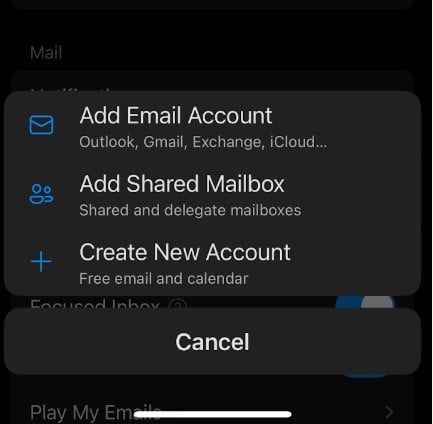
3. In Outlook Mobile, if you have more than one account, choose the one with the ability to access the shared mailbox.
Open a Shared Mailbox in Outlook on a Mac
1. Launch the Outlook application.
2. In classic Outlook for Mac, a Full-Access mailbox usually appears automatically. To add manually: Tools → Accounts → select your account → Delegation and Sharing → Shared With Me → add the mailbox.
3. Type the email address or mailbox name.
4. Select the mailbox and press the Add option.
Now the shared mailbox should appear in the left-hand folder window, underneath your primary mailbox.
You must add the „From“ field to Outlook in order to transmit from this shared mailbox. Adding the field:
1. Start a new message
2. Select the Options menu item.
3. Under “Show Fields” choose “From”.
To Sum Up
Outlook is used by many in the workplace to maintain constant communication with their coworkers. Setting up a shared mailbox can be necessary if you use Outlook for email on a regular basis. Hopefully this article has helped break down the steps needed to send a mail from a shared mailbox in Outlook.
Related Posts:
- How to Create a Shared Calendar in Outlook?
- How to Share an Outlook Calendar?
- How to Add Gmail to Outlook?
- How to View the Global Address Address?
- Best Outlook Calendar Tips
Troubleshooting: Shared Mailbox Not Showing
If your shared mailbox does not appear in Outlook, try the following troubleshooting steps:
- Verify permissions – Confirm that your Microsoft 365 administrator has granted Full Access permissions.
- Restart Outlook – Close and reopen Outlook after permissions have been assigned.
- Allow time for synchronization – Permission changes can take several minutes or, in some cases, a few hours to propagate.
- Check automapping – Some shared mailboxes must be added manually even when permissions are assigned.
- Remove and re-add the mailbox – If the mailbox was previously configured incorrectly, remove it and add it again.
- Sign out and back in – Refresh your Microsoft 365 account connection.
- Test Outlook on the web – If the mailbox appears online but not in Outlook, the issue is likely client-related rather than permission-related.
If the mailbox still does not appear, contact your Microsoft 365 administrator to verify mailbox permissions and Exchange configuration.
Frequently Asked Questions
Does a shared mailbox require a license?
Most shared mailboxes do not require a separate Microsoft 365 license if they remain within Microsoft’s supported storage limits and are used according to Microsoft’s licensing guidelines.
Can I send emails from a shared mailbox?
Yes. You can send emails from a shared mailbox if you have been granted Send As or Send on Behalf permissions by your administrator.
Why is my shared mailbox not showing in Outlook?
The most common causes are missing permissions, synchronization delays, automapping issues, or an Outlook client configuration problem.
Can I access a shared mailbox on my phone?
Yes. Shared mailboxes can be accessed through Outlook for iPhone and Android, although the setup process differs from desktop Outlook.
What’s the difference between a shared mailbox and a shared inbox?
A shared mailbox is a Microsoft 365 mailbox that multiple users can access. A shared inbox is often used as a general term to describe the inbox folder within a shared mailbox.
Can multiple users use a shared mailbox at the same time?
Yes. Shared mailboxes are designed for team collaboration and can be accessed simultaneously by multiple authorized users.
How do I open a shared mailbox in Outlook on the web?
Right-click Folders, select Add Shared Folder or Mailbox, enter the mailbox address, and click Add. Alternatively, use Open Another Mailbox to open it in a separate browser tab.