A dedicated service account with the Global Administrator role is required when you upgrade to the CiraSync Enterprise Edition plan. However, after you sign in to CiraSync Enterprise Edition for the first time, the service account can be downgraded to a custom role. This will not affect the proper functioning of CiraSync. This article shows you how to downgrade the service account from the Global Administrator role using both the old and new Office 365 admin centers.
Instructions
Assign administrator roles using the old administration center
- Log in to the Office 365 admin center.
- Click on Admin under Applications to access the administration center.
- Click on Users > Active Users. (See image below.)

- Click on the service account you wish to downgrade.
- Click Edit in the Roles column . (See image below.)

- Click on the circle next to Custom Administrator .
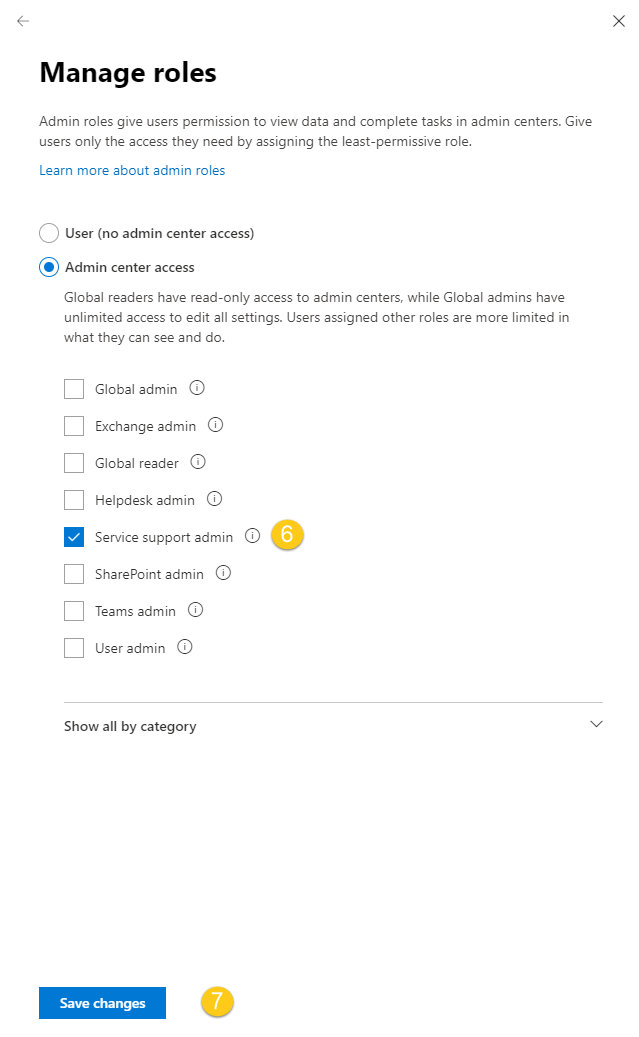
- Check the box next to the role of your choice. In this example, the account is demoted to Service Administrator .
- Click on Save .
Assign administrator roles using the new administration center
- Log in to the Office 365 admin center.
- Click on Admin under Applications to access the administration center.
- Click on Users > Active Users. (See the image below.)
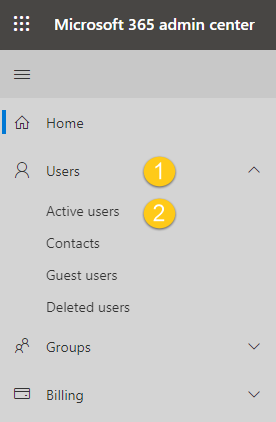 You will be redirected to the list of active users for your tenant. (See the image below.)
- Click on the service account you wish to downgrade. The account information will appear on the right side of the window. (See image below.)
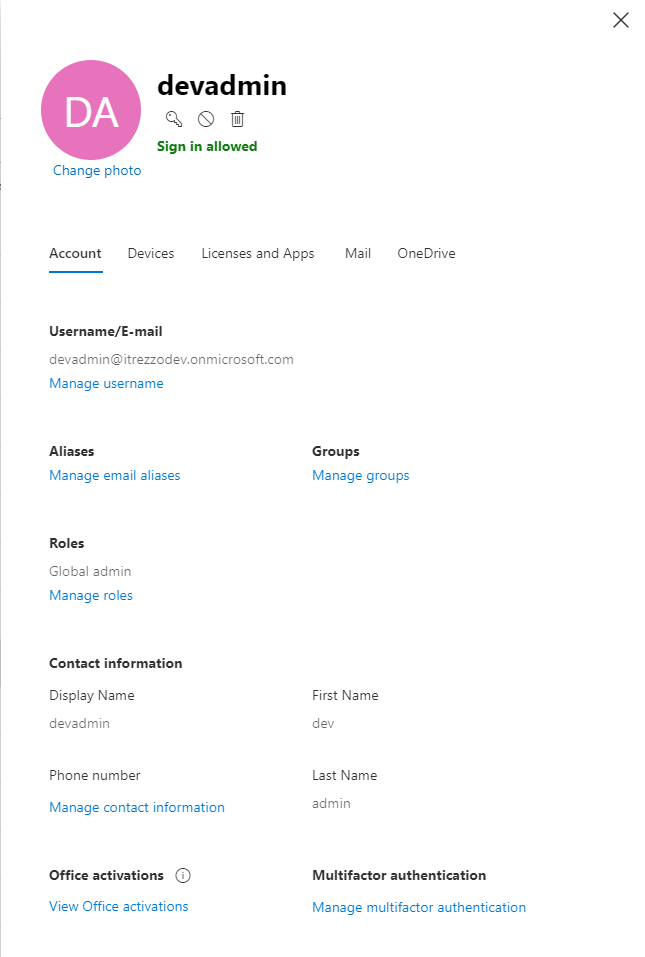
- Click on Manage roles under Roles .
- Click on Technical Support Administration under Access to the Administration Center.
- Click Save changes . (See image below.)