


Have you been wondering how you can access your ActiveCampaign contacts on SharePoint and vice versa?
Two-way syncing these sources together is an excellent way to remain notified of changes made to the contact lists of both platforms in real-time, regardless of the one you’re using at the time. This article will outline how to two-way sync ActiveCampaign and SharePoint contacts.
How to Two-Way Contact Sync Between ActiveCampaign and SharePoint
Create a spoke for ActiveCampaign
1. First, Log in to CiraHub. You will be taken to the onboarding wizard. (See figure below.) Next, select the object you want to sync. In this example, the contacts object has been selected. 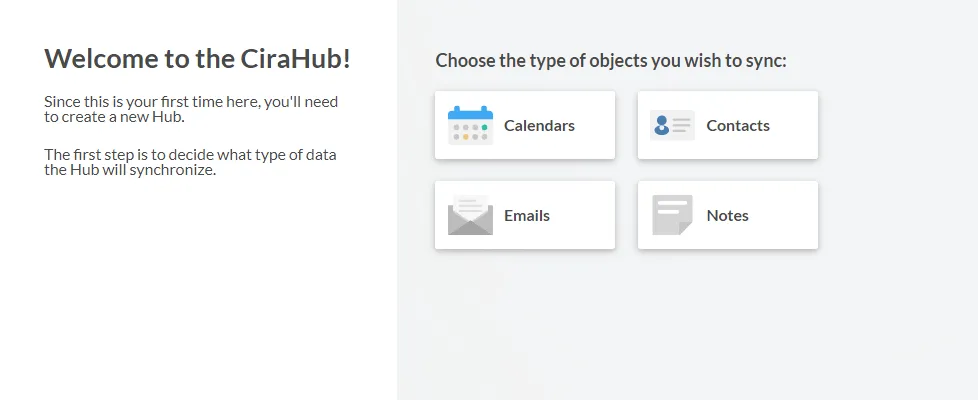
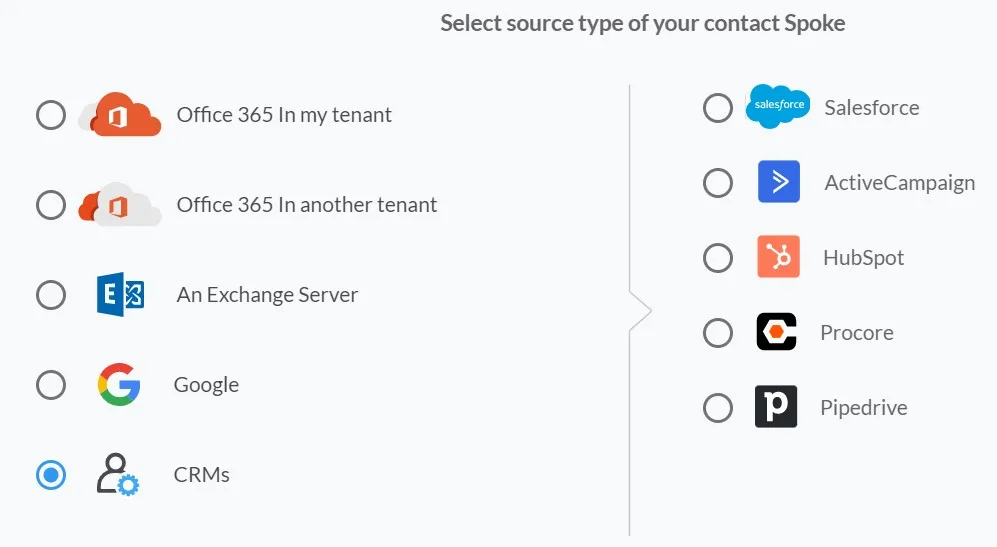
2. Next, start the Hub and Spoke setup. Click on “CRMs” as your source type for your contact spoke. (The Hub contains all synced Contacts from each spoke; a spoke can be a Public Folder, a user mailbox, the GAL, or a CRM).
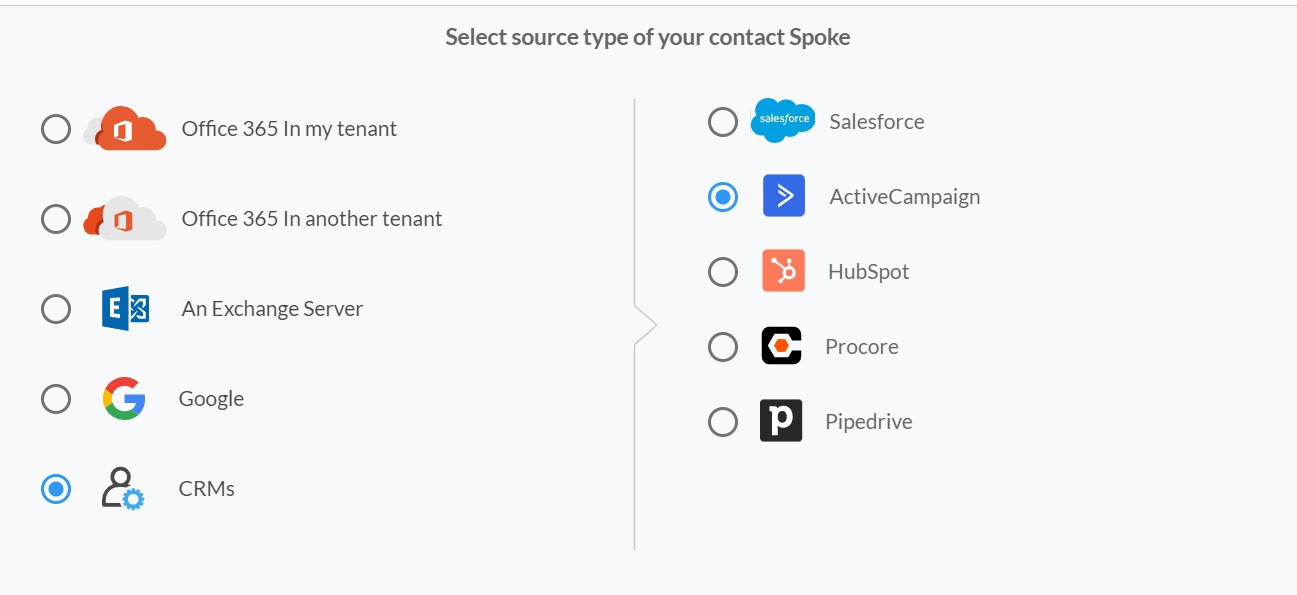
3. Select “ActiveCampaign” as the contact spoke type.
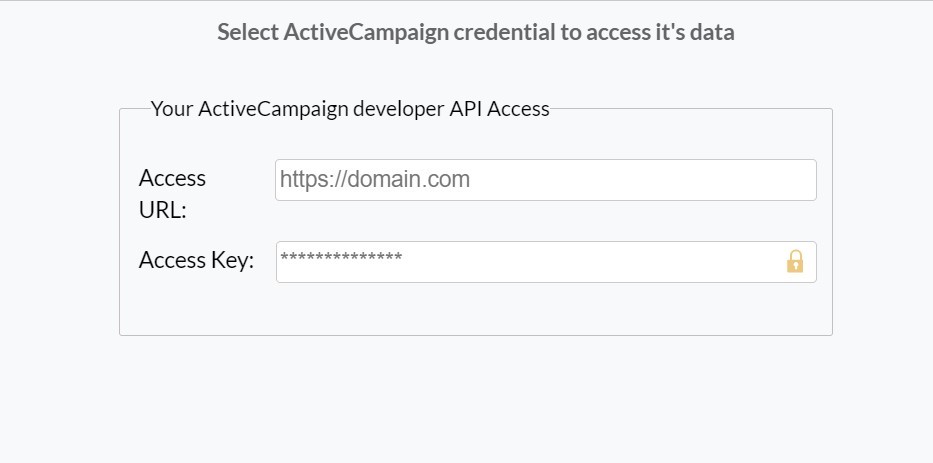
4. Enter your ActiveCampaign Access URL and Key.
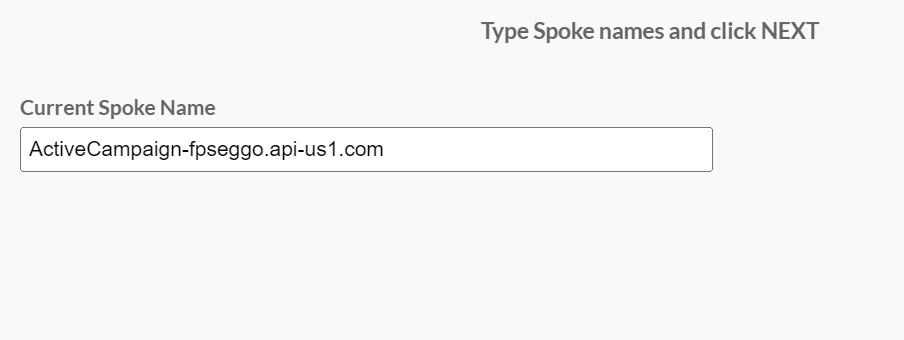
5. Type in a Spoke name and click next in order to two-way sync ActiveCampaign contacts. This will link CiraHub to your ActiveCampaign account and give CiraHub access to your contacts lists and CRM data in ActiveCampaign.
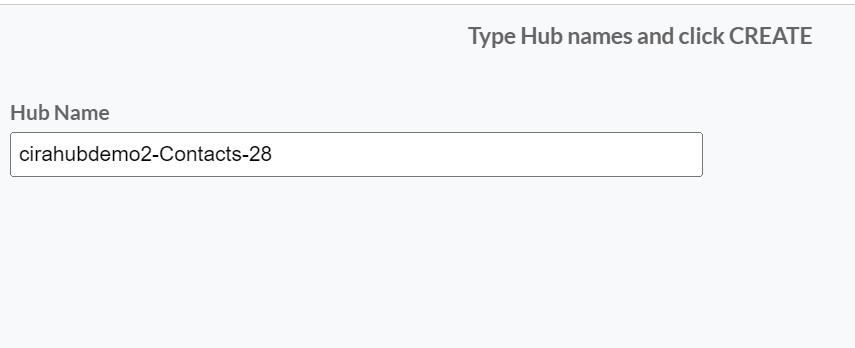
6. Type in a Hub name and click next.
Add a new spoke for SharePoint
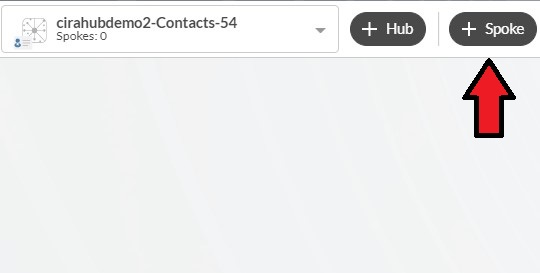
7. Select the option to add a new spoke.
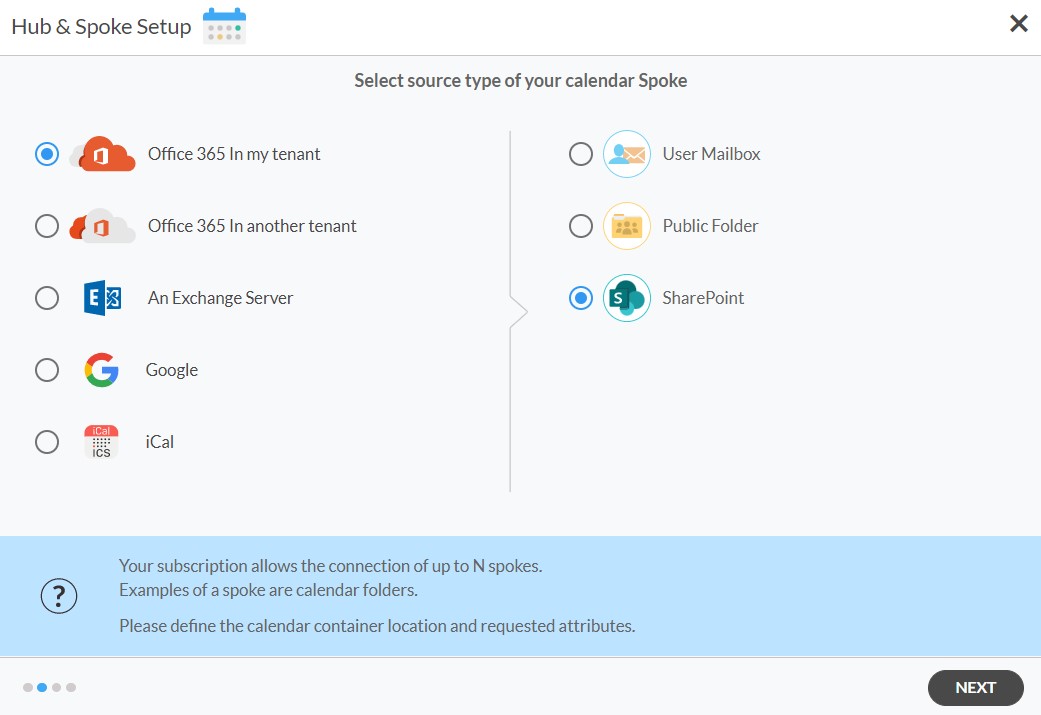
8. Next, select the source type of your calendar spoke. To sync your SharePoint account to CiraHub, Click Microsoft 365 In my tenant and select SharePoint .
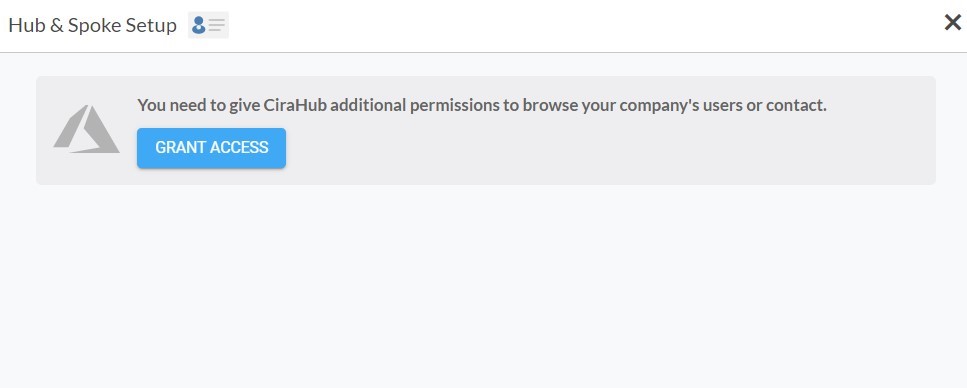
9. Click Grant Access to give CiraHub permission to browse your company users or contacts for SharePoint.
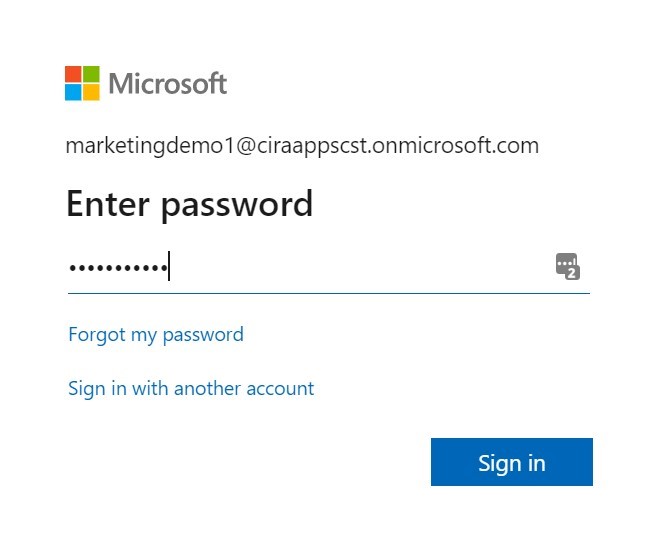
10. To two-way sync SharePoint Calendars you will need to sign into your Microsoft Account that is attached to your SharePoint account.
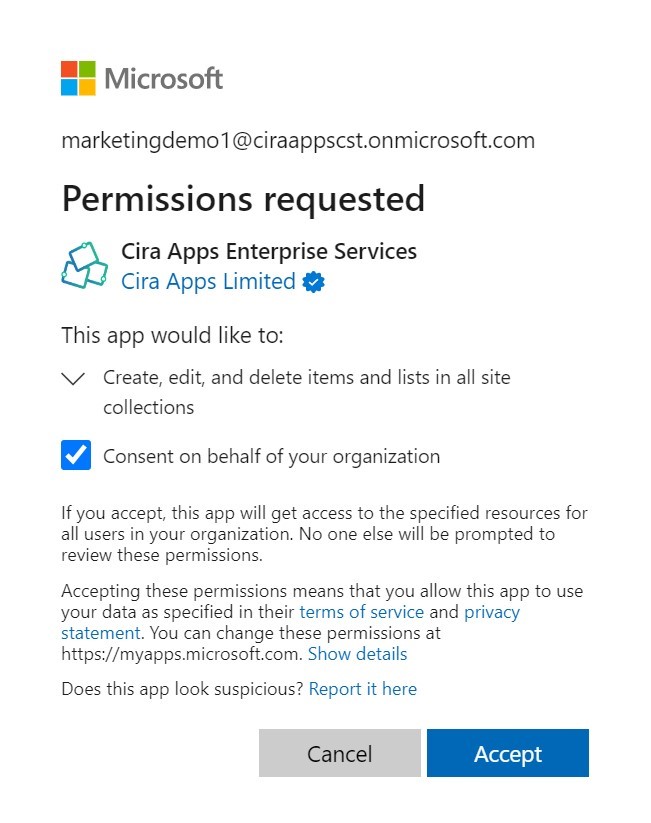
11. Give CiraHub Access to your SharePoint account and always check the box that states “Consent on behalf of your organization”.
12. Next, click on each Spoke, select Sync Options.
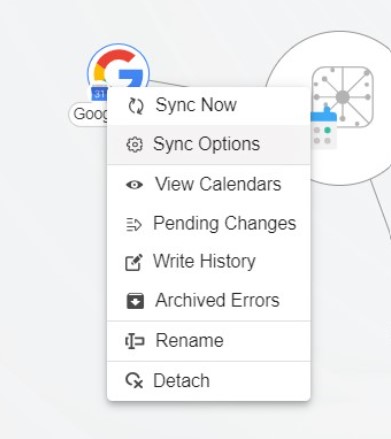
13. Click Allow Hub to create and two-way sync items in this spoke and click SAVE. (See figure below.)
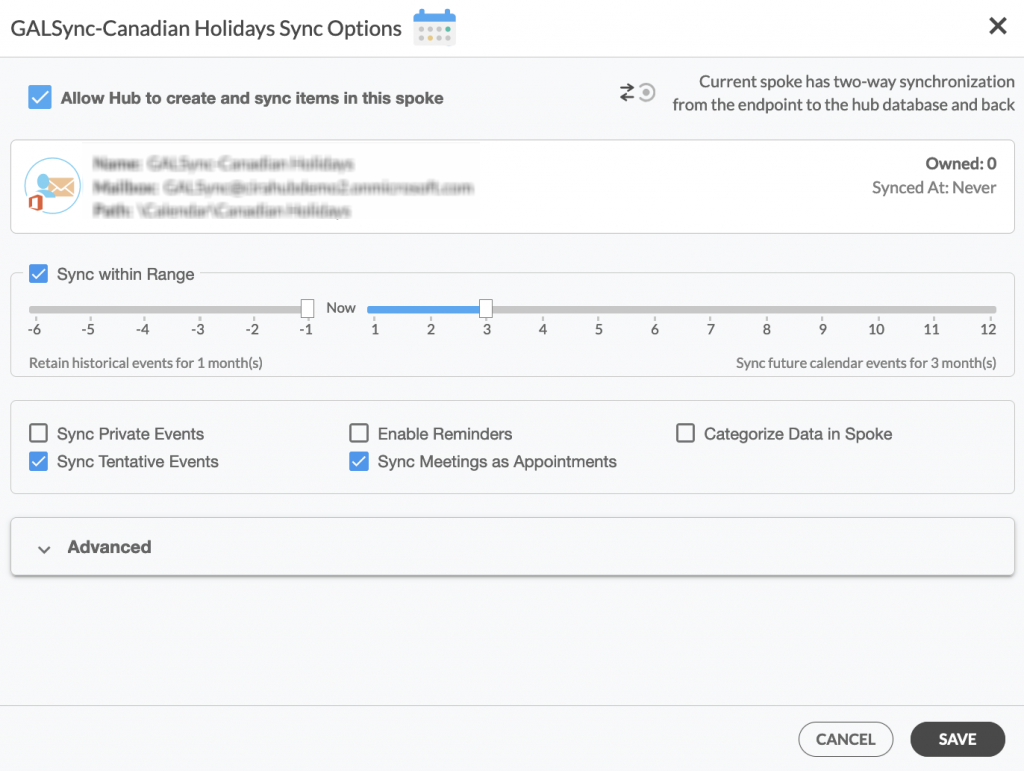
Note: Depending on your organization’s needs, you can utilize a variety of additional sync options, such as private and tentative events, reminders, syncing meetings as appointments, and categorizing data in spokes. You can edit synchronization settings for each of your spokes using the options at the bottom of the page.
14. On the CiraHub Dashboard, click on the Hub, then click „Sync Now“ to two-way sync ActiveCampaign and SharePoint contacts.
Your two-way automatic contact sync is now set up! From now, each contact change in ActiveCampaign will be reflected in your SharePoint contact list and vice versa. Enjoy the ease of not having to update contacts on both platforms manually whenever one of them is modified.

