

If you have Android users in your organization, you have probably felt this already.
Contacts live in Active Directory, but they never quite reach people’s phones. Users save numbers manually. Contacts go out of date. IT keeps fixing the same issue.
Trying to sync Active Directory to Android devices sounds simple, but Android devices do not connect to AD by default.
This guide walks through how to solve this issue by automatically syncing AD.
Why Active Directory Doesn’t Sync to Android Devices: The Problem
Active Directory was built to act as a central directory for users, groups, and contacts inside an organization. It works well for desktops, email systems, and internal tools that can read from it. Contacts stay structured, permissions are controlled, and IT teams manage everything in one place.
Android devices are a different story. They do not natively connect to Active Directory or know how to pull contact data from it. Android contact apps expect cloud accounts, local address books, or app-specific syncs.
There is no direct bridge between Android and Active Directory by default.
That gap creates a mess. Employees search Outlook, copy numbers, and save contacts by hand.
Plus, they miss updates or create duplicates, or IT handles a steady stream of tickets for something that feels basic, yet stays unsolved without a proper sync in place.
How to Sync AD to Android Devices (3 Common Methods)
Method 1: Manual Outlook Lookup and Save
Manually looking up contacts in Outlook and saving them on your phone is the most common way to access Active Directory contacts on Android devices.
Active Directory (or Microsoft Entra ID in cloud-only environments) acts as the directory source that Exchange uses to build the Global Address List. That directory data feeds email and directory services, but it does not connect directly to Android contact apps.
Then comes the Global Address List (GAL). It sits on top of that directory data. In environments using Exchange or Microsoft 365, Exchange reads users and contacts from the directory and presents them as the GAL.
Outlook then connects to Exchange. When someone searches for a coworker in Outlook, they are not searching the directory directly. They are searching the GAL that Exchange builds from that directory data.
So the flow looks like this in practice:
Directory (Active Directory or Entra ID) → Exchange → Global Address List → Outlook
Android never enters that chain by default. That’s why users open Outlook on their phone, find a contact in the GAL, and then manually save it to the Android contacts app. Outlook can see the directory. The Android Contacts app cannot.
But the point is this method relies entirely on the end user (employee). Here are the typical steps they will follow:
1. Open Outlook or another email app connected to the company directory.
2. Search for a coworker or external contact in the directory and open the contact details.
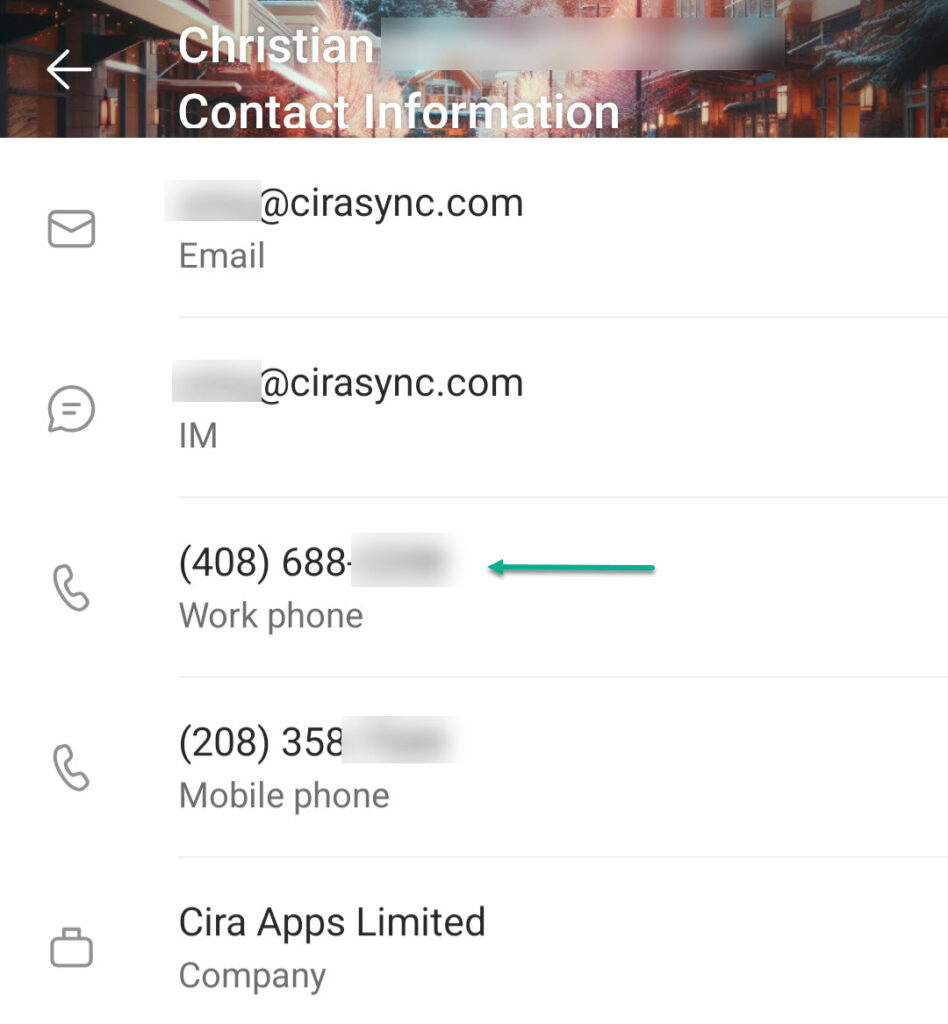
3. Manually copy the phone number and save it in your Android device’s local address book.
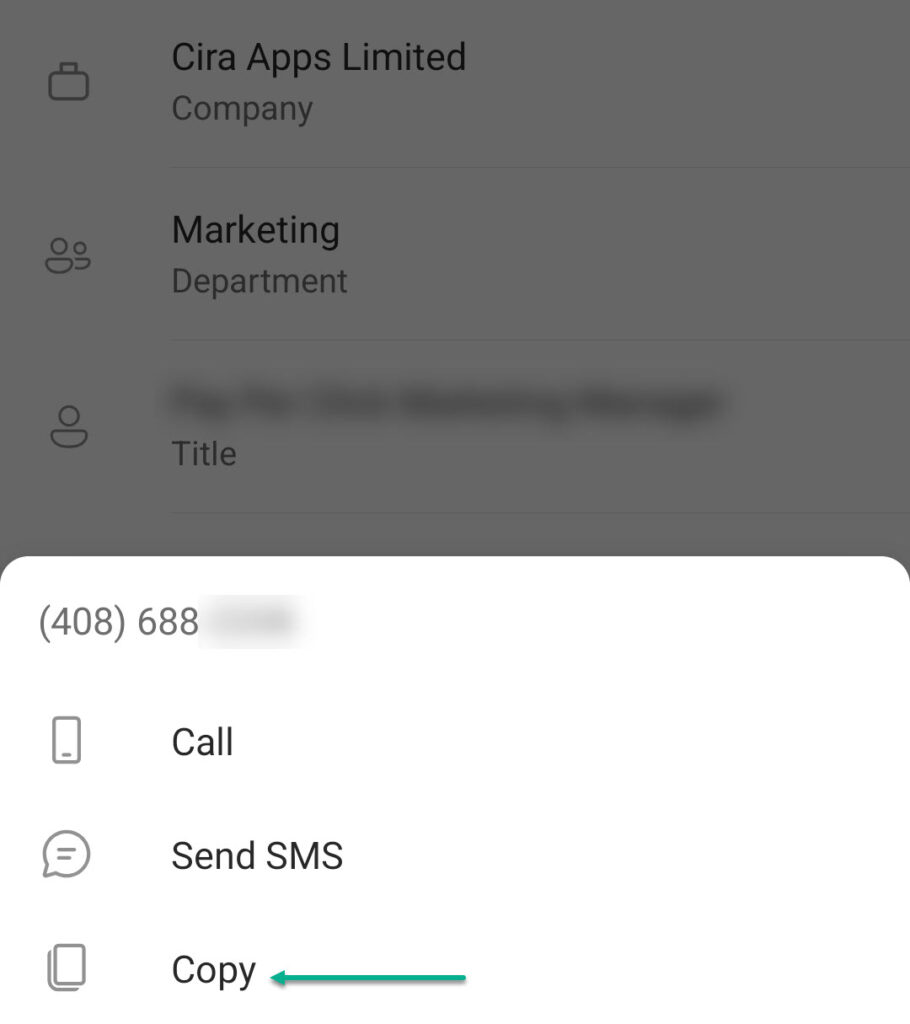
4. Repeat the process for each contact they need.
This method works in the short term since users get the contact they need, right when they need it. But every user saves contacts differently. Some save phone numbers only. Others include emails or job titles.
Over time, contacts fall out of date. Users create duplicates when they save the same person again. Former employees remain on phones.
Teams keep using this Outlook lookup method when no sync exists or when mobile access feels secondary. It rarely scales beyond very small teams.
Let’s see another way to sync AD to Android devices.
Method 2: Exporting Active Directory Contacts
This method shifts the work from individual users to IT, but it still stays very manual.
Instead of asking employees to save contacts one by one, IT exports contact data from Active Directory or Microsoft Entra ID and distributes it as a file.
Here is how to export Active Directory contacts.
- Open Active Directory Users and Computers on a domain controller or admin workstation.
- Navigate to the OU that contains users or contact objects.
- Use a PowerShell command, such as Get-ADUser or Get-ADObject, to pull contact attributes like name, phone number, email, and title.
- Export the results to a CSV file using Export-Csv.
- Review the CSV in Excel to remove unused columns or fix formatting issues.
For Entra ID (Formerly Azure AD), the flow looks slightly different:
- Sign in to the Microsoft Entra admin center.
- Go to Users or Contacts.
- Use the export option or Graph-based scripts to download user data as a CSV.
After that, IT shares the file through email, a shared drive, or an internal portal. Users then manually import the CSV into their Android/Google Contacts app.
The video below from GuideRealm explains how to do it.
However, the weaknesses stay the same. The file freezes data in time, and users import it differently. Updates require repeating the entire process, which quickly turns into ongoing maintenance rather than a real sync.
Let’s see another way to sync Active Directory contacts to Android devices.
Method 3: Use a Dedicated Active Directory Contact Sync Tool
This approach uses a purpose-built AD sync solution that connects directly to Active Directory or Microsoft 365 and pushes contacts to Android devices automatically.
IT sets up the tool once, and users do nothing after that.
Compared to manual saving, exports, or Outlook workarounds, this method removes friction entirely.
- Contacts stay consistent across devices without user effort.
- Updates flow automatically instead of relying on reminders or reimports.
- IT teams gain control over who gets which contacts and when updates happen, rather than chasing one-off issues.
Over time, this reduces duplicate entries, outdated information, and the steady stream of mobile contact tickets.
This is exactly where CiraSync comes into play.
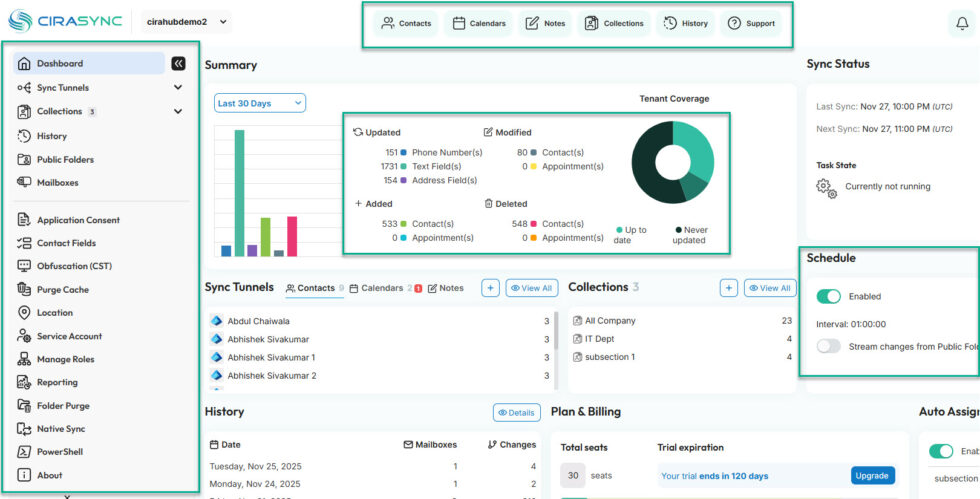
CiraSync allows you to sync Microsoft 365 contacts to Android devices by first syncing the contact information directly into each user’s Exchange Online mailbox.
Once the contacts are in the mailbox, they automatically flow to the user’s Android device through the native Exchange/ActiveSync connection the device already uses for its email.
Inside CiraSync, dmins connect the directory, choose which users or groups should receive which contacts, and define how often syncs run. Contacts then appear on Android devices without users searching, copying, or saving anything manually.
When a phone number or title changes in Active Directory, CiraSync updates it on target devices based on the sync schedule.
Check out our FAQ to learn more about CiraSync, and read this guide to understand its security and compliance.
Let’s now see how to sync Active Directory contacts to Android devices using CiraSync.
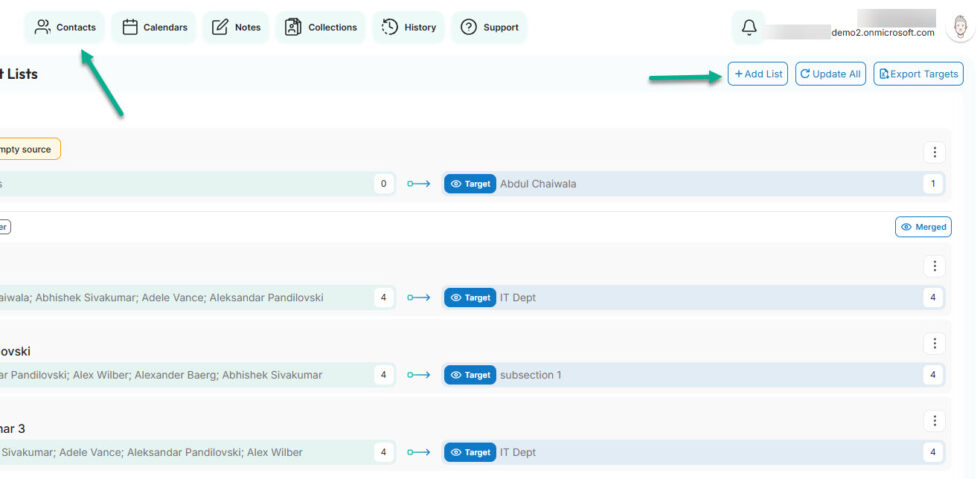
1. Click Contacts at the top > Add List.
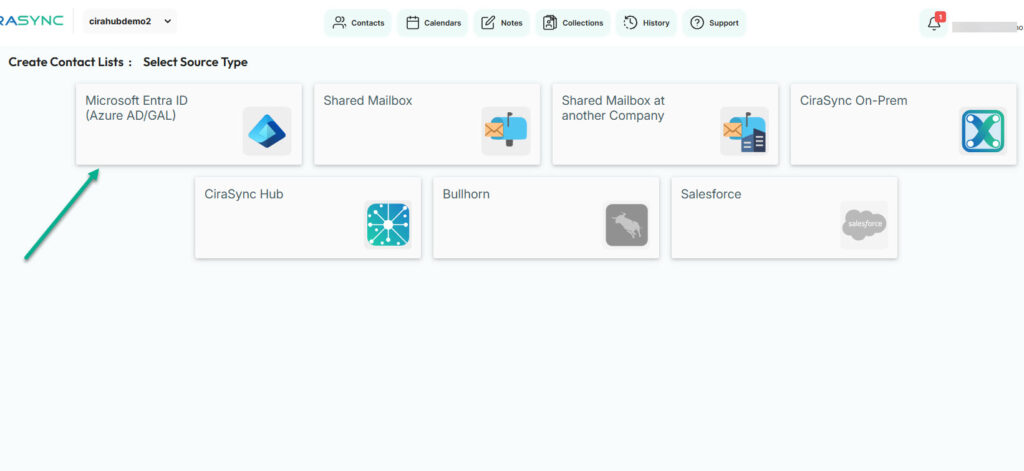
2. Choose the source. It can be Shared Mailboxes, Salesforce, and more. We will go with Microsoft Entra ID for this tutorial.
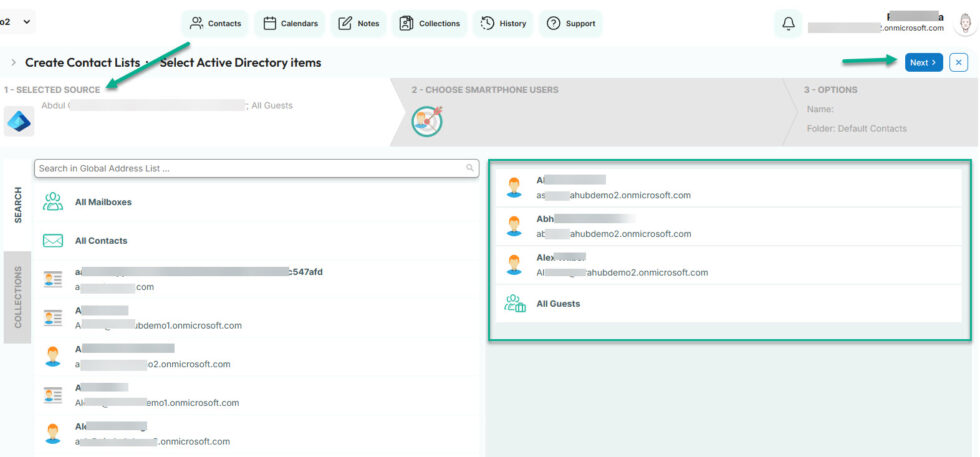
Now, select the contact lists you want to sync. You can sync one or more employees or the entire contact list. Click Next.
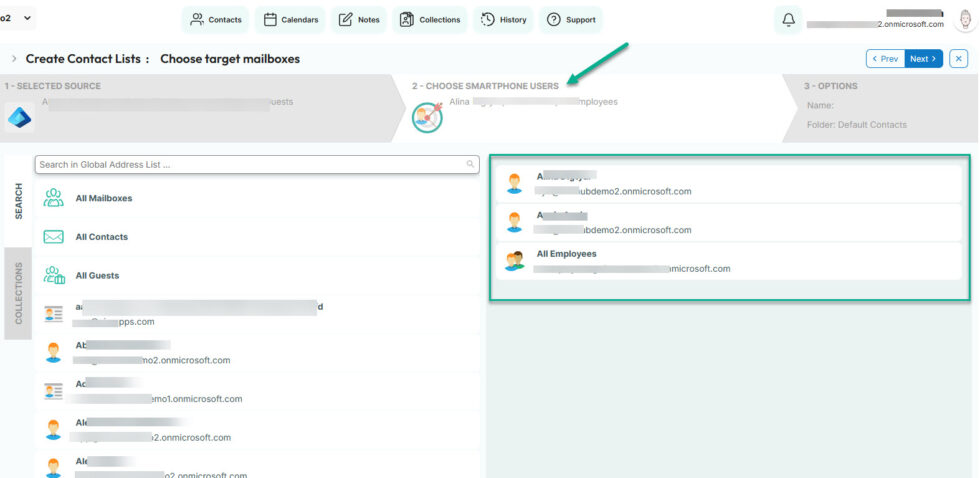
3. Let’s choose the smartphone users. These are the people you want to sync the contacts to. It could be leaders in your organization, a specific department, or all employees.
In my case, we will sync to all employees.
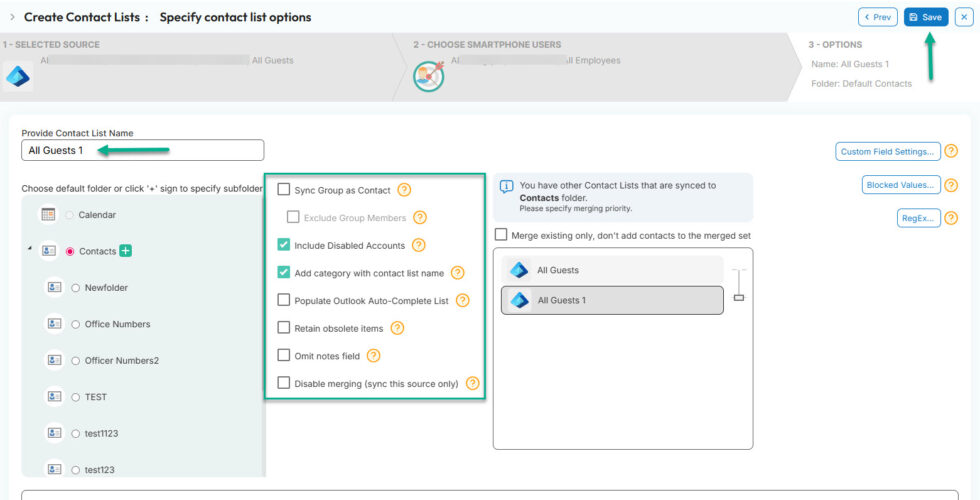
4. Now, let’s ask CiraSync to work like we want.
For instance, the AD sync tool will not sync disabled accounts. This means that if you disable accounts in the Entra ID (Azure AD/GAL), CiraSync will not sync them to the Android devices.
However, you can decide to sync them by checking the “Include Disabled Accounts” box.
Using other advanced settings, admins can also retain obsolete items, omit note fields, or disable merging.
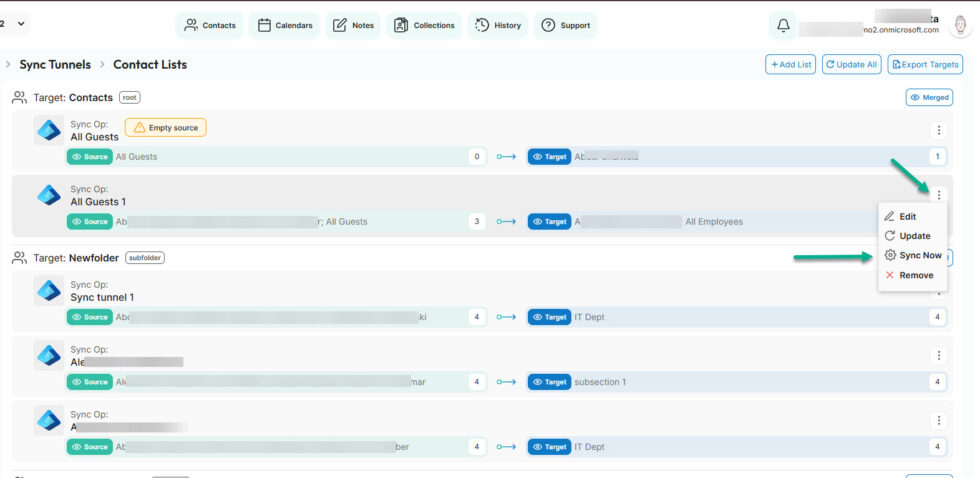
CiraSync will now redirect you to Sync Tunnels, where you’ll see a sync preview. Press Sync Now.
5. Finally, check Update Cache and Sync Photo (if you want to sync profile pictures as well), and click OK.
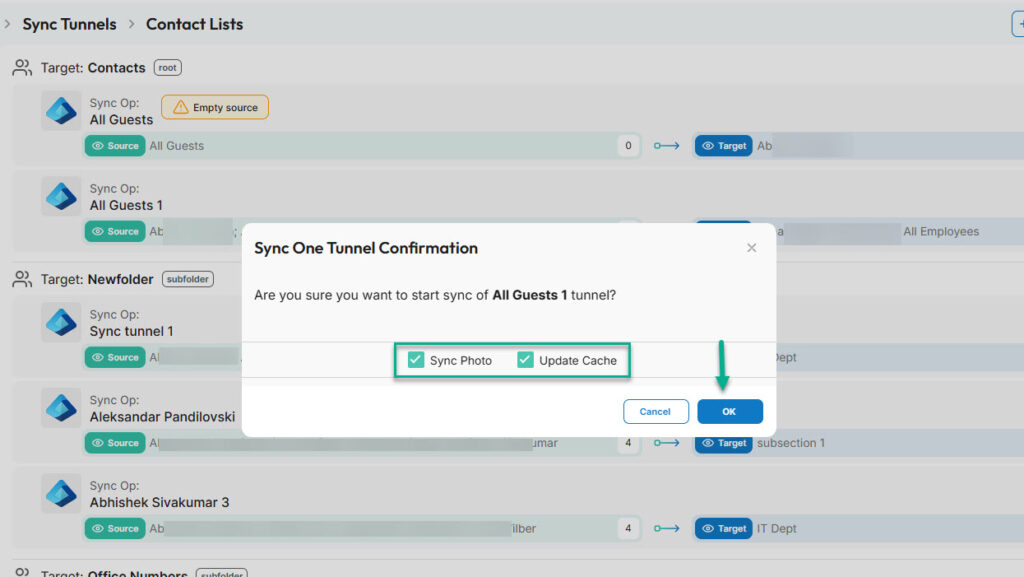
And voilà, you just synced Active Directory contacts to Android devices using CiraSync.
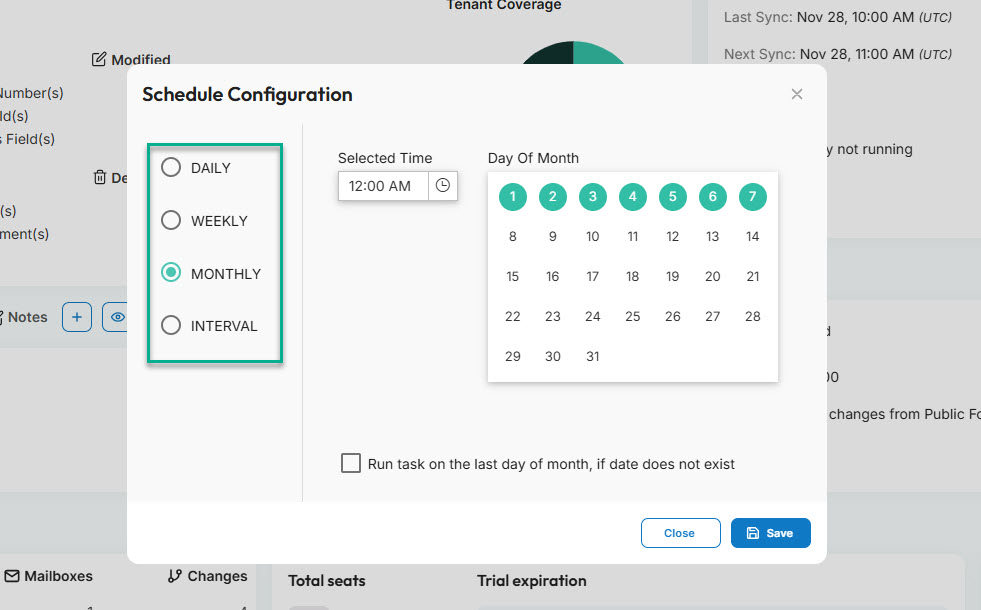
Oh, one more tip: Go to the main dashboard and choose your syncing schedule.
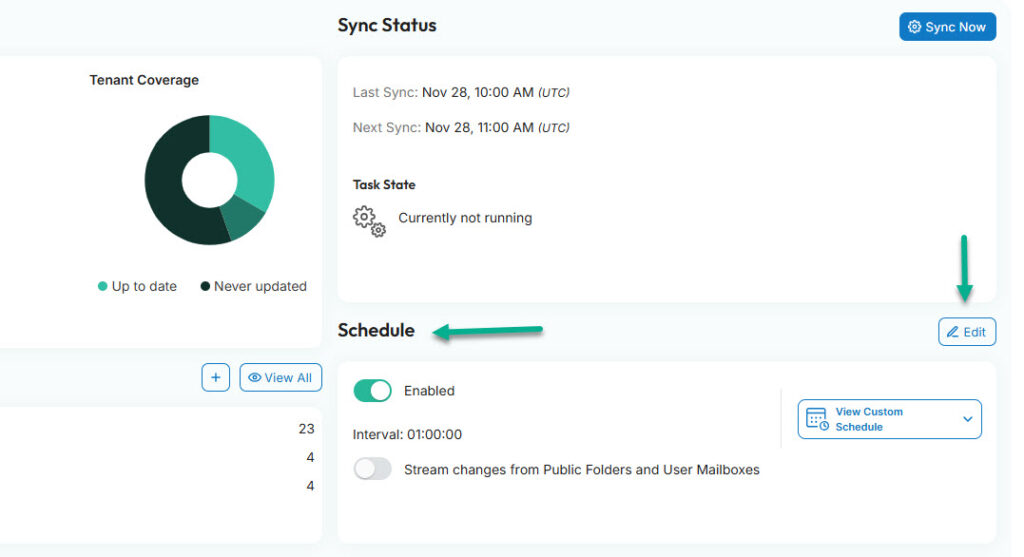
It can be:
- Daily — Once per day (e.g., 09:00 AM)
- Weekly — Select the days (e.g., Monday, Wednesday, and Friday at 09:00 AM)
- Monthly — Select the days of the month (e.g., 6th, 10th, and 18th at 10:00 AM)
- Interval — Choose a time interval (e.g., every one hour)
Sync AD Contacts to Mobile Devices Automatically
Syncing Active Directory to Android devices is an infrastructure.
Short-term fixes like manual saves, exports, or Outlook lookups may work for a moment, but they introduce drift and ongoing support work.
The right sync method removes guesswork, reduces noise for IT, and keeps contact data dependable as the organization grows. Over time, that reliability saves more time than any workaround ever could.
FAQ
No. Android does not natively connect to Active Directory. You need a workaround or a dedicated sync solution to bridge that gap.
Is the Global Address List the same as Active Directory?
No. Active Directory stores the data. The Global Address List is a directory view created by Exchange so apps like Outlook can search contacts.
Why do contacts show up in Outlook but not in Android Contacts?
Outlook can read the GAL through Exchange. The Android contacts app cannot, which is why contacts stay trapped inside Outlook.
Can Outlook automatically save GAL contacts to Android?
No. Outlook treats GAL entries as read-only directory profiles. There is no reliable setting to force them into the Android address book.
Does exporting Active Directory contacts create a real sync?
No. CSV exports create a snapshot in time. Any change requires a new export and reimport, which leads to outdated contacts and duplicates.
Can Mobile Device Management tools handle contact sync well?
Some MDM tools can push contacts, but contact sync is usually secondary to device control and often lacks flexibility or reliability.