This guide shows how to do the following:
- Add phone number extensions to Outlook Contact items.
- Sync phone numbers with extensions using CiraSync so users in your tenant can call these numbers with the extension already dialed.
NOTE: Caller ID will not work for GAL contacts with extensions. This is because the format of Outlook Contact Extensions does not match the format of the GAL.
Instructions
Adding Phone Numbers with Extensions to Outlook Contacts
- Log in to either Outlook Desktop or Outlook on the web. In this example, use Outlook Desktop.
- Click the People icon at the bottom of the left-hand navigation panel to go to People View.
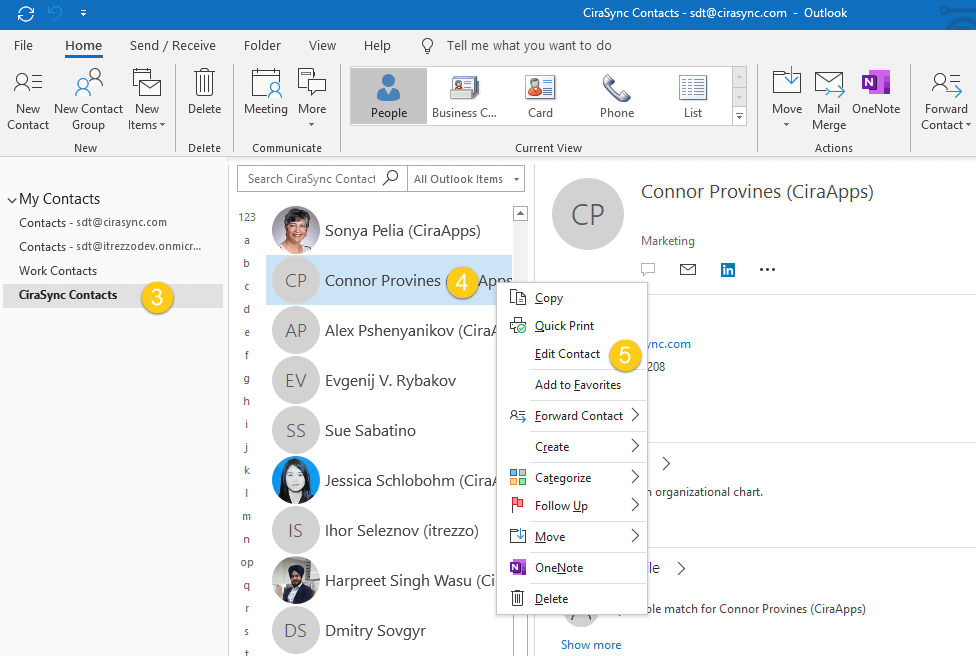
- Select the Contact Folder with the desired contact.
- Right-click the contact you want to edit.
- Click Edit Contact. (See figure below.)

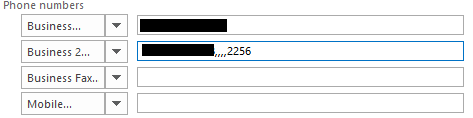
- Click one of the drop-down arrows that isn’t for Business under Phone numbers.
- Select Business 2.
- Input the inbound number in the Business
- Input the inbound number+,,,,+extension in Business 2. (See figure below.)

- Click Save & Close at the top-left corner of the window.
Syncing Phone Number with Extensions with CiraSync
- Log in to the CiraSync dashboard.
- Click the username in the top-right corner of the dashboard.
- Click SETTINGS. (See figure below.)

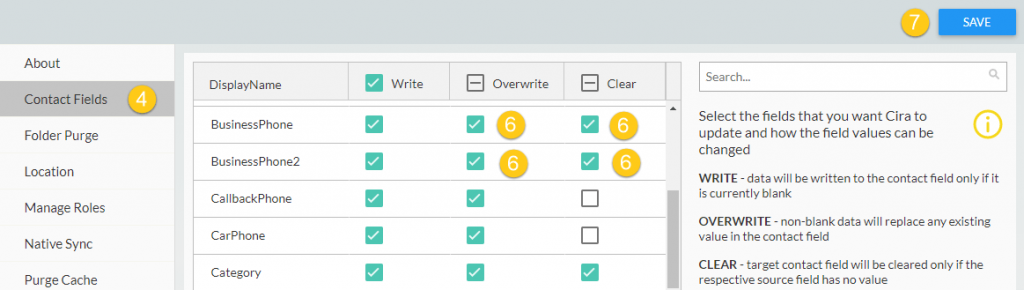
- Click Contact Fields.
- Scroll down to BusinessPhone and BusinessPhone2.
- Check Overwrite and Clear in both rows.
- Click SAVE. (See figure below.)

- Click the CiraSync logo to return to the tenant dashboard.
- Check Update Cache under the Sync Status pane.
- Click SYNC NOW.