


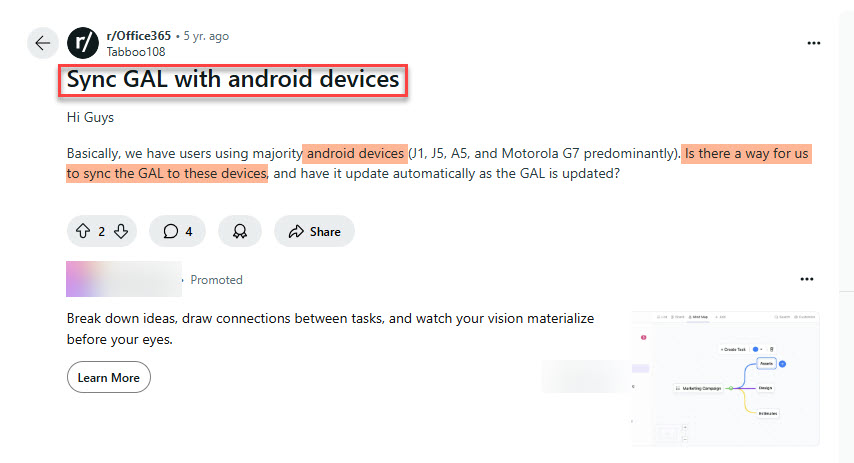
Escribí este artículo porque muchas personas (y yo) estamos buscando la mejor manera de sincronizar la lista global de direcciones con los dispositivos Android. De hecho, pasé seis días leyendo muchos artículos en línea y conversaciones de Reddit para encontrar la solución más fácil.
I then spent two weeks working with our IT team to test each method.
Here are 6 ways to sync the global address list to Android devices.
Continué leyendo
Si quiere sincronizar con iPhones, consulta mi guía sobre cómo sincronizar la Lista Global de Direcciones con iPhone.
Principales conclusiones:
- I found 6 ways to sync the GAL to Android devices: 1) Using Microsoft Outlook, 2. CiraSync, 2) Microsoft Exchange ActiveSync, 3) Manual export of contacts, 4) Custom scripting and API integrations, and 5) LDAP (Lightweight Directory Access Protocol).
- CiraSync ofrece la mejor y más fácil
- La Lista Global de Direcciones (Lista Global de Direcciones) no se sincroniza automáticamente con los dispositivos Android a menos que la sincronices utilizando una herramienta de terceros o un proceso manual.
- La sincronización de la Lista Global de Direcciones con tu dispositivo Android no afecta a tus contactos personales.
¿Cómo sincronizar la lista global de direcciones con dispositivos Android?
Method 1: Use Microsoft Outlook
Microsoft has confirmed that true GAL syncing to Android devices doesn’t exist. There is no built-in way to transfer your company’s entire address book to your phone.
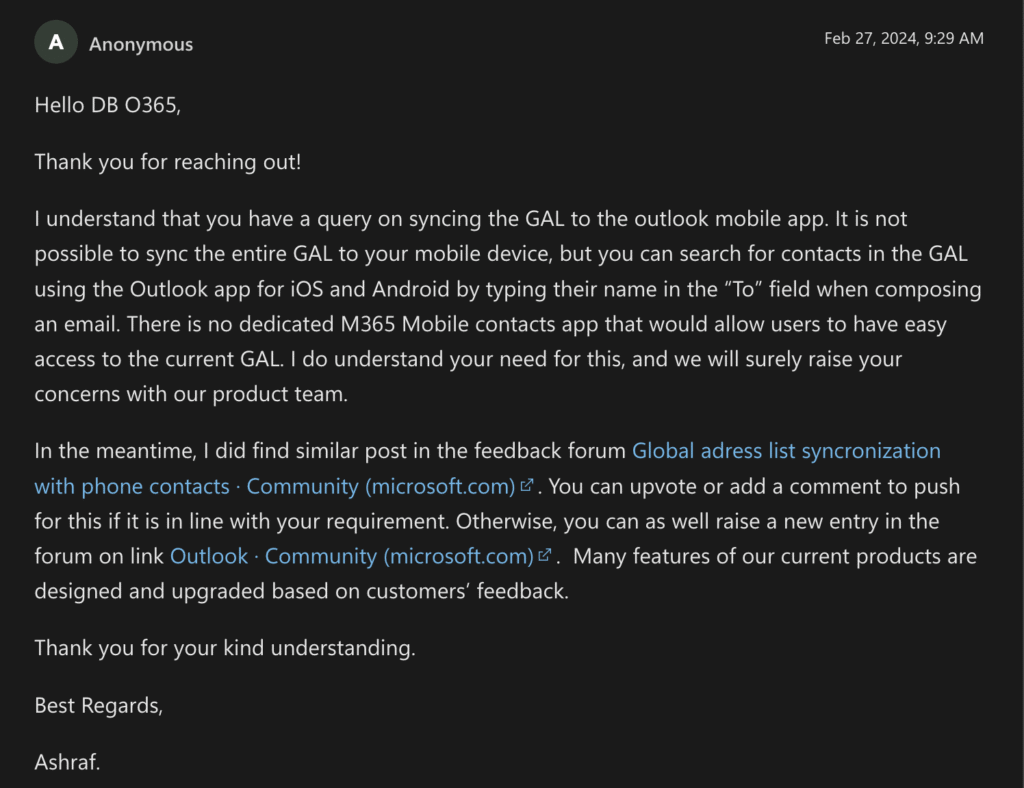
The Outlook mobile app lets you search for colleagues when writing emails, but that’s about it.
You can type someone’s name in the «To» field and find them, but these contacts won’t show up in your phone’s regular Contacts app or anywhere else on your device.
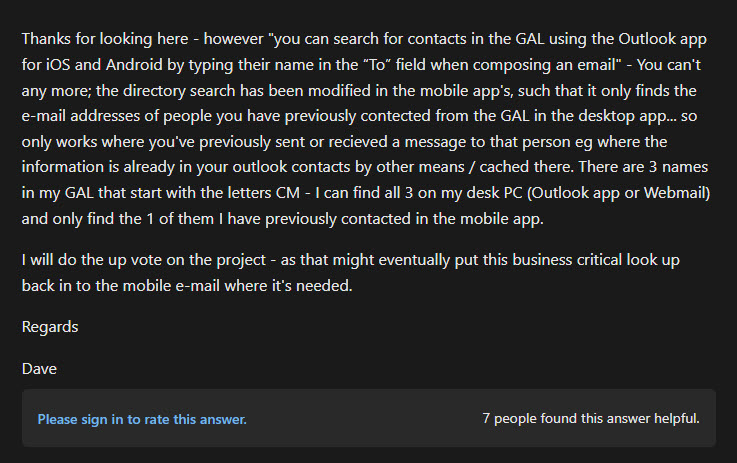
Even worse, Microsoft limited this feature further in 2024.
Now, you can only find people you’ve emailed before, not everyone in your company directory.
You can search for contacts within the Outlook app, view basic information such as name and phone number, and make calls directly from the app. But that’s where it ends.
Why this sucks?
These contacts are trapped inside the Outlook app.
They won’t work with your phone’s dialer, text messages, WhatsApp, or any other apps. Every time you want to contact a colleague, you have to remember to search within Outlook first. It’s frustrating and time-consuming.
So, this method is more of a workaround than a real solution. Most people find it annoying and look for better alternatives like CiraSync.

Method 2: Use a Third-party App
CiraSync es una solución de sincronización que permite a los usuarios sincronizar toda la Lista Global de Direcciones con sus smartphones (iPhones y Androids).
Los usuarios pueden sincronizar un número ilimitado de Listas Globales de Direcciones (GAL), carpetas públicas, CRM y calendarios compartidos de Office 365.
A continuación te explicamos cómo utilizar Cirasync para sincronizar la lista global de direcciones con tu Android.
1. Inicie sesión en el panel de control de CiraSync.
2. Haga clic en el signo + de la lista de contactos. (Véase la figura siguiente).

3. Seleccione el tipo de fuente de los contactos. Para este ejemplo, utilizaremos la Lista global de direcciones como fuente de los contactos.

4. Haga clic en Colecciones.

5. Seleccione las fuentes de contacto deseadas.

6. Pulse el botón SIGUIENTE en la esquina superior derecha.

7. Seleccione el contacto de usuario que desea utilizar como destino.

8. Pulse SIGUIENTE en la esquina superior derecha.
9. Ponga un nombre a la lista de contactos en la casilla Nombre de la lista de contactos.

10. Haga clic en el signo + situado junto a los contactos.

11. Introduzca el nombre que prefiera para su subcarpeta.

12. Marque Sincronizar grupos de contactos si tiene grupos en la lista de contactos y desea sincronizar los miembros de ese grupo. Puede elegir excluir a los miembros del Grupo de la sincronización.

13. Marque Rellenar lista de autocompletar de Outlook si desea que estos contactos de sincronización aparezcan en la lista de autocompletar de Outlook.

14. Por defecto, CiraSync eliminará los contactos del buzón de destino si se eliminan del origen. Si desea permitir que los usuarios conserven estos elementos obsoletos, marque Conservar elementos obsoletos.

15. Hacer clic en GUARDAR

16. Accederá al panel de resumen de sincronización.

17. Haga clic en el icono CiraSync de la esquina superior izquierda de la ventana para volver al panel de inicio de CiraSync.

18. Marque la casilla Actualizar caché en el panel Estado de sincronización, en la esquina superior derecha del panel.

19. Pulse SINCRONIZAR AHORA para ejecutar una sincronización manual.

Método 3: Utilizar Microsoft Exchange ActiveSync
1. Vaya al centro de administración de Microsoft 365.
2. En el centro de administración de Microsoft 365, abra el menú Centros de administración y seleccione Exchange.

3. Una vez dentro del centro de Administración de Intercambiosr, navegar hasta Recipients > Mailboxes.

4. Seleccione el buzón de usuario para el que desea activar o desactivar Exchange ActiveSync.

5. En las propiedades del buzón del usuario, haga clic en Dispositivos móviles.

6. En la sección Dispositivos móviles, puede revisar la configuración de sincronización y gestionar, añadir, eliminar o bloquear el acceso a los dispositivos. Esta sección también le permite gestionar políticas de dispositivos, iniciar borrados remotos y configurar ajustes adicionales de dispositivos móviles.

7. Haga clic en Examinar para acceder a la configuración de la política de dispositivos móviles y modificarla.

8. Desde aquí, puede ver y ajustar los detalles de la política del dispositivo móvil, actualizar el estado de sincronización y configurar los ajustes de cifrado del dispositivo según sea necesario.

Limitations of Using Exchange ActiveSync for GAL Syncing
Exchange ActiveSync has built-in restrictions that make proper GAL syncing impossible, no matter how the IT team sets it up.
ActiveSync only handles basic information, such as names, emails, phone numbers, and job titles. You won’t get addresses, manager info, departments, or any custom fields your company uses.
Instead of downloading contacts to your phone, ActiveSync makes you search every time you need someone. Each search needs an internet connection, and you need to type at least 3 characters before seeing results.
Contact info also isn’t saved on your device.
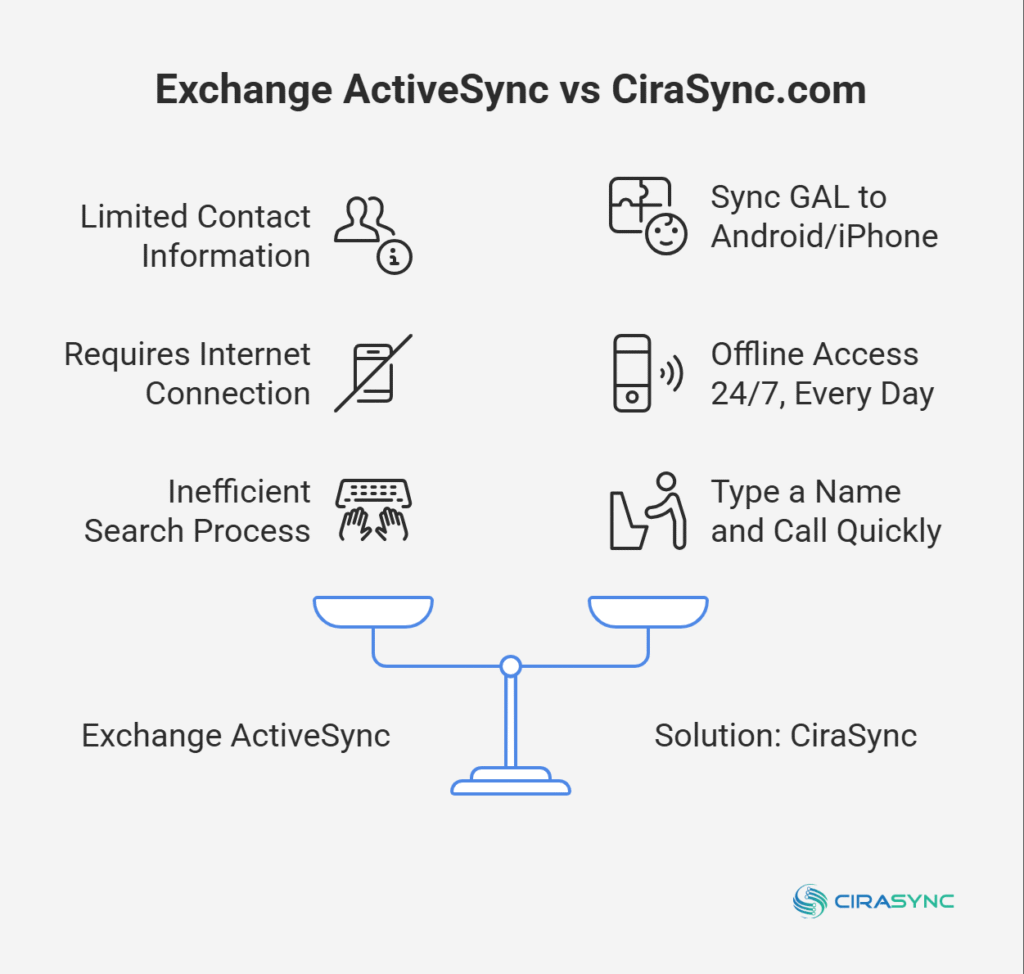
Lose your internet connection and you lose access to your colleagues’ information.
Even if IT wanted to help, they can’t work around these issues. They’re baked into how ActiveSync works and haven’t been updated in years.
The reality is that ActiveSync was built for email and calendar syncing. Microsoft added GAL support later as an afterthought, with strict restrictions that they haven’t improved.
Método 4: Exportación e importación manual de los contactos
1. En Outlook, vaya a Archivo.

2. Haga clic en Importar/Exportar en Abrir y Exportar.

3. Haga clic en «Exportar a archivo».

4. Seleccione Valores separados por comas.

5. Desplácese hasta la parte superior de Seleccionar carpeta para exportar de la bandeja de entrada y elija la carpeta Contactos situada en su cuenta. Seleccione Siguiente.

6. Haga clic en Examinar, asigne un nombre al archivo y pulse Aceptar.

7. Después de confirmar la ubicación en su ordenador donde se guardará el nuevo archivo de los contactos, haga clic en Siguiente.

8. Busque en su ordenador el archivo CSV recién creado y ábralo en Excel.

10. Sus contactos se copiarán en un archivo .csv, que podrá importar a otro servicio de correo electrónico o a otro ordenador con Outlook para Windows.
11. Envíe el archivo CSV a su smartphone Android.
Método 5. Scripts personalizados e integraciones API (Avanzado)
1. Para acceder a la información de la Lista Global de Direcciones en un entorno de Microsoft 365, configura Microsoft Graph API. Necesitarás una aplicación Azure AD registrada con los permisos necesarios para leer y acceder a los datos de la Lista Global de Direcciones.
(Para servidores Exchange locales, utilice la API de EWS para acceder a la Lista Global de Direcciones. Asegúrese de tener configurados los permisos para un acceso seguro).
2. Utiliza PowerShell para acceder a los datos de Exchange y Microsoft 365 Lista Global de Direcciones. Un script de PowerShell de ejemplo podría recuperar los datos de los contactos, exportarlos como archivo CSV o JSON y almacenarlos en una ubicación o base de datos segura.
3. Formatee los datos de la Lista Global de Direcciones en un formato compatible para dispositivos Android, como VCF (vCard) o CSV. Puede que necesites crear entradas de contacto individuales basadas en cada contacto Lista Global de Direcciones para facilitar la gestión.
4. Escribe un adaptador de sincronización para automatizar la extracción de datos desde tu servidor a los dispositivos Android. El adaptador de sincronización comprobará periódicamente si hay actualizaciones y añadirá nuevos contactos o actualizará los existentes en Android.
5. Utiliza la API de contactos de Android para añadir o actualizar los contactos directamente en el dispositivo.
6. Configure una tarea cron (Linux) o un programador de tareas (Windows) para ejecutar el script a intervalos regulares (por ejemplo, diaria o semanalmente) para garantizar que las actualizaciones de la Lista Global de Direcciones se reflejen en los dispositivos Android.
7. Pruebe todo el flujo de trabajo en un entorno controlado para garantizar la correcta sincronización de los datos sin duplicaciones ni pérdidas de datos.
Método 6: LDAP (Protocolo ligero de acceso a directorios)
Para sincronizar la Lista Global de Direcciones (Lista Global de Direcciones) con dispositivos Android mediante LDAP, siga estos pasos:
1. Asegúrese de que su Directorio Activo está configurado para permitir consultas LDAP. Habilite el puerto 389 para LDAP estándar o el puerto 636 para LDAPS (LDAP sobre SSL) para proteger las comunicaciones entre los dispositivos y el Directorio Activo.
2. Identifique la dirección IP o el nombre de dominio del servidor de Active Directory. 3. Recopilar el Nombre Distinguido Base (DN), que especifica el nivel de directorio para iniciar la búsqueda (por ejemplo, dc=empresa,dc=com).
Asimismo, obtenga las credenciales necesarias (nombre de usuario y contraseña) para enlazar con el servidor LDAP y acceder a los datos de la Lista Global de Direcciones.
3. En cada dispositivo Android, instala una aplicación cliente LDAP de Google Play Store. Las opciones más populares son sincronización LDAP o CardDAV-Sync. Estas aplicaciones permitirán al dispositivo conectarse y sincronizarse con la Lista Global de Direcciones a través de LDAP.
4. Abra la aplicación cliente LDAP en el dispositivo Android e introduzca la dirección del servidor LDAP (IP o nombre de dominio), el número de puerto (389 o 636), el DN base y las credenciales de la cuenta.
Establezca los filtros de búsqueda adecuados para limitar la recuperación de datos a la Lista Global de Direcciones (por ejemplo, (&(objectClass=usuario)(objectCategory=persona)).
5. Una vez configurado el cliente LDAP, inicia el proceso de sincronización. La aplicación cliente recuperará los contactos de la Lista Global de Direcciones desde el Directorio Activo y los almacenará en la aplicación de contactos del dispositivo Android.
6. Configure la aplicación cliente LDAP para sincronizar periódicamente los contactos, asegurándose de que la Lista Global de Direcciones se mantiene actualizada en el dispositivo Android. La mayoría de las aplicaciones cliente LDAP permiten establecer un intervalo de sincronización (por ejemplo, diario o semanal).
7. Una vez finalizada la sincronización, comprueba que los contactos de la Lista Global de Direcciones aparecen correctamente en la aplicación Contactos de Android. Asegúrate de que la sincronización funciona correctamente y de que las futuras actualizaciones de la Lista Global de Direcciones se reflejan automáticamente en el dispositivo Android.
Why is My Global Address List Not Syncing With My Android? – Troubleshooting Steps
Before you start troubleshooting, you should understand that Microsoft is still working well when people say “the GAL is not syncing.”
Nothing is actually broken; it’s working exactly as Microsoft designed it.
Actual GAL sync to your Android contacts simply doesn’t exist.
But here are three ways your organization’s employees might report this problem. I will also show how to fix them.
Problem 1: “I Can’t See GAL Contacts in My Phone’s Contacts App”
Sometimes, you may set up everything correctly, but your organization’s employees say, “I can’t see GAL contacts in my phone’s Contacts app.”
By default, Microsoft prevents company contacts from syncing to personal contact lists for security reasons.
So end users will never be able to access GAL contacts on their Android Contact app.
What the IT Team Can Do:
The IT team can only ask employees to find colleagues through the Outlook app. Then, they need to manually add important contacts to their personal list.
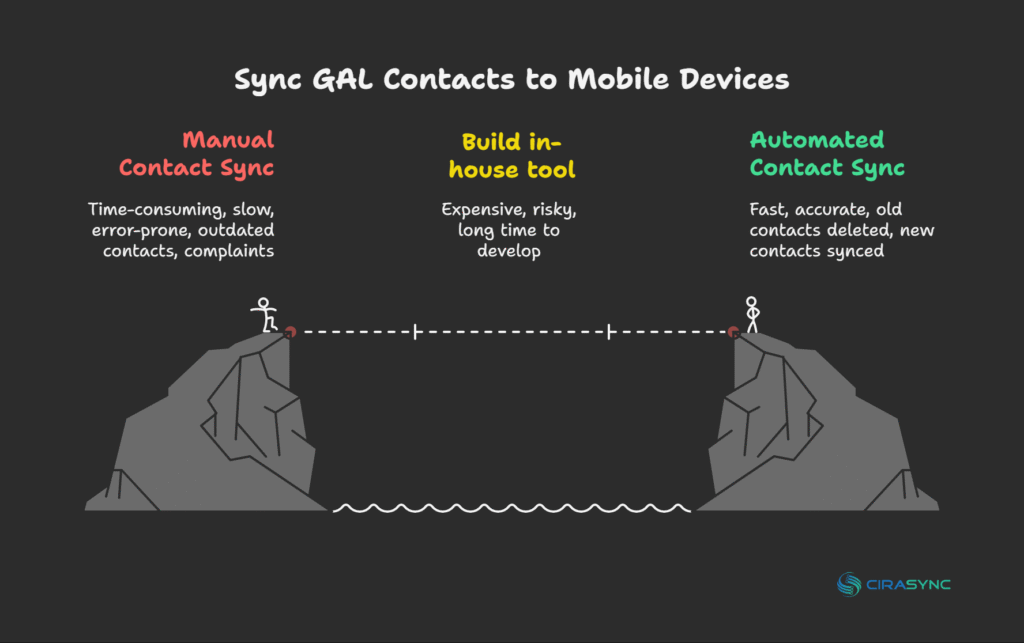
Now this is time-consuming, and you need to train your employees.
And just imagine the mess if your organization has 2,000+ employees. And things are worse if it’s a construction company, where you hire and fire contractors every month.
Users must manually add new contacts and delete old ones.The IT team needs to either create an in-house sync tool or use a third-party solution, like CiraSync.
Problem 2: “GAL Search Isn’t Working in Outlook Android”
You may see “Connect to the Internet for more results” when searching the GAL, or you can only find people you’ve emailed before.
How to solve this problem?
What the IT Team Can Do:
Ask employees to check their internet connection, restart the Outlook app, or clear the cache in their phone’s settings.
If you are an end user and this doesn’t solve the problem, contact your IT team. Your company may have changed server settings.
Note that Microsoft reduced this GAL search in Outlook in 2024, so it might just be worse than it used to be, not broken.
Problem 3: “I Can’t Set Up Exchange ActiveSync”
Getting “Can’t verify account” errors?
What the IT Team Can Do:
Use these settings:
- Server is outlook.office365.com
- Username is your full email address
- Enable SSL
- Use port 443
Samsung S21 and S22 have known issues and might need special workarounds.
If that’s not working, your IT department might need to approve your device in their admin center or check if it got blocked for some reason.
Problem 4: “GAL Search Used to Work But Stopped”
This happened to lots of people in 2024. Microsoft changed how the mobile app works, and many features got worse or disappeared entirely.
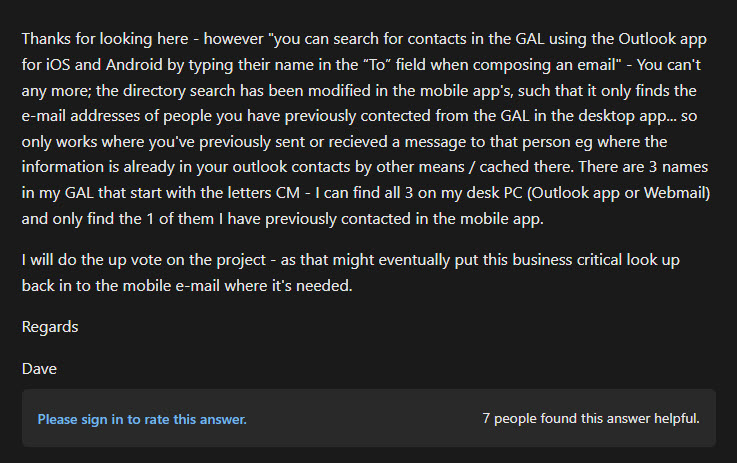
Dave, a user, reported this issue on the Microsoft forum,
“You can’t [search for contacts in the GAL using the Outlook app for iOS and Android by typing their name in the “To” field when composing an email] anymore.”
He continued,
“The directory search has been modified in the mobile app’s, such that it only finds the e-mail addresses of people you have previously contected from the GAL in the desktop app… so only works where you’ve previously sent or recieved a message to that person eg where the information is already in your outlook contacts by other means / cached there.”
You could try updating your Outlook app, testing it out on different internet connections, and comparing it with the desktop version.
If desktop Outlook works but the one on your phone doesn’t, it’s probably just Microsoft’s new limitations, not your setup.
¿Afecta a mis contactos personales la sincronización de los contactos de la Lista Global de Direcciones con mi Android?
No, sincronizar la Lista Global de Direcciones con su Android no afectará a tus contactos personales. Los contactos de la Lista Global de Direcciones se almacenan por separado de los contactos personales. Muchas aplicaciones y servicios ofrecen la opción de activar o desactivar los contactos Lista Global de Direcciones para evitar que se solapen con los contactos personales.
¿Con qué frecuencia se actualiza la Lista Global de Direcciones en mi Android?
La Lista Global de Direcciones (Lista Global de Direcciones) no se actualiza automáticamente en los dispositivos Android a menos que la sincronices mediante una herramienta de terceros o un proceso manual.
FAQ
You can access the global address list by searching for contacts in the Android Outlook mobile app. Alternatively, you can use the web version of Outlook to view your GAL by signing in with your Microsoft account.
The GAL (Global Address List) is not syncing on your Android because Microsoft does not sync the GAL to Android devices. The only solution is to use a third-party platform like CiraSync.
Yes, third-party solutions, like CiraSync, allow you to select specific contact lists from the GAL to sync, giving you control over which contacts appear on your smartphone.
No, Microsoft doesn’t provide a built-in tool to sync the GAL to mobile devices. Microsoft has officially said this isn’t possible with their apps, and there’s no dedicated contacts app for Microsoft 365.
Syncing the global address list to Android devices doesn’t sync contact photos and job titles. Microsoft’s manual methods often lose photos and extra details when you export/import contacts.
Thankfully, CiraSync automatically syncs contact photos, job titles, departments, and other extra information from your Active Directory.
You cannot control which users receive the GAL sync from Microsoft. Only third-party solutions like CiraSync let you sync contacts to specific departments, groups, or individuals.
Microsoft’s tools don’t offer this control since they don’t actually sync anything.
If a contact in the GAL is deleted or modified, end users need to delete or edit the contact themselves. If the IT team uses an auto sync tool, the software will automatically update the users’ phones as soon as contacts are modified or deleted.
Yes, syncing the GAL to Android poses security risks because company contacts end up on personal phones. Plus, other apps can access them. The IT team must put security measures and offer user training to minimize these risks.
If you use Microsoft’s manual sync methods, syncing the GAL will create duplicate contacts on the user’s phone. However, a tool like CiraSync checks if the contacts already exist in the user’s phone. If it exists, it does nothing or updates it with the latest information.
You can’t really sync contact lists beyond the GAL because Microsoft’s built-in options are very limited to basic GAL exports. But if you use a dedicated contact sync tool (like CiraSync), you can sync from CRM systems, public folders, shared mailboxes, and other custom contact sources.
On Outlook for iOS and Android, users can’t manually stop or disable GAL sync because the app doesn’t actually download the full Global Address List. It just queries the server when you search for a name.
Since there’s no continuous sync happening in the background, there’s also nothing for you to toggle off. The only way GAL lookups can be restricted is if your organization’s Exchange or Microsoft 365 admin enforces policies that block directory access.
Once again, Microsoft doesn’t provide GAL syncing to either Android or iOS. However, with CiraSync, you can sync the GAL to users on both Android and iOS, at the same time.
Microsoft’s manual sync methods leave old contacts on phones indefinitely unless you clean them up. The only option is to use a third-party tool that auto-deletes old GAL contacts.
Distribution lists are usually converted to individual contacts since Android doesn’t handle email groups the same way.
Yes, you can see GAL sync logs if you use a solution like CiraSync.
Yes, GAL contacts appear in WhatsApp and other apps if you’ve synced them to your mobile device. This can be good (caller ID works) or bad (corporate info in personal apps).
Yes, some tools allow you to roll back the GAL sync if something goes wrong, but with limited options. Prevention through testing is better than trying to fix problems after contacts are already on hundreds of phones.