

| Microsoft Outlook: Features, Pricing & Tips | CiraSync |
Every day, approximately 400 million people use Outlook to send and receive emails and manage calendar events. So, chances are you are reading this article to know if it’s the right tool for you before committing.
Two Outlooks exist (Classic and New), but I will focus on the New Outlook in this post. I will send and receive emails, create and email contacts, manage calendars, and create tasks.
I will also share my best tips based on my personal experience.
Keep reading!
Key Takeaways:
- Microsoft Outlook is a free app that allows users to send and receive emails, manage calendar events, manage contacts, and create tasks.
- Microsoft Outlook offers two pricing tiers: The personal tier (For Home) starts at 0$/month, while the business tier (For Businesses) starts at $6.00/user/month.
- You can use tools like CiraSync and CiraHub to sync Outlook contacts to your employees’ smartphones.
- Outlook is perfect for Microsoft ecosystem users (Word, Excel, Teams, OneDrive, etc), while Gmail is better for users comfortable with the Google ecosystem (Google Calendar, Docs, Sheets, Drive, Meet, etc.).
What Is Microsoft Outlook?
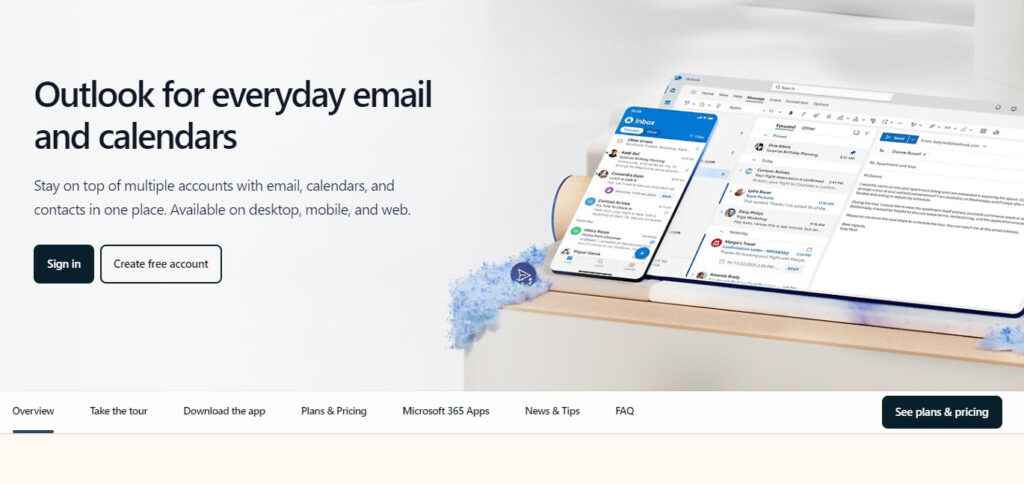
Microsoft Outlook (formerly HotMail) is a free Microsoft application that helps users manage their email accounts, calendars, contacts, tasks, and to-do lists from one platform. It’s available as a standard part of Microsoft 365, and it’s one of the oldest email clients in the world.
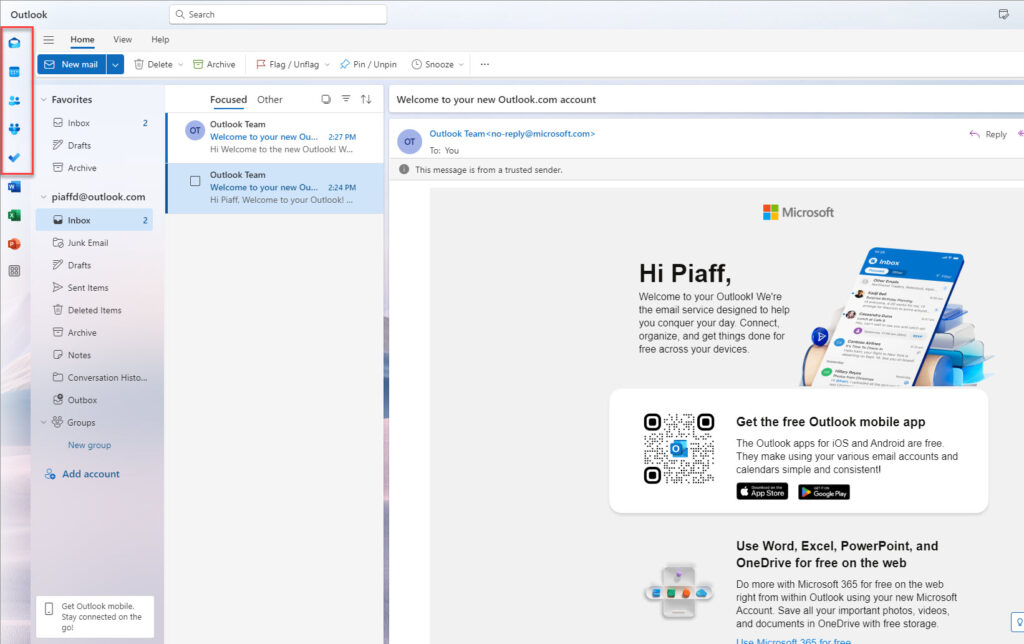
Like Gmail, which gives you a gmail.com email address, your Outlook email address will also end with outlook.com (like name@outlook.com). Using this email address, you can access your Outlook Calendar and Contacts and additional apps like Word and PowerPoint.
Microsoft Outlook was just an email platform, one of the most advanced of its generation upon its release (January 16, 1997). But today, it’s a complete personal information manager.
Why Should You Use Outlook?
For good reasons, 400 million users prefer Outlook as their email and information manager. Let’s check three of them.
Benefits for Personal Use
Outlook, especially the new one, is an incredible tool for personal use. You can easily draft, organize, reply to, delete, and archive your emails.
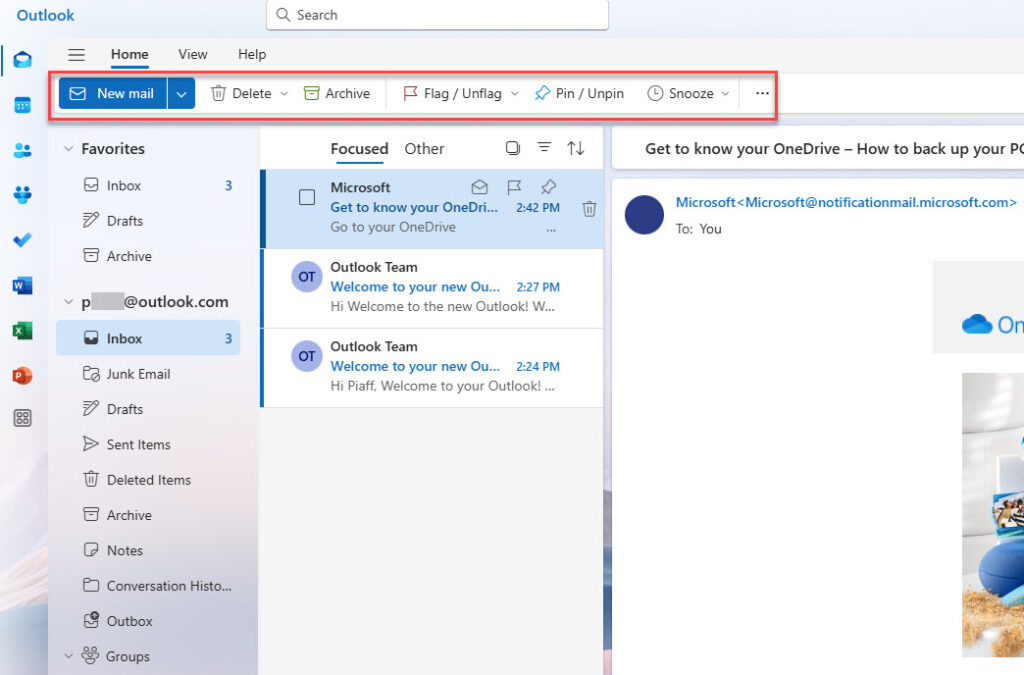
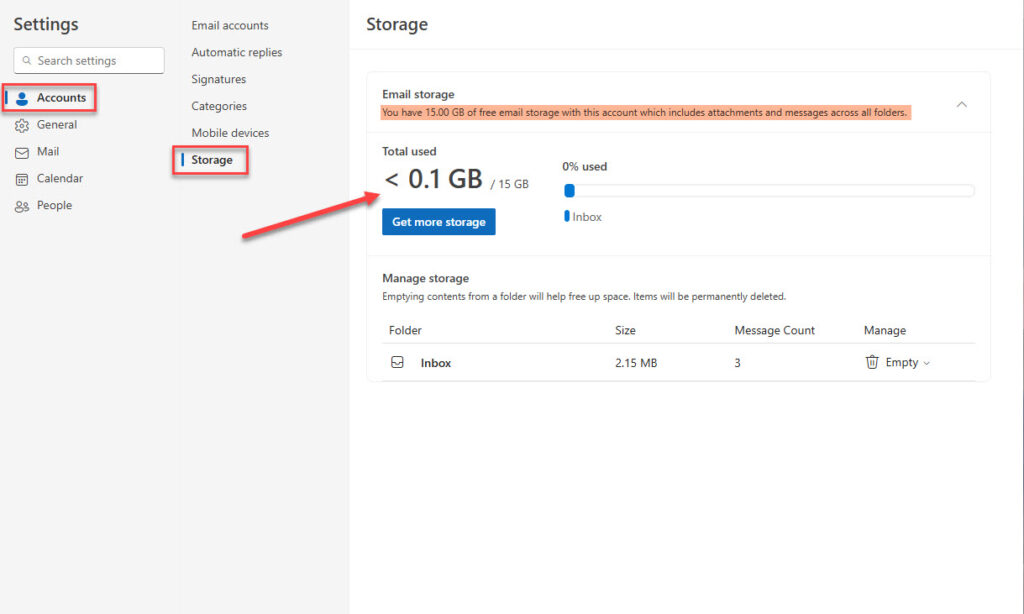
Moreover, the free Outlook account comes with 15 GB Outlook.com mailbox + 5 GB OneDrive, enough to send and receive hundreds of thousands of emails.
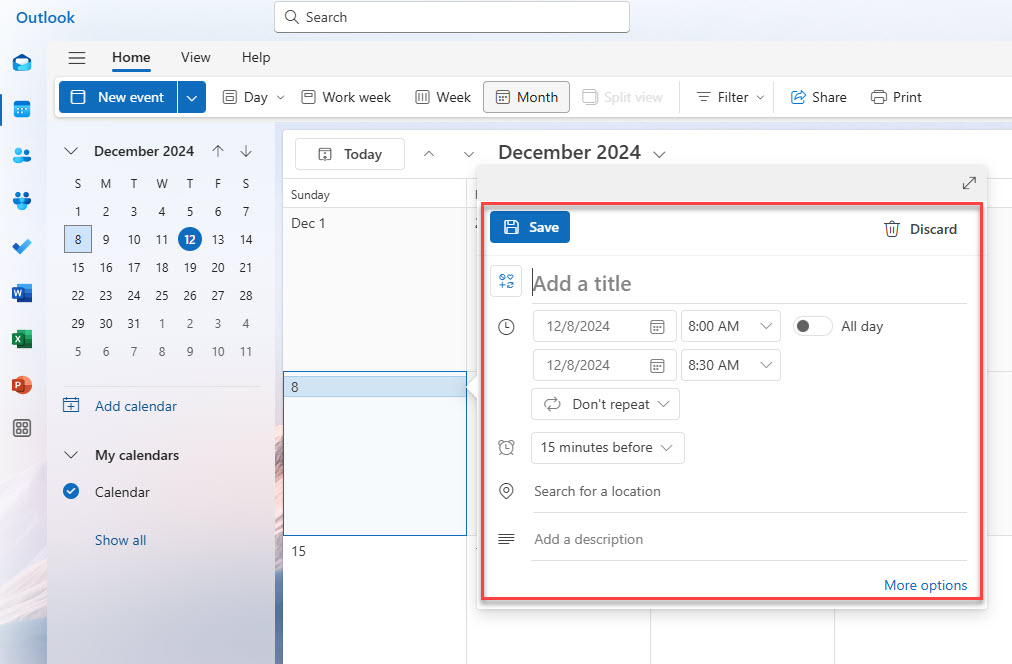
You will love the Calendar feature if you work on personal projects or collaborate occasionally with people. Here, you can create and manage events (appointments, meetings, or parties) and invite collaborators.
Since Outlook allows cross-device syncing, you can always access your calendar and emails from your smartphone or tablet.
Benefits for Business Use
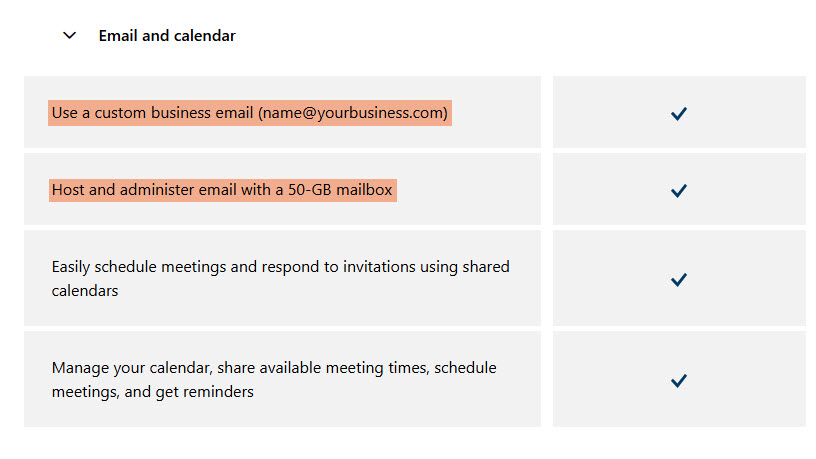
On top of everything mentioned above, Outlook for Businesses allows you to create a custom email (name@yourbusiness.com) instead of using the free one (name@outlook.com). Plus, the storage goes from 15 to 50GB per email user.
Security Features
Microsoft guarantees enterprise-grade security to ensure that no one but you can access your account.
After all, business means security. Thanks to the premium version, admins can control access to business information with custom permissions, set password policies, and force users to set multifactor authentication.
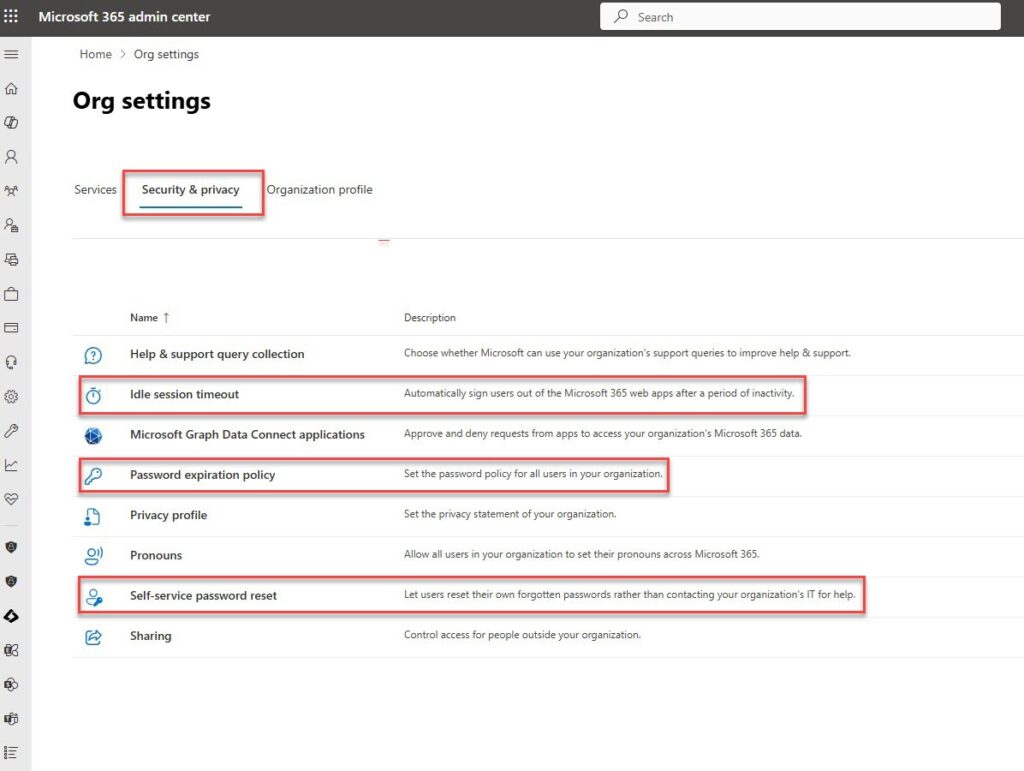
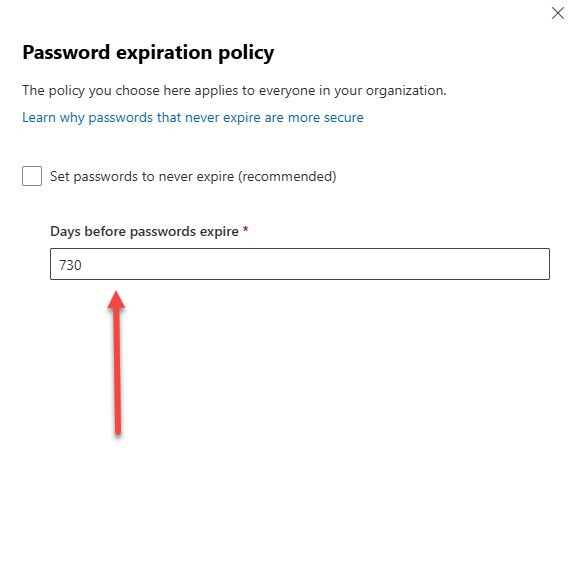
Take the password policy, for example. Using this setting, admins can set passwords to expire after a set number of days, like 365 or 730.
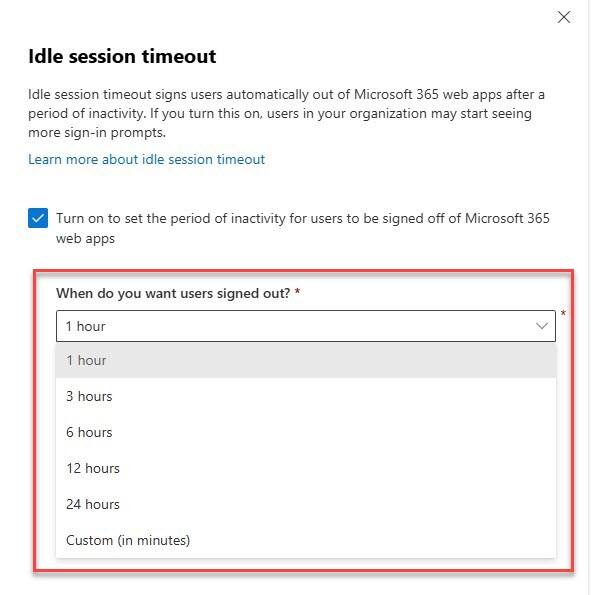
With the Idle Session Timeout setting, on the other hand, you automatically sign users out if they’ve been inactive for a set period.
Of course, all these user-control settings work tightly with Microsoft’s security measures like Secure Future Initiative (SFI) to address the scale and sophistication of cyberattacks.
When Is Classic Outlook Being Retired? (2026 Timeline)
Classic Outlook is not being immediately retired. Microsoft extended support for the classic desktop client to at least 2029. However, as of April 2026, the New Outlook became the default experience for most Microsoft 365 enterprise users, signaling a gradual, multi-stage phase-out. To sync your contacts and calendars between Classic Outlook and New Outlook, you need to use a cloud-based account.
New Outlook-vs-Classic Outlook
| Feature | New Outlook | Classic Outlook |
| Design & Platform | Modern, lightweight experience with a consistent interface across Windows, Mac, and web | Full-featured desktop application with the traditional Ribbon interface and visible controls |
| Offline Support | Limited offline capabilities; lacks full offline functionality | Full offline support through Cached Exchange Mode |
| Add-ins | Supports only modern web add-ins; legacy COM and VSTO add-ins are not supported | Supports COM add-ins, VBA macros, custom forms, and MAPI integrations |
| PST Archives | Limited PST support; import capabilities are expected to expand during 2026 | Full PST import, export, and archive support |
| Public Folders | Supported only when hosted in Exchange Online | Full public folder support |
| Shared Mailboxes & Delegation | Delegate and shared mailbox management features are expected to improve through mid-2026 | Full support for shared mailboxes and delegate access |
| Quick Steps | Not available as of 2026; one of the most requested missing features | Full Quick Steps functionality |
| Copilot / AI Integration | Deep integration with Microsoft 365 Copilot and AI-powered features | Limited Copilot and AI integration |
| Security | Enhanced phishing protection, modern authentication, and stronger two-factor authentication support | Standard security capabilities |
| Updates | Continuously updated with new features and improvements | Updated through traditional Microsoft Office release cycles |
Microsoft Outlook: Pricing
Microsoft offers two Outlook pricing tiers: For Home and For Business.
For Home:
- Free: $0/month
- Microsoft 365 Basic: $19.99/year
- Microsoft 365 Personal: $99.99/year
- Microsoft 365 Family: $129.99/year
- Microsoft 365 Premium: $199/year
Microsoft 365 Personal ($99.99/year) and Family ($129.99/year) include Copilot with usage limits. You can draft emails, get summaries, and use coaching, but there is a monthly cap on how many Copilot requests you can make. In comparison, Microsoft 365 Premium is your go-to copilot consumer plan.
For Business:
- Microsoft 365 Business Basic: $6.00/user/month
- Microsoft 365 Business Standard: $12.50/user/month
- Microsoft 365 Business Premium: $22.00/user/month
How to Set Up, Access, and Use Outlook
Outlook is super easy to set up and access.
1. First of all, open the Outlook app on your computer. If you don’t already have Outlook installed, download it via Microsoft 365.
I will use the New Outlook because it’s the latest update and provides a better user experience.
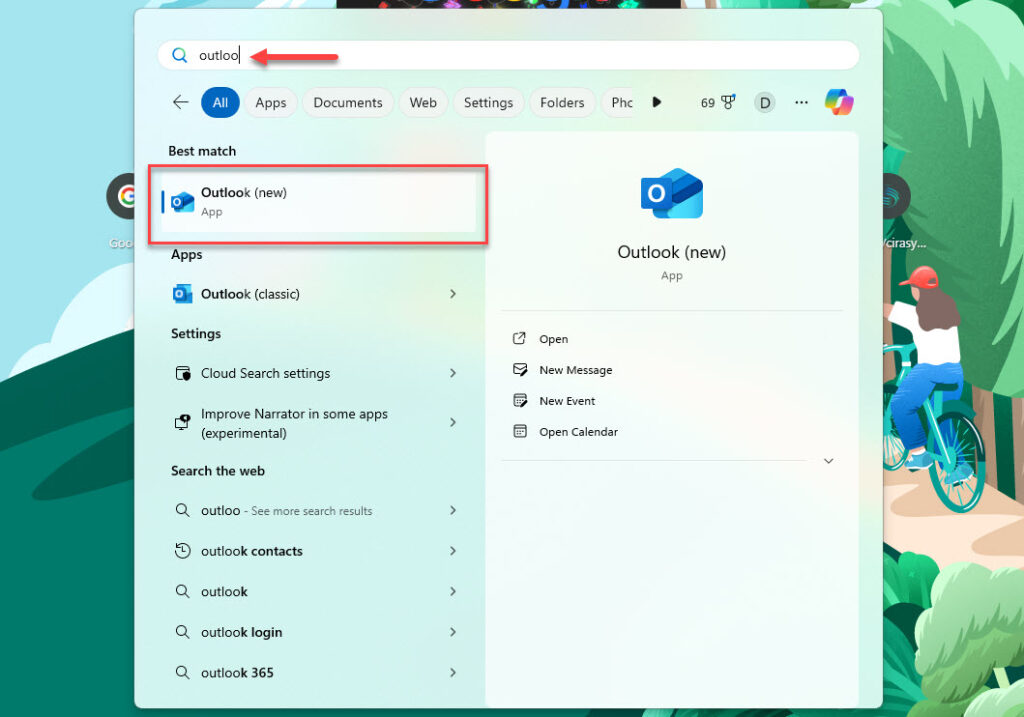
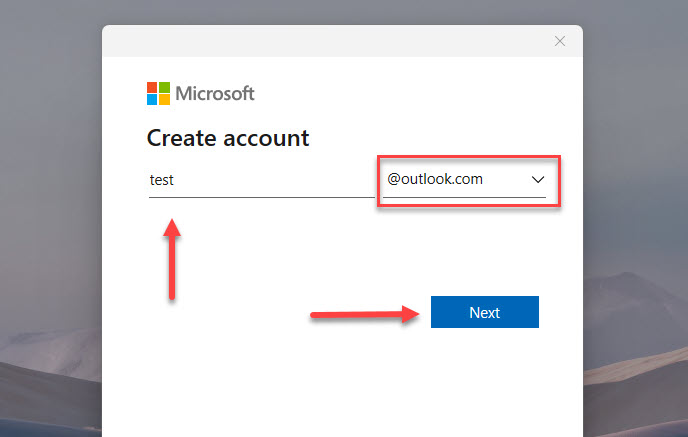
2. Enter your email address name while making sure you’ve selected Outlook.com. This means that your email address will end with it, like test@outlook.com.
Click Next and follow the setup instructions.
3. After following the instructions, you will get access to your Outlook. That’s how simple it is.
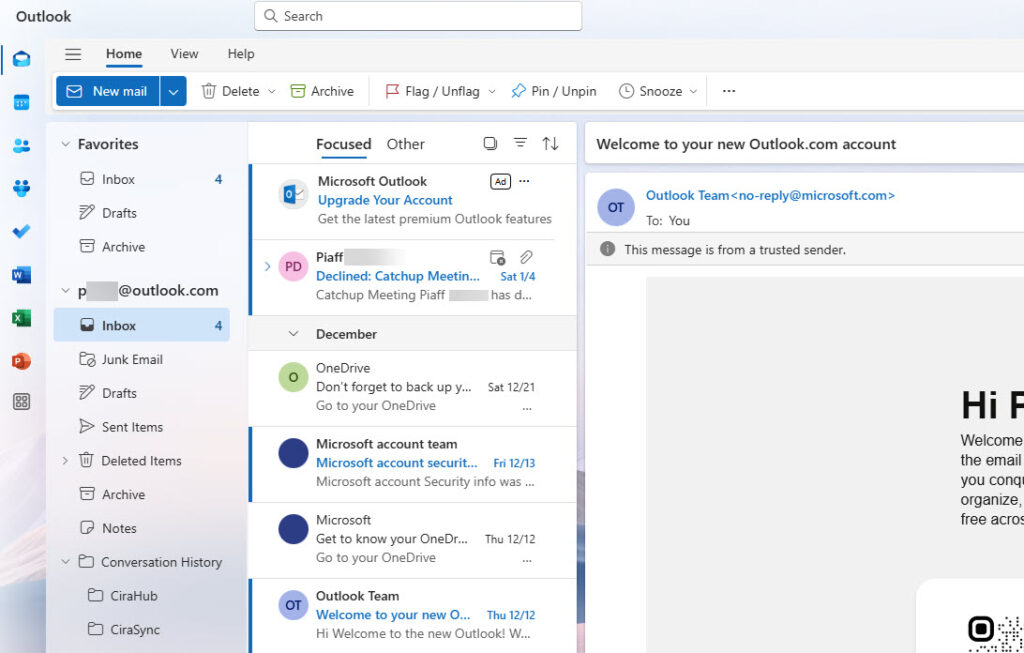
But before reviewing key features in more detail, I wanted to show how I use Outlook daily. The left side shows a menu with icons. Here, you can access your Mail, Calendar, Contacts, Groups, and To-Dos.
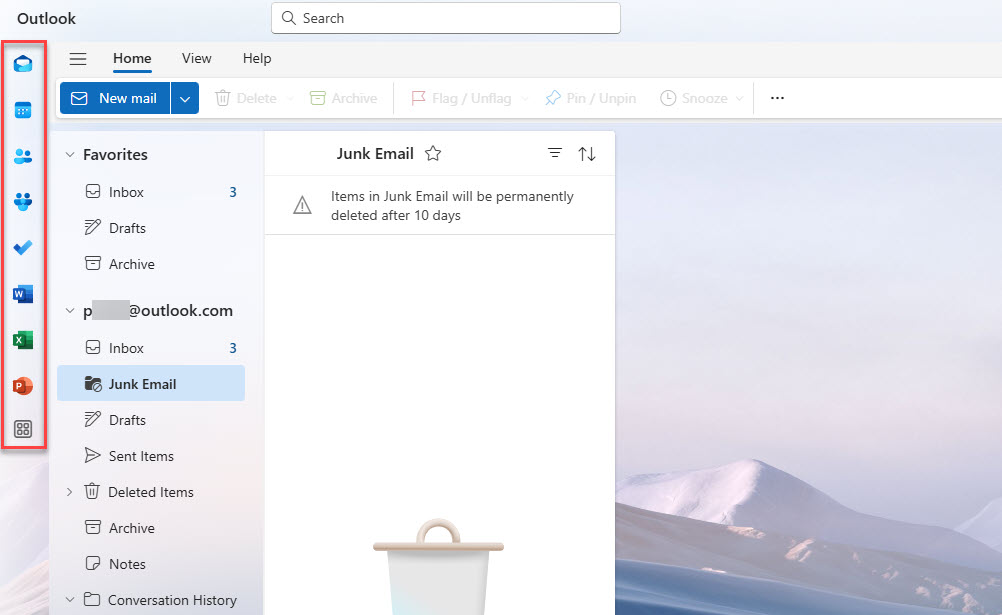
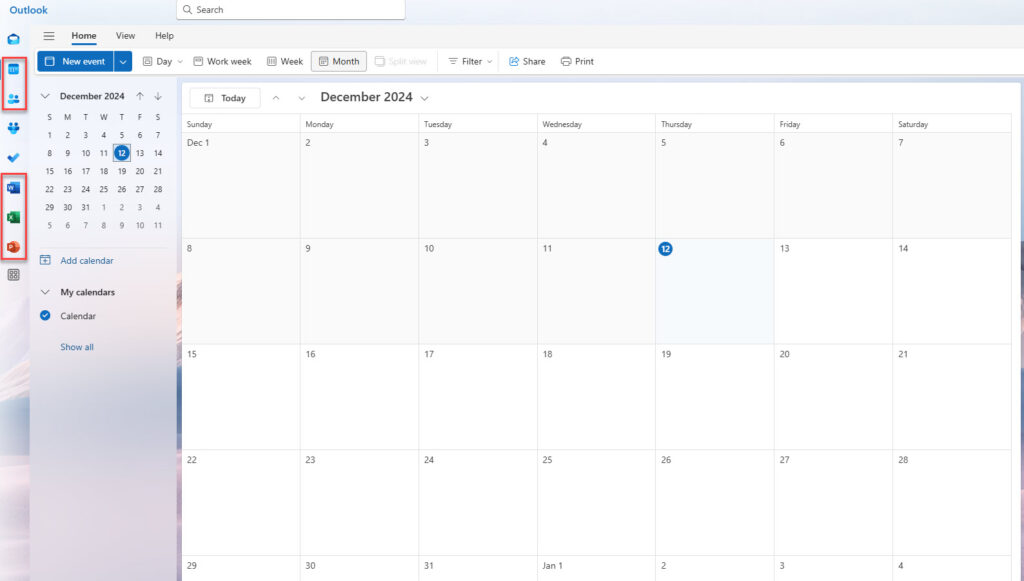
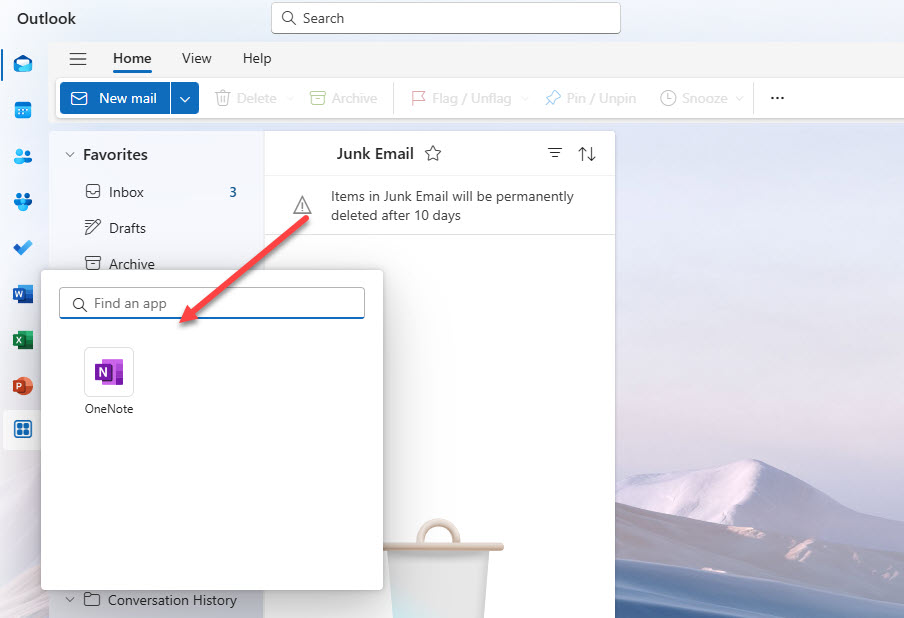
I also like that this menu lets you quickly access Word, Excel, PowerPoint, and One Note. This is perfect for teams that collaborate through emails; you can quickly create a new Word doc and start writing (though it will open the web version).
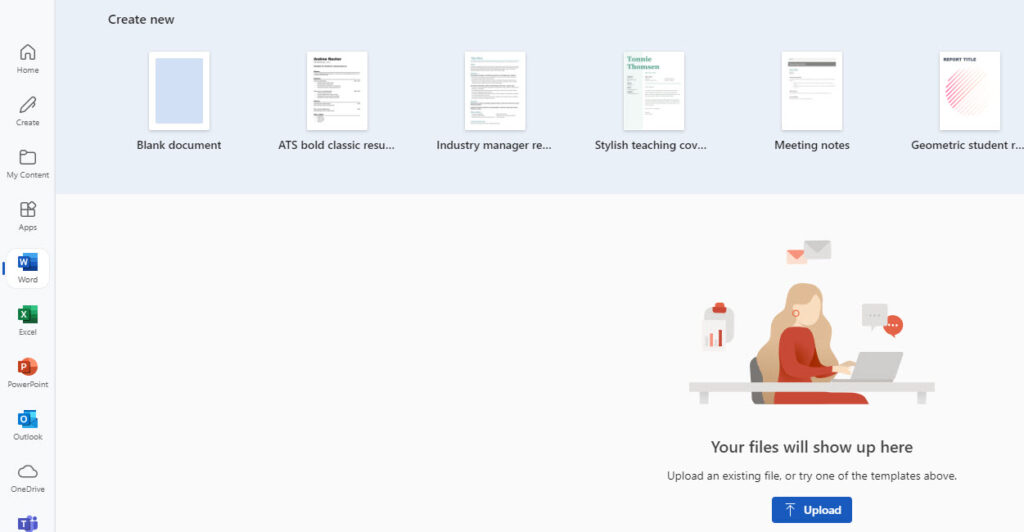
Where are Teams, OneDrive, and Copilot?
If you don’t see them, it’s your plan, not a missing feature. OneDrive and Teams come with most Microsoft 365 plans and sit in the left app bar (or the „More apps“ … menu). Copilot needs a separate Copilot license, so it won’t show up on free or basic plans. Some features also roll out gradually, so a missing button may appear after the next update.
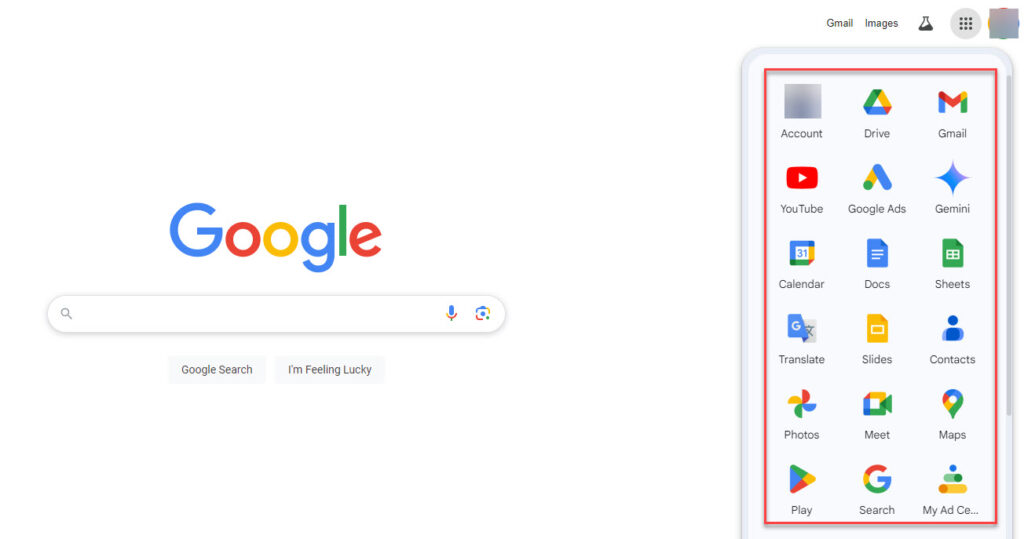
This is unfortunate because Gmail, an Outlook competitor, allows you to access 30+ apps, including Google Drive and Gemini.
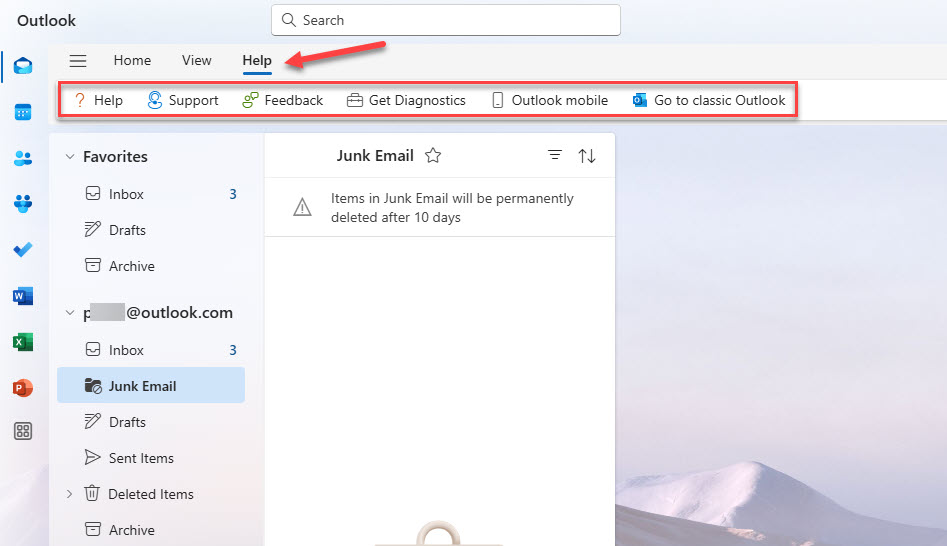
But let’s keep analyzing Outlook, with the top menu bar that provides additional settings. Using the Help menu element, for instance, I could read support articles, contact the Outlook support team, or go to Outlook Classic.
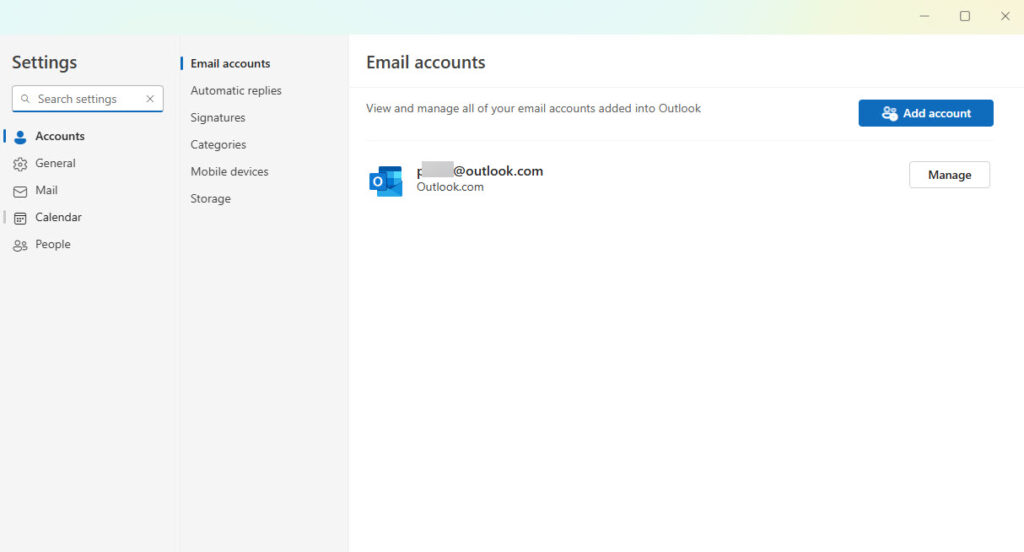
Last but not least, I wanted to see what is inside the Settings. I noticed that Microsoft divided it into multiple sections, such as Accounts to manage your email accounts, create signatures, and more.
In the General tab, you set your Outlook appearance (light or dark mode).
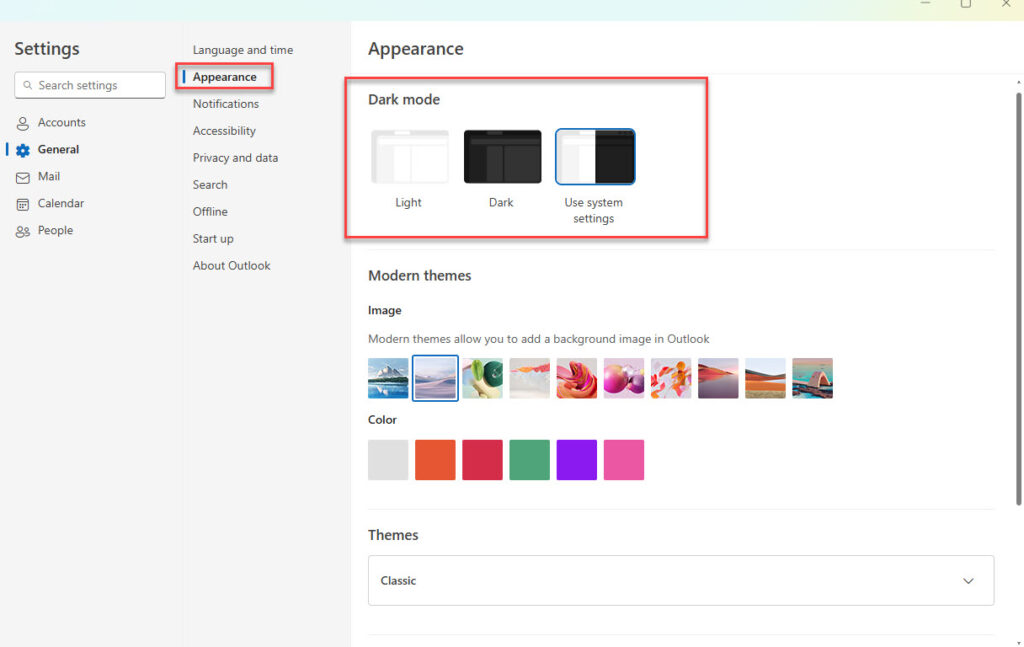
For instance, I changed my Outlook to dark mode and selected another background image.
Before:
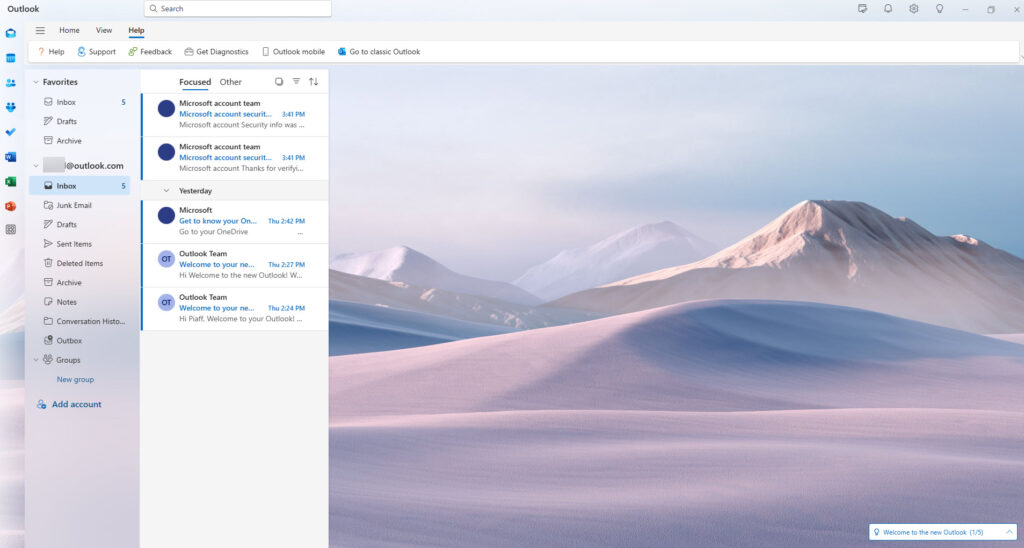
After:
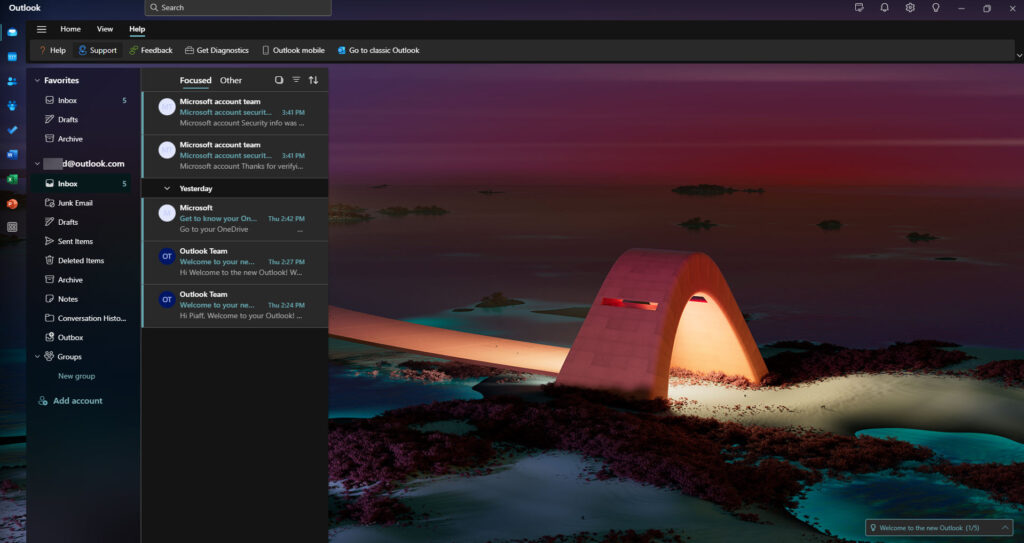
This change impressed me, and I can confidently say Outlook provides one of the most beautiful customizations I’ve ever seen.
But let’s now talk about Outlook’s key features (more about customization later).
Microsoft Copilot in Outlook: AI-Powered Email Management
If you have used Outlook recently, you have probably noticed a new AI assistant popping up in your inbox. That is Microsoft Copilot, and in my opinion, it is the biggest productivity upgrade Outlook has received in years.
I was skeptical at first. I have seen plenty of „AI features“ that promise to change everything and end up being gimmicks. But after using Copilot daily for several months, I can honestly say it has saved me hours of email drafting, summarizing, and scheduling work.
Let me walk you through what Copilot can do, how much it costs, and how to get the most out of it.
What Can Copilot Do in Outlook?
Here is a breakdown of Copilot’s capabilities in Outlook as of 2026:
1. Draft Emails with First Draft in Canvas – This is my favorite feature. Instead of staring at a blank email wondering how to start, I tell Copilot what I want to say, and it generates a complete draft right in the email body. What makes this different from other AI tools is that Copilot asks clarifying questions about your goal, audience, and tone before writing. The more you use it, the better it gets at matching your personal writing style.
2. Summarize Long Email Threads – We have all been added to a 30-email thread and had no idea what is going on. Copilot can summarize the entire conversation in a few bullet points, highlighting key decisions, action items, and who said what. I use this at least twice a day.
3. Meeting Preparation – Before a meeting, Copilot reviews your calendar and recent emails with the attendees to generate a prep summary. It highlights discussion topics, relevant files, and any unanswered questions. I no longer show up to meetings unprepared.
4. Email Coaching – Copilot analyzes your email tone and clarity and suggests improvements. It will flag if you sound too abrupt, if your message is unclear, or if you forgot to include key information like a deadline or attachment. Think of it as a polite editor sitting next to you.
5. Chat with Copilot – You can open a chat sidebar in Outlook and ask Copilot questions about your emails, calendar, or contacts. For example, I often ask: „What did Sarah say about the Q2 budget?“ or „Summarize my unread emails from yesterday.“ Copilot searches through your Outlook data and gives you instant answers.
6. Delegate Calendar Search – If you are an assistant or manage someone else’s calendar, Copilot can help you search and manage calendars you have delegate access to. This was a highly requested feature that arrived in early 2026.
7. Smart Reply Suggestions – Copilot generates contextual reply suggestions based on the email content. Unlike basic Smart Replies, these are full-sentence, context-aware responses that actually sound like you wrote them.
How to Access Copilot in Outlook
Getting started with Copilot in Outlook is straightforward:
Make sure you are using New Outlook. Copilot works in both New Outlook and Classic Outlook, but the experience is smoothest in the New Outlook interface. Check your Microsoft 365 subscription. Copilot requires an eligible subscription (see pricing below).
Look for the Copilot icon.
You will see a Copilot sparkle icon in your email toolbar and a Copilot chat button in the sidebar. Start with a prompt. Click the Copilot icon while composing an email, or open Copilot chat and type a request like „Draft a meeting follow-up email to the MSP team.“
Microsoft Outlook Key Features
These are the most prominent reasons people love Outlook’s key features:
- Email,
- Calendar,
- People (Contacts),
- Tasks and To-Do Lists and
- Customization.
1. Email Management
Although most email clients have a somewhat evolved email management system, Outlook took it to a level we’ve never seen before.
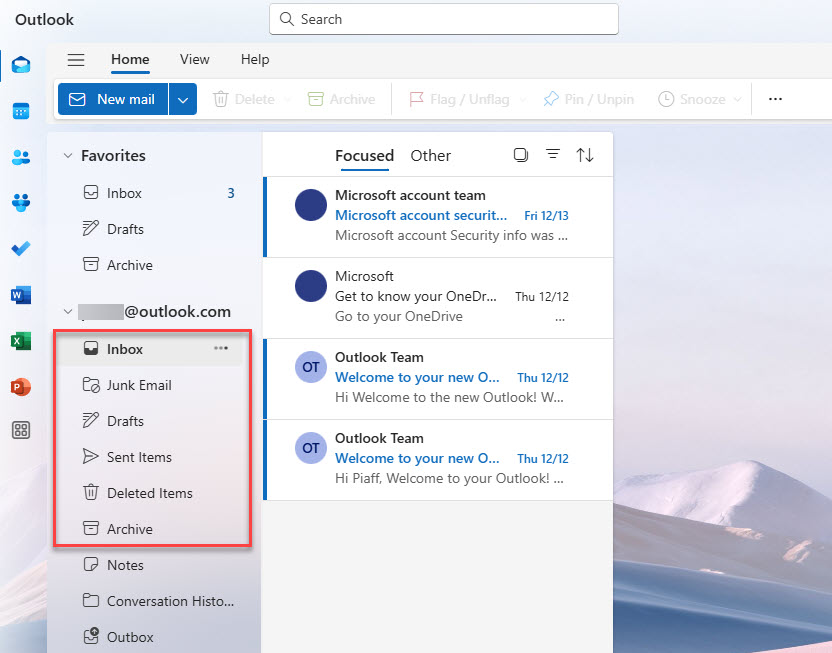
First of all, you have the option to sort by folders. If you’re, for example, working on multiple projects, you can make a separate folder for each project and organize emails separately.
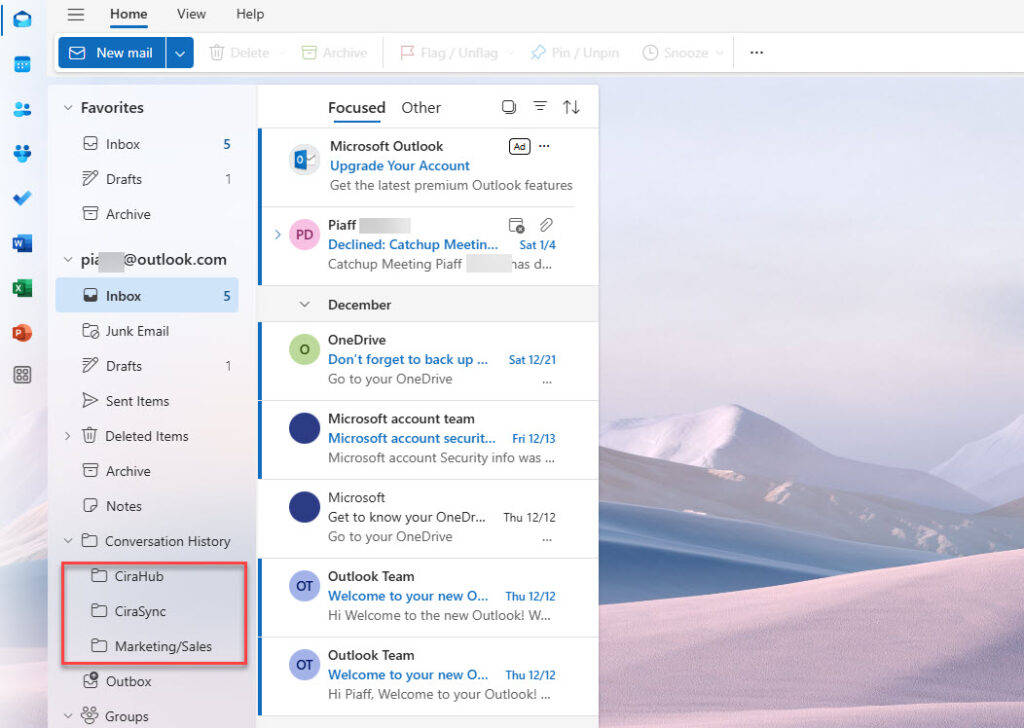
But just like every email platform, Outlook provides:
- Inbox – to view all your emails,
- Drafts – to see the emails you haven’t finished writing,
- Sent Items – to access all sent emails,
- Deleted Items – to view all deleted emails,
- And more.
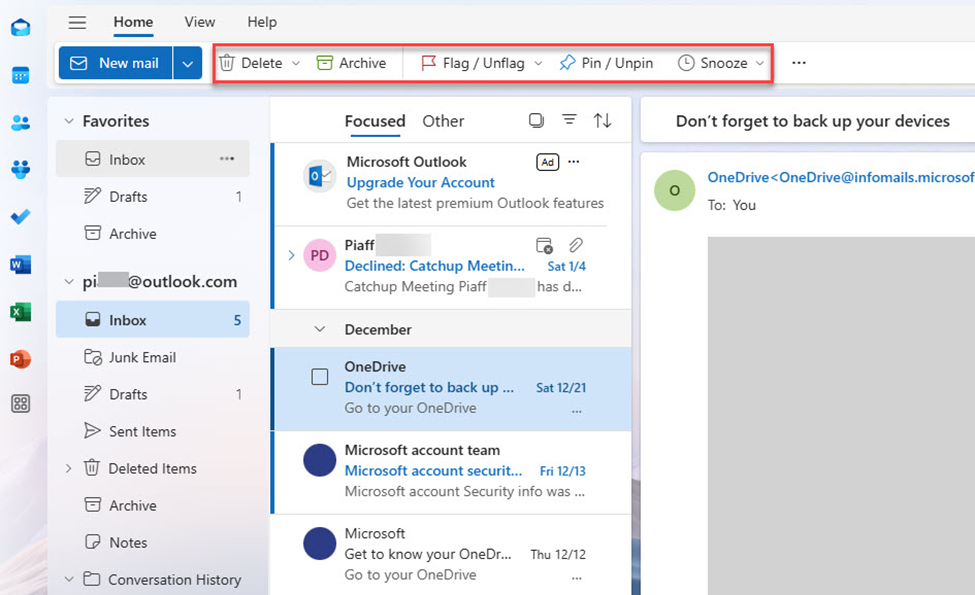
Clicking an email allows you to delete, archive, flag, pin/unpin, or snooze it.
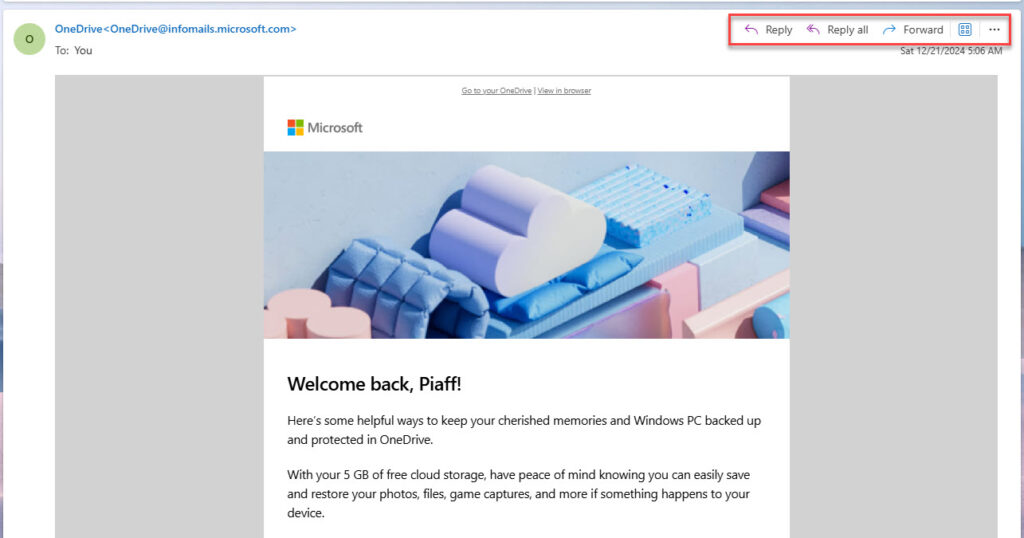
You also get the option to reply, reply to all, or forward your email.
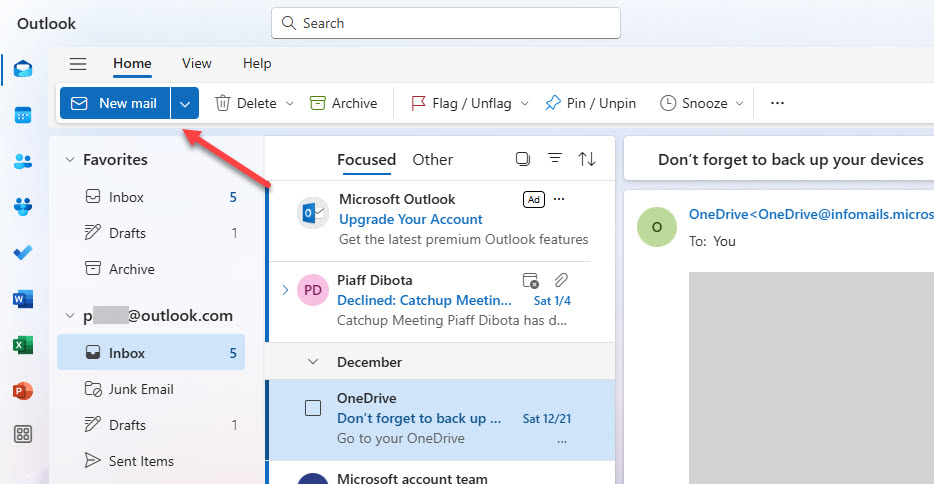
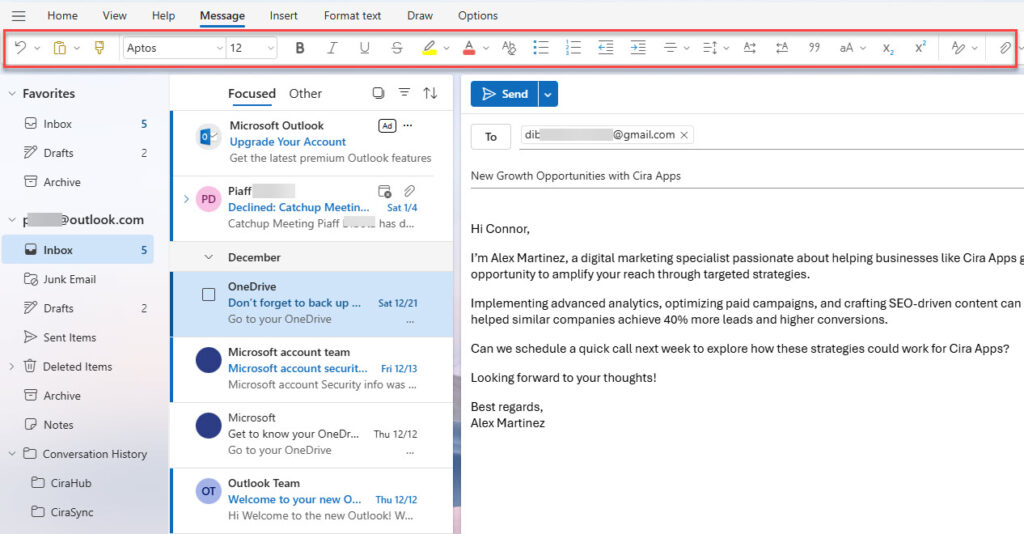
Now, let’s send an email from scratch by clicking “New Email” in the top left corner.
You will notice a few things when composing your email. For instance, the styling menu lets you bold, highlight, or increase text font.
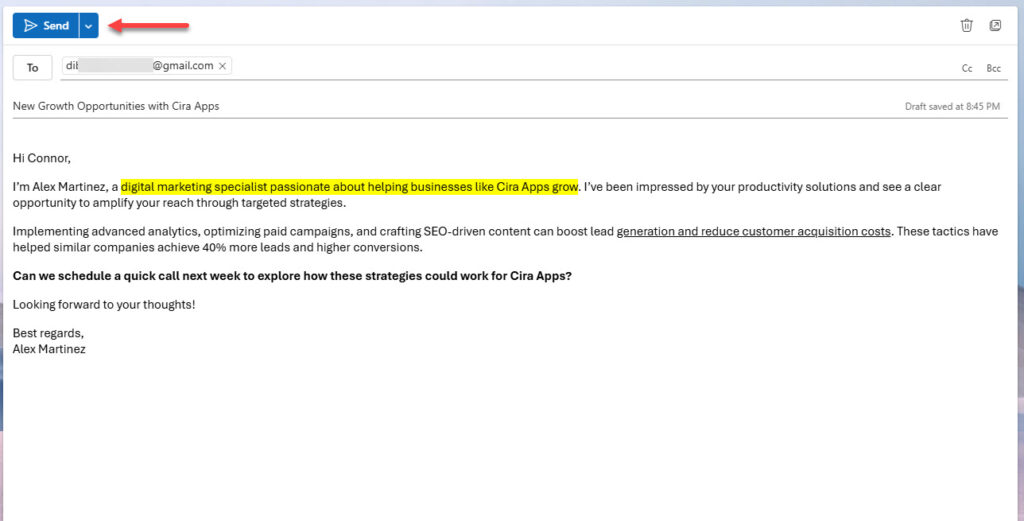
Once done, click “Send” to send your email.
Later, I will share a few inbox management tips, like automatically routing an email based on its content. But for now, let’s discover more Microsoft Outlook features.
2. Contacts
Just like any other platform, Outlook allows you to add and edit contacts. Similar to email folders, you can categorize your contacts in separate folders and add notes and context to each contact.
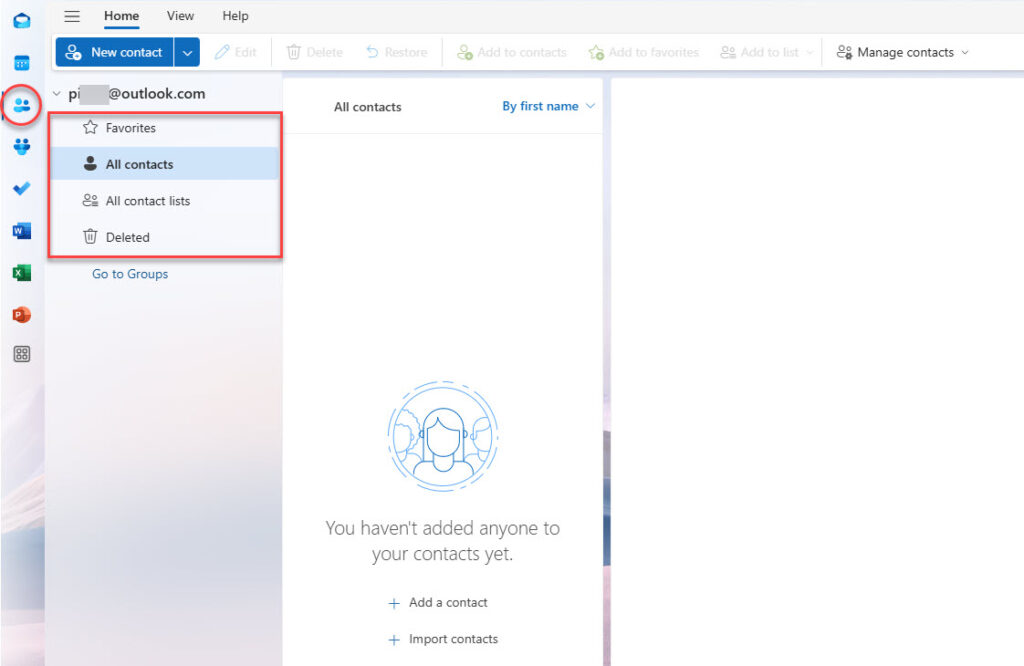
The Outlook People dashboard shows All Contacts, All Contact Lists, Deleted Contacts, and Favorite Contacts.
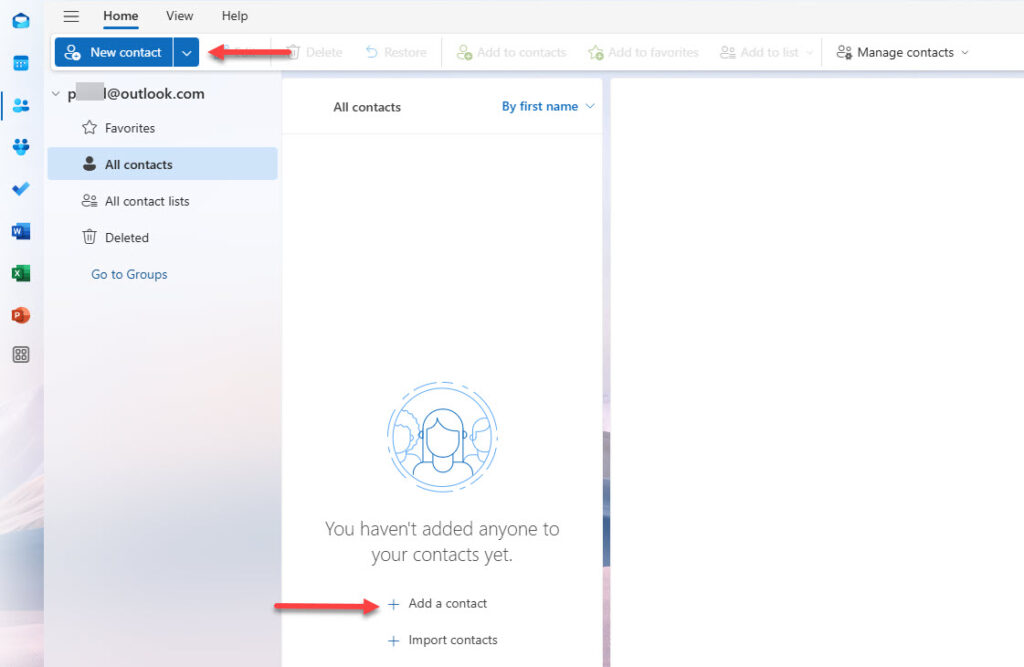
To create a new contact, click “Add a contact.”
Then, upload a profile picture and enter the contact picture name, email address, phone number, and address.
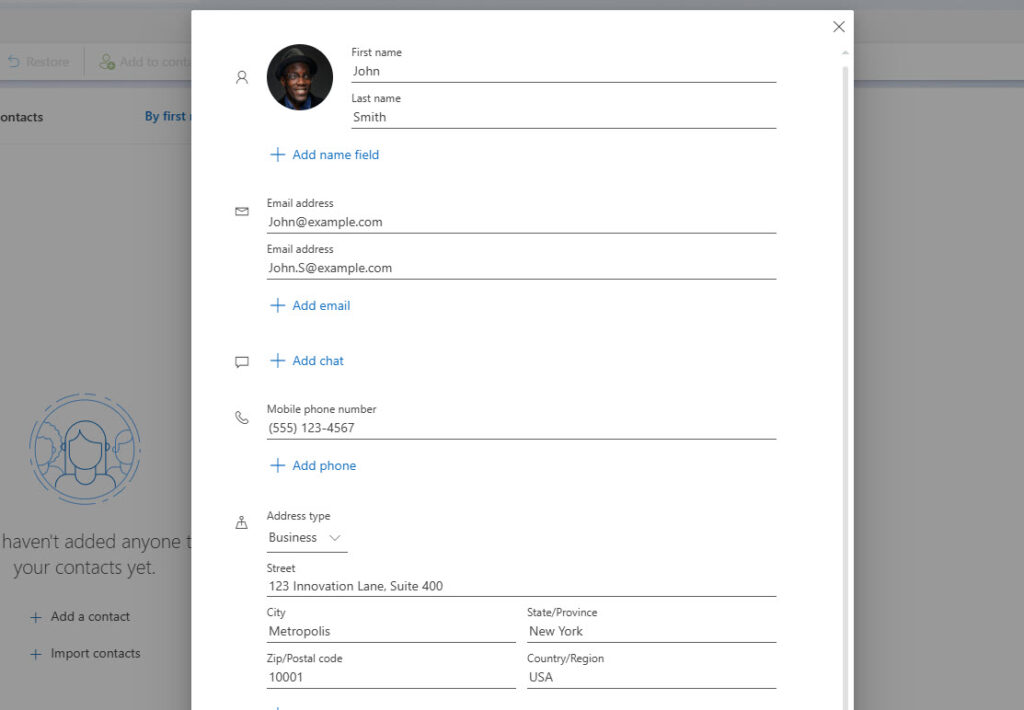
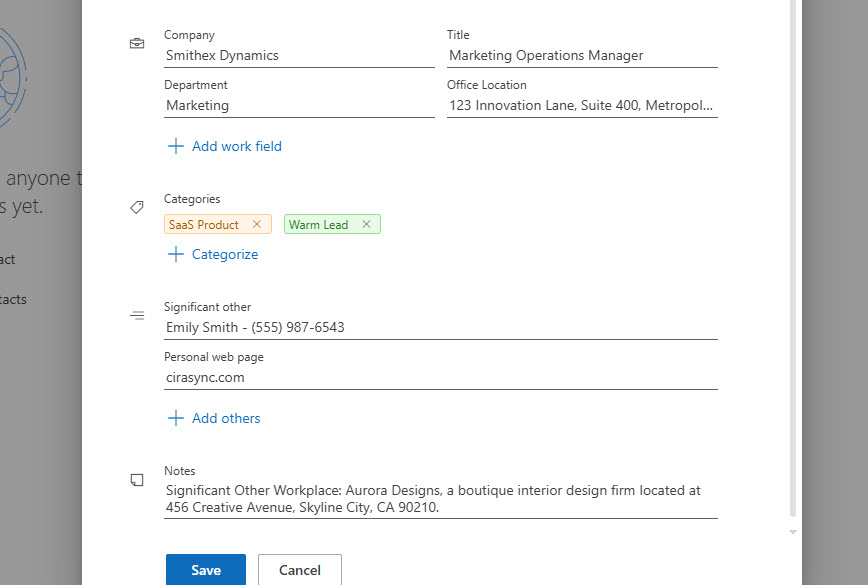
But the Company field is my favorite. I can add the contact’s company name and work title. To personalize each contact further, I can add their department, office location, and company pronunciation.
But Microsoft Outlook doesn’t stop there. It also lets you categorize the contact, add internal notes, or enter the contact’s personal web page or relatives.
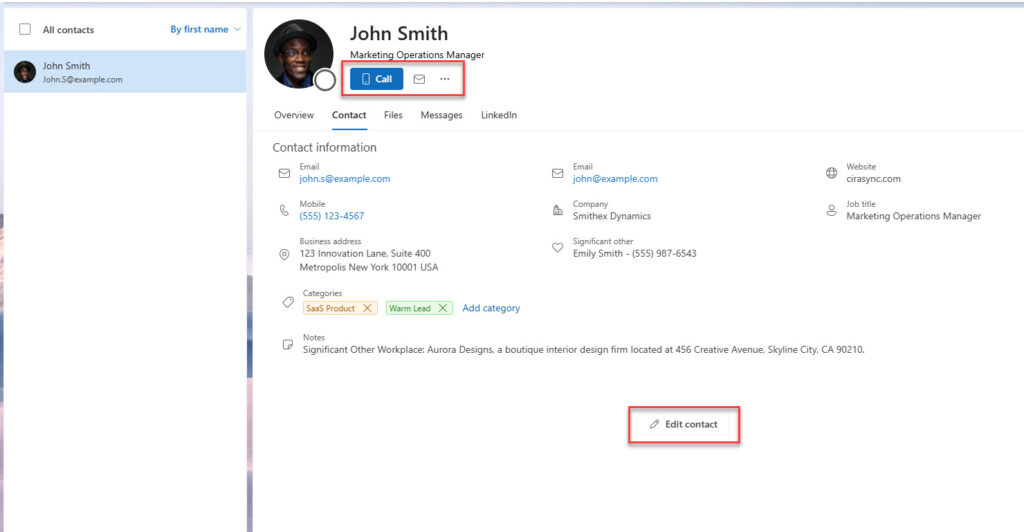
After clicking Save, Outlook will display the contact data. There, you can call or email the contact or edit it with updated information.
What about the Contact List? How does it work?
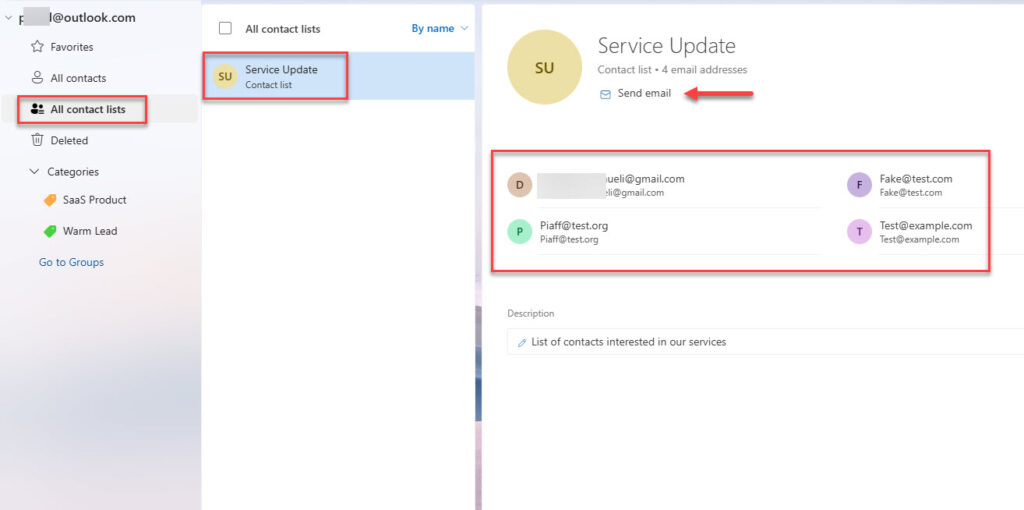
A contact list is a list of email addresses you can email at once. In the screenshot below, I named my list “Service Update” and added the email addresses of people interested in our services.
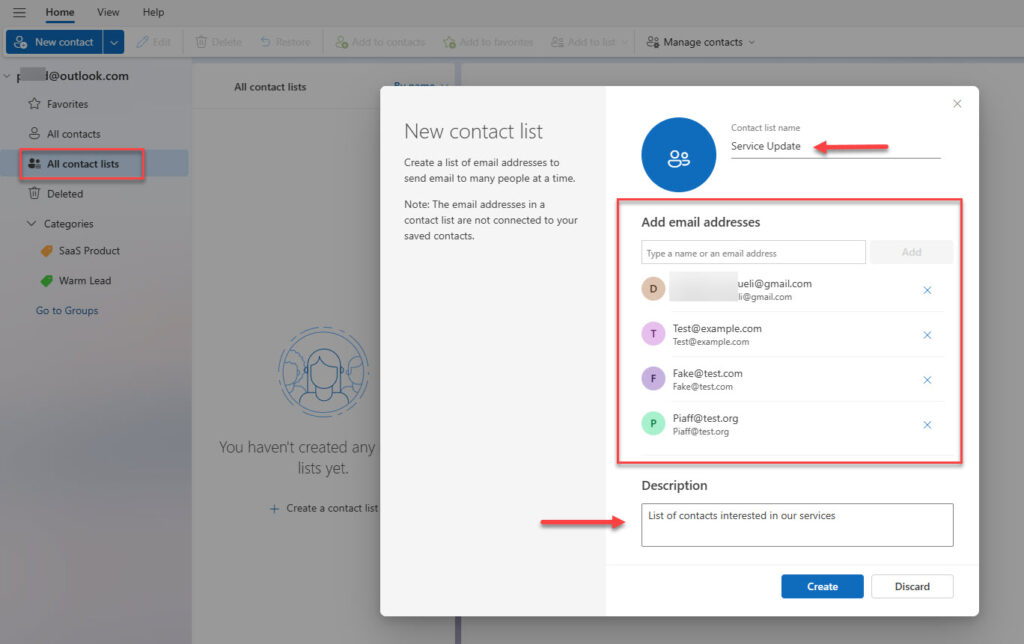
Once created, you can view and email all contacts in the list.
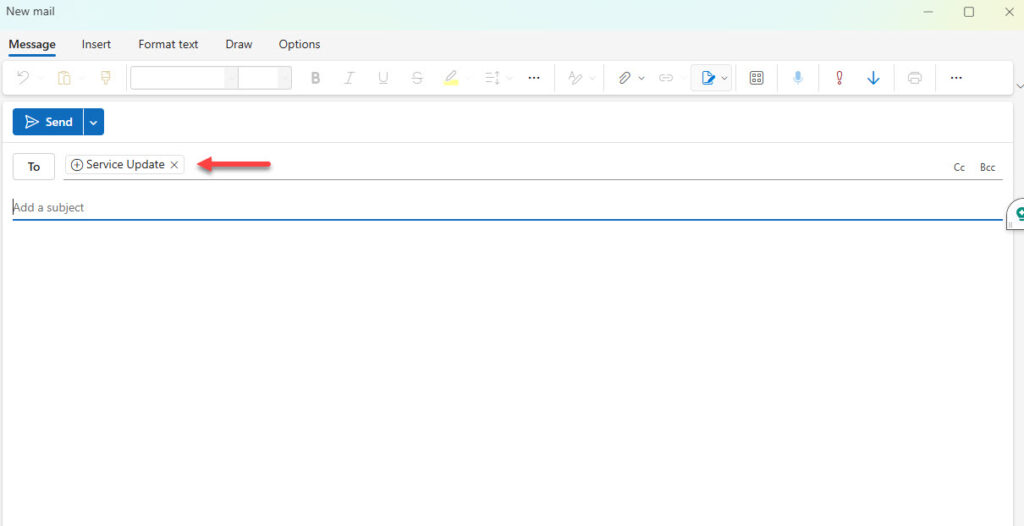
When emailing the list, Outlook will automatically add it to the recipients.
Now, let’s discuss one more Outlook key feature: Calendar.
3. Calendar
You can use your Outlook calendar to make appointments, within which you can add details such as subject, location, context, notes, attendees, and materials you might need during the appointment, and invite an attendee.
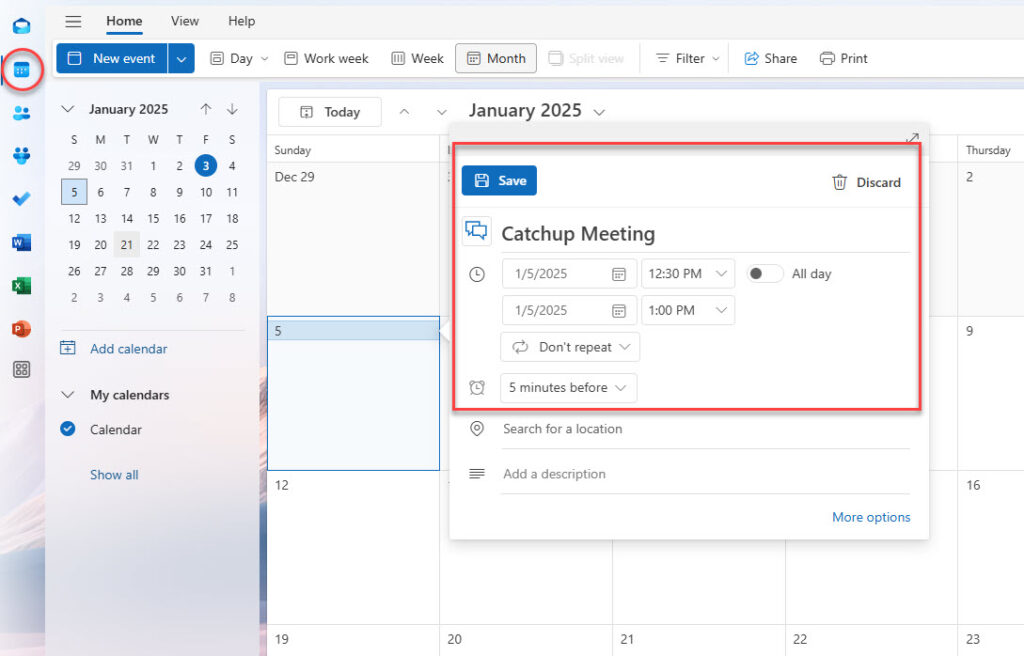
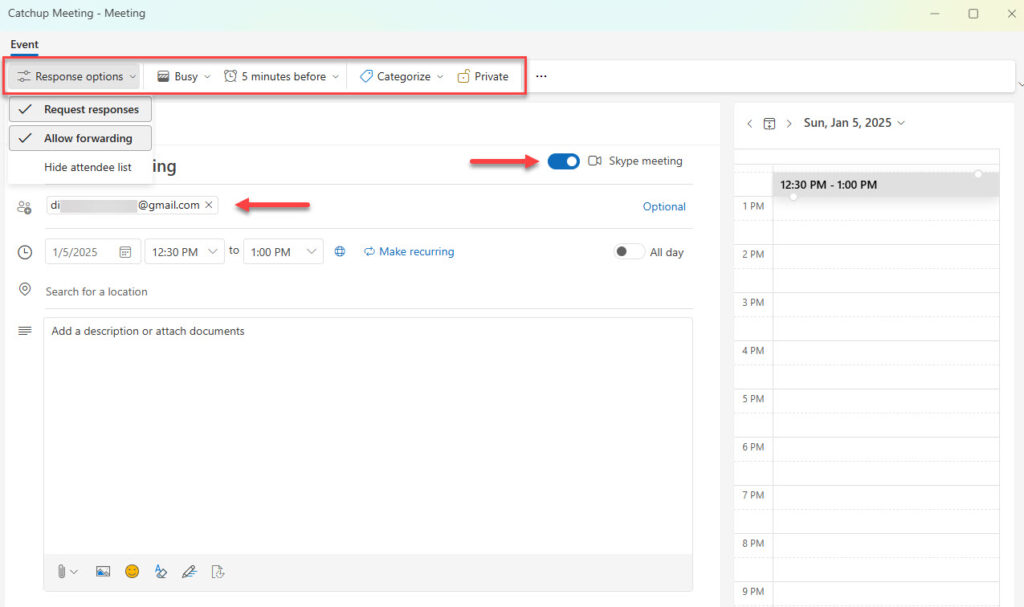
Click on “More Options” to personalize the event further: Hide the attendee list, request responses, set yourself busy, categorize the event, and more.
I wish there were a way to add attendees quickly without clicking “More Options.” Note that, by default, Outlook will make you hold your meetings on Skype, just like Google does for Meet.
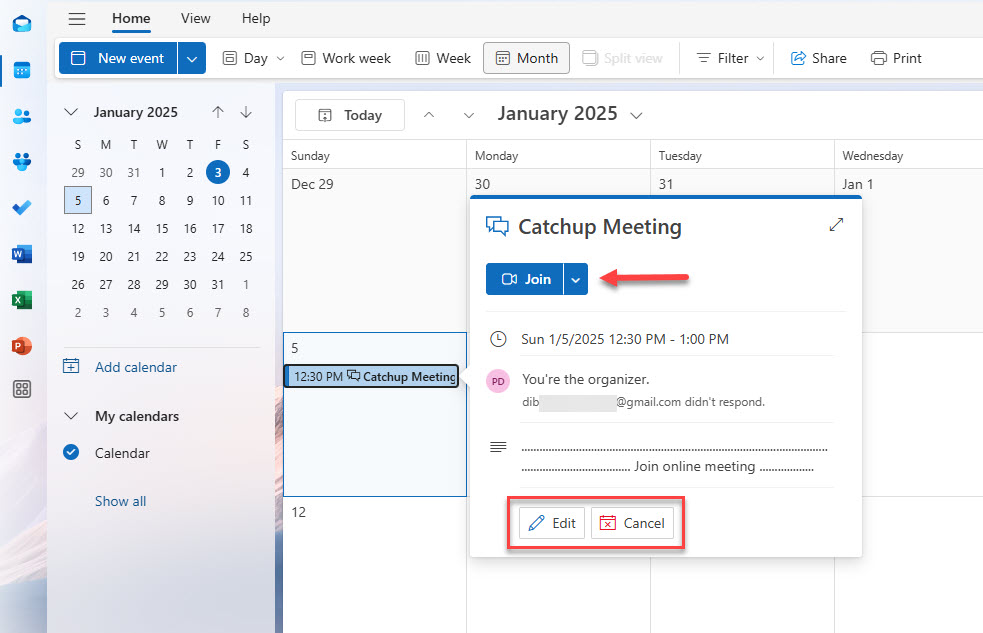
Finally, viewing the event will allow you to join, edit, or cancel it.
Read More: How to Share an Outlook Calendar?
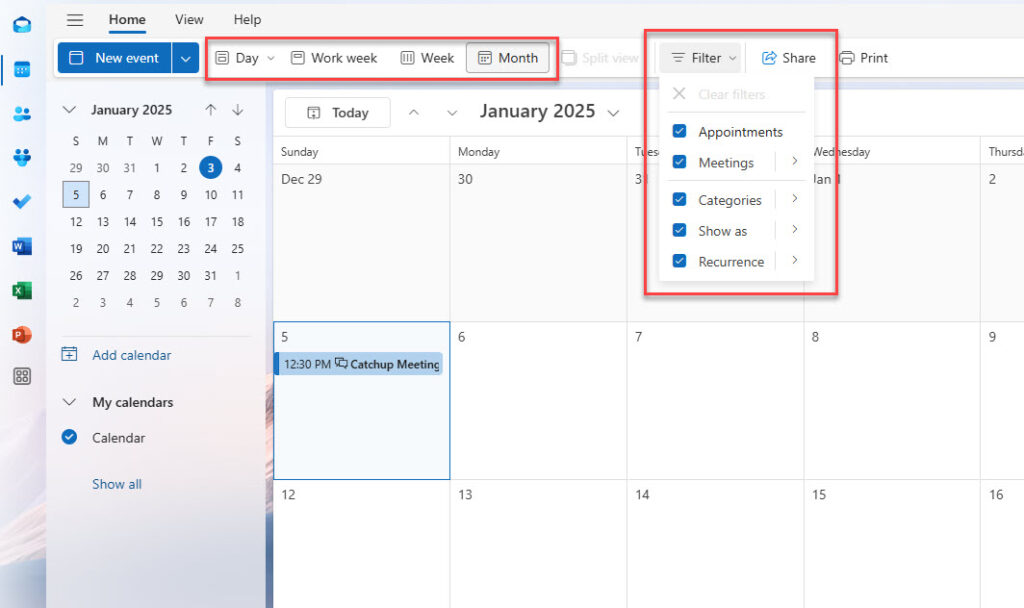
Before moving to the next feature, note that you can change your calendar view to day, work week (Monday-Sunday), week, or month. Thanks to the filter setting, you can also view meetings, appointments, and more.
To learn more about Outlook meetings, check our article on the difference between Outlook meetings and appoitments.
Read More: Best Outlook Calendar Tips and Tricks
4. Tasks and To-Do Lists
“To-Do” is the next Outlook feature I want to cover. You’ve probably used or seen these apps in Google Play Store or Apple Store.
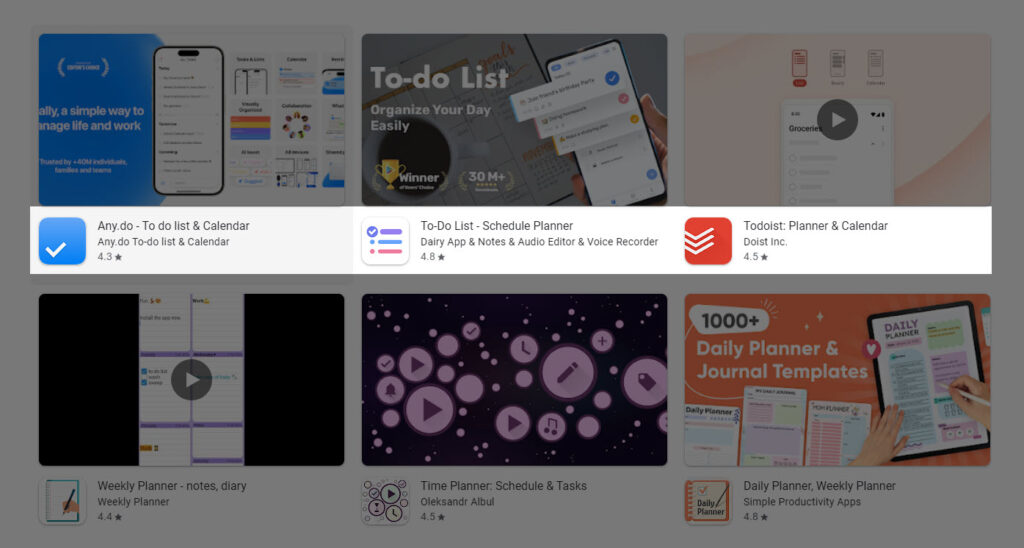
These are To-do apps that allow you to create and manage daily tasks, like picking up kids at school at 4 pm or building a new website page.
Microsoft To Do plays the same role. It allows you to turn your emails into tasks, access these tasks on your mobile devices, and assign them to team or family members.
The left menu displays key elements, such as My Day, Important, and Planned.
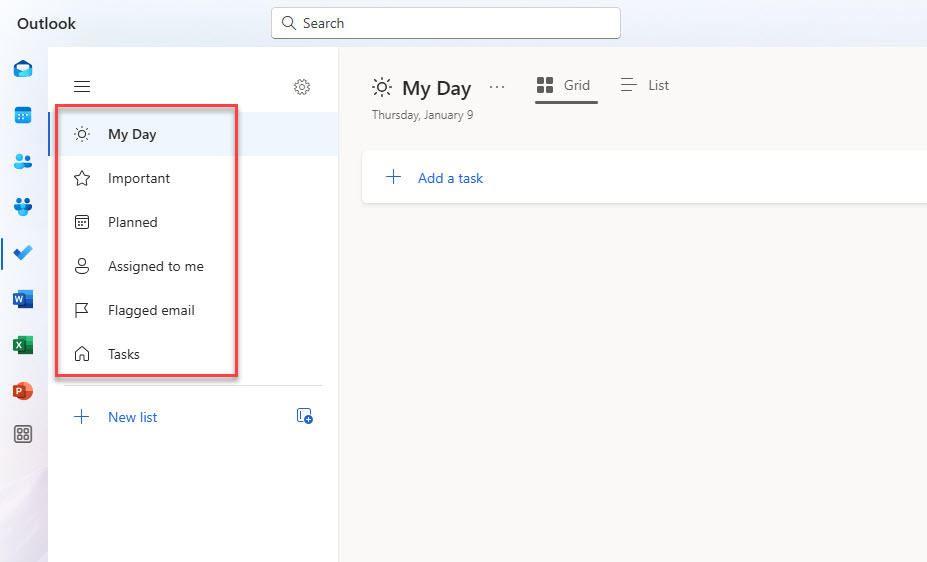
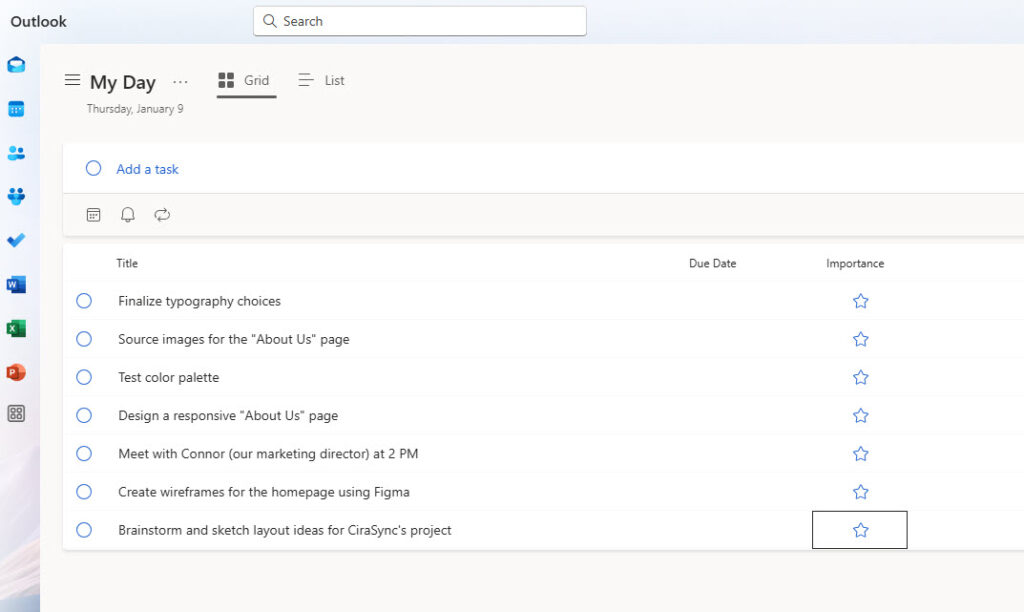
Let’s take My Day, for example. Here, I can plan my day by creating new tasks. Assuming I’m a website designer, I created the following tasks:
- Brainstorm and sketch layout ideas for CiraSync’s project
- Create wireframes for the homepage using Figma
- Meet with Connor (our marketing director) at 2 PM
- Design a responsive „About Us“ page
- Test color palette
- Source images for the „About Us“ page
- Finalize typography choices
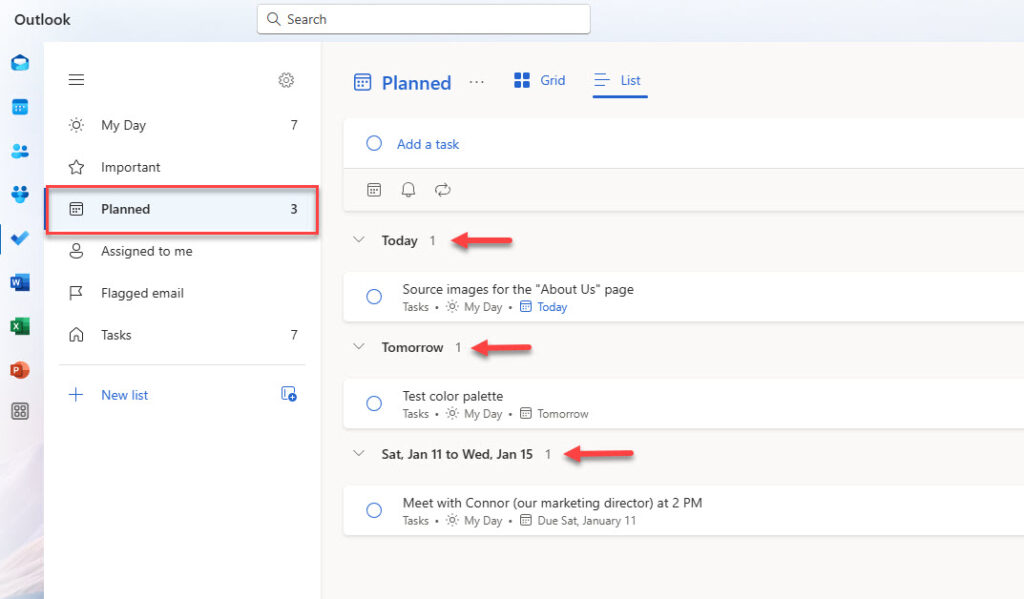
Every task that has a deadline will appear in the Planned tab.
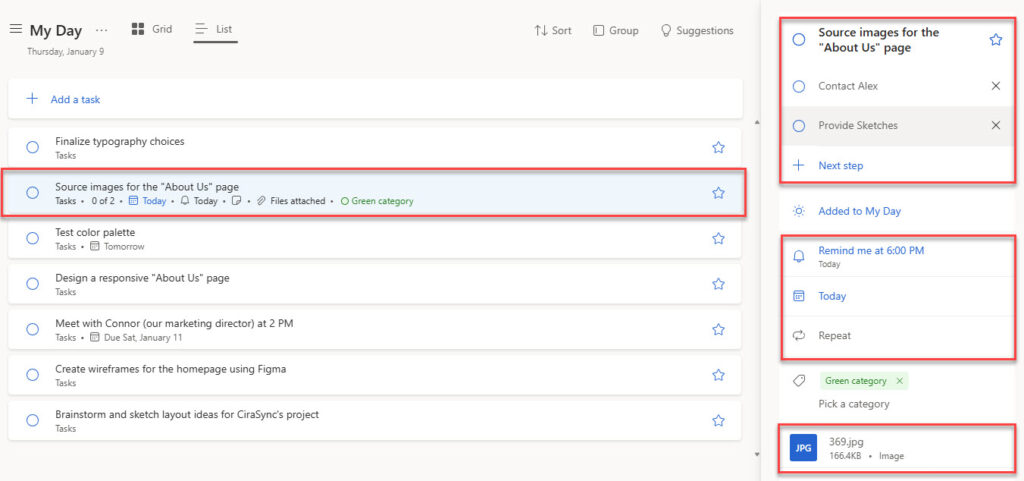
After clicking on a task, you can add subtasks, set a reminder, repeat the task, attach a file (png, jpeg, pdf, etc), and more.
Let me wrap up with Microsoft To Do with one of my favorite features. It allows you to create lists of tasks to manage projects efficiently.
Assume you are a freelance writer who provides services to five clients. Instead of creating all tasks in one place, you can arrange them neatly in lists.
To do so, go to New List, name your list, and press Enter on your keyboard. I called mine CiraHub. Finally, enter your CiraHub tasks.
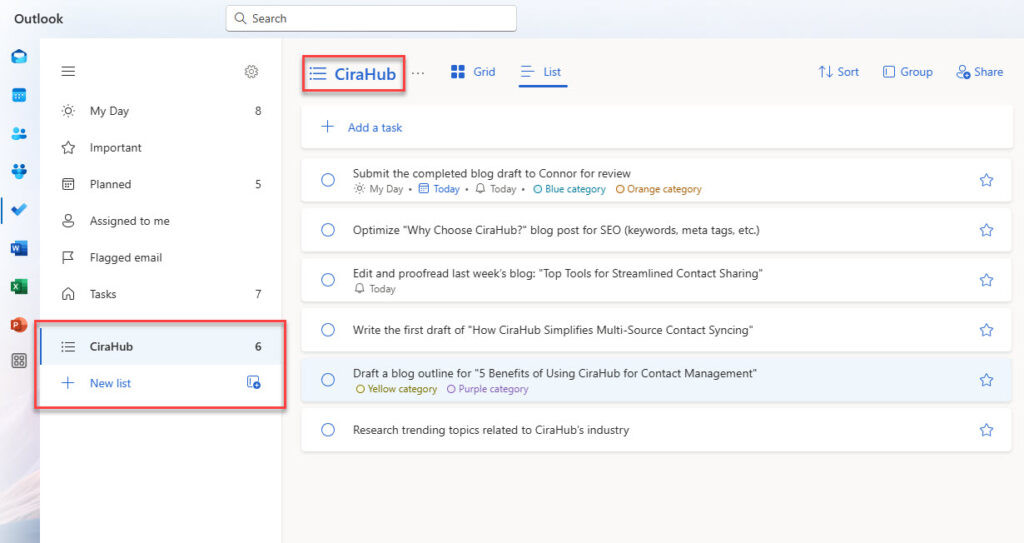
This List feature can change the way you manage daily tasks.
Advanced Tips and Tricks for Outlook Power Users
Now, I want to share some trade tricks to optimize your Outlook experience.
1. Sync Outlook Contacts to Smartphones
Microsoft does not allow users to sync their Outlook contacts directly to their smartphones, and yes, it’s very sad.
For example, imagine a construction company working on a client’s project with a tight deadline. The foreman needs to call a supplier to confirm a materials delivery by the end of the day, but the supplier’s contact is stuck in Outlook.
With no quick way to sync it to their smartphone, the delivery gets delayed, and the entire project timeline takes a hit. Frustrating, isn’t it?
That’s precisely a problem Skender, a giant construction company, faced before using CiraSync. They wanted to sync their old and new Outlook contacts to employee smartphones.
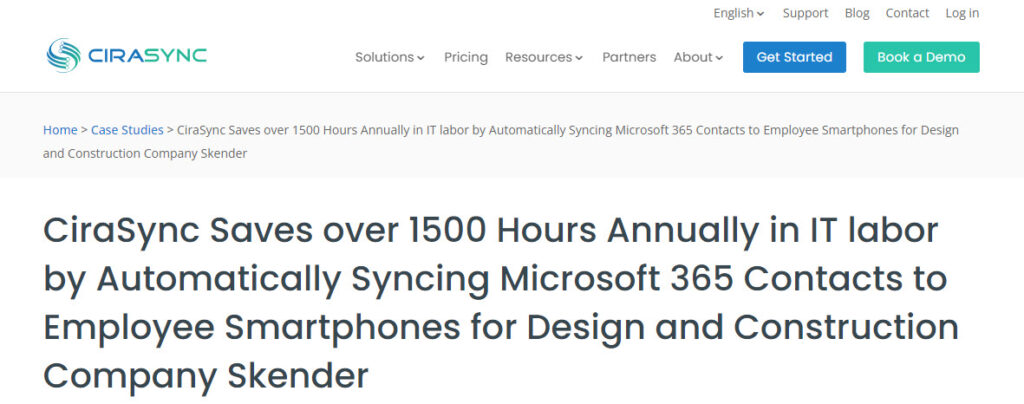
Old employees’ contacts remained in the system, while new employees’ didn’t appear in the company address book.
Field workers started to complain, and the systems administrators had to send instructions on how to update contacts and hope employees would maintain their contacts on their own. Unfortunately, most employees failed to update their contacts, resulting in significant company-wide issues.
How did Skinder solve this problem?
They used CiraSync, the best online tool that syncs GAL contacts and Calendar events to Android and iOS devices. This way, you can access and email all your contacts from your phone on the go, even if you’re not in the office.
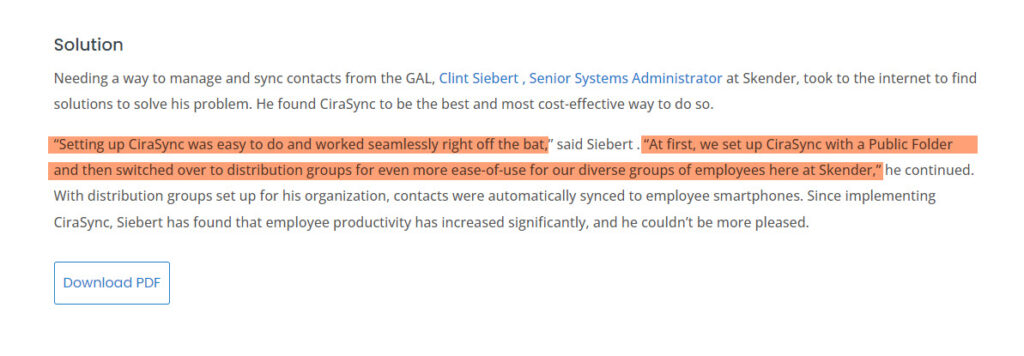
Clint Siebert, Director of Technology at Skender, said:
“Setting up CiraSync was easy to do and worked seamlessly right off the bat. At first, we set up CiraSync with a Public Folder and then switched over to distribution groups for even more ease-of-use for our diverse groups of employees here at Skender.”
But Skender isn’t the only company syncing Outlook contacts to Android and Apple devices. Check out how the following companies save hours and money with CiraSync:
- Information Technology (IT) Firms
- Financial Services
- Construction Companies
- Government Agencies
- Education Institutions
- Logistics and Transportation Companies and
- Law Firms
2. Multi-Way Sync Outlook Contacts
Syncing contacts in or from many directions is another way to improve your Outlook experience.
Imagine an electrical company responding to an urgent power outage at a commercial site. The technician arrives and tries to call the site manager, but the number doesn’t go through (it’s outdated).
Meanwhile, the customer support team back at the office has the updated number stored in HubSpot—but there’s no way to sync it with the technician’s phone in real time.
This broken communication system wastes precious time, delays the repair, and frustrates the company and the client.
That’s why, at Cira Apps, we launched another app called CiraHub.
With just a few clicks, companies can two-way sync Outlook and HubSpot contacts. No need to call another department; employees have access to updated contacts directly on their smartphones.
But HubSpot is just the tip of the iceberg, as organizations also use CiraHub to two-way sync
- Outlook and Salesforce contacts
- Outlook and Google Contacts
- Outlook and Zoho CRM contacts
- Outlook and Procore contacts
- And more.
Check out our integrated apps to learn more about your syncing possibilities.
3. Use Rules to Manage Your Inbox Efficiently
Rules are one additional tip I want to share. They allow you to automate actions in your Outlook inbox.
For example, you can set up a rule for Outlook to automatically categorize all emails from a specific email address into a separate folder. You may also set up a rule to flag messages from particular contacts or automatically assign importance.
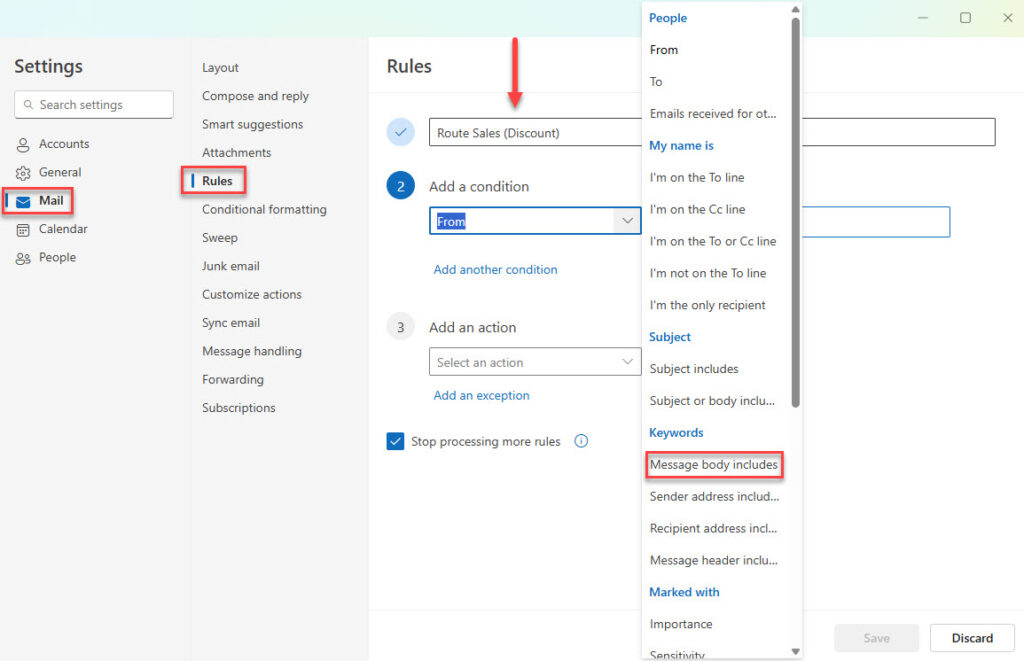
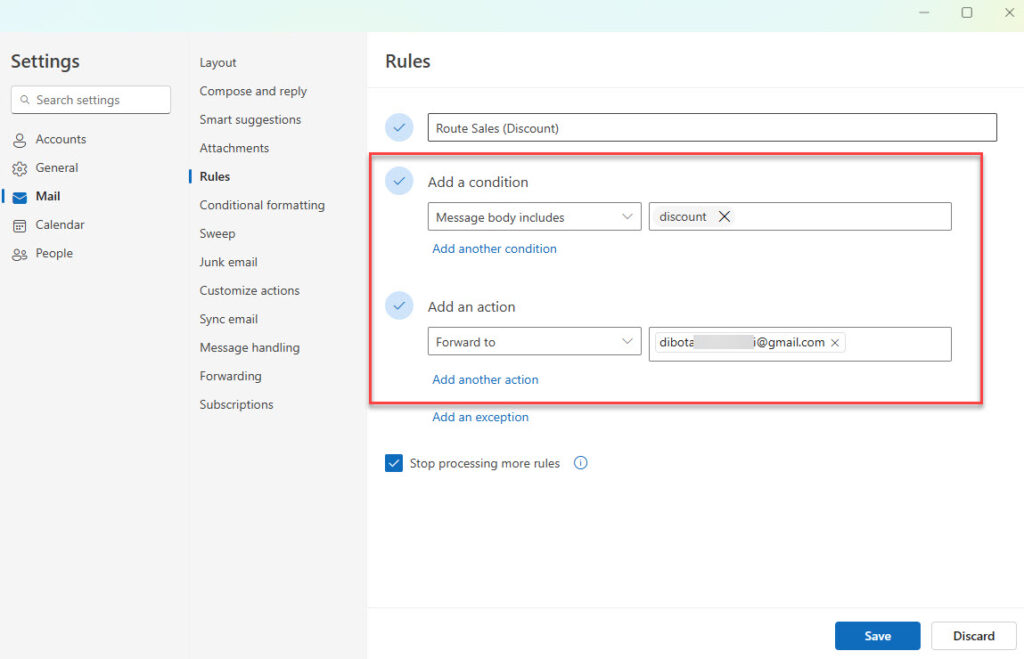
Let’s create a rule that routes emails to another email address based on a specific keyword.
Go to Settings (gear icon) > Mail > Rules. Name your rule and choose a condition. I will go with “Message body includes.”
Enter your keyword (‘discount’ in this case), select “Forward to” under “Add an action,” and enter the email address you will forward the message to.
4. Set Up Email Signatures
You can set up an automatic email signature rather than typing your name repetitively, but the automatic reply option is even more helpful (in my opinion).
Let’s start with signatures.
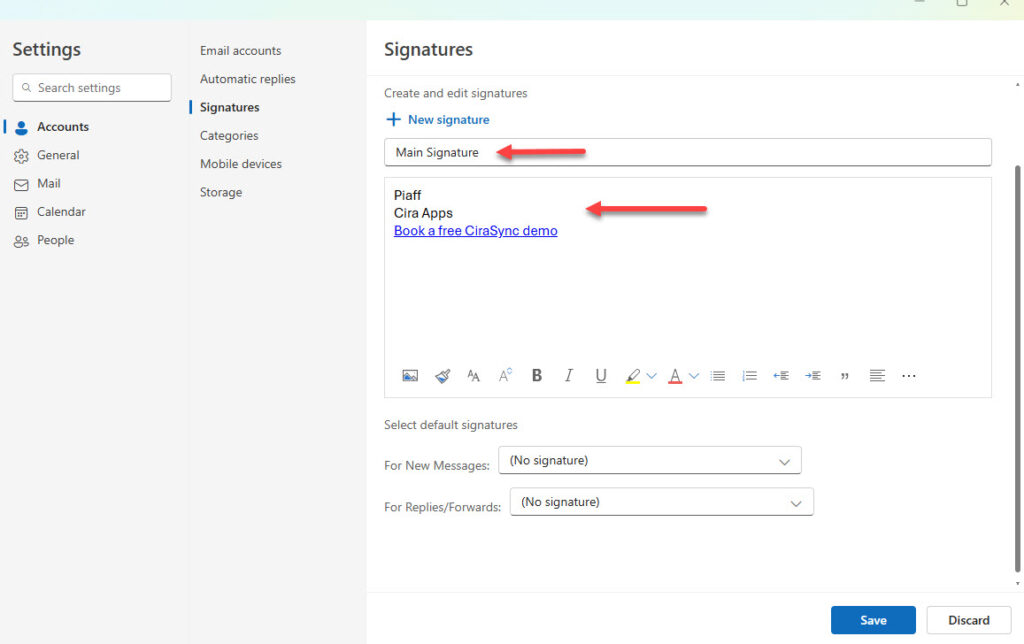
Go to Settings > Accounts > Signatures and name your new signature. Enter your name, company name, and call to action (if necessary). You can check out this Mailerlite article about email signatures.
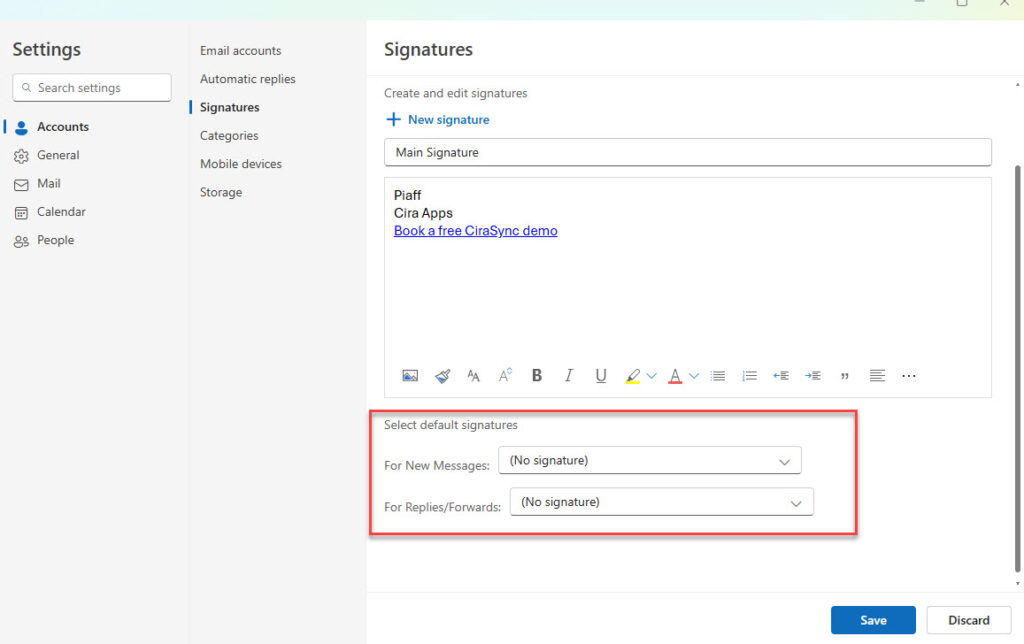
If you have multiple signatures, you can choose different signatures when sending a new email and replying to an email.
5. Integrate It with Other Microsoft 365 Apps
You can easily integrate Outlook with other Microsoft apps, like Word, Excel, PowerPoint, OneNote, Teams, SharePoint, and more.
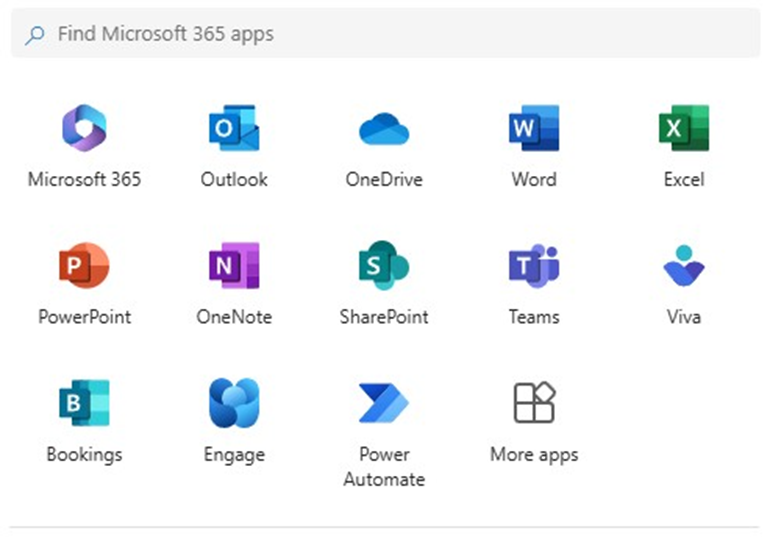
For instance, integrating Outlook with Teams, used by over 320 million users worldwide, allows you to:
- Create and schedule team meetings,
- Unify your calendars,
- Accept or join existing meetings,
- Ensure platform consistency with the same information.
6. Keyboard Shortcuts
There are hundreds of keyboard shortcuts in Microsoft’s apps, but we’ll just mention the most useful ones in Outlook:
- Ctrl + F – forward message
- Ctrl + N – create a new message
- Ctrl + R (+Shift) – reply to message (+ Shift is used to reply to all)
- Ctrl + Enter – send message
- Ctrl + 2 – got to calendar
Outlook vs Gmail: Which is Better?
In simple terms, Gmail is better for users comfortable with the Google ecosystem (Google Calendar, Docs, Sheets, Drive, Meet, etc.). On the other hand, Outlook is perfect for Microsoft ecosystem users (Word, Excel, Teams, OneDrive, etc).
Both Outlook and Gmail offer similar features. They provide the same amount of free storage (15 GB), can organize emails in folders and categories, and integrate with third-party apps like Zapier.
Users who’ve used both, myself included, will testify that both platforms are more-or-less the same, and neither has the upper hand over the other. Google is a bit more customizable, while Outlook is more plain and straightforward.
Use Outlook to Manage Your Business
In this guide, I shared my personal experience with Microsoft Outlook. I showed how I use it to manage emails and contacts, organize my calendar, and create and complete tasks.
I also listed recommended advanced tips that will transform your Outlook experience.
With its seamless integration with other useful apps and ease of use, Outlook is one of the top email clients today, and it’s been justifying the trust of its clients for decades.
I can wholeheartedly recommend it as an all-in-one tool for business.
Frequently Asked Questions
What Is Microsoft Outlook?
Microsoft Outlook is Microsoft’s email and productivity application that combines email, calendar, contacts, tasks, and collaboration tools in a single platform. It is available as part of Microsoft 365 and can be used on Windows, Mac, web browsers, Android, and iPhone.
What Is the Difference Between New Outlook and Classic Outlook?
New Outlook offers a modern interface, continuous feature updates, Microsoft Copilot integration, and a consistent experience across devices. Classic Outlook provides broader support for offline functionality, PST files, COM add-ins, VBA macros, and advanced enterprise features.
Is New Outlook Replacing Classic Outlook?
Microsoft is encouraging users to transition to New Outlook, but Classic Outlook remains available for organizations that depend on legacy features, add-ins, offline capabilities, and advanced customization.
Can I Use Microsoft Outlook Without Microsoft 365?
Yes. Outlook can be used with Microsoft 365 subscriptions, Outlook.com accounts, Exchange Online, Exchange Server, and many third-party email services such as Gmail, Yahoo Mail, and iCloud Mail.
Does Microsoft Outlook Work on Android and iPhone?
Yes. Microsoft Outlook is available on both Android and iOS devices. The mobile app provides access to email, calendars, contacts, and files while supporting modern authentication and Microsoft 365 integration.
What Is Microsoft Copilot in Outlook?
Microsoft Copilot in Outlook is an AI-powered assistant that helps users draft emails, summarize conversations, suggest responses, improve writing tone, and manage calendars more efficiently using generative AI.
Can Outlook Manage Shared Mailboxes and Calendars?
Yes. Outlook supports shared mailboxes, shared calendars, delegation, and team collaboration features that allow multiple users to access and manage common email and scheduling resources.
How Do I Sync Outlook Contacts to Mobile Devices?
Outlook contacts can be synced through Microsoft 365 mobile applications or automated contact synchronization solutions such as CiraSync, which can push Global Address List (GAL), shared contacts, and company directories directly to smartphones.
Does Outlook Support Offline Access?
Classic Outlook supports full offline access through Cached Exchange Mode. New Outlook currently offers limited offline functionality, with additional offline capabilities continuing to be added through ongoing updates.
Is Microsoft Outlook Secure for Business Use?
Yes. Microsoft Outlook includes enterprise-grade security features such as multi-factor authentication, phishing protection, encryption, compliance controls, conditional access policies, and Microsoft Defender integrations.
When Is Classic Outlook Being Retired?
Microsoft has not announced a final retirement date for Classic Outlook. While Microsoft is promoting New Outlook as the future of the platform, Classic Outlook remains supported for organizations that rely on legacy features such as COM add-ins, VBA macros, PST files, and advanced enterprise functionality. Businesses should monitor Microsoft’s official roadmap for future transition timelines.