

For organizations and individuals who rely on both iCloud and Exchange Server public folders, achieving seamless synchronization between these platforms can simplify scheduling and improve coordination. This article provides a comprehensive guide on how to set up a two-way sync between iCloud and Exchange Server public folders, enabling you to keep shared calendars consistently updated and accessible across all devices.
Steps to Two-Way Sync Calendars Between iCloud and an Exchange Server Public Folder
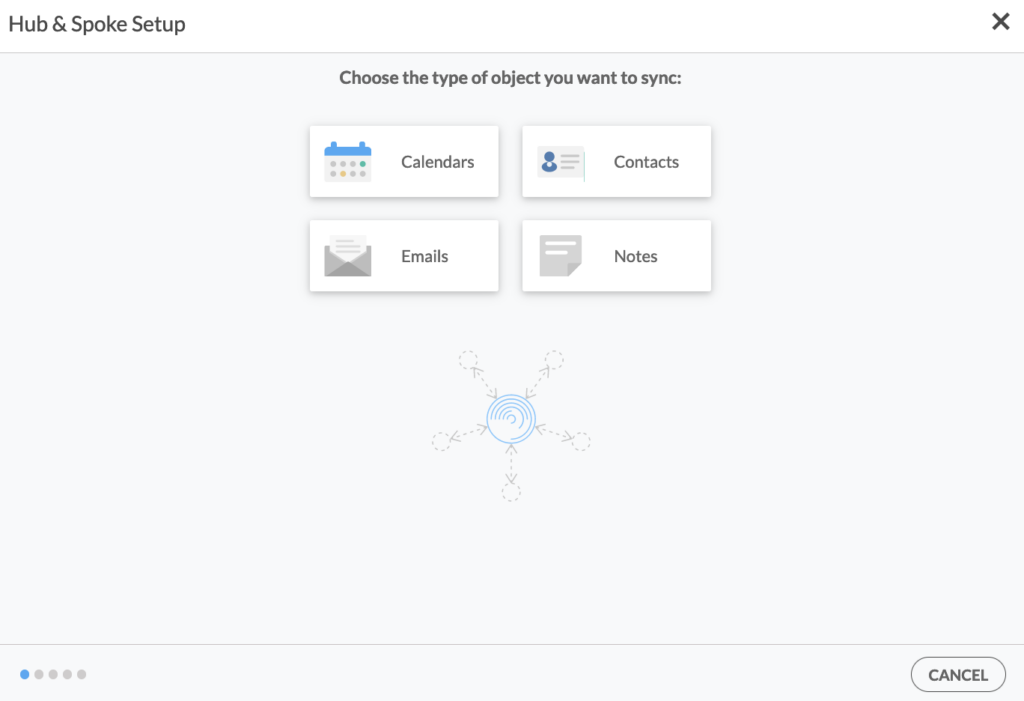
1. Log in to CiraHub. On the Hub & Spoke Setup page, select the Calendars object.
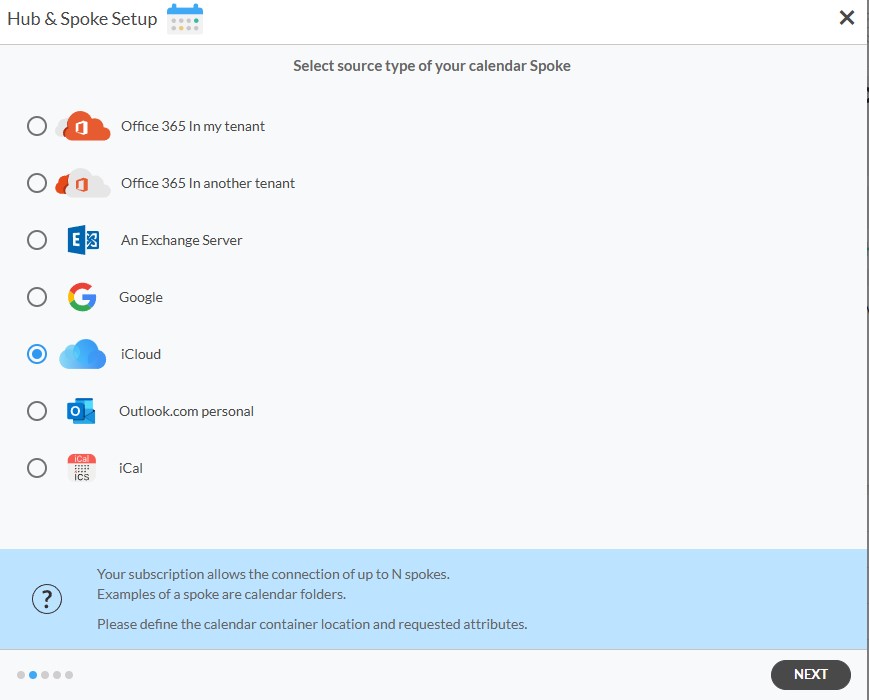
2. Select iCloud as the source type of your Calendar spoke and click NEXT.
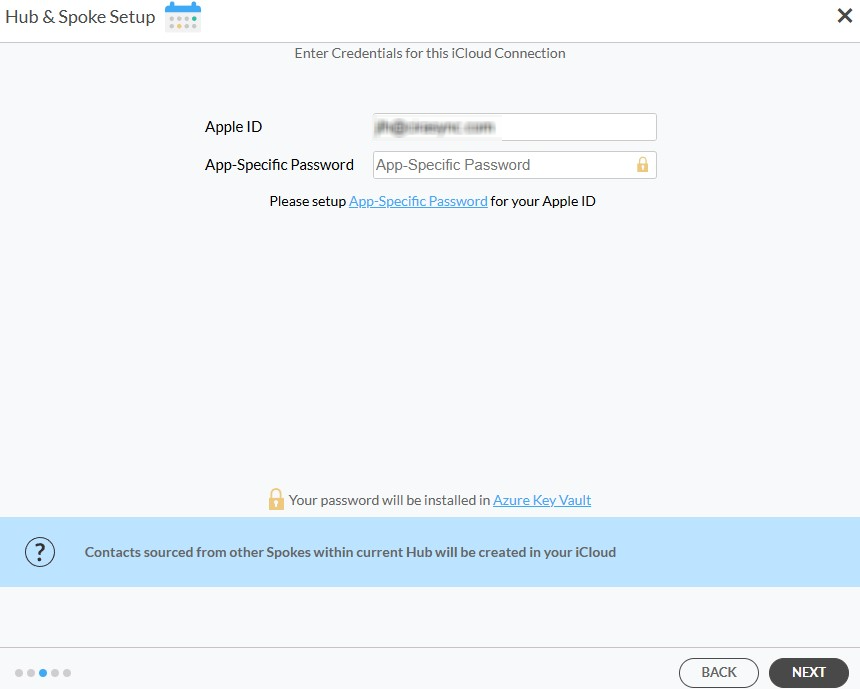
3. Enter your Apple ID and Password for your iCloud account.
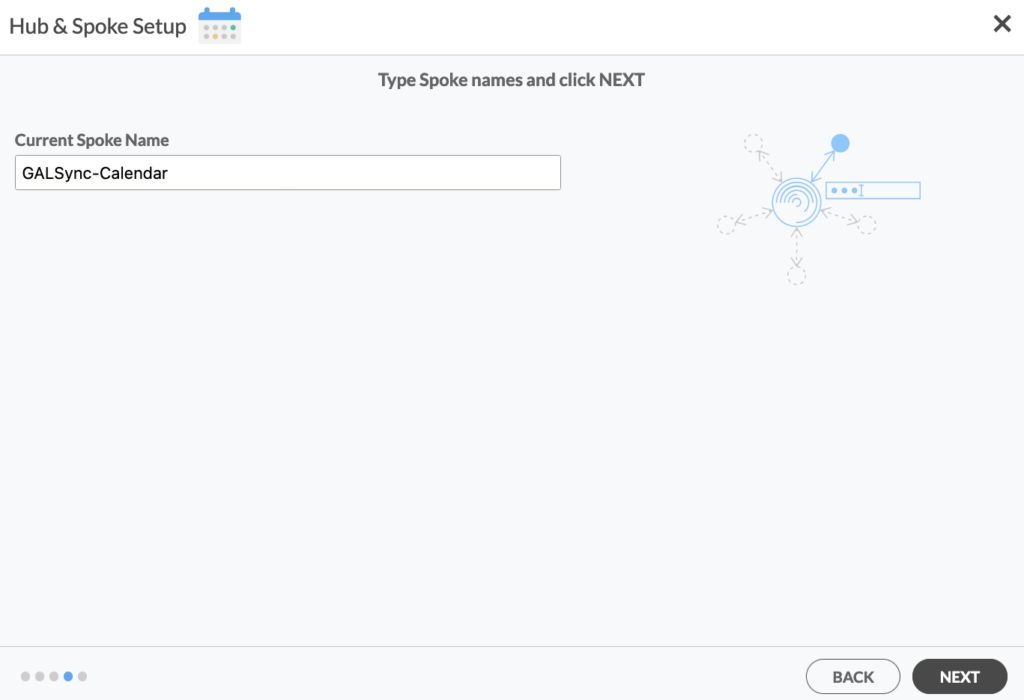
4. Type in a name for your spoke and click Create.
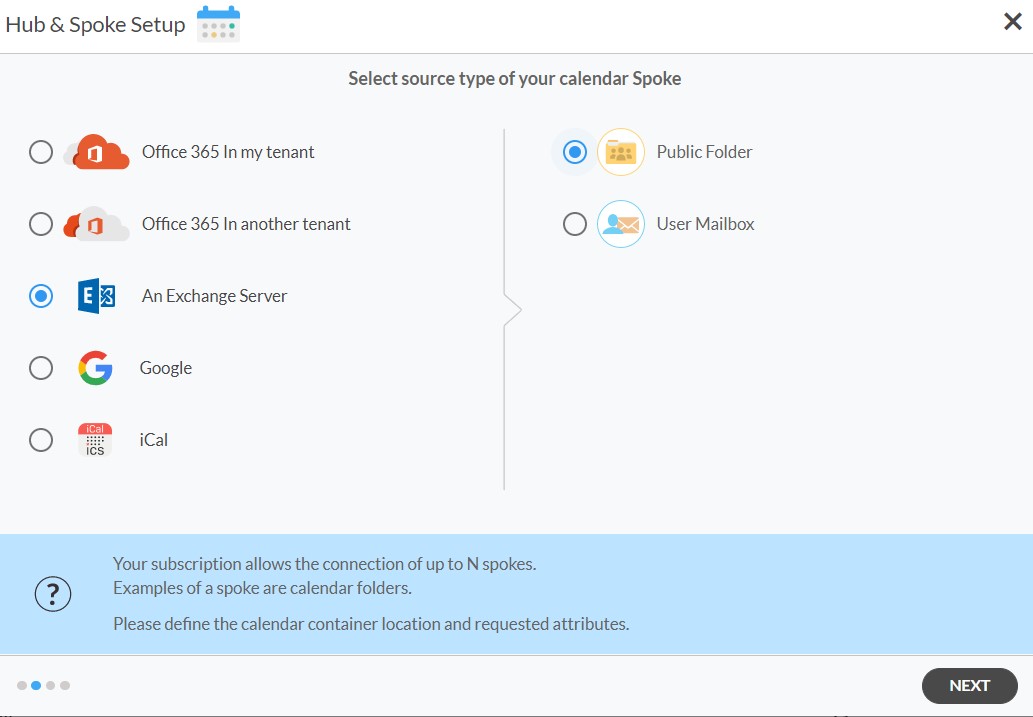
5. On the CiraHub dashboard, add a Mailbox Calendar using the +Spoke button. Click on “Exchange Server” as your source type for your calendar spoke and select Public Folder.
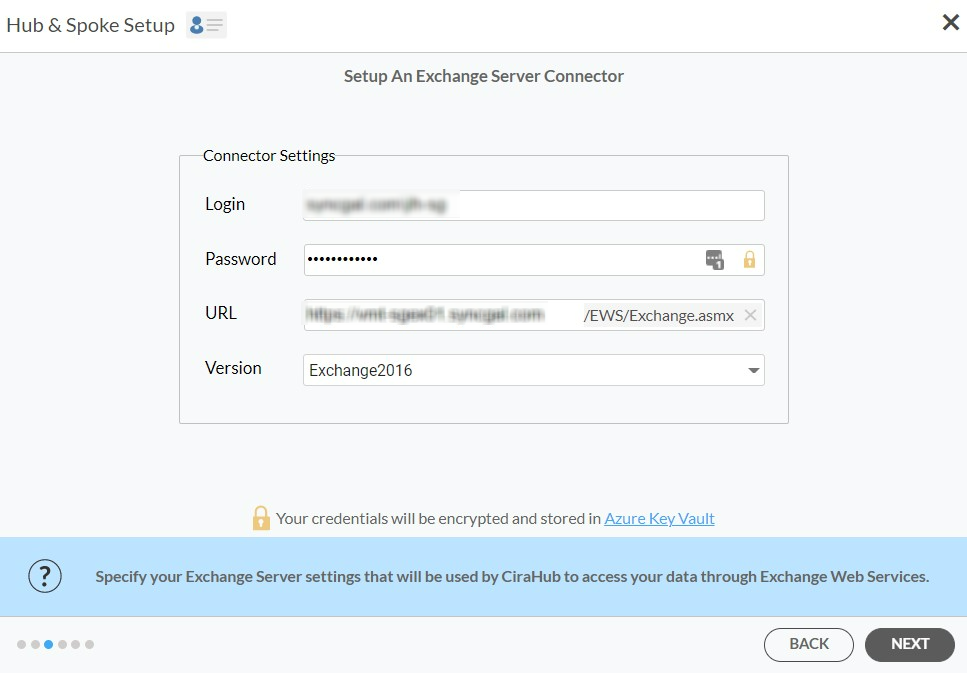
6. Enter your Exchange Sever Connector Login, Password, URL, and Exchange Version. If you are running an Exchange Server Version dated 2016 or later, always select Exchange 2016 in your Connector Settings. Click here for more information on How to Find your Exchange Server settings.
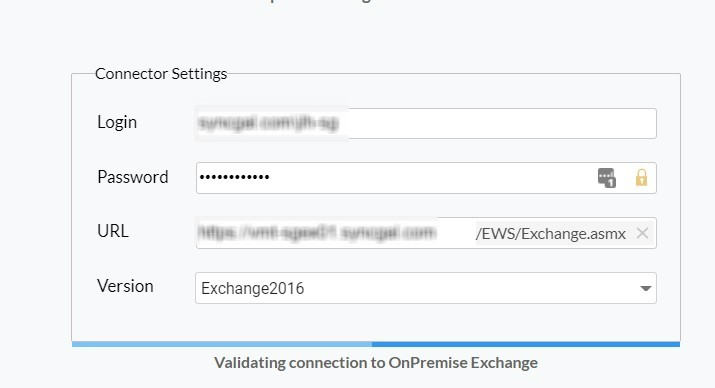
7. Wait for CiraHub to Validate your Exchange Server Settings in order to access your data.
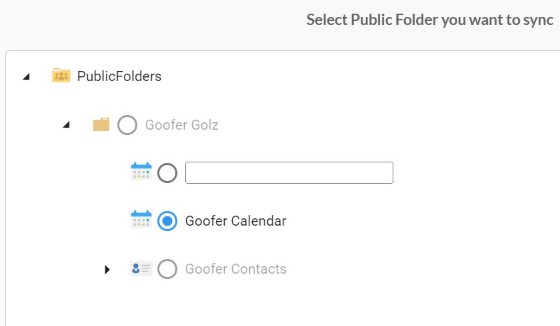
8. Select the Mailbox Folder you would like to sync.
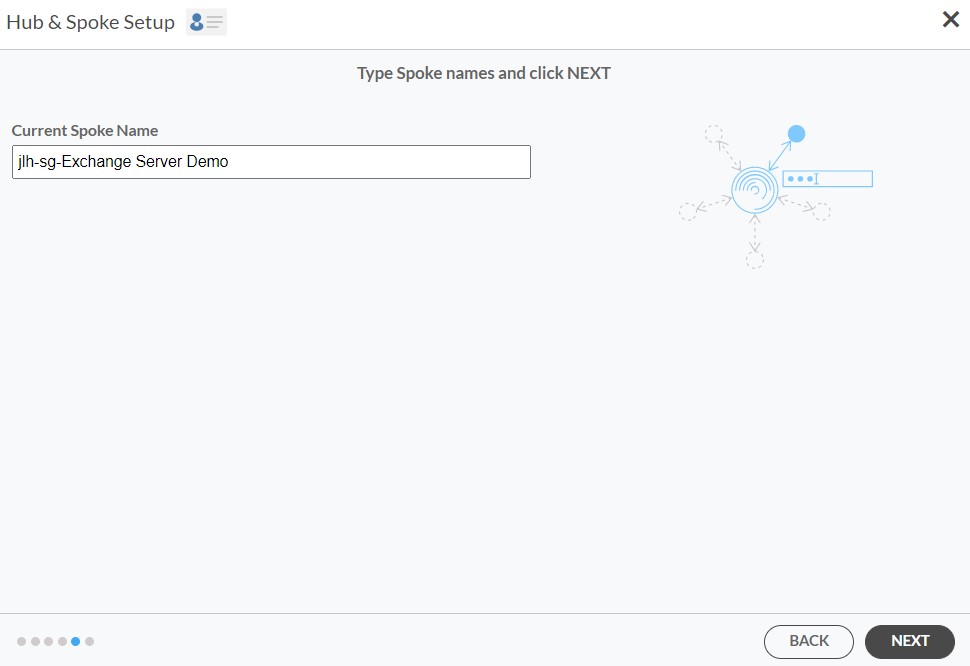
9. Type in a Spoke Name and click Next.
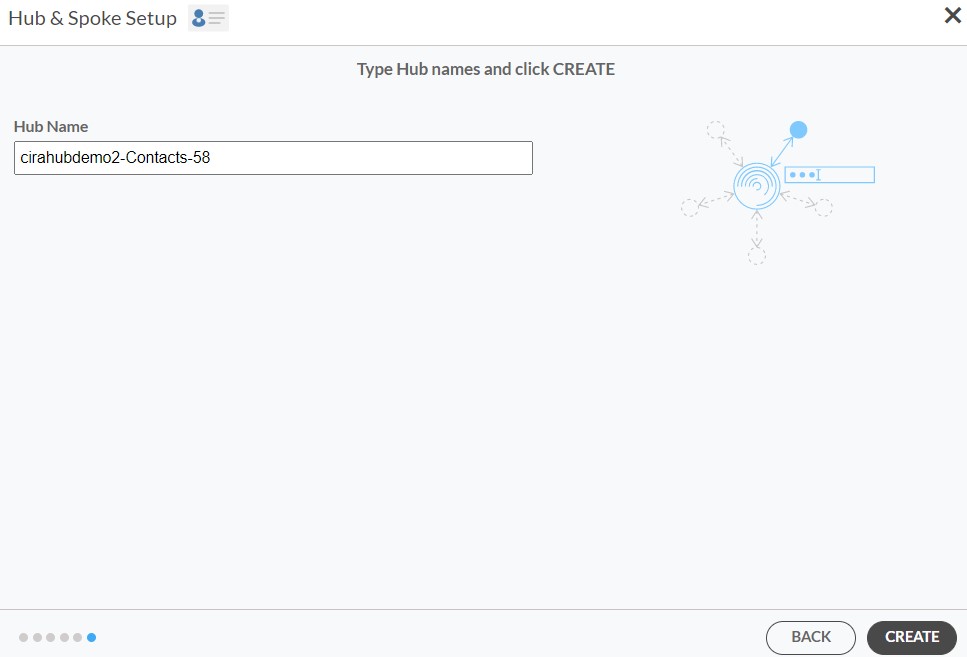
10. Type in a Hub Name and click Create.
11. On the CiraHub Dashboard, click on each of the Spokes, select Sync Options, then Allow the Hub to create and sync items in this spoke, and click NEXT. This will enable 2-way synchronization between the Hub and your spoke.
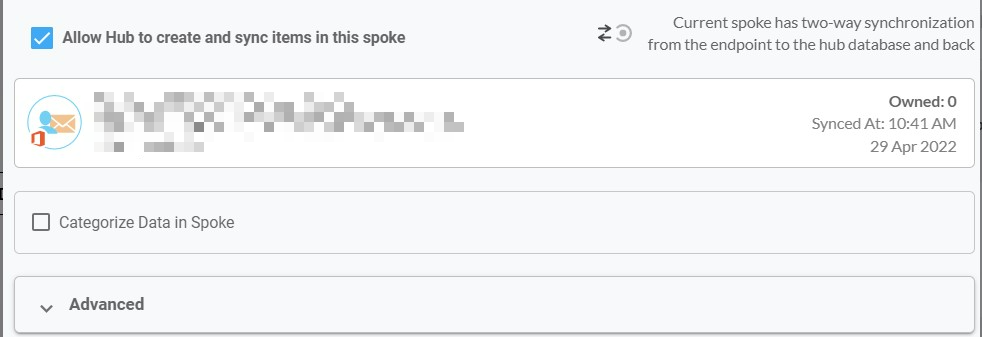
12. Next you can set up sync options and advanced settings for items in the spoke. Important: learn more about Calendar Sync Options here.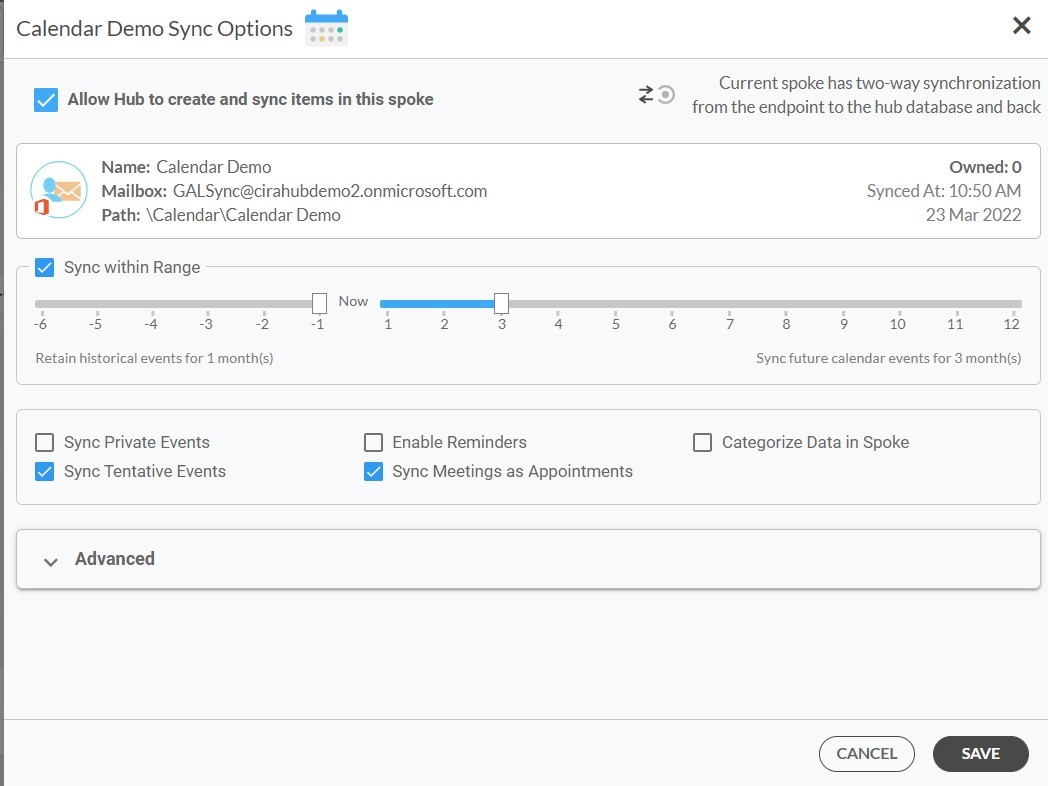
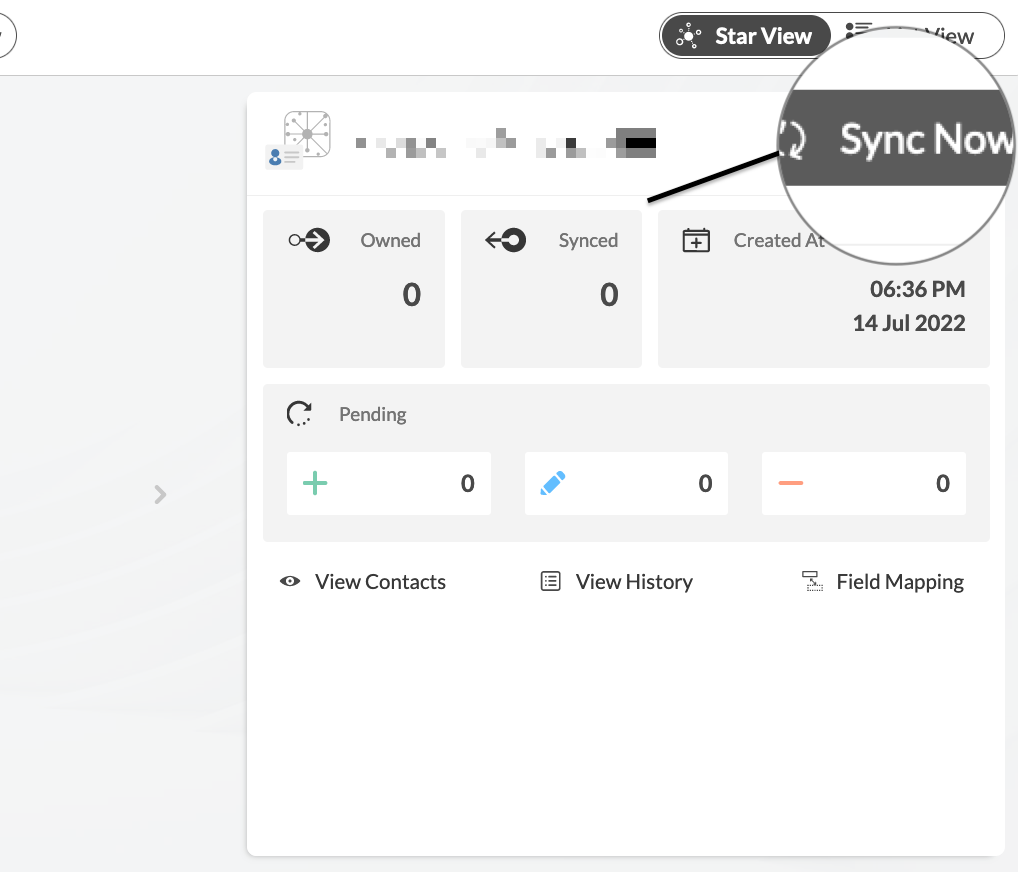
13. Click “Sync now” to enable 2-way synchronization between the Spokes and the Hub you have created. You can also modify the sync options for each of your Spokes.
More About CiraHub!
CiraHub is a two-way sync platform for shared contacts and calendars for Microsoft 365, Exchange Server, and other Microsoft Enterprise Applications users. The software is designed to make it easy for people lacking IT expertise to set up shared contact and calendar sync for their company. For more information check out the FAQ page and our CiraHub Onboarding Guide.