

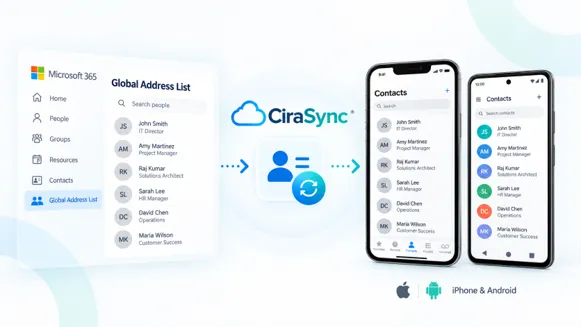


Your Microsoft 365 Global Address List may contain the phone numbers, email addresses, job titles, and other directory information employees need every day. The problem is that having someone in the GAL does not automatically make that person a saved contact in an employee’s smartphone address book.
That distinction is the foundation of GAL sync.
Microsoft Exchange Online provides the Global Address List as an organizational address list. Microsoft states that the default GAL includes the mail-enabled recipient objects in the organization, and Exchange address lists are dynamically updated as recipients are created or modified.
But the GAL and a user’s personal Contacts folder are not the same thing.
A user may be able to search for a colleague through Outlook or an Exchange directory without that colleague existing as a saved contact on the phone. That difference becomes important when organizations need native caller ID, contact lookup outside Outlook, text-message name resolution, or centrally maintained company contacts on hundreds or thousands of smartphones.
This guide explains exactly how GAL sync works in Microsoft 365, what Microsoft supports natively, how iPhone and Android behave differently, where Intune fits into the process, and how organizations can automate GAL synchronization with CiraSync.
TL;DR:
Being listed in your Microsoft 365 Global Address List does not make someone a saved contact on an employee’s phone. The GAL is an organizational directory you can search; a phone’s Contacts app is a separate store that powers caller ID, messaging, and native apps. CiraSync bridges the two in one of two ways: the mailbox path, where GAL records land in each user’s mailbox Contacts and the device’s contact sync carries them to the phone; or Mobile Direct, which pushes corporate contacts straight into the native iOS or Android Contacts app over CardDAV, typically through the organization’s device-management platform. Directory lookup alone (Outlook address book, Apple’s Exchange GAL search) does not create native contacts, and Intune governs mobile app behavior rather than converting the GAL into contacts. For centrally managed, one-way distribution of company contacts to hundreds or thousands of phones, an automated GAL-to-mailbox sync such as CiraSync handles the first step so the device can handle the second.
What Is GAL Sync?
GAL sync is the process of making directory information from an organization’s Global Address List available as usable contact records in another destination, such as Outlook Contacts, an Exchange mailbox contact folder, an iPhone, or an Android address book.
In Exchange Online, the GAL is an address list used to find recipients. Microsoft describes the default Global Address List as the primary repository of recipients in an Exchange Online organization. It can contain users, contacts, groups, dynamic distribution groups, and other mail-enabled objects.
That is different from a user’s personal Microsoft 365 Contacts folder.
This distinction explains why an employee might be able to search for “John Smith” when composing an email but still see only John’s telephone number rather than his name when John calls their smartphone.
For native caller identification, the relevant information normally needs to be available to the phone’s contact system rather than merely searchable in the Exchange directory.
GAL vs. Outlook Contacts vs. Smartphone Contacts
Understanding the architecture prevents most GAL sync confusion.
| Data Source | What It Is | Primary Purpose | Automatically a Native Phone Contact? |
| Global Address List | Exchange organizational directory | Finding people and mail-enabled recipients | No |
| Outlook or Microsoft 365 Contacts | Contacts stored in a user’s mailbox | Personal or synchronized contact management | Can be, when contact synchronization is enabled |
| iPhone or Android Contacts | Contacts available to the phone operating system | Caller ID, phone, messaging and native apps | Yes |
Microsoft documents Outlook mobile’s Save Contacts and Sync Contacts functions for exporting or synchronizing Outlook contacts with the device’s native contacts application. Microsoft does not describe this feature as copying the entire Exchange GAL into the user’s contact folder.
That is why simply enabling contact synchronization in Outlook does not solve every GAL-to-smartphone requirement.
Why Doesn’t the Global Address List Automatically Sync to Smartphones?
The GAL is designed primarily as an organizational directory rather than a personal contact folder.
Desktop Outlook illustrates the difference clearly. When a Microsoft 365 or Exchange user opens the address book or selects the To field while composing a message, Outlook can use the organization’s Global Address List to find recipients.
Smartphones can also perform directory lookups in some configurations.
Apple, for example, documents that iPhones and iPads connected to Exchange can retrieve information from an Exchange Online GAL when users search Contacts or enter email recipients.
But directory lookup is not the same as synchronization.
A lookup retrieves information when it is requested. GAL synchronization creates or maintains contact records in a destination where the operating system and other applications can use them directly.
This matters for organizations that require:
- Native caller ID for coworkers.
- Company contacts in the iPhone or Android Contacts app.
- Phone-number lookup outside Outlook.
- Contact availability for messaging and other permitted mobile applications.
- Centrally maintained contact information without users manually creating contacts.
Can You Sync the GAL to Smartphones Without Intune?
Yes. GAL synchronization and Intune device management solve different problems.
Microsoft Intune can configure or restrict Outlook mobile’s contact synchronization behavior. Microsoft documents an Outlook setting called Save (or Sync) Contacts, and administrators can control its availability through application configuration and application protection policies.
However, Intune does not by itself convert the Exchange GAL into each user’s personal mailbox contacts.
A useful way to think about the architecture is:
GAL to mailbox contacts to smartphone contacts
Intune can help govern the final mobile application behavior.
A GAL synchronization service handles the earlier step of taking organizational directory information and making the appropriate contact records available to users.
CiraSync, for example, documents a server-side approach in which GAL information is synchronized to users’ Microsoft 365 mailbox contact folders. The mobile device can then obtain those mailbox contacts through its configured Exchange or Outlook contact synchronization mechanism.
This means an organization can implement GAL sync without Intune on the mailbox path. That said, Intune now plays a more active role on the direct path: CiraSync markets Mobile Direct as an app-free, CardDAV-based way to deliver contacts straight to the native address book, and it is typically deployed and governed through Intune or another supported MDM. So Intune is not required to get GAL records into mailbox contacts, but it can be the delivery mechanism when you use Mobile Direct.
The Main Ways to Access or Sync the Global Address List
There are several approaches, and they do not provide the same result. The methods below sit at different layers, from on-demand directory lookup to full contact synchronization, so read the table as a comparison of what each one does rather than as a set of interchangeable options.
| Method | GAL Search | Creates Smartphone Contacts | Centrally Automated | Typical Use |
| Outlook/Exchange directory lookup | Yes | No | Native | Searching for coworkers |
| Apple Exchange GAL search | Yes | No | Native | On-demand iPhone directory lookup |
| Outlook Save/Sync Contacts | For mailbox contacts | Yes | Can be policy-controlled | Getting Outlook contacts into the native address book |
| Manually copying GAL entries to Contacts | Yes | Yes | No | Small or temporary use cases |
| CiraSync Cloud GAL sync | Source is the GAL | Yes, through mailbox contact synchronization | Yes | Centralized one-way organizational contact distribution |
| CiraSync Hub | Depends on connected sources | Can feed synchronized contact systems | Yes | Two-way or multi-system contact synchronization |
The important question is therefore not simply, “Can the phone access the GAL?”
The better question is:
Does the organization need directory lookup, or does it need actual synchronized contacts?
For occasional email recipient searches, directory access may be sufficient.
For native contacts and centrally managed company contact information, an automated GAL-to-contacts workflow is usually the more relevant architecture.
How CiraSync GAL Sync Works
CiraSync does not need to interact directly with every employee’s physical smartphone to perform its core GAL synchronization.
CiraSync’s current support documentation states that the service synchronizes data from the configured source to the user’s mailbox. How those contacts are subsequently displayed on a mobile device is controlled by the device and its contact-sync configuration.
For a Microsoft 365 GAL deployment, there are two delivery paths, and the right one depends on your environment.
Mailbox path: Microsoft 365 or Exchange GAL to CiraSync to user mailbox Contacts to the device, through supported Outlook or Exchange contact synchronization.
Direct path (Mobile Direct): the GAL or contact source to CiraSync to the native iOS or Android Contacts app over CardDAV, typically deployed and managed through the organization’s device-management platform, with no Outlook app required as the delivery mechanism.
How to Sync the Global Address List With CiraSync
CiraSync’s current QuickStart documentation describes the GAL synchronization workflow through the central dashboard. The guide assumes the required administrator permissions and Application Consent configuration have already been established.
A typical configuration follows these steps:
- Sign in to the CiraSync Dashboard.
- Create or open a Contact List configuration.
- Choose Global Address List as the contact source.
- Select the appropriate source collection or directory contacts.
- Select the users or user collection that should receive the contacts.
- Configure the destination contact list and applicable contact options.
- Save the configuration.
- Run the synchronization or allow the configured synchronization process to handle future updates.
CiraSync also supports targeting subsets of the GAL to selected groups rather than requiring every user to receive every directory contact. Its Contact Collections functionality can be used to define source and target populations.
That can be useful in larger organizations where field teams, locations, business units, or departments require different contact populations.
How to Sync the Global Address List to iPhone
There are two separate scenarios on iPhone.
Option 1: Search the Exchange GAL
Apple supports Exchange Online GAL lookup on iPhone and iPad. Users can retrieve organizational contact information when searching Contacts and while entering email recipients.
This gives users directory access, but it does not mean the entire GAL has been saved locally as ordinary iPhone contacts.
Option 2: Synchronize GAL Records Into Mailbox Contacts
If an administrator first uses CiraSync to synchronize the appropriate GAL records into users’ mailbox Contacts, those mailbox contacts can then be made available to the phone.
For Outlook for iOS, Microsoft instructs users to enable Save Contacts for the appropriate Outlook account. Microsoft also states that Outlook contacts saved this way are added to the device’s contact system and that only one device should export contacts for the same account at a time to avoid conflicts.
If the Exchange account is configured through Apple’s native account integration instead, contact synchronization must be enabled for that Exchange account. Apple confirms that Exchange ActiveSync can synchronize Exchange contacts to Apple devices.
The result is fundamentally different from GAL search: the contacts now exist in a contact store the iPhone can use for native functions such as contact identification.
Option 3: Push Contacts Directly Over CardDAV
With CiraSync Mobile Direct, corporate contacts are delivered straight into the iPhone’s native Contacts app over CardDAV, without Outlook acting as the delivery mechanism. This path is typically deployed and managed through Intune or another supported MDM, and it keeps the synced contacts in their own managed container on the device.
How to Sync the GAL to Android
For users running Outlook for Android, Microsoft provides a Sync Contacts function.
Microsoft states that Outlook for Android can export contacts to the device’s default Contacts application. For Microsoft 365, Outlook.com, and supported Hybrid Modern Authentication scenarios, Microsoft also documents bidirectional synchronization between Outlook contacts and Android’s native Contacts application.
That Android behavior should not be confused with the direction of the underlying organizational GAL synchronization.
For example, CiraSync Cloud remains a centrally controlled one-way synchronization service even if the Android Outlook client itself supports bidirectional synchronization between the user’s mailbox contacts and the native Android contact application.
Those are two separate synchronization layers.
For organizations, maintaining a clearly defined authoritative contact source is therefore important.
How to Sync the Global Address List in Outlook
In many cases, desktop Outlook does not need a separate GAL synchronization process simply for recipient lookup.
Microsoft 365 and Exchange accounts already expose the organization’s GAL through Outlook’s Address Book. Users can search the GAL when composing messages or through the address book interface.
Classic Outlook in Cached Exchange Mode can also use an Offline Address Book, or OAB.
Microsoft describes the OAB as a downloadable collection of address lists that lets Outlook users access directory information while disconnected. In Exchange Online, Microsoft generates offline address books every eight hours. Exchange Server also uses a periodic OAB-generation cycle, with timing depending on the supported Exchange Server configuration.
Again, the Offline Address Book is not the same thing as an Outlook Contacts folder.
Organizations typically need actual GAL-to-Outlook-contact synchronization when they want GAL records copied into user mailbox contacts so those records can propagate to smartphones or participate in other contact-based workflows.
Outlook Save Contacts Does Not Equal GAL Sync
This is one of the most common sources of confusion.
Turning on Save Contacts in Outlook mobile tells Outlook to synchronize eligible Outlook mailbox contacts with the phone’s native contact application.
It does not automatically transform every object in the Exchange GAL into a personal Outlook contact.
On the mailbox path, a complete automated workflow involves two distinct functions. First, directory synchronization places GAL information into the appropriate mailbox Contacts folder. Second, device contact synchronization exposes those mailbox contacts to the native iPhone or Android contacts system. CiraSync handles the first; Exchange, Outlook mobile, or the device’s supported account integration handles the second.
CiraSync’s Mobile Direct path collapses that into a single step. It pushes the selected contacts straight to the native address book over CardDAV, so the mailbox contact folder is not a required intermediate stop and Outlook is not needed on the device to receive them.
GAL Sync Best Practices for IT Administrators
The objective should not simply be to copy the largest possible directory to every employee’s device.
CiraSync’s own contact-management guidance recommends cleaning source data, reviewing field mapping, filtering unnecessary records, testing with a smaller sample, and addressing potential duplicate records before broad deployment.
For an enterprise GAL sync deployment, a practical policy is to determine which contacts each population actually needs.
For example, a regional field team may require employees, dispatchers, project managers, emergency contacts, and key vendors but may not require thousands of unrelated organizational records.
Source-data quality matters as well.
A synchronization platform cannot create an accurate mobile number if the authoritative directory contains an incorrect or empty mobile-number field. The quality of the smartphone address book ultimately depends on the quality of the information being synchronized.
Troubleshooting GAL Sync Problems
When GAL contacts do not appear correctly on smartphones, determine which layer is failing before changing the configuration.
The user can find someone in the GAL, but the contact does not appear in the phone’s Contacts app. This usually indicates directory lookup is working while GAL-to-mailbox or mailbox-to-device contact synchronization has not been completed.
The contacts exist in Outlook but not on iPhone. Verify the appropriate account’s contact synchronization setting. When Outlook for iOS is being used for contact export, Microsoft documents the Save Contacts option and requires Outlook to have access to the native Contacts application.
Contacts do not appear on Android. Verify Outlook’s Sync Contacts setting and Android contact permissions. Microsoft documents Android contact synchronization through Outlook and notes that administrative policy can affect whether contact synchronization is available.
Duplicate contacts appear. Check whether more than one synchronization mechanism is writing the same contacts to the device. CiraSync specifically warns that duplicate mobile contacts can occur when the same records exist in multiple mailbox folders or when multiple contact-sync mechanisms are enabled simultaneously.
iPhone contacts are duplicated after using Outlook Save Contacts. Microsoft recommends exporting contacts for an account from only one Apple device at a time. Microsoft notes that duplicate reconciliation can take up to 24 hours in some Outlook for iOS scenarios.
A change appears online but not in cached desktop Outlook. Determine whether the user is looking at the live GAL or Outlook’s Offline Address Book. The OAB is regenerated on a periodic schedule (every eight hours in Exchange Online) rather than in real time, so OAB behavior should not be confused with live directory data or smartphone contact synchronization.
What Should You Look for in GAL Sync Software?
For an organization evaluating GAL sync software, the important requirements are architectural rather than cosmetic.
The solution should provide a clearly defined source of truth, centralized administration, targeting of the correct recipients, filtering or segmentation when required, predictable handling of additions and removals, and a mobile delivery model that does not depend on every employee manually maintaining company contacts.
It should also clearly distinguish one-way synchronization from two-way synchronization.
CiraSync Cloud is designed around centralized one-way synchronization of contacts and calendars into Microsoft 365 user mailboxes. CiraSync Hub addresses scenarios where data needs to synchronize in multiple directions between connected systems.
The appropriate model depends on whether the organization wants the directory to remain authoritative or wants multiple systems to be able to update shared contact data.
Final Takeaway
The biggest misconception about GAL sync is assuming that because a contact can be found in Microsoft 365, that contact automatically exists on every employee’s smartphone.
It does not. The Global Address List is an organizational directory. A user’s Outlook Contacts folder is a mailbox contact store. The iPhone or Android Contacts app is another contact store again.
Effective GAL synchronization connects those layers deliberately.
For organizations that only need occasional employee lookup, Microsoft’s existing directory-search capabilities may already be sufficient.
For organizations that need company contacts available directly on smartphones for caller identification, mobile lookup, messaging, and everyday communication, the more scalable approach is centralized GAL synchronization, delivered either through user mailboxes and the supported mobile contact mechanism, or pushed straight to native device contacts over CardDAV where an app-free, MDM-managed workflow fits better.
That is the problem automated GAL sync is designed to solve.
Frequently Asked Questions About GAL Sync
What is GAL sync?
GAL sync is the process of synchronizing information from a Microsoft Exchange or Microsoft 365 Global Address List into another contact destination, such as users’ mailbox Contacts folders or smartphone address books.
Does Microsoft 365 automatically sync the GAL to iPhone contacts?
Microsoft 365 provides access to the organizational directory, and Apple devices can query an Exchange GAL. However, directory lookup does not automatically create ordinary native iPhone contact records.
Can I sync the Global Address List to iPhone?
Yes. One approach is to synchronize GAL records into the users’ Microsoft 365 mailbox Contacts folders and then enable the appropriate iPhone contact synchronization method. CiraSync provides centralized GAL-to-mailbox contact synchronization.
Can I sync the GAL to Android?
Yes. GAL records can first be synchronized into user mailbox contacts. Outlook for Android can then synchronize eligible Outlook contacts with Android’s native Contacts application.
Can I sync GAL to smartphones without Intune?
Yes. Intune is not required simply to convert GAL records into user mailbox contacts. Intune can manage Outlook mobile settings and data-protection policies, including whether Outlook contact synchronization is available.
Does Outlook Save Contacts sync the GAL?
Not by itself. Microsoft’s Save Contacts or Sync Contacts feature synchronizes eligible Outlook mailbox contacts with the device’s native address book. The GAL is a separate Exchange address list.
Does the GAL already appear in Outlook?
Yes. Microsoft 365 and Exchange users can access their organization’s Global Address List through Outlook’s address book and recipient-selection interfaces.
What is the difference between GAL sync and GAL search?
GAL search retrieves directory information when a user searches for somebody. GAL sync creates or maintains contact records in another destination so that those records can be available through applications such as the smartphone’s native Contacts app.
Why doesn’t caller ID identify employees who are in the GAL?
Being searchable in the GAL does not necessarily mean a contact exists in the phone’s native contact store. CiraSync’s GAL synchronization documentation specifically identifies this distinction as a reason to synchronize GAL information into users’ Exchange mailbox Contacts folders.
Can CiraSync synchronize only part of the GAL?
Yes. CiraSync documents the use of Contact Collections to define subsets of directory contacts and subsets of target users.
Is GAL sync one-way or two-way?
It depends on the synchronization architecture. CiraSync Cloud is designed for one-way synchronization from the source into Microsoft 365 users. CiraSync Hub supports two-way and multi-way synchronization scenarios.
What is the best GAL sync software?
The appropriate GAL sync software depends on the required source systems, number of users, synchronization direction, administrative controls, mobile-device architecture, security requirements, and whether the organization needs one-way or multi-way synchronization.
For Microsoft 365 organizations that need centrally managed GAL-to-user contact distribution, CiraSync is specifically designed to synchronize Global Address List information into users’ Microsoft 365 mailbox contacts so those contacts can subsequently be made available on supported smartphones.

