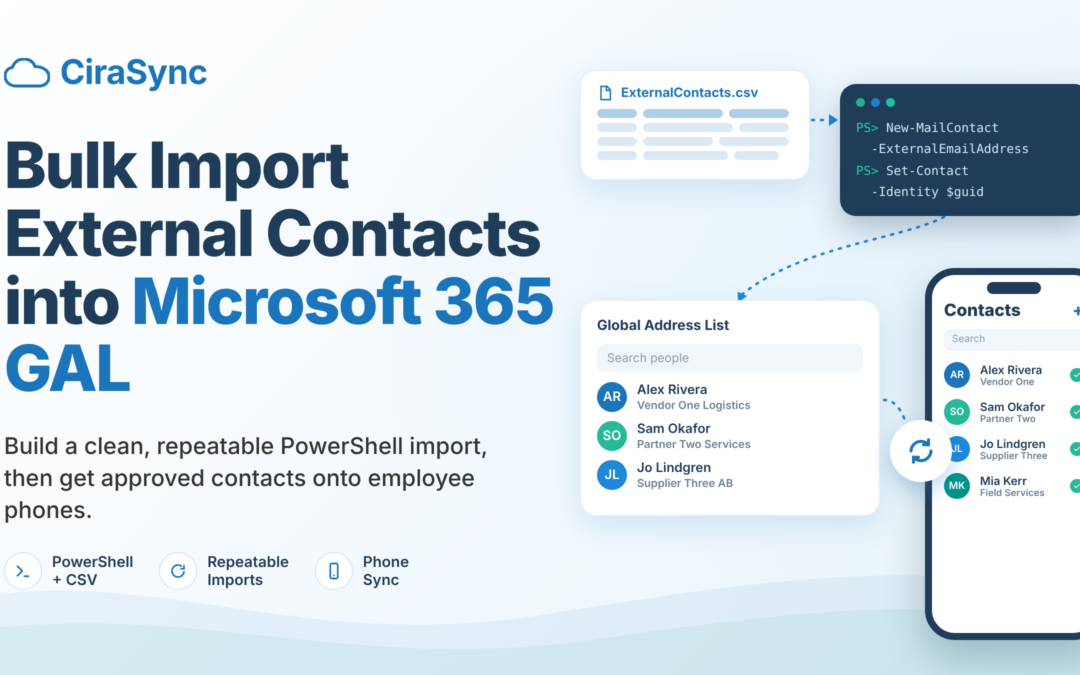


Bulk importing external contacts into Microsoft 365 comes down to two things: Exchange Online PowerShell and a CSV file. The cmdlets create mail contacts, fill in their details, and put them in the Global Address List (GAL), so your team can find suppliers, partners, and field-service vendors in one place. This is tenant-level work for admins, and it’s different from importing saved contacts into your own Outlook mailbox.
Most guides stop the moment the contacts exist, and that’s usually where the real work begins. Departments, regions, and acquired businesses all add contacts on their own schedules, and IT ends up with the cleanup. You need clean source data, updates you can rerun without creating duplicates, a paper trail, and a way to get approved contacts onto employee phones, because a GAL entry doesn’t show up there on its own. We’ll walk through all of it, from a tidy CSV to a directory your team can actually use.
TL;DR
- PowerShell does the heavy lifting. New-MailContact creates external contacts from your CSV, and Set-Contact fills in the rest.
- Clean data saves you grief. A named source owner, UTF-8 files, tidy phone numbers, and a duplicate check head off most problems.
- Microsoft’s basic loop is a one-time tool. It creates contacts but doesn’t update existing ones, so repeat imports need a stable identifier and a manifest.
- Missing contacts usually have a simple cause. Hidden-from-address-list settings, filters, empty fields, and offline address book timing explain most cases.
- A GAL entry isn’t a phone contact. Employees can search the GAL, but saving approved contacts to their phones takes a separate step.
- CiraSync covers that last step. After IT finishes provisioning, we distribute approved GAL contacts to employee phones so the work doesn’t stop at the import.
What belongs in the GAL?
Mail contacts are the right fit when your team needs to find and email people outside the company, like suppliers, partners, and field-service vendors. A few similar-sounding terms cause most of the confusion, so let’s sort them out before you import anything.
| Object | What it is | Sign-in to your tenant | Best use |
| Mail contact | A directory object with an external email address, created by an administrator | No | External suppliers, partners, and vendors that employees email often |
| Mailbox contact | A saved contact inside one user’s personal mailbox | Not applicable | One person’s own address book, visible only to that person unless shared |
| Guest identity | A Microsoft Entra identity for an outside person who needs access to your resources | Yes, through their own organization or account | Collaboration on files, Teams, and apps |
| Distribution group member | A recipient added to a group address, including mail contacts | Depends on the recipient | Sending one message to a defined audience |
This guide focuses on mail contacts. They don’t need licensed user mailboxes, which keeps cost and access questions off the table. They also work as distribution group members, so one vendor list can serve both the address book and group mailings.
If an outside person needs to open a shared document or join a Teams channel, a mail contact won’t do the job. Use a guest identity for that. If your team just needs to find a phone number or email address, a mail contact is the lighter choice.
Prepare a clean, governed contact source
A clean source file heads off most import problems before you run a single cmdlet. Sort these out first:
- Name a source owner. One person or team approves what goes into the file and answers questions when a record looks off.
- Keep admin access tight. Microsoft recommends roles with the fewest permissions and advises limiting the number of Global Administrators. Give whoever runs the import a recipient management role instead.
- Save the CSV as UTF-8. Names with accented or non-Latin characters only survive the import if the file keeps its encoding.
- Tidy up phone numbers. Pick one format, such as E.164 (+12065550100), so everyone sees consistent numbers in the directory.
- Check for duplicates. Compare email addresses and display names before importing, because a repeated name can block object creation.
- Decide on visibility early. Choose whether contacts show up in the GAL or stay hidden for distribution group use only.
Microsoft’s published procedure requires four fields to create an external contact: ExternalEmailAddress, Name, FirstName, and LastName. Your cmdlets and governance rules may ask for more. The synthetic example below adds a SourceId column, which lets you track each record across repeat imports.
SourceId,ExternalEmailAddress,Name,FirstName,LastName,Company,Title,Department,Phone,MobilePhone
V-1001,[email protected],Alex Rivera (Vendor One),Alex,Rivera,Vendor One Logistics,Dispatch Lead,Operations,+12065550100,+12065550101
V-1002,[email protected],Sam Okafor (Partner Two),Sam,Okafor,Partner Two Services,Account Manager,Field Services,+12065550102,+12065550103
V-1003,[email protected],Jo Lindgren (Supplier Three),Jo,Lindgren,Supplier Three AB,Support Engineer,Maintenance,+12065550104,
Before you import, run a quick pre-flight check. This script flags blank required fields and repeated email addresses:
$rows = Import-Csv .\ExternalContacts.csv -Encoding UTF8
$required = 'SourceId','ExternalEmailAddress','Name','FirstName','LastName'
$problems = @()

foreach ($r in $rows) {
    foreach ($f in $required) {
        if ([string]::IsNullOrWhiteSpace($r.$f)) {
            $problems += [pscustomobject]@{ SourceId = $r.SourceId; Issue = "Missing $f" }
        }
    }
}

$rows | Group-Object ExternalEmailAddress | Where-Object Count -gt 1 | ForEach-Object {
    $problems += [pscustomobject]@{ SourceId = ($_.Group.SourceId -join ';'); Issue = "Duplicate email: $($_.Name)" }
}

if ($problems) { $problems | Export-Csv .\preflight-issues.csv -NoTypeInformation; $problems }
else { 'Pre-flight check passed.' }
Import external contacts with Exchange Online PowerShell
This workflow follows Microsoft’s published procedure for creating contacts and then adding their properties. We added error handling and a log for every row, so one bad record can’t hide in a wall of console output.
Connect securely
Install the ExchangeOnlineManagement module, then connect with the account assigned to this task:
Install-Module ExchangeOnlineManagement -Scope CurrentUser Connect-ExchangeOnline -UserPrincipalName [email protected]
Use a named administrator account with a recipient management role, and close the session when the import finishes.
Validate with a small pilot
Build a pilot file from the first five rows and run everything against it first:
Import-Csv .\ExternalContacts.csv -Encoding UTF8 |
    Select-Object -First 5 |
    Export-Csv .\pilot.csv -NoTypeInformation -Encoding UTF8
Ask the source owner to review the pilot results before you scale up.
Create objects with New-MailContact
This loop creates each contact and records what happened with every row:
$rows = Import-Csv .\pilot.csv -Encoding UTF8

$createLog = foreach ($r in $rows) {
    try {
        New-MailContact -Name $r.Name -DisplayName $r.Name `
            -ExternalEmailAddress $r.ExternalEmailAddress `
            -FirstName $r.FirstName -LastName $r.LastName `
            -ErrorAction Stop | Out-Null         Set-MailContact -Identity $r.Name -CustomAttribute1 $r.SourceId -ErrorAction Stop
        [pscustomobject]@{ SourceId = $r.SourceId; Name = $r.Name; Result = 'Created'; Detail = '' }
    }
    catch {
        [pscustomobject]@{ SourceId = $r.SourceId; Name = $r.Name; Result = 'Error'; Detail = $_.Exception.Message }
    }
}

$createLog | Export-Csv .\create-log.csv -NoTypeInformation
Enrich attributes with Set-Contact
New-MailContact only sets the required properties, so Set-Contact adds the rest. Microsoft notes that a blank value for some parameters, such as Manager, can cause an error that stops the update for that contact. This version sends only the fields that have values, and it stamps each object with its SourceId in CustomAttribute1:
$optional = 'Company','Title','Department','Phone','MobilePhone'

$enrichLog = foreach ($r in $rows) {
    $params = @{ Identity = $r.Name }
    foreach ($f in $optional) {
        if (-not [string]::IsNullOrWhiteSpace($r.$f)) { $params[$f] = $r.$f }
    }
    try {
        Set-Contact @params -ErrorAction Stop
        [pscustomobject]@{ SourceId = $r.SourceId; Result = 'Updated'; Detail = '' }
    }
    catch {
        [pscustomobject]@{ SourceId = $r.SourceId; Result = 'Error'; Detail = $_.Exception.Message }
    }
}

$enrichLog | Export-Csv .\enrich-log.csv -NoTypeInformation
Inspect imported objects and reconcile counts
Now compare what the file promised with what the tenant actually holds:
$found = Get-MailContact -ResultSize Unlimited |
    Where-Object { $_.CustomAttribute1 -in $rows.SourceId }

"Expected: $($rows.Count)   Found: $(@($found).Count)"
$rows.SourceId | Where-Object { $_ -notin $found.CustomAttribute1 }
Any SourceId that prints is missing from the tenant. Check the logs for that record, fix the source row, and run it again. You can also spot-check contacts in the Exchange admin center under Recipients, then Contacts.
Make repeat imports safe
Microsoft’s basic loop is built for a first load, not a recurring one. Rerun the create command and you’ll get errors for contacts that already exist, while new rows still get created. That’s fine for a one-time import and risky for a monthly feed. A repeatable process comes down to four habits:
- Match on a stable identifier. Names change and email addresses get reassigned, so use a SourceId from your system of record. The scripts above store it in CustomAttribute1.
- Update instead of recreate. Look up each SourceId first. Update the match, or create a new contact when there isn’t one.
- Get ahead of name collisions. Add a company suffix to the Name value, like “Alex Rivera (Vendor One)”. If a create fails because a different record already holds the name, log it for review instead of overwriting.
- Keep an import manifest. Save one dated log per run showing what was created, updated, or rejected.
This version of the loop puts all four habits to work. Try it on your pilot file first:
$existing = @{}
Get-MailContact -ResultSize Unlimited |
    Where-Object { $_.CustomAttribute1 } |
    ForEach-Object { $existing[$_.CustomAttribute1] = $_ }

$optional = 'Company','Title','Department','Phone','MobilePhone'

$manifest = foreach ($r in $rows) {
    $params = @{ FirstName = $r.FirstName; LastName = $r.LastName }
    foreach ($f in $optional) {
        if (-not [string]::IsNullOrWhiteSpace($r.$f)) { $params[$f] = $r.$f }
    }
    try {
        if ($existing.ContainsKey($r.SourceId)) {
            $guid = $existing[$r.SourceId].Guid.ToString()
            Set-MailContact -Identity $guid -ExternalEmailAddress $r.ExternalEmailAddress `
                -DisplayName $r.Name -ErrorAction Stop
            Set-Contact -Identity $guid @params -ErrorAction Stop
            $action = 'Updated'
        }
        else {
            New-MailContact -Name $r.Name -DisplayName $r.Name `
                -ExternalEmailAddress $r.ExternalEmailAddress `
                -FirstName $r.FirstName -LastName $r.LastName -ErrorAction Stop | Out-Null
            Set-Contact -Identity $r.Name @params -ErrorAction Stop
            Set-MailContact -Identity $r.Name -CustomAttribute1 $r.SourceId -ErrorAction Stop
            $action = 'Created'
        }
        [pscustomobject]@{ RunDate = (Get-Date -Format s); SourceId = $r.SourceId; Name = $r.Name; Action = $action; Detail = '' }
    }
    catch {
        [pscustomobject]@{ RunDate = (Get-Date -Format s); SourceId = $r.SourceId; Name = $r.Name; Action = 'Error'; Detail = $_.Exception.Message }
    }
}

$manifest | Export-Csv ".\manifest-$(Get-Date -Format yyyyMMdd-HHmm).csv" -NoTypeInformation
Contacts leave the source over time, too. When a vendor drops off the approved list, the script above leaves its directory object alone. Instead of deleting anything automatically, build a review list. This query finds contacts that carry your SourceId prefix but no longer appear in the current file:
$rows = Import-Csv .\ExternalContacts.csv -Encoding UTF8   Get-MailContact -ResultSize Unlimited |
    Where-Object { $_.CustomAttribute1 -like 'V-*' -and $_.CustomAttribute1 -notin $rows.SourceId } |
    Select-Object Name, ExternalEmailAddress, CustomAttribute1 |
    Export-Csv .\removal-candidates.csv -NoTypeInformation
The prefix keeps the list limited to records this import created. Have the source owner and an administrator review the file together before anyone removes an object.
Troubleshoot missing or incomplete contacts
Most missing-contact reports come down to one of five causes. Start with the object in Exchange Online, then work your way out to the client.
| Symptom | Likely cause | What to check |
| Contact exists in the admin center but not in the address book | Hidden from address lists | Review the HiddenFromAddressListsEnabled setting on the contact |
| Contact appears for some groups of people but not others | Address list or filter membership | Confirm the contact matches the filter of the address list those users browse |
| Contact has a name and email but no title or phone | Enrichment step failed or the source cell was empty | Read the enrich log for that SourceId and confirm the CSV value is populated |
| Two entries for the same person | Repeat import recreated the object, or the name differs slightly | Compare SourceId values and use the update path in the manifest script |
| Visible in Outlook on the web but not in desktop Outlook | Client uses a cached offline address book | Check the OAB generation schedule and the client’s last download |
To inspect a single contact quickly, run:
Get-MailContact -Identity "Alex Rivera (Vendor One)" |
    Format-List Name, ExternalEmailAddress, HiddenFromAddressListsEnabled, CustomAttribute1
Microsoft documents hiding contacts as a deliberate option for companies that only need them as distribution group members. If a contact was hidden on purpose, there’s nothing to fix.
Clients behave differently, and no single propagation time fits every tenant, device, or client. Outlook on the web reads the directory directly, while desktop Outlook in cached mode relies on a downloaded offline address book. Phones add one more layer, which we’ll get to next.
Importing is not mobile distribution
A successful import puts contacts in the directory. It doesn’t put them on anyone’s phone. Employees can look up a GAL entry through a directory search in a connected app, but that entry isn’t saved in the phone’s native contact list. Features that rely on saved contacts, like caller ID, may not recognize a vendor who only exists in the GAL. Our GAL sync guide covers how GAL contacts reach smartphones.
Closing that gap takes a little more planning:
- Scope the audience. A field technician needs the service vendor list, and an accounts payable team needs the supplier list. Scoped recipient groups keep each phone useful instead of crowded.
- Plan for change. Vendors rotate staff, switch companies, and end contracts. Phones need those updates as much as the directory does.
- Test on real devices. Run a pilot group on iOS and Android. Confirm that a new contact appears, an edited contact updates, and a removed contact disappears.
This is where CiraSync comes in. IT still provisions and governs mail contacts in Exchange Online. From there, we distribute approved GAL contacts to employee phones on a schedule IT sets. IT picks the approved contacts, groups, and calendars once, and the sync takes care of the updates that follow. If a contact still doesn’t show up on a device, our Outlook not syncing fix-it guide walks through iPhone, Android, web, and desktop.
Enterprise operating checklist
A one-time import turns into a dependable process when you have these six habits in place:
- Source owner: One named person or team approves every record and settles disputes.
- Pilot approval: The owner signs off on a small pilot before the full file runs.
- Reconciliation: Every run compares expected and actual counts, and someone looks into each gap.
- Monitoring: Someone reads the create, enrich, and manifest logs after each run, not only when users complain.
- Joiners, movers, and leavers: New vendor contacts, changed details, and departures all have a clear path from the source to the directory and to employee phones.
- Periodic review: The source owner and an administrator review the removal candidate list, and the access held by the import account, on a set schedule.
The same discipline applies to any tool that touches directory data. When you evaluate a distribution layer, ask where contact data lives and who controls administrative access. Our security page answers both questions for CiraSync.
See how this fits your workforce
Provisioning external contacts is only half the job. Planning a vendor directory rollout, merging contacts after an acquisition, or watching phones drift out of step with the GAL? Talk to us about a scoped contact-sync rollout. We’ll look at your environment, map it to the workflow above, and show you how approved contacts reach the people who need them.
FAQ
Can I bulk import external contacts without creating licensed user mailboxes?
Yes. External contacts are mail contacts, which are directory objects that point to an outside email address, so they aren’t user mailboxes. Exchange Online PowerShell creates them from a CSV with the New-MailContact cmdlet.
How do I update existing external contacts without creating duplicates?
Match each row to its existing contact by a stable identifier, then update the match and create a new contact only when none exists. Storing a SourceId in a custom attribute, such as CustomAttribute1, gives every run something reliable to match on. Microsoft’s basic loop doesn’t do this, so rerunning it can return errors for contacts that already exist.
Why are imported contacts missing from Outlook or an iPhone?
Usually it’s a hidden-from-address-lists setting, an address list filter, an enrichment step that failed on an empty field, or a client that hasn’t refreshed its address book yet. On a phone, a contact may also exist only as a GAL lookup result and not as a saved contact. No single propagation time fits every environment.
Does importing contacts into the GAL automatically save them on employee phones?
No. The import creates directory objects that employees can look up. Saving approved contacts to native phone contact lists takes a separate distribution step, which CiraSync can handle after IT completes the import.