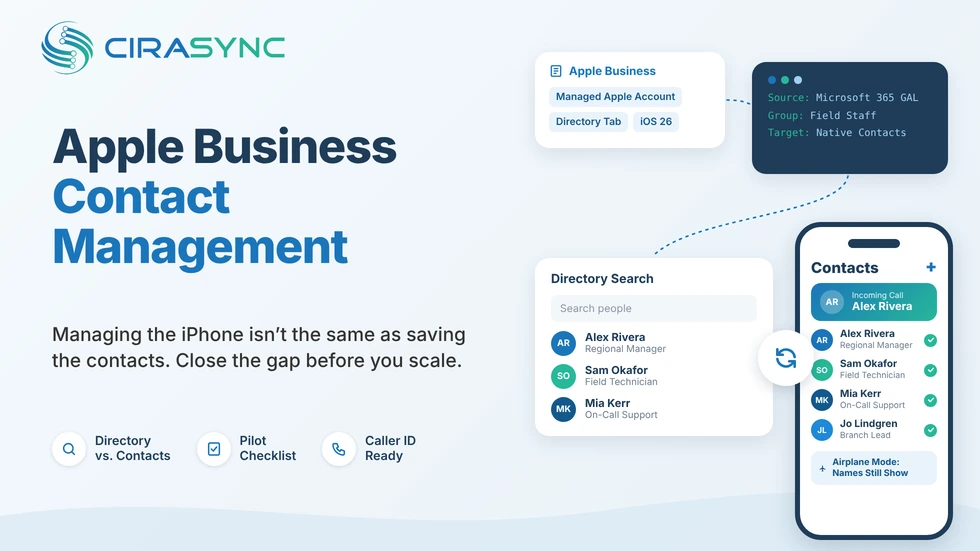


Enrolling an iPhone in device management tells you one thing: IT controls the phone. It doesn’t tell you what happens when a call comes in. Is the right colleague saved in Contacts, with a name on the screen, even when there’s no signal?
That gap is the real decision here. Managing the phone, or turning on directory search, doesn’t prove every contact your people need is sitting in native Contacts for calling and offline use. Apple’s 2026 changes are a good reason to check, especially if you run corporate iPhones on Microsoft 365. CiraSync built its platform to close that gap inside the Microsoft 365 environment IT teams already manage.
TL;DR
- Three jobs, three tools. Device management controls the phone. Directory lookup helps people find each other. Native contact sync puts contacts in the Contacts app. One doesn’t cover the others.
- Search isn’t the same as saved. A directory feature doesn’t mean automatic Global Address List (GAL) import, offline access, or caller ID.
- Identity isn’t contacts. Connecting Entra ID doesn’t mean the GAL lands in iPhone Contacts.
- Pick your source of truth first. Decide which contacts, groups, and fields belong on phones before you pick a tool.
- Pilot before you scale. Test native Contacts, incoming-call names, new hires, transfers, and offboarding on real devices.
- Plan for the whole lifecycle. Removal, field limits, and work and personal boundaries belong in the design from day one.
What Changed With Apple Business in 2026
Apple announced Apple Business on March 24, 2026 and launched it on April 14. It rolls Apple Business Manager, Apple Business Essentials, and Apple Business Connect into one platform. Three changes matter most for IT:
- Device management is built in. Apple Business includes mobile device management (MDM), with Blueprints for preconfigured settings and apps. Business Essentials customers no longer pay the monthly device management fee.
- Managed Apple Accounts connect to identity. Apple describes automatic account creation through an identity provider, including Microsoft Entra ID, with work and personal data kept cryptographically separate on the device.
- There’s a companion app, plus email, calendar, and directory. Employees can install work apps, ask for support, and look up colleague contact info in the Apple Business app.
Two details from Apple’s announcement will shape your plan. The companion app and the email, calendar, and directory features need iOS 26, iPadOS 26, or macOS 26. And while Apple says Apple Business is available globally, some features are only offered in select countries and regions. Platform availability isn’t feature availability, so check each feature against the places your fleet actually works.
Directory Lookup Is Not the Same as Native Contacts Sync
“Contacts on the iPhone” can mean four different things. Mixing them up is the most common mistake in managed iPhone rollouts.
| Capability | What It Does | What It Doesn’t Prove |
| Apple Business app Directory tab | Lets a signed-in employee search coworkers and groups and see their contact info. | That anyone is saved in native Contacts, available offline, or recognized on an incoming call. |
| Managed Apple Account lookup | Finds people and groups inside the Apple Business organization. | That the Microsoft 365 GAL and its details are on the device. |
| Microsoft 365 GAL search | Lets a user search the organization’s address list from a Microsoft 365 app. | That results are saved as contacts the phone can use to name a caller. |
| Native Contacts entries | Puts saved contacts in the Contacts app, where calling, messaging, and caller ID use them. | That the right people, groups, and fields were chosen, or that removal works the way you expect. |
Apple’s Apple Business app documentation sets clear limits on the first row. The Directory tab needs the email feature in Apple Business to be set up and configured, and on iPhone it needs iOS 26 or later. Employees sign in with a Managed Apple Account to use it.
Nothing there describes automatic GAL import. A directory answers “who works here?” when someone searches. A native sync answers a different question: “is this person already saved on my phone when they call?” Don’t assume automatic GAL import, offline access, or caller ID from a directory feature. Test each one on a real device.
Start With Your Enterprise Source of Truth
The right deployment starts with a question about data, not devices. Before you compare tools, write down what belongs on a corporate iPhone and where that data lives today:
- Microsoft 365 as the core directory. Names, titles, departments, and phone numbers in the GAL usually anchor the list. The CiraSync GAL sync guide shows how the address list gets to smartphones.
- HR and directory attributes. Decide which ones are accurate enough to publish, and who fixes them when they aren’t.
- Approved external contacts. Vendors, partners, and shared mailboxes can matter as much as employees. Give each set an owner.
- Business-unit ownership. A field team, a branch, and headquarters rarely need the same contacts.
- Recipient groups. Map which employees get which contact sets.
- Sensitive fields. Source records may hold personal mobile numbers, home addresses, or internal notes. Decide what stays off phones.
One warning about identity. Connecting Entra ID to Apple Business automates Managed Apple Account creation. It doesn’t mean the GAL flows into iPhone Contacts. Identity answers “who is this user?” Contact distribution answers “which colleagues are on this user’s phone?” You need both, and you need to prove each one on its own.
Compare Deployment Approaches
Three approaches come up most in enterprise evaluations. The matrix below lines them up on the questions that decide a rollout. It shows what each approach is built to do and what you’ll still need to prove in a pilot. It isn’t a ranking.
| Question | Apple-Native Directory Discovery | Managed Account Configuration | Microsoft 365 Contact-Sync Layer |
| What it delivers | A searchable company directory in the Apple Business app. | Mail, calendar, and contact accounts pushed to devices by MDM policy. | Selected contacts, groups, shared mailboxes, and calendars synced from Microsoft 365 to devices. |
| Existing MDM fit | Built into Apple Business device management. | Depends on your MDM and the account types it supports. | Check it against your MDM in a pilot. CiraSync offers an MDM / CardDAV solution. |
| User effort | Employee opens the app and searches. | Varies with account setup and sign-in method. | IT sets up sync centrally. Employees just use Contacts. |
| Refresh behavior | Depends on the directory source in Apple Business. | Depends on account type and device settings. | Runs on a schedule IT sets, with manual sync available. |
| Data scope | People and groups in the Apple Business directory. | The user’s mailbox data and any directory search the account allows. | The contacts, calendars, and groups IT approves. |
| Support load | Low if the directory is complete. Gaps show up as search misses. | Shifts to whoever owns MDM policy. | One sync configuration owned by IT. |
| Still to prove | Native Contacts entries, offline access, and caller ID. | Whether GAL entries show up in native Contacts at all. | Removal behavior, field mapping, and device targeting. |
No single setup fits every fleet. A small, Apple-centered team with no existing contact tooling may be fine with directory discovery. A team that needs the full GAL in native Contacts for field, branch, or on-call staff will likely want a distribution layer. Plenty of organizations mix approaches: MDM for device policy and accounts, a sync layer for contact placement. Let the source of truth you defined in the last step make the call.
Plan the Rollout to Managed iPhones
A staged rollout keeps surprises small. Each stage below ends with something you can check, not just something you configure.
Define Approved Contact Sets and Destinations
List each contact set, who owns it, which groups get it, and where it should land on the phone. Keep sets small enough to review. A branch directory is easier to approve than “everyone.”
Configure Supported Accounts and Policies
Set up the accounts, restrictions, and sync configuration your approach needs. Write down the OS version each step requires. Apple’s directory features need iOS 26 or later, so a mixed fleet may need more than one path.
Pilot by Business Unit
Pick a unit with a realistic mix of roles, like a regional office with field staff and a few executives. Use representative devices, and use synthetic data in any screenshots or training material.
Validate Native Contacts and Incoming-Call Identification
Check what the employee actually sees. Search Contacts in airplane mode. Call the phone from a number in the synced set and confirm the name shows up.
Test New Hires, Changes, Transfers, and Offboarding
Change a title, move someone between units, add a new hire, and disable a departing employee in the source. Note how long each change takes to reach devices and what the phone shows afterward.
Monitor and Expand
Review support tickets and sync results from the pilot, then add one unit at a time. Use the checklist below as the gate for each expansion.
Corporate-owned and personally owned devices need separate plans. Enrollment methods, available controls, and the line between work and personal data differ, so document each group’s requirements instead of assuming one policy covers both.
Pilot Acceptance Checklist
- Approved contact sets and owners are documented.
- Target groups get only their intended contacts.
- Contacts show up in native Contacts on every pilot device model and OS version.
- Incoming calls from synced colleagues show a name.
- Contacts stay searchable without a network connection.
- New hires, title changes, and transfers reach devices within the agreed window.
- A departing employee’s access and contact entries are handled as designed.
- Sensitive fields stay off devices.
- Duplicates are handled, and users know where to get help.
Governance and Lifecycle Controls
Contact data is employee data, so it needs the same care as any other system that touches it. Five controls cover most of the risk:
- Least-privilege access. Limit who can administer the Apple Business app, your MDM, and any sync configuration. In Apple’s app, the Admin tab only appears for users whose role has the right permissions.
- Field minimization. Sync what employees need to reach each other. Leave personal numbers, home addresses, and internal notes in the source.
- Work and personal boundaries. Decide where corporate contacts live on the device and how they stay apart from personal ones.
- Duplicate handling. Decide what happens when a colleague is already saved, and test it before rollout.
- Retention and removal checks. Set a retention rule, then test what happens when a contact changes, a group membership ends, or someone leaves.
One caution for every offboarding plan: don’t promise that selective wipe or account removal clears every copy of a contact. If an employee has already copied, shared, or exported a contact, it may sit outside the managed boundary. Treat removal as something to test and document, not something to assume.
For teams with strict hosting or security requirements, CiraSync doesn’t store contact data in its own environment, works with Microsoft Entra ID authentication, and is SOC 2 Type II certified. The Security at CiraSync page has the details, and CiraSync On-Prem lets teams run the platform in their own environment.
Enterprise Evaluation Checklist
Use these questions with any vendor or in-house approach. If there’s no pilot evidence behind an answer, count it as unproven.
- Source support. Does it read from Microsoft 365 and any other sources in scope?
- Target-group controls. Can IT send different contact sets to different groups and business units?
- Tested deployment path. Has it been proven on your MDM, device models, and OS versions?
- Update and removal behavior. How do changes, transfers, and departures reach devices, and how fast?
- Audit evidence. Can IT show what synced, to whom, and when?
- Support model. Who answers when a contact is wrong or missing, and how fast?
- Documented limitations. Are unsupported or untested scenarios stated plainly, including identity, enrollment, and region limits?
Label anything you haven’t tested as untested. Enrollment, identity federation, directory lookup, and contact sync each solve a different problem. A gap in one shouldn’t be patched by assuming another covers it.
FAQ
Does Apple Business automatically sync the Microsoft 365 GAL to iPhone Contacts?
Apple’s documentation describes the Directory tab as a way to search for coworkers and groups and see their contact info. It needs the email feature in Apple Business to be set up and configured. It doesn’t describe automatic import of the Microsoft 365 GAL into native Contacts. Test it on a pilot device before you rely on it, and use a contact-distribution layer if native Contacts entries are a requirement.
Is device enrollment enough to distribute corporate contacts?
No. Enrollment lets IT manage the device, its settings, and its apps. Contacts still need a defined source, a target group, and a way to get there. For account setup details, see the CiraSync Calendar and Contacts on iPhone fix guide.
Can users get caller ID without manually saving every colleague?
Caller ID depends on the number being available to the phone, which in practice means saved in Contacts. A directory search doesn’t create that entry. Automated sync places approved contacts in native Contacts so employees don’t have to save each colleague by hand. Confirm it by calling a pilot phone from a synced number.
How should IT handle business-unit targeting and employee departures?
Define contact sets and recipient groups before rollout, then test transfers and departures in the pilot. CiraSync lets IT choose the approved contacts, calendars, and groups for each deployment. Whatever approach you use, record how long removal takes and what’s left on the device afterward.
Can a Microsoft 365 contact-sync layer coexist with the organization’s MDM?
It can be planned that way. MDM handles device policy and account setup, and a sync layer handles contact distribution. CiraSync offers an MDM / CardDAV solution. Exact compatibility depends on the MDM you use, so the CiraSync team confirms the details with each organization during a demo.
See How This Fits Your Environment
Planning a managed iPhone rollout, or wondering if directory lookup covers what your teams need? Show us. CiraSync will map your contact sources, departmental groups, and managed-device setup to the steps above and show you where directory-to-phone sync closes the gap.