

Active Directory sits behind a huge amount of day-to-day work in IT. If you manage users, laptops, file shares, permissions, or Windows policies, you bump into AD constantly.
This guide walks you through what Active Directory is, how it works, and what the core terms actually mean in practice.
You’ll also see how AD compares with Microsoft Entra ID and which tools help you manage it.
TL;DR
Active Directory (AD) is Microsoft’s on‑premises directory service for Windows networks. It gives organizations one central place to manage users, computers, and access – you create identities once, then control what they can reach through domains, Group Policy, and permissions. Its core component is Active Directory Domain Services (AD DS), running on domain controllers. Most organizations now pair AD with Microsoft Entra ID for cloud identity.
What is Active Directory?
Active Directory (AD) gives an organization one central place to manage people, computers, and access. Instead of creating accounts separately on every laptop, server, and app, you create identities once, then you control what those identities can do across the network.
If you run IT for more than a handful of users, you almost always want a system that can answer questions like:
- Who are you?
- What device do you use?
- What do you have permission to access?
- Which security rules must your device follow?
Active Directory answers these questions.
Why Active Directory Exists
Modern organizations manage hundreds or thousands of users, devices, and apps across multiple locations. Devices come and go, apps change, and security requirements tighten. When you manage all of that manually, chaos shows up quickly:
- Users forget passwords and lock themselves out.
- People keep access after role changes.
- Devices drift from security settings.
- IT spends days on repetitive account work.
Active Directory solves this by creating a shared system of record for identity and access on Windows networks (and beyond, with the right integrations). You set rules once, then you apply them across thousands of endpoints.
What Active Directory Actually Manages
AD stores “directory data” about things on your network. In AD language, those “things” become objects.
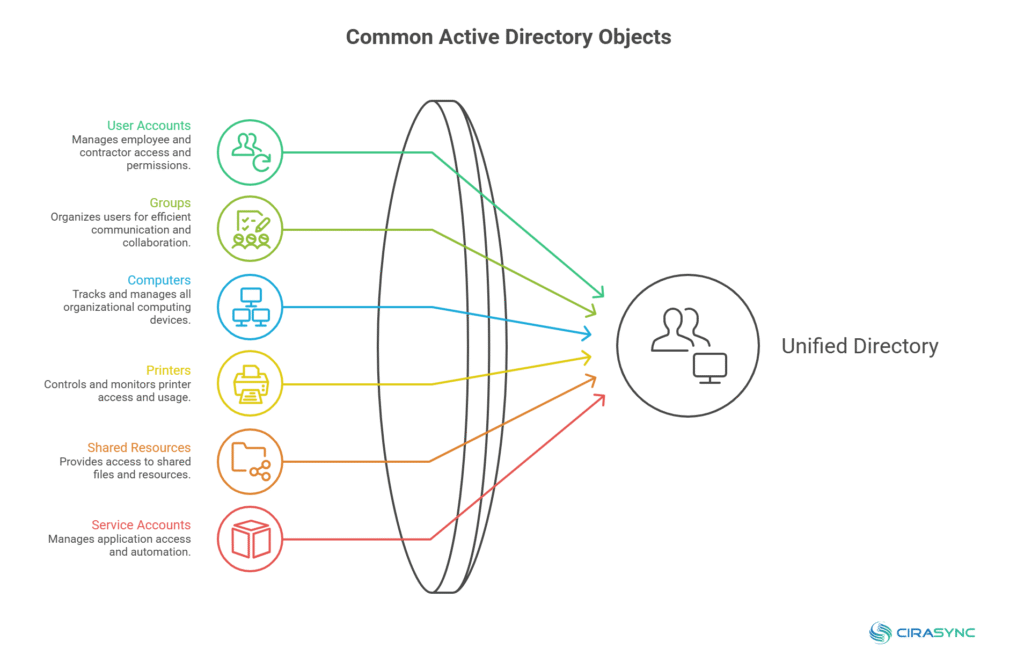
Common AD objects include:
- User accounts (employees, contractors, interns)
- Groups (Sales, IT Admins, Finance Approvers)
- Computers (laptops, desktops, servers)
- Printers
- Shared folders and resources
- Service accounts that apps use
- Policies and configuration settings
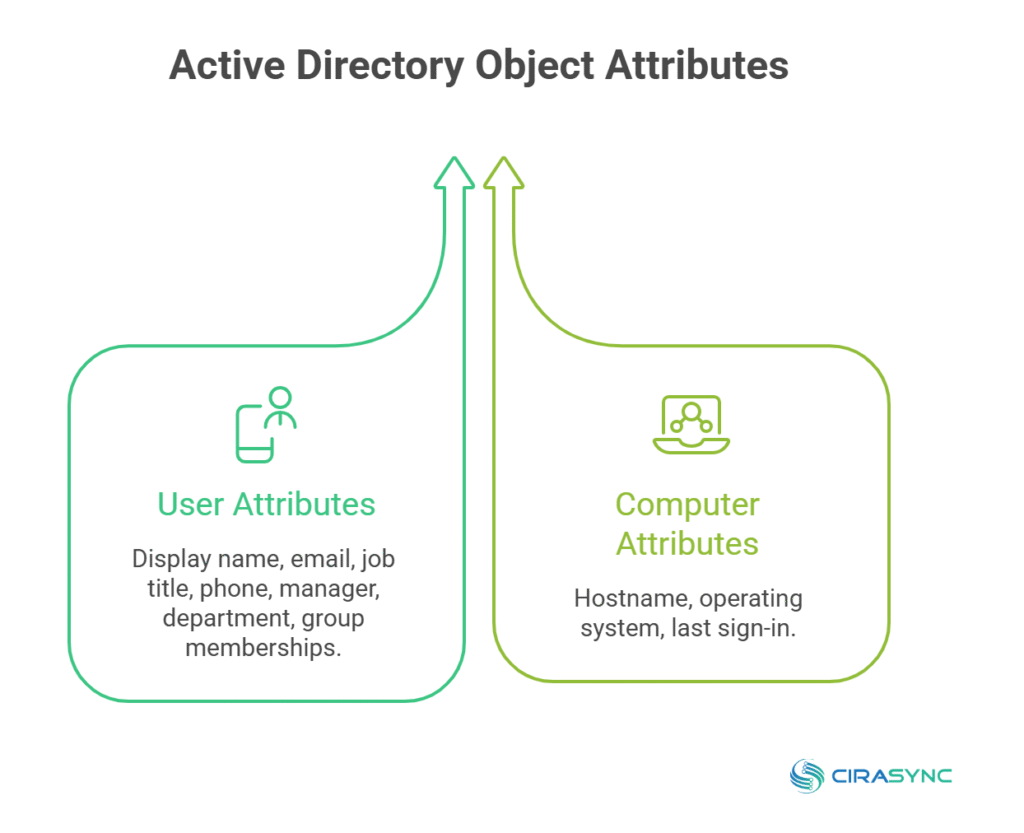
Each object includes attributes. A user object might include a display name, email address, job title, phone number, manager, department, and group memberships. A computer object might include a hostname, an operating system, and the last sign-in.
Admins use these attributes constantly. You might filter users by department, apply policies to a certain office, or grant access based on team membership.
Common Active Directory tasks admins handle
Even if you never become the AD person within your organization, you will run into these workflows:
- Create users, set attributes, and assign group membership
- Reset passwords and unlock accounts
- Join computers to the domain
- Move objects into the correct OUs (Organizational Units)
- Apply GPOs (Group Policy Object) for security settings and configuration
- Create file share permissions using groups
- Configure delegation for helpdesk and other teams
- Maintain DC health, patching, and replication
PowerShell can speed up almost all of this. When you need to create 300 users, you probably do not want to click through a GUI (Graphical User Interface) all day. You want scripts that run safely and predictably.
PowerShell is a task automation and configuration management framework developed by Microsoft that combines a command-line shell with a scripting language. IT admins use it to manage Windows, Microsoft 365, Azure, and other systems through commands and scripts.
Key Active Directory Components You Should Know
1. Active Directory Domain Services
Most people mean Active Directory Domain Services (AD DS) when they say “Active Directory.” AD DS runs the core directory: identities, authentication, authorization, and policy.
When your organization runs AD DS, you usually operate:
- A domain
- Domain controllers
- DNS that supports AD
- Group Policy
2. Domain Controllers
A domain controller (DC) runs the directory database and handles sign-ins. When a user logs in to a Windows device joined to the domain, the device talks to a DC to verify identity and retrieve access info.
Domain Controllers also:
- Enforce password policies
- Issue Kerberos tickets for single sign-on
- Store and replicate directory changes
- Help apply Group Policy
You typically run multiple Domain Controllers so the directory keeps working when a server fails or a site loses connectivity.
3. The Directory Database
AD stores directory data in a database called NTDS.dit (New Technology Directory Services). Domain Controllers keep a copy of that database, and sync changes through replication.
You never edit this database directly. You use tools like Active Directory Users and Computers, PowerShell, or LDAP-based tools to make changes safely. LDAP stands for Lightweight Directory Access Protocol.
Active Directory Hierarchy
AD uses a hierarchy. People hear these terms and panic a bit, but the terms sound heavier than they feel. Let’s review its hierarchy in more detail.
Domain
A domain groups objects under one administrative boundary. It also provides a shared identity space. When a user signs in with a username like jane@company.com, the domain handles that identity.
A domain also defines:
- Password and account policies (with some important nuance)
- Trust relationships with other domains
- Administrative scope for many tasks
Organizational units
An organizational unit (OU) groups objects to support delegation and policy application. For example, you might create OUs for:
- Workstations
- Servers
- Users
- Departments
- Locations
Admins link Group Policy Objects (GPOs) to OUs. That link lets you apply settings to only the objects inside that OU. You can also delegate control. Maybe helpdesk can reset passwords in the “Users” OU but cannot touch servers.
Tree
A tree groups one or more domains in a contiguous DNS namespace. For example:
- corp.example.com
- sales.corp.example.com
Forest
A forest sits at the top. It can contain multiple trees and domains. The forest shares:
- A schema
- A global catalog
- Trust between domains
- Forest-wide configuration
In practice, the forest acts as the ultimate security boundary. Many security decisions start with, “Do we trust this forest?”
The 4 Active Directory Services (AD DS, AD LDS, AD CS, AD FS)
|
Service |
What it does |
Typical use |
|
AD DS (Domain Services) |
The core directory: identities, authentication, authorization, Group Policy |
Windows domain logon, file/printer access, GPO across many PCs |
|
AD LDS (Lightweight Dir. Services) |
LDAP directory for apps without full domain features |
App‑level directories that don’t need domain join |
|
AD CS (Certificate Services) |
Issues and manages certificates / PKI |
Smart cards, device certificates, TLS, secure email |
|
AD FS (Federation Services) |
Federated sign‑in / SSO between AD and external apps |
Legacy SSO and federation (often being moved to Entra ID) |
What’s new in Active Directory (Windows Server 2025) – verified June 2026.
Windows Server 2025 delivered the first significant Active Directory Domain Services update since Windows Server 2016, introducing a new domain and forest functional level.
Top changes include an optional 32K database page size (up from the 8K used since Windows 2000), which lets multi‑valued attributes hold roughly 3,200 values; delegated Managed Service Accounts (dMSAs), which bind authentication to a specific machine identity to help prevent credential‑harvesting attacks like Kerberoasting; stronger Kerberos cryptography (AES SHA‑256/384) and deprecation of RC4; LDAP over TLS 1.3 with LDAP sealing enabled by default after SASL authentication; and Credential Guard enabled by default on eligible hardware, plus Windows LAPS for managing local admin passwords in AD.
Active Directory Security: Why AD Is the #1 Identity Target
Active Directory is often the most valuable target in a Windows environment because it controls user identities, authentication, permissions, devices, servers, and access to critical business systems. If attackers gain control of Active Directory, they can often gain control of the entire network.
Modern cyberattacks increasingly focus on identity rather than infrastructure. Instead of targeting individual devices, threat actors attempt to compromise privileged accounts, exploit misconfigured permissions, steal credentials, and move laterally through Active Directory to reach sensitive systems and data.
Several common attack techniques specifically target Active Directory, including password spraying, credential theft, Kerberoasting, Pass-the-Hash attacks, privilege escalation, and abuse of excessive administrator permissions. Hybrid environments that synchronize identities between Active Directory and Microsoft Entra ID can further increase risk if identity controls are not properly managed.
To reduce risk, organizations should follow Active Directory security best practices:
- Enforce multi-factor authentication (MFA) for all privileged accounts.
- Apply the principle of least privilege and regularly review permissions.
- Remove inactive users, groups, devices, and stale administrator accounts.
- Monitor authentication activity and privileged account changes.
- Use strong password policies and protect service accounts.
- Segment administrative access and limit Domain Admin privileges.
- Regularly audit Active Directory for misconfigurations and security gaps.
As organizations continue adopting cloud services, Active Directory remains a foundational identity platform. Securing it is no longer just an IT task, it’s a critical cybersecurity priority. A compromised Active Directory environment can lead to ransomware deployment, data breaches, business disruption, and complete loss of administrative control.
For this reason, Active Directory security should be treated as a core component of every organization’s identity and access management strategy.
Active Directory vs Entra ID: What’s the Difference?
Think of Active Directory as your on-prem identity system for Windows networks. It runs on Windows Server, talks Kerberos, and powers domain logins, file shares, printers, and Group Policy.
When your org relies on classic Windows infrastructure, AD sits right in the middle of it.
Microsoft Entra ID (formerly Azure AD) focuses on cloud identity. It signs users into Microsoft 365 and thousands of SaaS apps, supports modern auth (like OAuth 2.0 and OpenID Connect), and pairs naturally with Conditional Access and MFA.
It also handles cloud-first device identity through Entra join and works closely with Intune for device controls.
A lot of organizations use both. AD handles on-prem domain needs, while Entra ID handles cloud apps and remote access policies.
Then, tools like Microsoft Entra Connect or Entra Cloud Sync link identities, so users can use the same set of credentials across both worlds.
| Category | Active Directory (AD DS) | Microsoft Entra ID |
| Where it lives | Your servers, typically Windows Server domain controllers | Microsoft cloud tenant |
| Primary job | Domain identity for Windows networks and on-prem resources | Cloud identity for SaaS apps and Microsoft 365 |
| Sign-in style | Domain logon, Kerberos-based SSO in the LAN | Web and app sign-in with modern protocols |
| Common auth protocols | Kerberos, NTLM, LDAP | OAuth 2.0, OpenID Connect, SAML |
| Device identity | Domain join for Windows devices | Entra join, Entra registered devices |
| Policy and access control | Group Policy, OU-based targeting, ACLs on resources | Conditional Access, MFA controls, risk-based policies (when enabled) |
| Best fit resources | File servers, printers, legacy apps, Windows-based internal services | Microsoft 365, SaaS apps, external access, modern SSO |
| Directory structure | Domains, forests, OUs, GPO links | Tenants, users, groups, app registrations |
| Admin tooling | ADUC, GPMC, PowerShell, LDAP tools | Entra admin center, Graph, PowerShell |
| Typical “can’t live without it” use case | Windows domain authentication and Group Policy across many PCs | Secure sign-in to cloud apps with MFA and Conditional Access |
| How orgs connect both | Entra Connect or Cloud Sync syncs users and groups | Entra ID consumes synced identities for cloud access |
3 Top Active Directory Management Tools
1. CiraSync
CiraSync is a top Active Directory management tool. It handles a gap that shows up in almost every AD or Microsoft 365 environment; employees need the Global Address List on their phones, not buried behind search.
As mentioned earlier, organizations commonly use Active Directory and Entra ID. Admins sync AD data to Entra ID, connect CiraSync to Entra AD, and pick what contact lists or shared calendars to sync.
CiraSync then pushes updates to iOS and Android devices, keeping names, numbers, and titles up to date automatically. You cut contact tickets and keep directory data consistent across mobile devices.
2. ManageEngine ADManager Plus
ManageEngine ADManager Plus speeds up everyday Active Directory work when you feel tired of clicking. You provision and deprovision users, manage groups, move objects, reset passwords, and run bulk updates from one console.
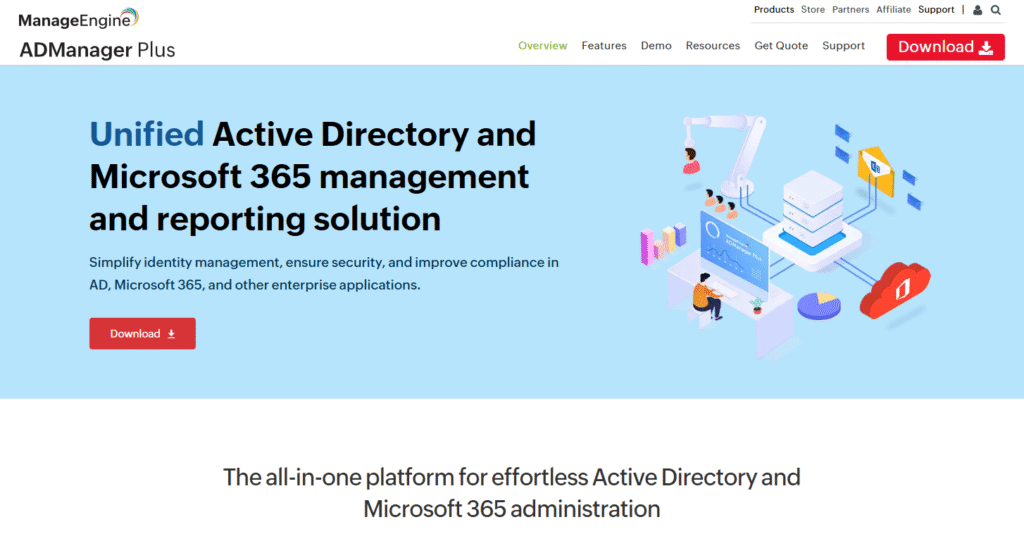
Then you pull reports to find stale accounts, risky permissions, and cleanup tasks you keep postponing. It supports delegation and approval workflows, so helpdesk can handle routine changes without full admin power.
ADManager Plus also covers Microsoft 365 tasks and scheduled automations. You can export reports for audits too.
3. One Identity Active Roles
One Identity Active Roles puts guardrails around AD administration, especially when many people touch the directory. You set policies for user and group changes, then you run actions through workflows and approvals so admins follow the same rules.
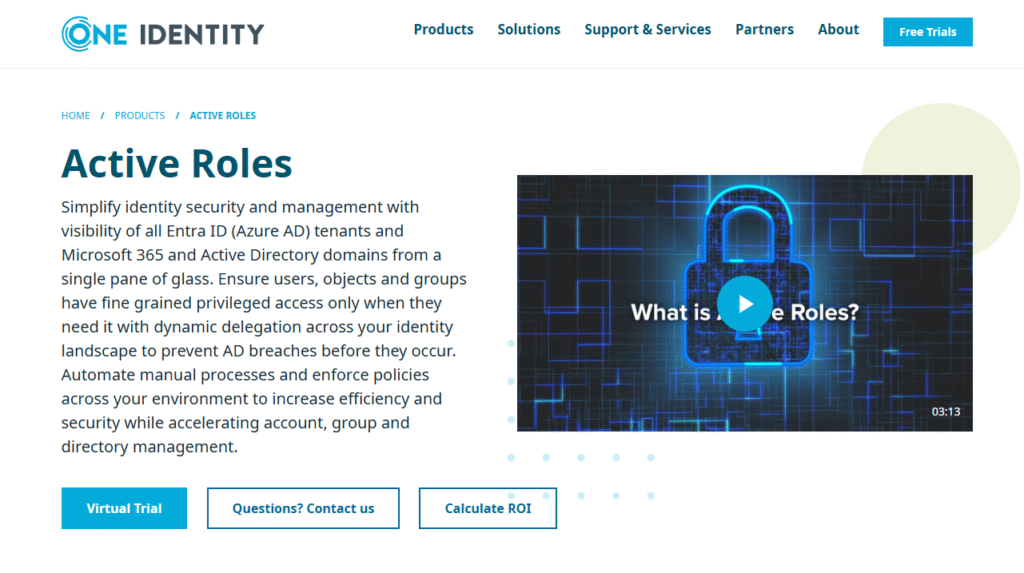
Active Roles tracks change history and supports role-based delegation, which helps you limit who can change privileged objects.
Teams often choose it for hybrid environments that include AD and Entra ID, plus audits that demand clear accountability. It also offers web interfaces for delegated admin work.
To Sum Up
Active Directory gives you structure. It turns identity, access, and device control into something you can manage without endless manual work.
Once you understand domains, domain controllers, groups, and Group Policy, a lot of “random” IT issues start looking less random.
Then Entra ID adds the cloud layer for modern sign-ins and SaaS access, and many teams run both side by side. If you treat AD like core infrastructure and keep security tight, you make everything else in your environment easier to run.
Frequently Asked Questions
What is Active Directory in simple terms?
Active Directory (AD) gives you one central system to manage users, computers, and access across a Windows network. You create identities once, then you control what they can reach, like file shares, apps, printers, and internal systems. It saves you from doing the same setup work on every single machine.
What does a domain controller do?
A domain controller runs the directory and handles sign-ins. It verifies usernames and passwords, issues Kerberos tickets for single sign-on, and answers directory lookups. It also helps enforce policies like password rules and account lockout settings.
What’s the difference between a domain, OU, and forest?
A domain groups identities and resources under one administrative boundary. An organizational unit (OU) helps you organize objects and apply Group Policy or delegation to a specific slice of the directory. A forest sits at the top and acts as the bigger container that holds one or more domains that share a schema and trust.
What does LDAP do in an Active Directory environment?
LDAP lets apps and admins query directory data. An app might ask AD for a user’s email, department, or group membership through LDAP. Admin tools also use LDAP-style queries when you search, filter, and update objects.
Is Active Directory only for Windows?
AD DS centers on Windows, yes, but it doesn’t have to stay “Windows-only.” Many non-Windows systems and apps can still use AD for authentication or directory lookups through protocols like LDAP and Kerberos. You’ll see Linux servers, NAS systems, VPNs, and plenty of enterprise apps integrate with AD. Still, Windows domain join and Group Policy remain the areas where AD feels most native.
What are the four types of Active Directory?
Most people group Active Directory into four main services:
1. Active Directory Domain Services (AD DS) for domains, authentication, users, computers, and Group Policy.
2. Active Directory Lightweight Directory Services (AD LDS) for LDAP directory needs at the application level without full domain features.
3. Active Directory Certificate Services (AD CS) for certificates and PKI used by things like smart cards, device certificates, and TLS.
4. Active Directory Federation Services (AD FS) for federated sign-in and single sign-on between AD and external apps or organizations.
Is Active Directory still used in 2026?
Yes. AD DS remains the standard on‑prem identity system for Windows networks; most organizations run it alongside Microsoft Entra ID in a hybrid model.
What is the difference between Active Directory and a domain controller?
Active Directory is the directory service; a domain controller is the server that runs it, stores the directory database, and handles sign‑ins.
What is the difference between Active Directory and LDAP?
LDAP is the protocol used to query and update directory data; Active Directory is a directory service that (among other protocols) speaks LDAP.
What changed in Active Directory with Windows Server 2025?
A new functional level, an optional 32K database page size, dMSAs, stronger Kerberos/LDAP cryptography, and Credential Guard on by default.
What are the minimum hardware requirements for Active Directory setup in 2026?
Servers must have at least 16 GB of RAM, 100 GB of SSD storage space, and current multi-core processors. Your domain controllers need extra storage room to handle the AD database and associated log files. Make sure you have backup network connections running at 1 Gbps or faster between locations. Keep in mind that larger user bases, more objects, and increased authentication needs will push these requirements higher.
What backup strategies should I include in my Active Directory setup?
Every Active Directory setup needs daily system state backups for each domain controller. Set up three separate backup copies: Store one locally, another at a different site, and a third in cloud storage. Pick either Windows Server Backup or specialized tools that let you restore individual AD items. Run recovery tests every three months to confirm that your backup system works correctly.
How do you set up an Active Directory?
Install the AD DS role on Windows Server, then promote the server to a domain controller (Server Manager or Install‑ADDSForest in PowerShell), and configure DNS and Group Policy.