An Outlook contact group, sometimes called a distribution list, is a collection of email addresses you can use to send an email to many recipients at the same time. This feature is essential when you frequently send emails to the same group of people, such as teammates, a group of friends, or members of a club or organization. But how do you create a contact group in Outlook? Let’s show you the steps for Windows, Mac, and Web. Keep reading! Key takeaways:
- To create a contact group in Outlook for Windows, launch Outlook > People > Home > New Contact Group > Name your group > Add contacts.
- To create a contact group in Outlook for Mac, open Outlook > People > Home > New Contact List > Name your contact list > Add contacts > Save & Close.
- To send an email to an Outlook contact group, compose your email > Type the contact group name in the ‘to’ field > Send
TL;DR – How to Create a Contact Group in Microsoft Outlook
What it is: A Contact Group (aka Distribution List) lets you email multiple people at once using a single group name. Not to be confused with Microsoft 365 Groups, which include shared inboxes and calendars.
How to create it:
| Platform | Path |
| Windows | Outlook → People → Home → New Contact Group → Name it → Add Members → Save & Close |
| Mac | Outlook → People → Home → New Contact List → Name it → Add members (+) → Save & Close |
| Web | Outlook.com → People → New contact dropdown → New contact list → Name it → Add emails → Create |
How to use it: Compose an email → type the group name in the To field → Send.
How to manage it: Add/remove members by opening the group and using the Add/Remove buttons. Edit names or delete the group from the same contact view.
Pro tips: Use descriptive names, categorize groups, keep them updated, and use Bcc to hide member emails for privacy.
Troubleshooting: If emails aren’t delivered, check for typos, mail filters, large member counts, or sync issues across devices. Contact Groups don’t appear in mobile Outlook.
What is a Contact Group in Outlook?
In classic Outlook, Microsoft calls a personal email list a Contact Group. In new Outlook and Outlook on the web, Microsoft uses the term Contact List. Microsoft documentation also sometimes uses the term distribution list for this type of personal email list.
Do not confuse a personal Contact Group or Contact List with an administrator-managed Exchange distribution group or a Microsoft 365 Group. A Microsoft 365 Group is a separate collaboration object that can provide shared resources such as a mailbox, calendar, files, and other group services.
How to Create a Contact Group in Outlook for Windows
- Open classic Outlook and select People.
- Select New Contact Group from the ribbon.
- Enter a name for the Contact Group.
- Select Add Members.
- Choose From Outlook Contacts, From Address Book, or New E-mail Contact as appropriate.
- Add the required members and select OK.
- Select Save & Close.
New Outlook for Windows
- Open People.
- Select one or more contacts.
- Choose Add to list > New contact list.
- Enter a name for the list.
- Save the Contact List.
To edit an existing Contact List, open People > All contact lists, select the list, choose Edit, make the membership changes, and select Save.
How to Create a Contact List in Outlook for Mac
- Open Outlook and select People.
- Select the Contacts folder under the account where you want to create the list.
- Hover over New Contact and select New Contact List.
- Enter a name for the Contact List.
- Under Add members, enter an email address and select Add. Repeat for additional members.
- Select Save.
Account note: Microsoft states that server synchronization of Contact Lists is available for Microsoft 365 and Outlook.com accounts. For POP/IMAP accounts, Contact Lists can be created under On My Computer. Microsoft also notes that Contact Lists created with a Microsoft Exchange account are stored locally on the Mac rather than saved to the Exchange server.
How to Create a Contact Group in Outlook Online
1. Visit the Outlook website and sign in to your account. 2. Click the “People” icon in the bottom left corner. 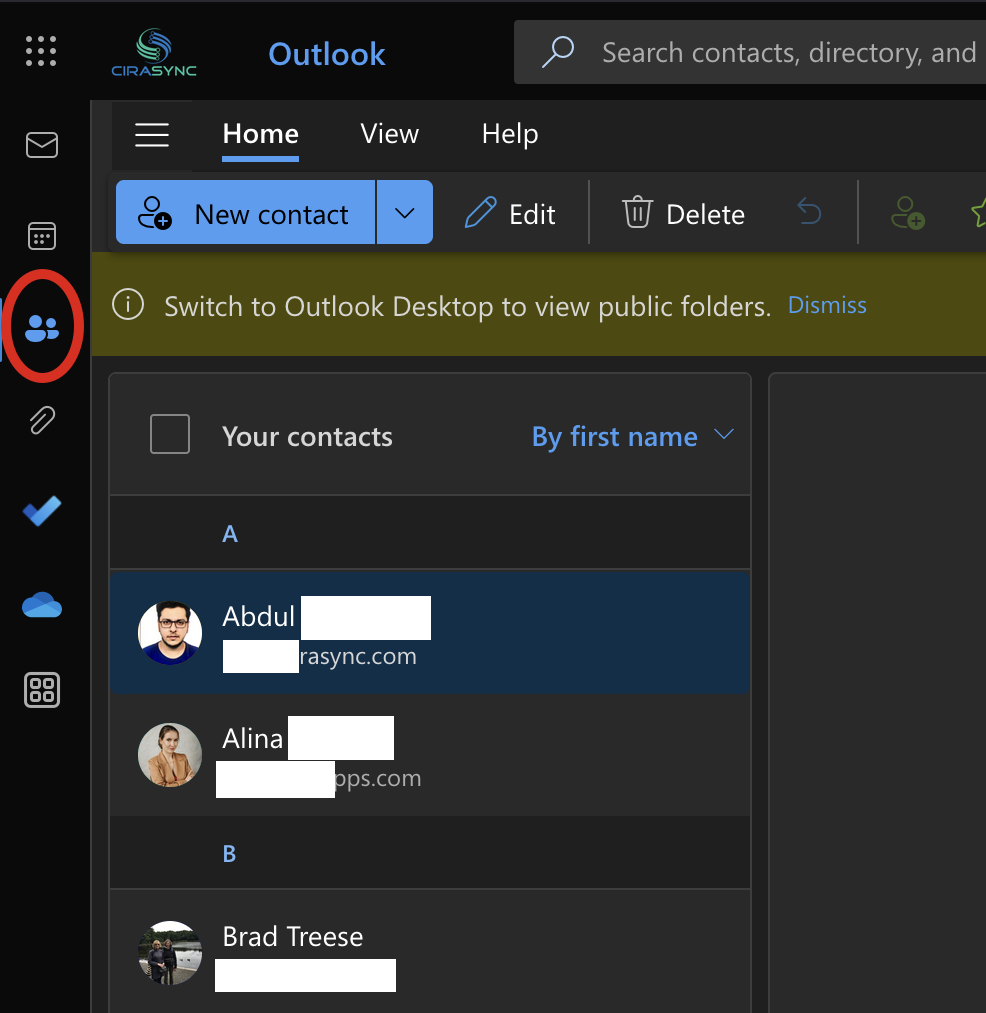 3. On the “New contact” dropdown list, click “New contact list.”
 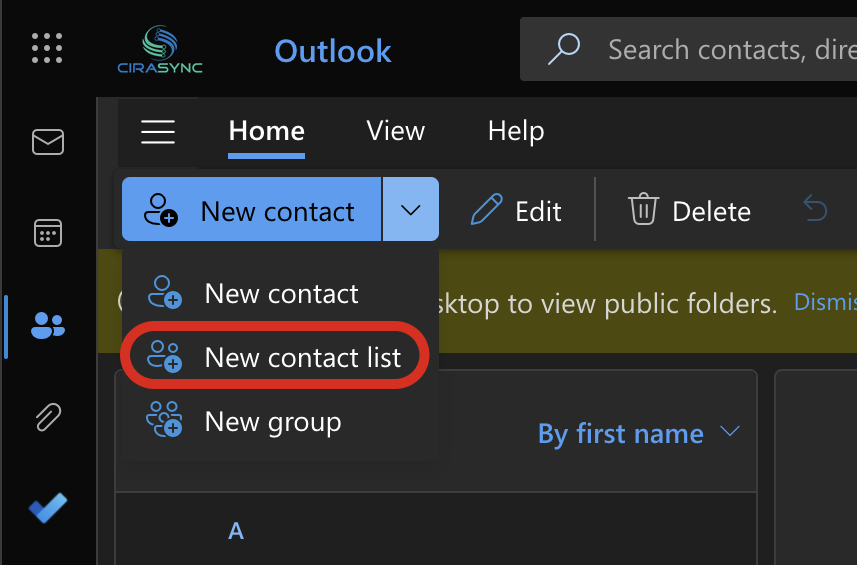 4. Add a name to your contact list and add members by typing names or email addresses.
  5. Once you’ve added all the desired members, click “Create.”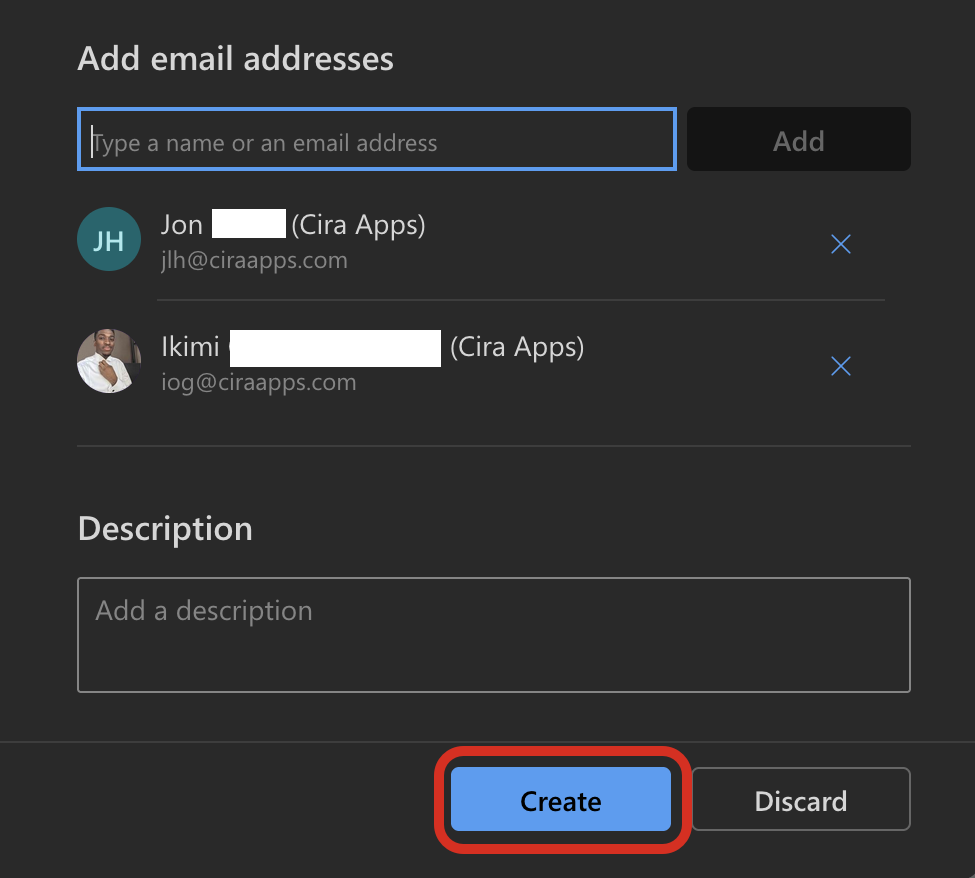
Send an Email to an Outlook Contact Group
- Start by composing a new email in Outlook for Windows, Mac, or Online.
- In the “To” field, type the contact group name you created. Outlook will auto-suggest the group name. Click on it to add it to the recipients.
- Compose your email as you normally would and click “Send.”
Recommended reading: How to Add Gmail to Outlook?
Finding Your Contacts in the Outlook App.
Knowing where to find your contacts in the Outlook app is always essential. Follow the steps below to find them:
- Launch the Outlook application on your computer.
- Navigate to the Bottom Left Corner. Here, you’ll see several icons, including Mail, Calendar, and People (or Contacts in some versions).
- Click on the “People” or “Contacts” icon. Once you’re in the Contacts section, you’ll see a list of all your saved contacts on the main screen.
Now that you know where to find your contacts, let’s move on to editing a contact group.
How to Add or Remove Members From a Contact Group
Keeping group lists current prevents bounced emails and confusion. Below are clear, platform-specific steps to add members to an Outlook Contact Group and to remove members from a Contact Group in Outlook. Each subsection shows the fastest path and useful tips for bulk edits and troubleshooting.
Classic Outlook for Windows
Add members
- Open Outlook and go to People or Contacts.
- Double-click the Contact Group you want to update.
- Select Add Members.
- Choose From Outlook Contacts, From Address Book, or New E-mail Contact.
- Select or enter the required members and choose OK.
- Select Save & Close.
Remove members
- Open the Contact Group in People or Contacts.
- Select the member you want to remove.
- Select Remove Member on the ribbon.
- Select Save & Close.
Outlook for Mac
Add members to the Outlook Contact Group
- Open Outlook and go to the People tab.
- Double-click the contact list you want to edit.
- Click Edit or the pencil icon.
- Click Add or the plus icon and choose contacts from your list or enter a new email address.
- Click Save.
Remove members from the Contact Group Outlook
- Open the contact list and choose Edit.
- Click the small remove or minus icon next to the contact name.
- Click Save.
Quick tips
- Mac lets you copy and paste multiple email addresses into the add field. Paste them separated by commas and press Enter.
- If a contact comes from Exchange, changes sync back to the server. If not, edits stay local to your Mac profile.
Outlook on the web (Outlook.com and Office 365)
Add members to the Outlook Contact Group
- Sign in at outlook.office.com and click the People icon in the left column.
- Open the contact list you want to change.
- Click Edit contact list or the edit icon.
- Use Add members to search contacts or type new email addresses.
- Click Save.
Remove members from the Contact Group Outlook
- Open the contact list, click Edit contact list.
- Click the X or remove button next to the person to delete them from the group.
- Click Save.
Quick tips
- The web client syncs instantly with Exchange and Microsoft 365 accounts.
- For Outlook.com free accounts, some features may look different, but Add and Remove remain available.
Bulk add, import, and advanced methods
- Import from CSV: Export a CSV of emails from another app, import those contacts into Outlook contacts, then add them to a group using multi-select and Add Members.
- Create a new group from selected contacts: Select multiple contacts in People view, right-click, and choose Create Contact Group from Selection where available.
- Use Directory/Global Address: For business accounts, add users directly from the Global Address List to ensure proper email routing.
Sync, permissions, and common issues
- If members do not appear across devices, check that you are signed into the same Microsoft account and that contact sync is enabled.
- Removing a member from a group removes them only from that group. It does not delete the contact from your address book.
- Large groups may hit sending limits set by your Exchange or mail provider. If emails fail, split the list or use a mailing tool.
- If group edits revert, verify whether your account uses server-side groups managed by an administrator. Admin-managed groups require admin changes.
How to Edit a Contact Group in Outlook
Editing a contact group in Outlook is straightforward. Follow the steps below:
- Locate the contact group you wish to edit. Click on it to select it.
- Double-click on the contact group’s name. This action will open a new window displaying the group’s details.
- Edit Group Name:
If you wish to change the name of the group, click on the name field at the top and make your desired changes.
- Add or Remove Members:
To add members, click the “Add Members” button in the toolbar at the top. You can choose contacts from your address book or type new email addresses. Select the member’s name from the list to remove members and click the “Remove Member” button.
- Once you’ve made all the necessary changes, click the “Save & Close” button to save your edits.
How to Delete a Contact Group or List in Outlook?
You can delete a particular contact group if you no longer need one. Below is how:
- Locate and click on the contact group you wish to delete.
- Right-click on the contact group’s name. A dropdown menu will appear. Select “Delete Group” from the options.
- A confirmation window might pop up, asking if you’re sure about deleting the group. Click “Yes” to confirm.
- The contact group should no longer appear in your list of contacts. Try refreshing the page or restarting the Outlook application if it’s still there.
Recommended reading: How to Create Outlook Contact Folders?
Create a contact list in new Outlook for Windows:
- Open new Outlook and select People in the left sidebar.
- Select the arrow next to New contact, then choose New contact list. (In new Outlook, “contact groups” are called “contact lists.”)
- Enter a name for the list.
- In Add members, type names or email addresses and select matches from your contacts or organization directory.
- Select Create. Because new Outlook and Outlook on the web share the same contacts, the list appears in both automatically.
Tips for Organizing and Using Contact Groups in Outlook Effectively
Contact Groups can significantly streamline email communication. However, like any tool, its effectiveness depends on how it’s used. But how can you maximize the benefits? Let’s delve into some strategies.
1. Categorize Your Contact Groups
Categorize your contact groups based on their purpose. For instance, you might have categories like “Work Projects,” “Software Engineers Group,” etc. Doing this lets you quickly identify and select the right group when sending emails. For larger organizations or extensive networks, consider sub-categorizing your groups. For example, under the main category “Work,” you might have sub-groups like “HR Department,” “Sales Team,” and “Tech Support.”
2. Use Descriptive Names
When naming your contact groups, be descriptive. Instead of generic names like “Group 1” or “Team A,” use names that immediately tell you who’s in the group, such as “Marketing Team” or “Family Group.”
3. Use Contact Groups for Professional and Personal Communication
For professional communication, you can create a contact group for separate project teams if you’re working on multiple projects. This way, you can quickly update everyone involved without missing out on anyone. For example, you can create a group called “Departmental Updates” for managers and team leads, which would be useful for sending departmental updates, meeting invites, or important announcements. If you frequently communicate with a set of clients, you may want to create a contact group for them. This can be especially useful for sending newsletters, updates, or promotional offers. For personal communication, such as family and friends, you can create separate groups for family, extended family, college friends, gym buddies, etc. This makes sending out invites for gatherings, sharing updates, or circulating information easier. If you’re part of clubs or interest-based groups, such as a book club, hiking group, or music band, contact groups can also help keep everyone in the loop.
4. Keep Contact Groups Updated
Set aside time to review and update your contact groups, perhaps once a month. Add new members, remove those no longer relevant, and update email addresses when necessary. Encourage feedback from group members. If someone prefers not to be in a particular group or if their email address changes, they should feel comfortable letting you know.
Troubleshooting Common Issues
Users often encounter issues with Contact Groups, which can disrupt communication flow and lead to inefficiencies. The following are some of the most common issues:
1. Group Members Not Receiving Emails
One of the most common issues with Contact Groups is that some members do not receive the emails sent to the group. This can be due to various reasons:
- Incorrect Email Addresses:
Ensure all email addresses in the group are correct. A single wrong email address can prevent the entire group from receiving emails. To fix this, open the Contact Group and review each member’s email address. Correct any typos or inaccuracies.
- Spam Filters:
Sometimes, emails sent to Contact Groups might be flagged as spam by the recipient’s email client. You can ask your group members to check their spam or junk folders. If they find the email there, they should mark it as “Not Spam” to prevent future emails from being flagged.
- Email Sending Limits:
Outlook has a limit on the number of recipients you can send an email to at once. Some members may not receive the email if your Contact Group exceeds this limit. One workaround for this problem is splitting Contact Groups into smaller groups or sending emails in batches.
2. Contact Group Missing or Deleted
Another common issue is the accidental deletion or loss of a Contact Group. This can be distressing, especially if the group contains many members. The following are some tips for resolving this problem:
- Check Deleted Items Folder:
When a Contact Group is deleted, it’s moved to the Deleted Items folder in Outlook. Open the “Deleted Items” folder and search for the missing Contact Group. If found, right-click on it and select “Move” > “Other Folder” > “Contacts” to restore it.
- Recreate the Group:
If you can’t find the Contact Group in the Deleted Items folder, you might need to recreate it. To fix this, simply go to the Contacts section in Outlook and create a new Contact Group. Add the members manually or import them if you have a backup.
3. Group not syncing across devices
If your Contact Group is not syncing across Outlook for desktop, web, or mobile, check that contact syncing is enabled in account settings and that all devices use the same Microsoft 365 or Exchange account. Local contact groups created in a PST file or on one device do not sync automatically across platforms.
Fixes
- Enable contact sync in Outlook mobile settings
- Convert local PST contacts to Exchange or Microsoft 365 contacts
- Restart Outlook to refresh address book updates
4. Contact Group missing in mobile Outlook
Contact Groups may not appear in mobile Outlook because the app does not fully support Contact List editing. You can view and use groups only if they sync from Exchange or Microsoft 365, but you cannot create or edit groups in the mobile app.
Fixes
- Open Outlook on desktop or the web to manage groups
- Confirm your account type supports Contact Lists (POP/IMAP accounts often do not)
- Update the mobile app to the latest version
5. Recipients not receiving group email due to large member count or mail filters
If recipients do not receive emails sent to a Contact Group, the message may have exceeded the provider’s sending limits or triggered spam filtering. The issue often appears with large groups or when many external addresses are included.
Fixes
- Send the message using Bcc to reduce spam scoring
- Divide the Contact Group into smaller lists if it exceeds your provider limit
- Ask recipients to check spam or whitelist your email domain
- For businesses, contact your IT admin to review sending restrictions
If your Outlook Contact Group is not sending emails, verify your send limits and try Bcc formatting.
6. Using Bcc to protect contact privacy
When sending to a Contact Group, all member email addresses appear in the message header unless Bcc is used. This can create privacy risks, especially in mixed external and internal lists.
Fixes
- Enter the Contact Group in the Bcc field instead of To or Cc
- Put your own email address in the To line for a cleaner presentation
- For large public sending needs, use a mail merge or mailing service instead of Contact Groups
7. Contact Group or Contact List Not Syncing Across Devices
Contact Group and Contact List behavior varies by Outlook client, account type, and storage location. Personal contact-sync settings do not control whether classic Outlook Contact Groups are available or editable across devices.
Recommended checks:
- Confirm whether the item is a personal Contact Group, personal Contact List, Exchange distribution group, or Microsoft 365 Group.
- Confirm which account and contact store contain the item.
- Use an Outlook client that supports management of that object type.
- Do not present Outlook mobile personal-contact sync as a way to synchronize or edit classic Outlook Contact Groups.
- If the group is stored locally, such as in a PST file or a local Mac contact store, do not assume it will synchronize to other clients.
8. Can You Manage Contact Lists in Outlook Mobile?
Microsoft’s current documentation for personal Contact Lists covers creating, editing, and deleting lists in new Outlook for Windows, classic Outlook, Outlook on the web, and Outlook.com. Outlook for iOS and Android are not currently listed in that guidance as clients for managing personal Contact Lists. Therefore, use a documented desktop or web Outlook client when you need to create or edit a personal Contact List.
Do not confuse personal Contact Lists with Microsoft 365 Groups, which are a separate collaboration feature supported in Outlook mobile.
Recommended checks:
- Manage personal Contact Lists from a supported Outlook desktop or web client.
- Confirm where the Contact List is stored and which account created it.
- Do not use Outlook mobile’s personal contact-sync setting as a fix for Contact List availability.
- If the item is actually a Microsoft 365 Group or administrator-managed distribution group, follow the management process for that group type instead.
9. Message Not Sending to the Contact Group
If a Contact Group message does not send, review any Outlook error or non-delivery report before assuming the group itself is faulty.
Recommended checks:
- Verify recipient addresses.
- Check the sending and recipient limits applied to the account.
- If the list is large, divide the recipients into smaller messages when needed.
- For business accounts, ask the Microsoft 365 or Exchange administrator to review applicable outbound limits or restrictions.
- Avoid presenting one universal Contact Group membership limit across all Outlook clients and account types.
10. Use Bcc When Recipients Should Not See One Another
If recipients should not see one another’s email addresses, place the Contact Group or Contact List in the Bcc field rather than To or Cc. Microsoft documents that recipients entered in Bcc are hidden from the other message recipients.
You may place your own address in the To field if needed for presentation.
Quick troubleshooting checklist
- Check account type: Exchange and Microsoft 365 sync best across all devices
- Verify you are in People or Contacts view if Contact Groups appear missing
- Confirm sending limits if messages fail or bounce
- Use Bcc for privacy and spam-filter protection
- Restart Outlook to rebuild the address cache
In conclusion
Creating a contact group in Outlook is a straightforward process that can save you a lot of time when you need to regularly send emails to the same group of people. Whether you’re using Outlook on Windows, Mac, or online, the above steps are intuitive and easy to follow. Related Articles:
- How to Create a Shared Calendar in Outlook?
- How to Share an Outlook Calendar?
- How to Change the Default Address Book in Outlook?
- Microsoft Outlook Calendar: Best Tips and Tricks!
- How to Create Appointments and Meetings in Outlook?
Frequently Asked Questions
Why can I not find Contact Groups in Outlook?
In the new Outlook, Microsoft uses the term Contact List instead of Contact Group. Open People and check All contact lists. In classic Outlook, Contact Groups are managed from People or Contacts. Feature availability also varies by account type and Outlook client.
What is the Outlook Contact Group member limit?
Microsoft does not document one universal storage or membership limit for personal Contact Groups across every Outlook client and account type. In Exchange Online, separate sending limits apply: the default recipient limit is 500 recipients per message and can be configured up to 1,000, while the recipient rate limit is 10,000 recipients within a rolling 24-hour period.
Can I create a Contact List from people in an email?
Outlook supports saving people from email messages as contacts. In new Outlook or Outlook on the web, you can then select contacts in People and use Add to list > New contact list. The exact workflow varies by Outlook version.
Can I create and edit Contact Groups in new Outlook?
New Outlook uses the term Contact List instead of Contact Group. Microsoft supports creating, editing, and deleting Contact Lists from the People experience in new Outlook.
I selected a Contact Group and the message did not send. What should I check?
Review the Outlook error or non-delivery report, verify recipient addresses, and check the sending limits applied to the account before assuming the Contact Group itself is faulty.
Can I share a Contact List in new Outlook?
No. Microsoft currently states that new Outlook does not support sharing Contact Lists. Microsoft also states that shared contacts are not supported in new Outlook. Use classic Outlook for supported Contact List or contacts-folder sharing workflows.