


Exporting Outlook Contacts into a spreadsheet can be used to move data from Outlook into another mail client or as contact backup in case of an emergency. This guide shows how to export Office 365 Contacts from Outlook Desktop into an Excel spreadsheet.
TL;DR
- Classic Outlook for Windows: File > Open & Export > Import/Export > Export to a file > Comma Separated Values > Contacts > Finish.
- New Outlook for Windows: People > Export contacts > choose the contact folder > Export.
- Outlook on the web: People > Manage contacts > Export contacts > choose All contacts or a folder > Export.
- Outlook for Mac: the desktop app’s Microsoft-documented export is .olm. For cloud-hosted mailbox contacts, use Outlook on the web to get a CSV file.
- Outlook mobile: Save Contacts writes supported contacts to the phone’s address book; it is not a CSV-to-Excel export. Use Outlook on the web for CSV.
- Garbled characters: import the CSV through Excel’s Data > From Text/CSV flow and select the encoding that displays the text correctly.
- Backup versus spreadsheet: CSV is for portable contact data. For a broader Outlook backup or migration, use Microsoft’s PST guidance for the Outlook version you are using. Classic Outlook has the more complete PST workflow; new Outlook supports PST export but still has limitations around calendar and contact items stored in PST files.
Method 1: Export Outlook Contacts to Excel Using the Import/Export Wizard
- Use the following Microsoft-supported path:
- File > Open & Export > Import/Export.
- Select Export to a file > Next.
- Select Comma Separated Values > Next.
- Select the Contacts folder under the account you want to export.
- Choose the destination and file name.
- Select Finish.
Open the resulting CSV file in Excel to verify the contacts.
Recommended reading: How to Add a Shared Mailbox to Outlook?
Method 2: Export Outlook Contacts to Excel Using Copy and Paste
- Open Outlook on your computer.
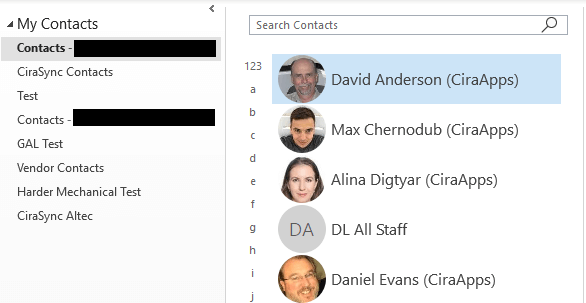
- Click the People View icon at the bottom of the left-hand navigation panel. (See figure below.)

- Your Outlook Address Book will appear. (See figure below.)
- Click List from the Current View drop-down. (See figure below.)
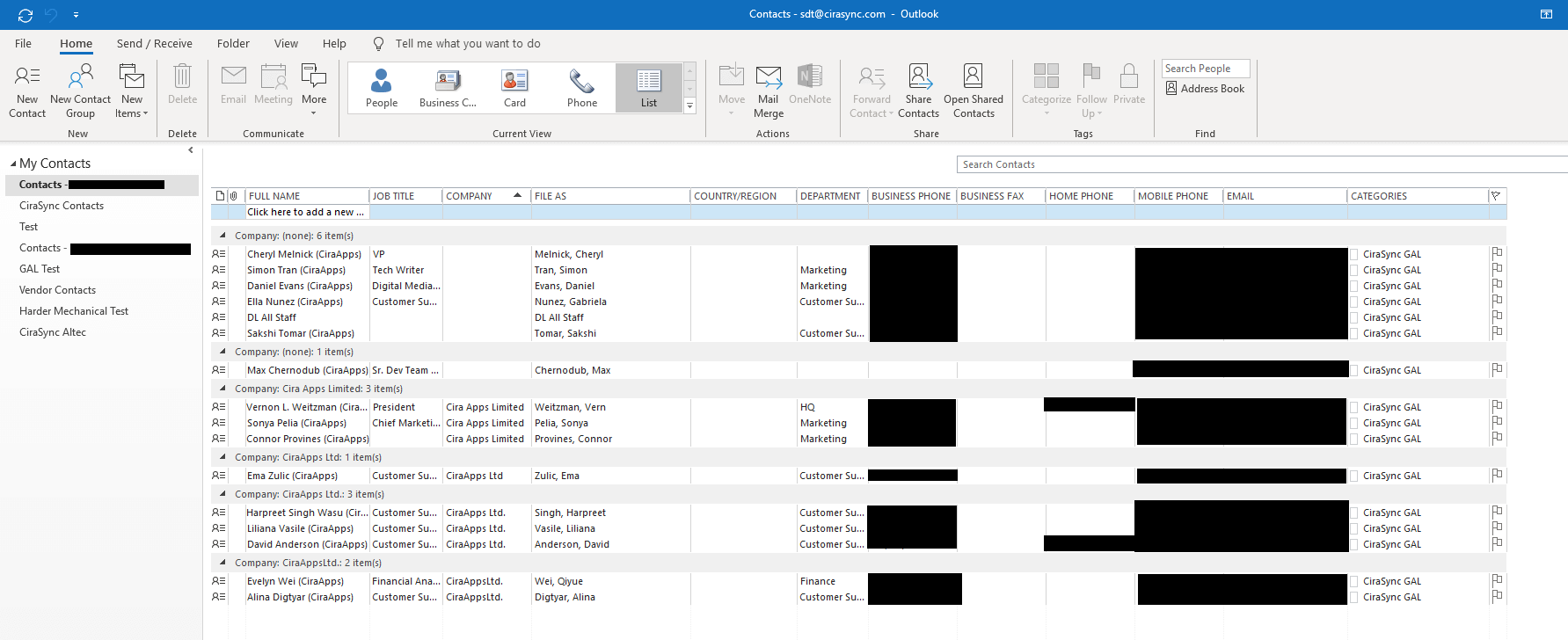
- Collapse all undesired contact fields.
- Copy all contacts desired contacts.
- Open Excel.
- Paste all copied contacts into Excel.
Method 3: How to Export Outlook Contacts to Excel on Mobile
Unfortunately, there is currently no way to export contacts from the Outlook mobile app to Excel. As a workaround, you can open Outlook on the web in your mobile browser and follow the steps in the “Outlook on the Web” section below to export contacts to Excel. From there, you can open the exported CSV file in the Excel mobile app.
Outlook for iOS and Android does not provide the same CSV-to-Excel export workflow documented for new Outlook, classic Outlook and Outlook on the web. Outlook mobile does have contact-export or Save Contacts functionality for supported accounts, but that feature saves supported Outlook contacts to the device’s native Contacts app; it is not a CSV export for Excel. If you need a CSV file on a phone or tablet, open Outlook on the web in a browser and use People > Manage contacts > Export contacts.
Method 4: How to Export Outlook Contacts from Outlook on the Web to Excel
If you use Outlook Web, you can easily export your contacts to Excel right from your browser.
Here’s how:
1. Sign in to Outlook on the web
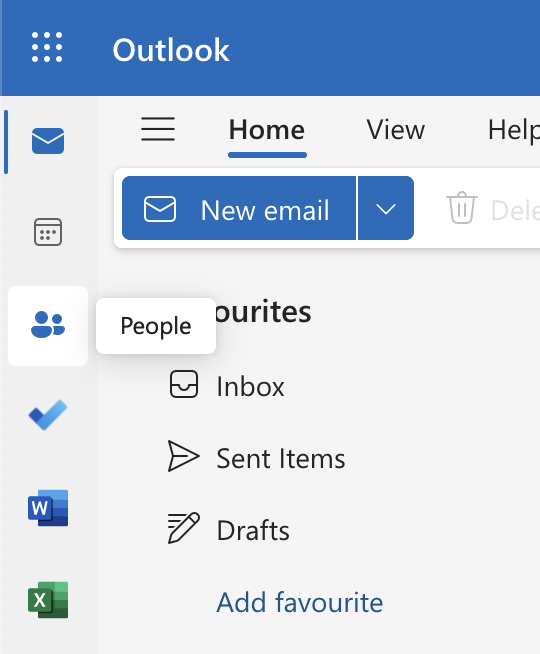
2. Click the “People” icon to go to contacts
3. Check the box to select all contacts (or select specific ones)
4. Click “Manage Contacts” and choose “Export contacts”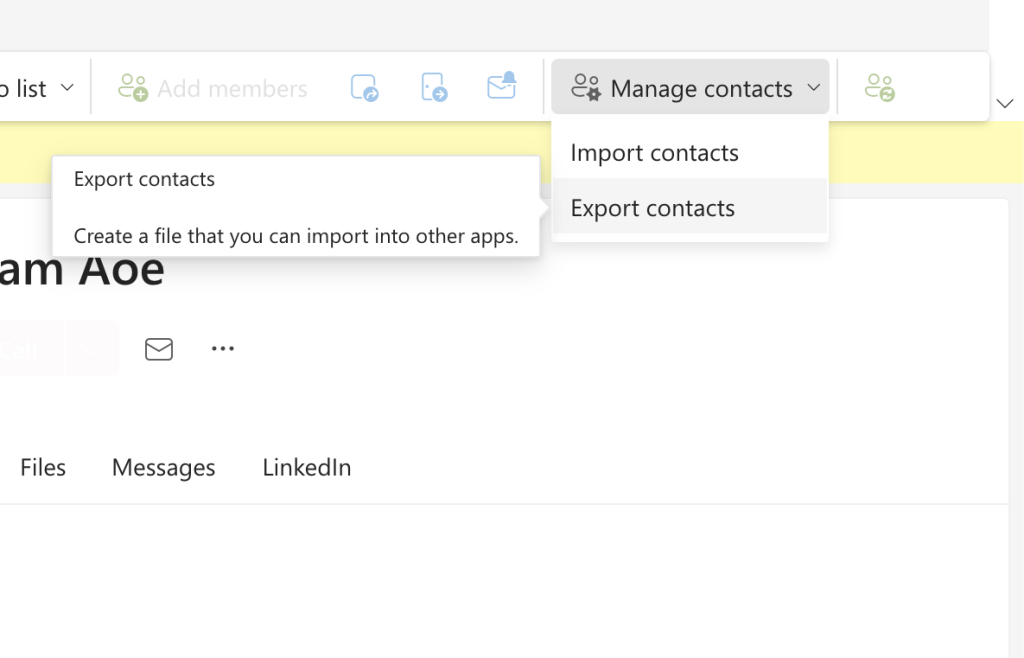 5. Select “All contacts” or a specific category, then click Export
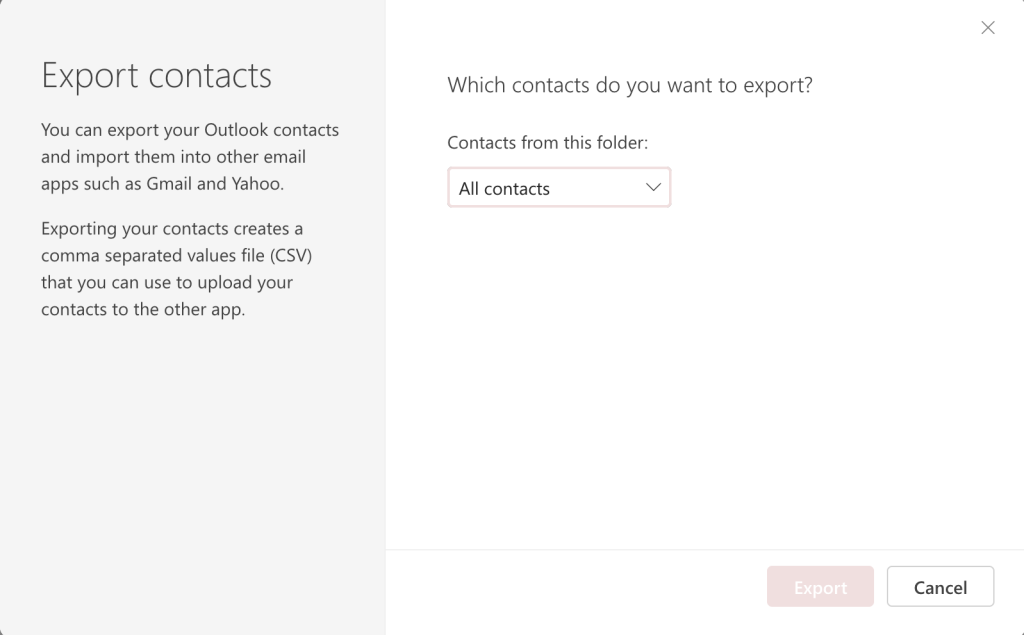
6. Open the downloaded .csv file in Excel.
Method 5: Export Contacts from Outlook to Excel on Mac
Outlook for Mac does not currently provide a Microsoft-documented direct CSV export from the desktop app. Microsoft documents the Outlook for Mac export feature as an Outlook for Mac archive (.olm) export. An .olm file is useful for archiving or moving Outlook for Mac data, but it is not an Excel-ready contact file.
If the contacts are stored in a Microsoft 365, Exchange Online or Outlook.com mailbox, use the same account in Outlook on the web and export the contacts to CSV:
- Open Outlook on the web and select People.
- Select Manage contacts > Export contacts.
- Choose All contacts or the required contact folder.
- Select Export. The CSV file is downloaded to the computer.
- Open the CSV file in Excel.
Important: If the contacts exist only locally in Outlook for Mac under On My Computer, the web export will not include those local-only contacts. Keep the .olm archive for Mac backup or migration and do not describe the .olm file as something Excel can open directly.
Method 6: New Outlook for Windows CSV
New Outlook for Windows now has a direct CSV contact export.
Use this final method:
- Open new Outlook and select People from the side panel.
- Select Export contacts from the ribbon.
- Under Contacts from this folder, choose the contact folder to export.
- Select Export.
- Open the downloaded CSV file in Excel.
Fix Garbled Characters in an Exported Outlook CSV
If names or other contact fields display with the wrong characters after opening the CSV in Excel, treat it as an encoding issue rather than assuming the Outlook export is corrupted. Microsoft recommends importing the file through Excel so you can choose the character encoding that displays the text correctly.
Use these steps:
- Open a blank workbook in Excel.
- Go to Data > From Text/CSV.
- Select the exported CSV file.
In the import preview, choose the File Origin or encoding that makes the characters display correctly.
Confirm the delimiter is Comma when appropriate, then select Load.
If the file will be reused for an Outlook import, save it as CSV UTF-8 (Comma delimited) when UTF-8 is required for the target import.
Export Contacts or Directory Data in Bulk for IT Admins
Personal Outlook contacts and the Global Address List are different data sources. Microsoft explicitly notes that the normal Outlook contact export exports the user’s saved contact list, not entries from the organization’s Global Address List or other address books.
For Exchange Online address lists or GAL-related directory data, administrators can use Exchange Online PowerShell to retrieve the relevant address-list definition and enumerate recipients that match its recipient filter, then export selected recipient properties to CSV. Get-GlobalAddressList returns GAL objects; it should not be described as a one-command export of all GAL members.
For personal mailbox contacts across users, Microsoft Graph can list contacts from /users/{id}/contacts or from specific contact folders. This requires appropriate Microsoft Graph permissions such as Contacts.Read or Contacts.ReadWrite, depending on the scenario. Treat directory export and mailbox-contact export as separate admin tasks.
Frequently Asked Questions
1. What are some limitations of exporting large contact lists?
- Very large contact lists may hit Excel’s row limit (~1 million rows)
- Opening large CSVs in Excel may be slow and resource intensive
- Avoid exporting sensitive info like phone numbers for many contacts
2. Is it safe to share a CSV file containing my contacts
Sharing exported contact files can raise privacy and security concerns. Be cautious about sharing exported files, as they contain personal info. Only share with trusted parties, and be sure to remove sensitive details before sharing, password protect the file, and use secure file sharing methods. Also ensure that you comply with any applicable data protection laws.
3. How do I export my entire Outlook contact list?
In new Outlook for Windows, open People and select Export contacts from the ribbon. In Outlook on the web, open People and select Manage contacts > Export contacts. In classic Outlook for Windows, use File > Open & Export > Import/Export > Export to a file > Comma Separated Values, then select the Contacts folder.
4. How do I export contacts from new Outlook?
Open People, select Export contacts, choose the contact folder to export, and select Export. New Outlook saves the exported contacts as a CSV file in your Downloads folder.
5. Can I export Outlook contacts to Excel?
Yes. Outlook exports contacts as a CSV file, which Excel can open. After opening the file, you can sort, filter or analyze the contact fields and save a separate workbook if needed.
6. How do I export contacts from Outlook for Mac to Excel?
Microsoft documents the Outlook for Mac desktop export as an .olm archive, not a direct CSV export. If the contacts are stored in a Microsoft 365, Exchange Online or Outlook.com mailbox, open the same account in Outlook on the web and export the contacts to CSV from People > Manage contacts > Export contacts. Local-only On My Computer contacts are not included in that web export.
7. Can I export the Global Address List to Excel from Outlook?
Not through the normal Outlook contact-export wizard. Microsoft notes that the standard contact export does not include the Global Address List. Exchange administrators can use Exchange Online PowerShell for address-list or recipient data, while Microsoft Graph can be used for mailbox contacts with the required permissions.
8. Why do accented or non-English characters look wrong in my CSV?
The file may be opening with the wrong text encoding. In Excel, use Data > From Text/CSV and choose the File Origin or encoding that makes the preview readable. If the file will be re-imported, save it using the UTF-8 CSV format required by the destination.
9. Can I export Outlook contacts to CSV from iPhone or Android?
Outlook mobile does not provide the same CSV export workflow documented for new Outlook, classic Outlook and Outlook on the web. The mobile Save Contacts feature copies supported contacts to the device address book rather than creating an Excel-ready CSV. Use Outlook on the web in a browser when you need a CSV file.
Related Articles: