


The Exchange Global Address List (GAL) is a shared address book that contains contact data for every associated user in an Exchange organization or tenant. This address book can be accessed using Outlook. This guide shows how to view the GAL using the Outlook desktop app and Outlook on the web.
TL;DR
To view the Global Address List in classic Outlook, go to Home > Find > Address Book or press Ctrl + Shift + B, then select Global Address List from the address book list. In new Outlook for Windows and Outlook on the web, create a new message and select To, Cc, or Bcc to open the address book and search your organization’s directory.
IT administrators can query Global Address Lists with Get-GlobalAddressList in Exchange Online PowerShell when they have the required Address Lists role.
If a recipient is missing in classic Outlook, the Offline Address Book may be out of date or the recipient may be hidden from address lists. Exchange Online generates Offline Address Books every 8 hours, and classic Outlook may continue showing older information until it downloads the latest copy.
How to View the GAL in Outlook Desktop
- Launch Outlook Desktop.
- Click the People icon in the navigation panel in the bottom-left corner of the window. (See figure below.)
 Outlook will display in People view.
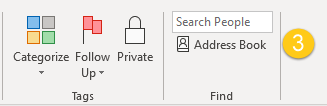
 - Click Address Book in the ribbon at the top of the window. (See figure below.)
 The Address Book will open. (See figure below.)
 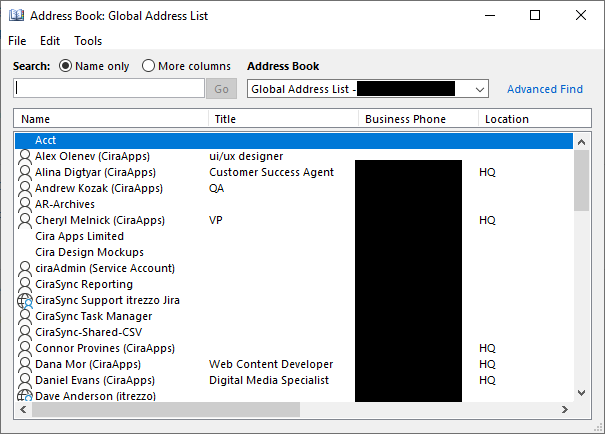 NOTE:The Address Book typically opens with an organizational address list available, but users should confirm Global Address List in the Address Book drop-down before searching. To switch between address books, click the drop-down arrow under Address Book.
View the GAL in Outlook on the Web
- Launch Outlook on the web.
- Click the People icon in the navigation panel in the bottom-left corner of the window. (See figure below.)
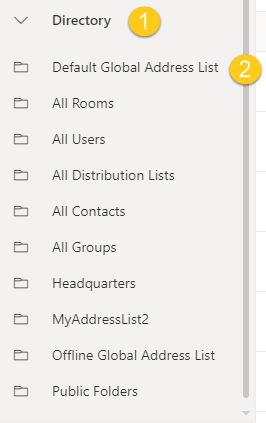
- Click Directory > Default Global Address List. (See figure below.)
For IT Admins: View the Global Address List in PowerShell
You can view Global Address Lists in PowerShell, but the available commands differ by environment. Get-GlobalAddressList is available in Exchange Online and on-premises Exchange. Update-GlobalAddressList is available only in on-premises Exchange.
In Exchange Online, Get-GlobalAddressList requires the Address Lists management role. By default, this role is not assigned to any role group, so an authorized Exchange administrator must assign the role before the cmdlet can be used.
Do not state that Windows PowerShell must be run as a local administrator. Exchange role-based access is the relevant permission requirement.
A couple of notes:
-
You’ll need the Exchange Online Management module installed (
Install-Module ExchangeOnlineManagement) if you haven’t already. -
You must run PowerShell as admin and have permissions to query the GAL.
-
If you’re working with on-premises Exchange, the cmdlets are similar, but you’d run them from the Exchange Management Shell.
What is the Keyboard Shortcut to Access the Global Address List?
- In classic Outlook for Windows, press Ctrl + Shift + B to open the Address Book. Select Global Address List from the Address Book list if needed. In new Outlook, use New mail > To, Cc, or Bcc to open the address book. Keyboard shortcut behavior can differ between Outlook versions.
- This command opens the “Address Book” dialog, where you can select the Global Address List to view all its contacts.
Global Address List Not Showing in Outlook?
6 Checks
- Compare Outlook on the web with classic Outlook.
Search for the same recipient in Outlook on the web. If the recipient appears there but not in classic Outlook, an outdated Offline Address Book or another local client issue is a likely cause.
- Check whether the recipient is hidden from address lists.
Verify in Exchange that the recipient is not configured to be hidden from address lists.
- Refresh the Offline Address Book in classic Outlook.
Use File > Account Settings > Download Address Book, choose the appropriate Offline Address Book, and download the latest copy.
- Check the user’s Address Book Policy.
If the organization uses Address Book Policies, the user may intentionally be scoped to a different GAL.
- Confirm that classic Outlook is opening the correct address list.
Open the Address Book and select Global Address List from the available address books before searching.
- Search rather than relying on broad directory browsing.
In large organizations, search by name or email address instead of assuming every entry will be visible in a single browsable view.
How Long Does the Global Address List Take to Update?
Update timing depends on the Exchange environment and whether Outlook is using live directory data or a cached Offline Address Book.
- Exchange Online: Microsoft generates Offline Address Books every 8 hours. Classic Outlook users can continue seeing older information until Outlook downloads the updated OAB.
- Classic Outlook: Users can manually refresh the local copy through File > Account Settings > Download Address Book.
- On-premises Exchange: OAB generation is configurable. Current supported Exchange Server versions use an 8-hour default generation interval, but administrators can change the schedule.
- If a recipient appears in Outlook on the web but not in classic Outlook, an outdated Offline Address Book is a reasonable troubleshooting point.
How to Find Organization Contacts on iPhone and Android
Outlook for iOS and Android lets users search for people and contacts and can surface organizational information for supported work or school accounts. Tap Search and enter the person’s name, or start a new email and enter the recipient’s name.
Searching for someone through Outlook is different from storing that person’s information in the phone’s native Contacts app. A directory entry that can be found in Outlook may still be absent from the device’s local contact store.
This distinction matters for workflows such as native caller identification, because those workflows generally depend on contact information being available to the device’s contact system or another supported caller identification source.
Viewing the GAL in Outlook helps users find people while they are working inside Outlook. Some organizations also need selected directory contacts to be available in each user’s regular mobile contact list for workflows such as caller identification.
CiraSync addresses this separate requirement by centrally synchronizing selected Microsoft 365 GAL contacts into users’ mailbox contact folders. When contact synchronization to the device is enabled through Outlook or the device’s Microsoft 365 account settings, those mailbox contacts can also become available in the native iPhone or Android Contacts app.
CiraSync manages the source-to-mailbox synchronization centrally, so users do not need to manually save individual GAL entries. CiraSync does not directly control how a mobile device displays or synchronizes those contacts.
Frequently Asked Questions
How do I view the Global Address List in Outlook?
In classic Outlook, go to Home > Find > Address Book and select Global Address List. You can also press Ctrl + Shift + B. In new Outlook and Outlook on the web, create a new message and select To, Cc, or Bcc to open the address book and search your organization’s directory.
Why is the Global Address List not showing in Outlook?
Common troubleshooting points include an outdated Offline Address Book in classic Outlook, a recipient that is hidden from address lists, or an Address Book Policy that scopes the user to a different GAL. Compare the same search in Outlook on the web to help determine whether the issue is client-specific.
Where is the Global Address List in new Outlook?
New Outlook uses a revised Address Book experience. Create a new message and select To, Cc, or Bcc to open the address book, then search the organizational directory.
How do I update the Global Address List in Outlook 365?
End users cannot directly rebuild the underlying GAL. In classic Outlook, they can refresh the local Offline Address Book through File > Account Settings > Download Address Book. Exchange administrators manage the underlying address lists and directory data.
Can I edit the Global Address List in Outlook?
No. Regular Outlook users cannot directly edit the GAL. The GAL is generated from Exchange directory data. If a user’s information is incorrect, an administrator must update the underlying recipient or directory properties.
How do I sync the Global Address List in Outlook?
In classic Outlook, GAL synchronization usually means downloading the latest Offline Address Book. Exchange Online generates OABs every 8 hours, and users can manually refresh the local copy through File > Account Settings > Download Address Book.
How do I make the Global Address List the default address book in classic Outlook?
Open the Address Book with Ctrl + Shift + B, open Tools > Options, and choose the preferred address list under the option for which address list should open first. This applies to classic Outlook.
What is the Default Global Address List?
Exchange Online automatically creates a built-in GAL named Default Global Address List. Its default filter includes the organization’s mail-enabled objects. Administrators can create additional GALs, and Address Book Policies can control which GAL a user sees.