

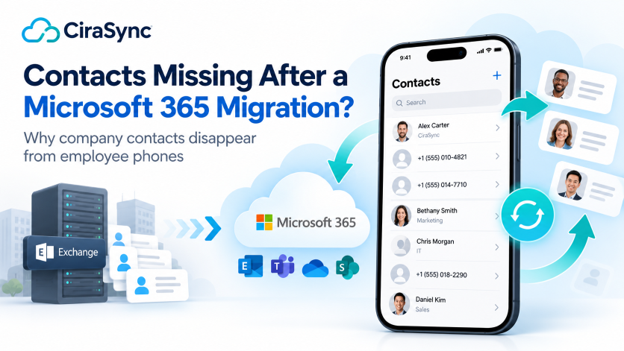


Company contacts usually disappear from phones after an Exchange or Microsoft 365 migration for one of three reasons: the phone is still connected to the old mailbox, the contacts never lived in the mailbox in the first place, or the tool that used to deliver them was not reconnected to the new environment. Mailbox migrations move what is inside each mailbox. They do not rebuild the separate jobs, directory objects and phone settings that put company contacts on employee devices.
That gap is easy to miss during planning, because desktop Outlook keeps working and users can still search the Global Address List (GAL). The problem shows up on day one, when calls arrive as bare numbers and field staff cannot find a colleague in their phone’s Contacts app.
This guide explains why it happens, walks through the most common causes in the order you should check them, and gives fixes for hybrid, cutover and tenant-to-tenant migrations. It also covers two Exchange Online changes in 2026 that turned some post-migration contact problems into outright failures.
Key takeaways
- Migrations move mailbox content, not contact delivery. Microsoft’s cross-tenant migration moves user-visible mailbox content such as email, contacts and calendar. External contacts, distribution lists and public folders need separate handling.
- Phones may need to be reconfigured. Hybrid moves can redirect ActiveSync devices automatically, but Microsoft notes some devices do not handle the redirect, and several migration types are not supported by it.
- Exchange Online is stricter than Exchange Server. Since March 1, 2026, Exchange Online rejects ActiveSync clients below version 16.1. A mail app that worked on-premises can fail after the move.
- Older synchronization tools may be affected. Microsoft began phased Exchange Online EWS access restrictions in October 2026, with full retirement planned for April 2027. Organizations should verify whether their contact synchronization tools rely on EWS and whether temporary access configurations or supported alternatives are available.
- Fix the layer that broke. Check the phone, then the mailbox, then the directory, then the sync job, before changing anything.
Why company contacts go missing: three separate layers
Company contacts reach a phone through three layers, and a migration can break any one of them without touching the others.
| Layer | What it is | What a migration can change |
| Directory (GAL) | The organization’s address list in Exchange, built from users, groups and mail contacts | Objects may be missing, hidden or not yet synced in the new environment |
| Mailbox contacts | The Contacts folders inside each user’s mailbox | Personal contacts usually move with the mailbox; contacts pushed in by a sync tool stop updating if the tool is not reconnected |
| Phone contacts | The native Contacts app that powers caller ID and messaging | The phone account may still point at the old mailbox, or be blocked, removed or mid-resync |
The key point is that the GAL is a directory, not a contact list. An iPhone connected to Exchange can search the GAL when a user looks up a contact or addresses an email (Apple Platform Deployment), but that lookup does not save anyone to the phone. For colleagues to appear by name on incoming calls, their details have to exist in a contact store the phone syncs, usually the user’s mailbox Contacts folder or a separate managed address book.
Many organizations solved that before the migration with a GAL sync tool, a script or a public folder workflow. Those are the pieces a mailbox migration does not carry across. Our GAL sync guide covers the directory-to-phone flow in more depth, and why Microsoft won’t automatically sync your GAL explains the background.
The 7 most common causes after a migration
These are ordered from the quickest to check to the most involved.
- The phone is still connected to the old mailbox
In a hybrid move from Exchange Server to Exchange Online, Microsoft says ActiveSync devices are normally reconfigured automatically through a redirect, as long as the Hybrid Configuration Wizard was used and on-premises servers run supported releases (Microsoft Learn). Microsoft also notes three limits:
- Some devices, particularly Android, can take longer than expected to redirect.
- Some devices do not correctly interpret the redirect and need the email account reconfigured or recreated.
- The redirect is not supported when moving from Exchange Online back to on-premises, between on-premises organizations, or from Exchange 2007.
For tenant-to-tenant moves, Microsoft’s cross-tenant guidance says users need to rebuild their Outlook profile with their new UPN and primary SMTP address, because the old address no longer exists in the target tenant (Microsoft Learn). Plan for phone accounts to be re-added in the same way.
- The mail app cannot meet Exchange Online’s ActiveSync 16.1 requirement
Exchange Server does not enforce a minimum ActiveSync version, but Exchange Online does. Since March 1, 2026, devices using EAS versions below 16.1 can no longer connect to Exchange Online, and Microsoft confirmed in August 2026 that enforcement is complete (Microsoft Tech Community). An older Android mail app that synced contacts from your on-premises server can stop syncing entirely once that mailbox moves.
- Company contacts came from a sync job that still points at the old environment
If a script, a server-side tool or an older sync product copied the GAL into users’ mailbox Contacts folders, those contacts may have moved with the mailbox as a static copy. They stop updating, and new hires never appear, until the job is rebuilt against the new environment.
Exchange Online’s retirement of Exchange Web Services (EWS) introduces another consideration for organizations using older contact synchronization tools. Microsoft began phasing in EWS access restrictions on October 1, 2026, with full retirement planned for April 1, 2027. Some applications may continue operating temporarily under permitted configurations, while others may experience connection failures. IT teams should verify whether their contact synchronization solution depends on EWS, review applicable access settings and confirm the vendor’s migration plan to Microsoft Graph or another supported API.
- External contacts and distribution lists were not recreated
Mailbox migrations do not carry directory objects. Microsoft’s FastTrack guidance for tenant-to-tenant moves states that distribution lists and external contacts (mail contacts) are not part of mailbox data migration and must be pre-created in the target tenant (Microsoft Learn). If vendors, partners or field contractors existed as mail contacts in the old GAL, they are simply not in the new one.
- Contact lists lived in public folders
Public folder contact lists are a common casualty. Microsoft’s FastTrack cross-tenant service lists public folders under content that does not migrate. On phones, Outlook for iOS and Android does not offer access to public folders at all (Microsoft Support). Microsoft’s Exchange Online EWS retirement affects applications that rely on EWS for programmatic access to public-folder data. This should not be confused with the removal of all supported public-folder functionality in Outlook. Organizations using scripts or third-party tools to synchronize public-folder contacts should verify whether those integrations depend on EWS and identify a supported alternative before retirement.
- Users are hidden from the GAL or not synced yet
In hybrid and directory-synced environments, address list visibility is often controlled on-premises and synced to Microsoft 365 by Microsoft Entra Connect. If attributes were not populated correctly, or the object was moved to an unsynced organizational unit, the user can be missing or hidden in the new GAL. Desktop Outlook adds one more delay: Exchange Online generates offline address books every 8 hours (Microsoft Learn), so cached Outlook can lag behind the live directory.
- Outlook mobile’s Save Contacts setting reset
When users remove and re-add their account in Outlook for iOS or Android, the Save Contacts setting can go back to its default, which Microsoft lists as Off (Microsoft Learn). Mailbox contacts are then visible inside Outlook but not in the phone’s native Contacts app, so caller ID stops working.
How to diagnose which layer is failing
Start with one affected user and work from the phone back to the source. Each step rules out one layer.
1. Check whether the phone is syncing at all. If new email is not arriving either, the problem is the account connection, not contacts. In Exchange Online PowerShell, list the user’s devices and their last successful sync:
Get-MobileDevice -Mailbox [email protected] | Select-Object DeviceModel, ClientType, ClientVersion
Get-MobileDeviceStatistics -Mailbox [email protected] | Select-Object DeviceModel, LastSuccessSync
A ClientType of EAS with a ClientVersion below 16.1 explains a blocked device. If no recent successful synchronization is recorded, investigate the device connection, authentication, account configuration and applicable access policies. An outdated account pointing to the previous environment is one possible cause, but the synchronization report alone does not confirm it.
2. Check the mailbox. Sign in to Outlook on the web as the user and open People. If company contacts are also missing from the user’s mailbox Contacts folders in Outlook on the web, investigate the mailbox data and upstream contact synchronization process before troubleshooting the phone. If contacts are present in the mailbox but missing from the native Contacts app, review the mobile account configuration, permissions, supported folders and synchronization status.
3. Check the Contacts folders the phone syncs. If company contacts sit in a subfolder, confirm the user’s mail app or Outlook mobile syncs that folder to the native Contacts app.
4. Check the directory. Search the GAL for a colleague who should appear. If they are missing, check whether they are hidden:
Get-Recipient -Identity [email protected] | Select-Object DisplayName, RecipientType, HiddenFromAddressListsEnabled
In a directory-synced tenant, fix visibility at the source and let Microsoft Entra Connect sync the change.
1. Compare mail contacts between environments. Count mail contacts in the old and new environments. A significant difference in mail-contact counts may indicate that external contacts were not recreated, were excluded from migration scope, or are represented differently in the target environment. Compare the actual objects and required contact scope before making changes:
Get-MailContact -ResultSize Unlimited | Measure-Object 2. Check the sync job. Find out what used to put company contacts into mailboxes. Confirm it is connected to the new tenant, that its last run succeeded, and ask the vendor whether it uses Microsoft Graph or EWS.
3. Check Outlook mobile settings. If the user relies on Outlook for iOS or Android, confirm Save Contacts is on and the app has permission to the device’s contacts.
If mailbox connectivity and contact data appear correct but incoming calls still display phone numbers instead of names, investigate whether the expected contacts have reached the device’s native Contacts app. Also review contact permissions, account synchronization settings, supported contact folders and organizational policies before concluding that the directory delivery process failed.
Fixes by migration type
The right fix depends on how the mailboxes moved, the source and destination environments, and the mobile clients in use. Hybrid, cutover, staged, and tenant-to-tenant migrations can have different requirements for device reconfiguration and contact synchronization.
The following recommendations cover common scenarios. IT administrators should verify the requirements of their specific migration method before changing device settings, directory configurations, or contact synchronization processes.
Hybrid: Exchange Server to Exchange Online
- Phones: Most ActiveSync devices should redirect automatically. For devices that do not, have users remove and re-add the account with outlook.office365.com, or move them to Outlook for iOS and Android. Microsoft’s support article on Android devices that do not redirect explains the device-side cause.
- Old mail apps: Update any app reporting an EAS version below 16.1, or replace it.
- Company contacts: Rebuild any GAL-to-mailbox sync against Exchange Online, using a tool that connects through Microsoft Graph.
- Directory: Confirm mail contacts and address list visibility sync correctly through Microsoft Entra Connect.
Cutover or staged migration without hybrid
- Phones: Automatic ActiveSync redirection is supported in properly configured hybrid migrations. For cutover or staged migrations without hybrid configuration, test how supported mobile clients connect to Exchange Online after migration. Some devices may require account reconfiguration or recreation. Provide device-specific instructions and validate the process with a pilot group before organization-wide rollout.
- Company contacts: Recreate external contacts in Exchange Online and rebuild contact delivery to phones.
Tenant-to-tenant migration
- Phones and Outlook: Microsoft’s cross-tenant guidance says Outlook profiles must be rebuilt with the new UPN and primary SMTP address. Treat phone accounts the same way and schedule it as part of each batch.
- Directory objects: Pre-create mail contacts and distribution lists in the target tenant before migration, as Microsoft’s FastTrack guidance requires.
- During coexistence: If both tenants stay active for months, users in each tenant need the other company’s people on their phones. Cross-tenant contact sync can bridge the two directories until consolidation finishes.
- Public folders: Move shared contact lists out of public folders into a source that can be delivered to phones, such as mail contacts or a shared mailbox contacts folder.
| Migration type | Phone reconfiguration | Contact synchronization checks |
| Hybrid Exchange to Exchange Online | Automatic EAS redirection is supported in eligible configurations; some devices need manual intervention | Check sync jobs, directory objects and client compatibility |
| Cutover or staged | Reconfiguration requirements depend on the migration method and mobile client | Confirm mailbox contacts, directory data and sync jobs in the new environment |
| Tenant-to-tenant | Plan and test account reconfiguration for the target tenant | Validate target identities, external contacts and contact synchronization |
Post-Migration Contact Sync Checklist: What IT Teams Should Verify
If company contacts are missing or outdated after a Microsoft 365 migration, check the following before making configuration changes:
- Confirm affected users can connect to their new Exchange Online mailboxes.
- Verify that mailbox Contacts folders contain the expected company contacts.
- Check whether external contacts and other required directory objects exist in the target environment.
- Confirm the corporate contact synchronization tool is connected to the correct Microsoft 365 tenant.
- Review the synchronization job’s latest status and check for authentication or permission errors.
- Verify that supported mobile applications have the required contact permissions and synchronization settings enabled.
- Check whether Exchange ActiveSync clients meet Exchange Online’s current compatibility requirements.
- Test whether a recently added or updated company contact appears in the native Contacts app.
- Confirm caller ID displays the correct names for contacts saved on the device.
- Check for duplicate or outdated records caused by overlapping synchronization methods.
If these checks identify a failed synchronization process, correct the underlying configuration and validate the results with a small group of affected users before applying changes across the organization.
How CiraSync restores company contacts after a migration
CiraSync Cloud: Mailbox-based contact synchronization. CiraSync Cloud synchronizes selected corporate contacts, including supported Global Address List entries, into targeted users’ Microsoft 365 mailbox Contacts folders. Compatible mobile clients can then synchronize those contacts to employee smartphones.
Mobile Direct: Contact delivery to managed devices. CiraSync Mobile Direct provides a CardDAV-based contact delivery option for supported managed iOS and Android environments. Organizations should confirm device management, configuration and licensing requirements before deployment.
CiraHub: Multi-way synchronization across tenants. For organizations operating multiple Microsoft 365 tenants, CiraHub supports multi-way synchronization between connected directories and other supported contact sources. This can help keep contact information aligned during periods of coexistence or ongoing multi-tenant operations.
Bring your directory back to every phone
If your migration is finished but your phones still show numbers instead of names, talk to a CiraSync specialist about rebuilding contact delivery for your new tenant, or start a free trial and test it with a pilot group.
Frequently asked questions
Why did my contacts disappear from my iPhone after the Microsoft 365 migration?
Usually because the Exchange account on the phone was removed and re-added, or is still connected to the old mailbox. Contacts synced from an Exchange account appear only while that account is connected and syncing. If company contacts came from a sync tool rather than your own mailbox, that tool also has to be reconnected to the new environment.
Do contacts migrate with the mailbox?
Contacts stored in the user’s mailbox Contacts folders do. Microsoft’s cross-tenant migration moves user-visible mailbox content, including contacts. Directory objects such as external mail contacts and distribution lists, and public folder contents, are not part of mailbox migration and need separate handling.
Will ActiveSync devices reconnect automatically after a hybrid move?
Most should. Microsoft says ActiveSync devices are reconfigured automatically when a mailbox moves from Exchange Server to Exchange Online in a properly configured hybrid deployment. Some devices do not interpret the redirect correctly and need the account recreated.
Why can I find a colleague in Outlook but not in my phone’s contacts?
Outlook searches the Global Address List, which is a directory. The phone’s Contacts app shows only contacts that were synced to it. To see colleagues by name on calls, the directory has to be synced into a contact store the phone uses.
Can phones still access public folder contacts after migrating to Exchange Online?
Outlook for iOS and Android does not provide native access to Exchange public folders. Organizations using public-folder contacts should consider how those contacts will be delivered to employee devices. Microsoft’s Exchange Online EWS retirement affects integrations that rely on EWS for programmatic public-folder access, but does not mean all supported public-folder functionality in desktop Outlook is being removed.
Does the EWS retirement affect contact sync?
Yes, it can affect contact synchronization tools that rely on Exchange Web Services. Microsoft began phased EWS access restrictions in Exchange Online in October 2026, with full retirement planned for April 2027. Some applications can continue operating temporarily under permitted configurations. IT administrators should check their EWS access settings and confirm that their contact synchronization vendor supports Microsoft Graph or another supported alternative.
Why do old Android phones stop syncing after moving to Exchange Online?
Exchange Online requires ActiveSync version 16.1 or later, and Exchange Server does not. A mail app using an older EAS version can sync with an on-premises server but be blocked once the mailbox moves to the cloud.
How long does it take for the GAL to update after migration?
Online lookups reflect directory changes once synchronization completes. Desktop Outlook in cached mode uses the offline address book, which Exchange Online generates every 8 hours, so it can lag behind.

