


Being a complete email and calendar app, Outlook also allows you to back up emails.
Outlook users can thus save Outlook emails in bulk and have a copy of important emails, which can be useful for data migration, archiving, or recovery. Let’s show you seven ways to export or back up Outlook emails.
Key Takeaways:
- There are seven popular ways to back up Outlook emails: 1) Export them through Outlook Data File (.pst), 2) Use drag and drop, 3) To another email account like Gmail, 4) Exporting them to Microsoft Excel, 5) To your Mac, 6) to Flash Drive/USB or Hard Drive, and 7. automatically
- To back up Outlook emails as Data File PST, go to File > Options > Advanced > Scroll down to the Export category > Export > Finish.
- To back up Outlook emails to Excel in classic Outlook, go to File > Open & Export > Import/Export → Export to a file → Outlook Data File (.pst) → select the account (tick Include subfolders to capture Inbox, Calendar, Contacts and Tasks) → Browse to a save location → Finish. You’ll be offered an optional password to encrypt the .pst.
TL;DR – How to Back Up Outlook Emails (2026)
Quick answer: In classic Outlook, go to File > Open & Export > Import/Export > Export to a file > Outlook Data File (.pst), tick Include subfolders, and save. In the new Outlook, go to Settings > Files > Export > Get started. To restore a .pst you must use classic Outlook – new Outlook can’t import.
The catch most guides skip: Microsoft does not back up your mail. Under its Shared Responsibility Model, Microsoft keeps the service running; you protect the data. Exchange Online holds deleted items 14–30 days, then they’re gone.
| Method | Protects against | Cost |
| PST export | Accidental deletion you notice | Free |
| Microsoft 365 Backup | Deletion, ransomware (1-yr retention) | $0.15/GB/mo |
| Third-party backup | + Teams, Entra ID, long retention | $2–$7/user/mo |
| AutoArchive | Nothing – it moves, doesn’t copy | Free |
New Outlook vs Classic Outlook: What Works Where
“Which Outlook you’re using changes everything about backing up. If you see a ‘New Outlook’ toggle in the top-right corner, you’re in new Outlook.
In the new Outlook for Windows: export works, but the path moved. Go to Settings > Files > Export, select Get started, and follow the wizard to choose the mailbox or specific folders.
Two important limits: importing a mailbox or calendar from a .pst is not supported in new Outlook – you have to use classic Outlook to restore. And new Outlook can open a .pst only to browse and drag out mail items; calendar and contacts inside a .pst aren’t accessible there. Password-protected PST export isn’t available from new Outlook either – if you need the file encrypted, export from classic Outlook or store the PST inside an encrypted container.
In classic Outlook: the full Import/Export wizard is available – File > Open & Export > Import/Export – for both export and import. This is still the most reliable way to make a portable, self-contained backup.
The practical rule for 2026: back up from whichever client you use, but keep classic Outlook installed for restores. Classic Outlook ships with Microsoft 365 subscriptions that include desktop apps – if new Outlook is running, switch the toggle off, let the accounts sync, and use the import wizard there.
Does Microsoft Back Up Your Outlook Email? (No – and Here’s What That Means)
The most common assumption about Microsoft 365 is also the most expensive one. Microsoft runs high-availability and disaster-recovery infrastructure to keep the service online – but that’s resilience, not backup. Under Microsoft’s Shared Responsibility Model, Microsoft owns the infrastructure and you own the data. Microsoft’s own Service Agreement goes further and explicitly recommends using third-party applications to back up data stored in Microsoft 365.
What that means in practice:
- Deleted items don’t wait for you. Exchange Online retains deleted items for roughly 14–30 days by default; SharePoint and OneDrive recycle bins hold 93 days. After that, it’s gone.
- Retention is not backup. A retention policy prevents deletion for a period – it preserves data in place, inside the same tenant it’s meant to protect. A backup is an independent, restorable copy you control.
- Replication is not backup. Deleted and corrupted data replicates as deleted and corrupted.
- Departing employees are the quiet killer. When an account is disabled, Microsoft starts a countdown on the mailbox and OneDrive. Exchange Online Archiving doesn’t save you – the archive mailbox is tied to the licence and disappears when the licence is reclaimed.
- Ransomware clears the safety nets. Attackers typically empty recycle bins on entry, and some variants delete version history before encrypting.
Real Backup Options for Outlook (Beyond PST)
| Option | What it protects | Retention | Cost | Best for |
| Manual PST export | One mailbox, one point in time | However long you keep the file | Free | Individuals, migrations, one-offs |
| Microsoft 365 Backup (native) | Exchange, OneDrive, SharePoint | Up to 365 days | $0.15/GB/month | Small tenants; low data per user |
| Third-party (Veeam, AvePoint, Datto, Acronis, Keepit, Druva) | + Teams chat, Entra ID, Planner | Years (7+ available) | $2–$7/user/month | Compliance, ransomware, long retention |
| Retention / litigation hold | Compliance preservation only | Policy-defined | Included | Legal hold – not backup |
Method #1: Backup Outlook Emails (Outlook Data File PST)
Outlook provides an option to export your emails, calendar, and tasks to a .pst file. This file can then be imported to another email account or used as a backup.
The process involves selecting the desired email account in Outlook and exporting the items to a .pst file. When Outlook exports to a .pst, it creates a copy, ensuring nothing is removed from Outlook.
Use the following steps to back up Outlook emails to a .pst file:
In classic Outlook, go to File > Open & Export > Import/Export → Export to a file → Outlook Data File (.pst) → select the account (tick Include subfolders to capture Inbox, Calendar, Contacts and Tasks) → Browse to a save location → Finish. You’ll be offered an optional password to encrypt the .pst.
Recommended reading: How to Add an Email Account to Outlook?
Method #2: Backup Outlook 365 Emails Using Drag and Drop
One of the best ways to back up emails from Outlook is by using the drag-and-drop method.
You open the desired email folder in Outlook, select the emails, and simply drag the selected emails and drop them into a local folder on your computer, creating a backup.
1. Open Microsoft Outlook.
2. Navigate to the email folder you want to back up.


3. Select the emails you want to back up. Hold down the Ctrl key (or Command key on your Mac) while clicking on each email to select multiple emails.
4. Drag the selected emails to a folder on your computer.
Method #3: Backup Outlook Emails to Gmail
For people who want to back up their Outlook emails to another email service like Gmail, the process involves adding Outlook and Gmail accounts to the Outlook desktop app. Add both your Outlook and Gmail accounts to classic Outlook, then right-click the folder or messages → Move > Copy to Folder → select the Gmail folder → OK..
Export your Outlook emails to Gmail using the steps below:
1. Navigate to the File tab in Microsoft Outlook.
2. Click Add Account to add your Gmail account.
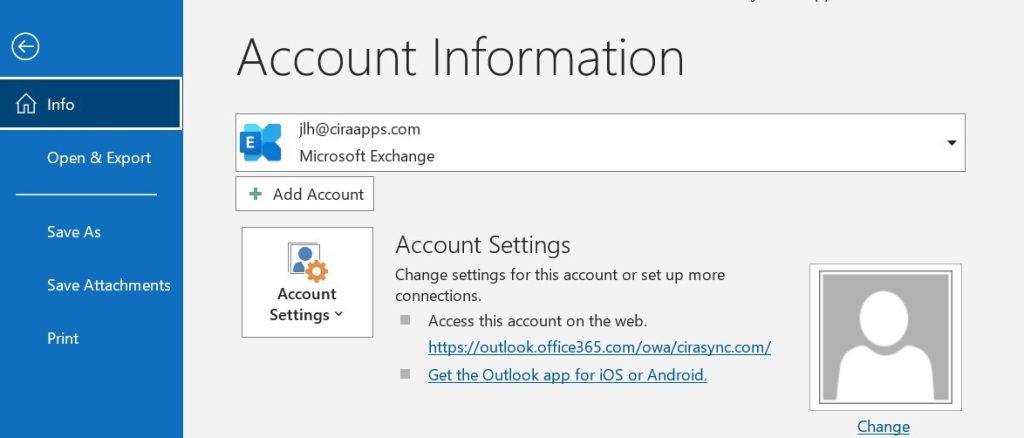
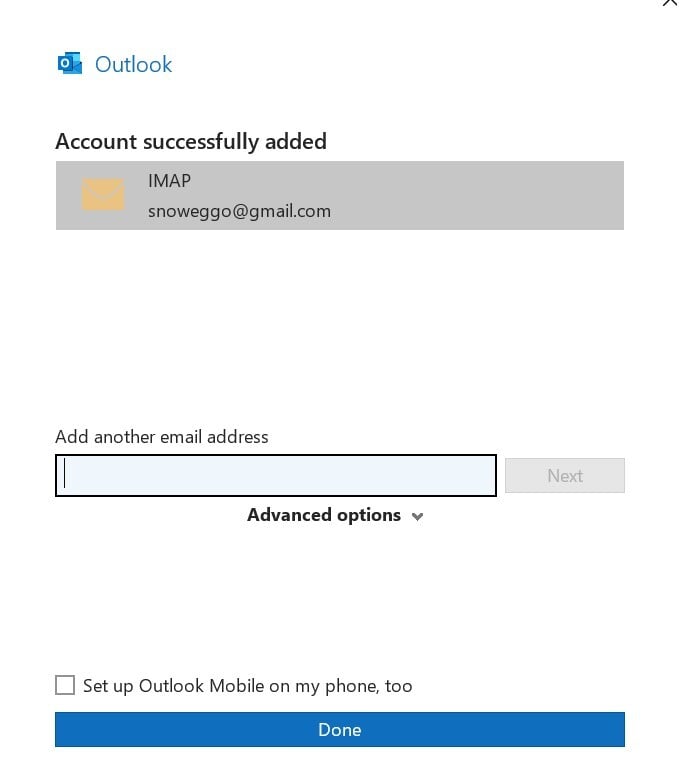
3. Follow the prompts to complete the Gmail setup.
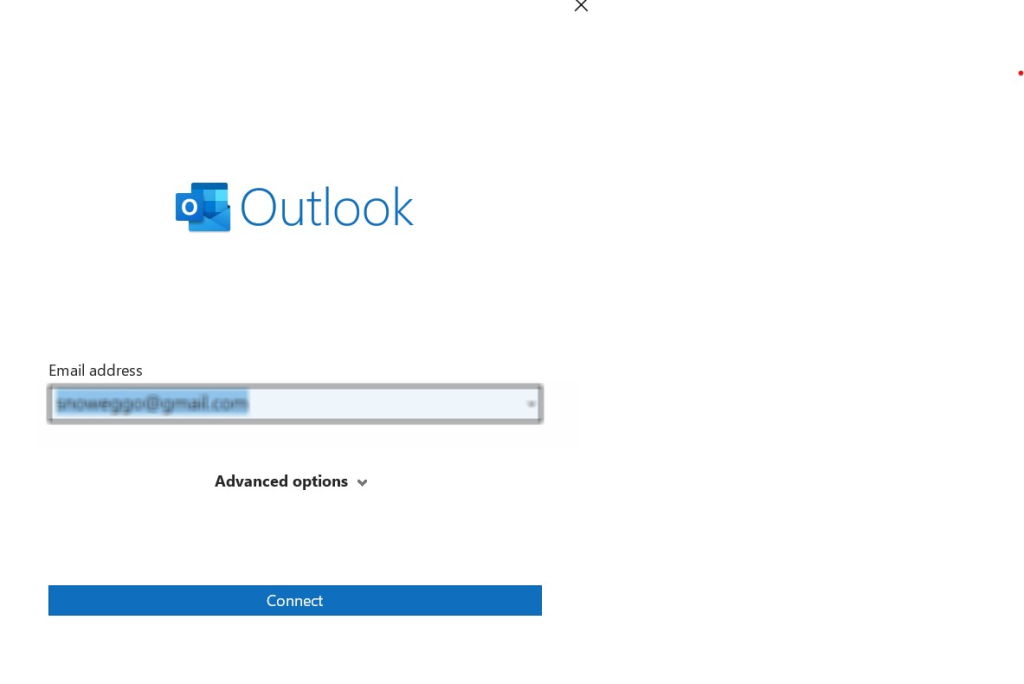
4. Once both accounts (Outlook and Gmail) are added, right-click on the desired Outlook folder or individual emails.
5. Choose Move > Copy to Folder.
6. Select the corresponding folder in your Gmail account.
7. Click OK.
Recommended reading: How to Create a Contact Group in Outlook?
Method #4: Backup Outlook Emails to Microsoft Excel
Although Outlook is primarily an email client, it offers flexibility in exporting email data to other Microsoft products like Excel. This method is useful for users who wish to analyze their email data or maintain a structured record of their communications.
Use the following steps to back up your Outlook emails to Excel:
1. Open Microsoft Outlook.
2. Go to the File tab > Options > Advanced.
3. Click on Export.
4. Choose Export to a file and click Next.
5. Select Comma Separated Values, choose the folder, save the .csv, then open it in Excel.
6. Choose the email folder you wish to export.
7. Click Next.
8. Choose a location to save your Excel file and provide a name.
9. Click Finish.
Method #5: How to Backup Outlook Emails on Your Mac
Outlook for Mac allows users to back up their emails similarly to Windows, though the steps may slightly differ due to the platform difference. The backup will be a .olm file, which can contain emails, contacts, or calendar events.
You can backup your Outlook emails to your Mac computer in the following steps:
1. Launch the Outlook application on your Mac.
2. Navigate to the top menu bar and click “Tools”, then select “Export.”
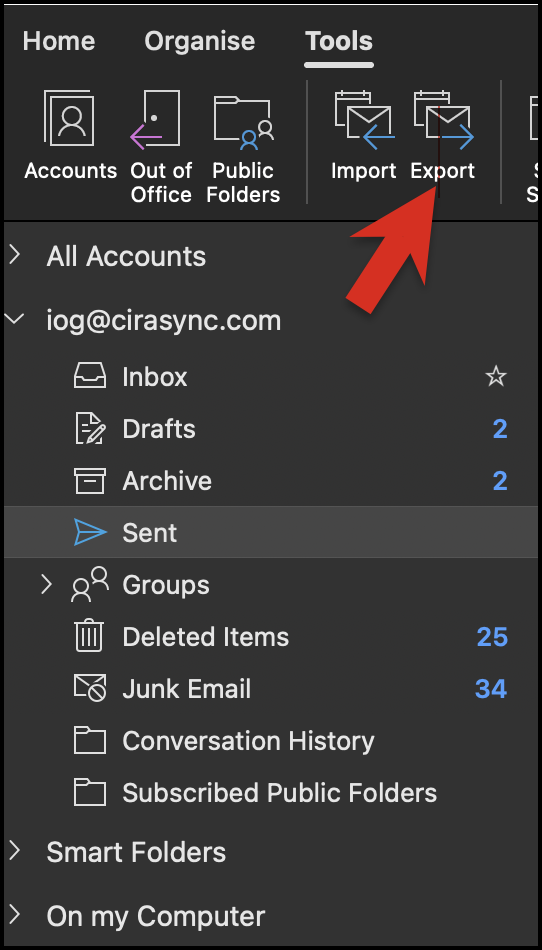
3. In the navigation pane “what do you want to export,” select “Emails” and click “Continue.”
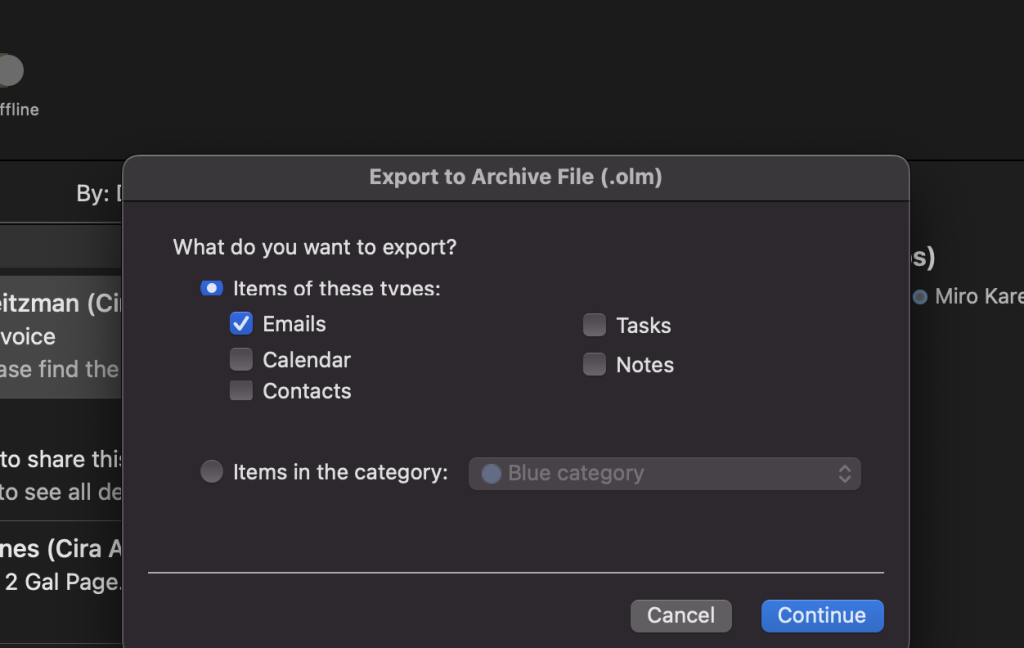
Note: Outlook may prompt you to choose a format. For most backups, the .olm format is appropriate.
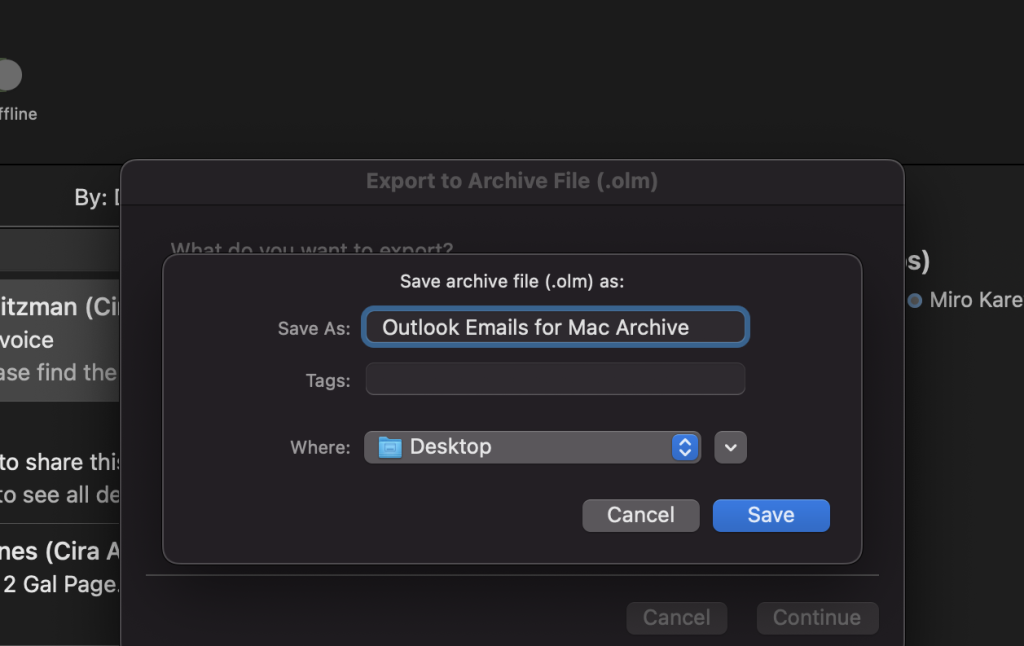
4. Select a location on your Mac where you want to save the backup file.
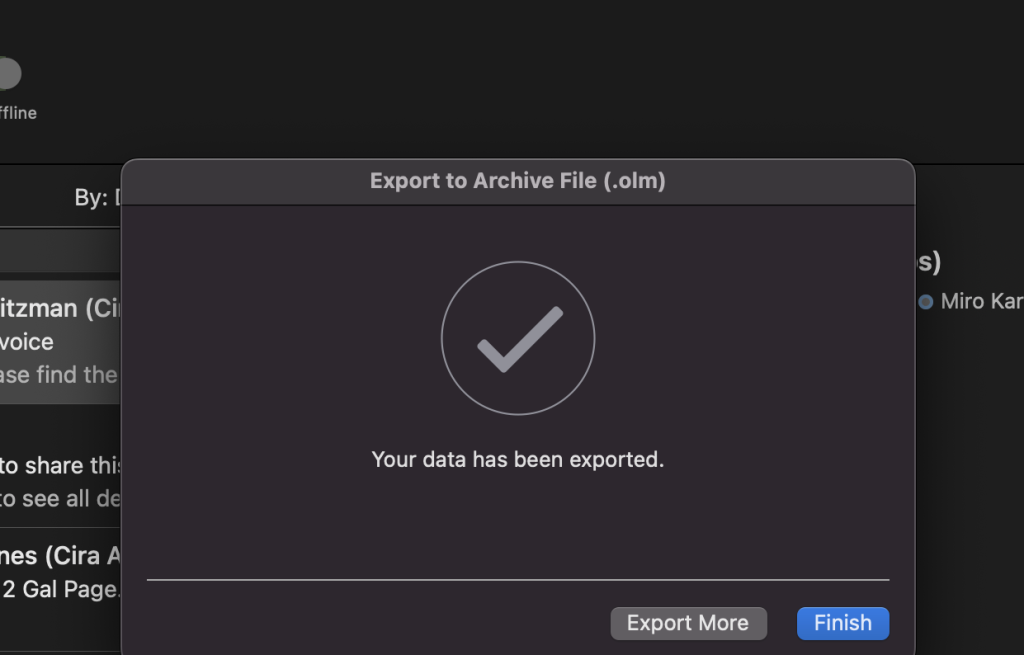
5. Click “Finish” to start the export/backup process.
Method #6: Backup Outlook Emails to a Flash Drive/USB (or Hard Drive)
Backing up your emails to a flash drive or an external hard drive is a convenient way to save an offline copy of all your emails.
This becomes especially useful when transitioning between computers or safeguarding against unforeseen issues. Backing up Outlook emails to a hard drive is essentially the same as backing up to a flash drive or USB.
To backup your Outlook emails to an external device, simply follow the steps in Backup Outlook Emails (Outlook Data File PST) for Windows users, or How to Backup Outlook Emails on Your Mac and copy the respective .pst or .olm files to your external device for safekeeping.
Method #7: Archive old mail automatically (AutoArchive – classic Outlook only)
Important: AutoArchive moves items rather than copying them, so it isn’t a backup. If the PST is lost or corrupted, the mail is gone from both places.
Backing up your Outlook emails automatically is a practical way to ensure your data is safe. Here’s a straightforward guide on how to set up automatic backups in Outlook:
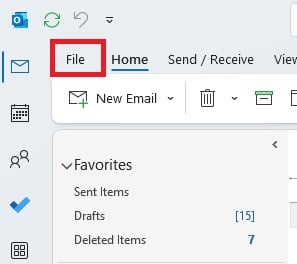
1. To create an Outlook Data File (PST), open Outlook, and navigate to the “File” menu.
2. Choose “Account Settings” > “Account
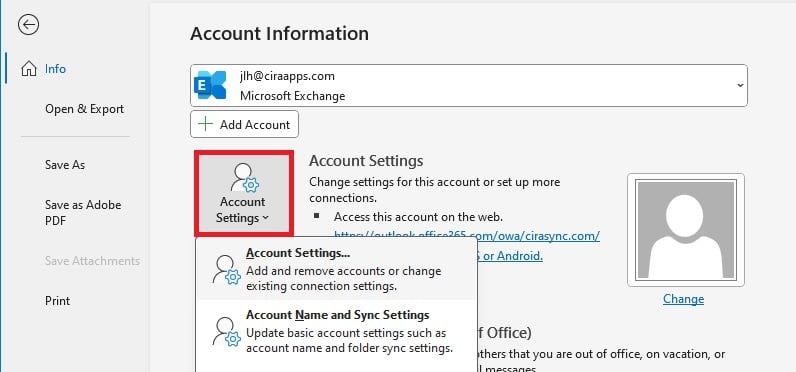
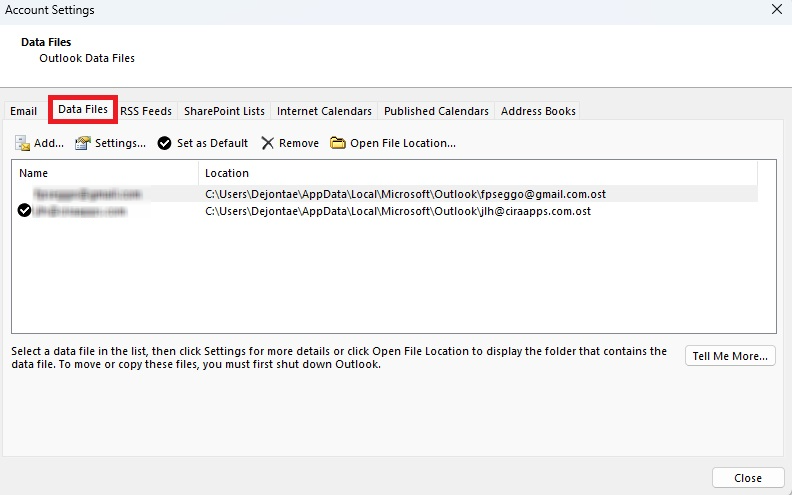
3. Click “Settings” again, then select the “Data Files” tab.
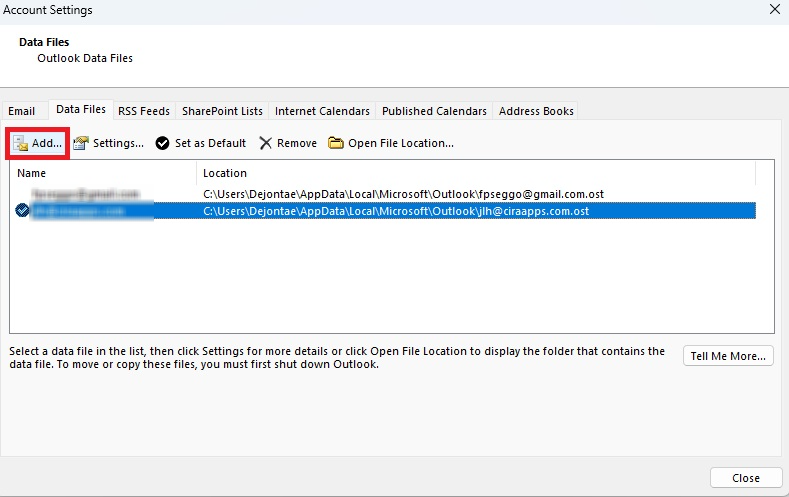
4. Click on “Add” to create a new PST file and follow the prompts to name and save the file.
5. To set up AutoArchiving, remain in the “File” menu, select “Options,” and then choose “Advanced.”
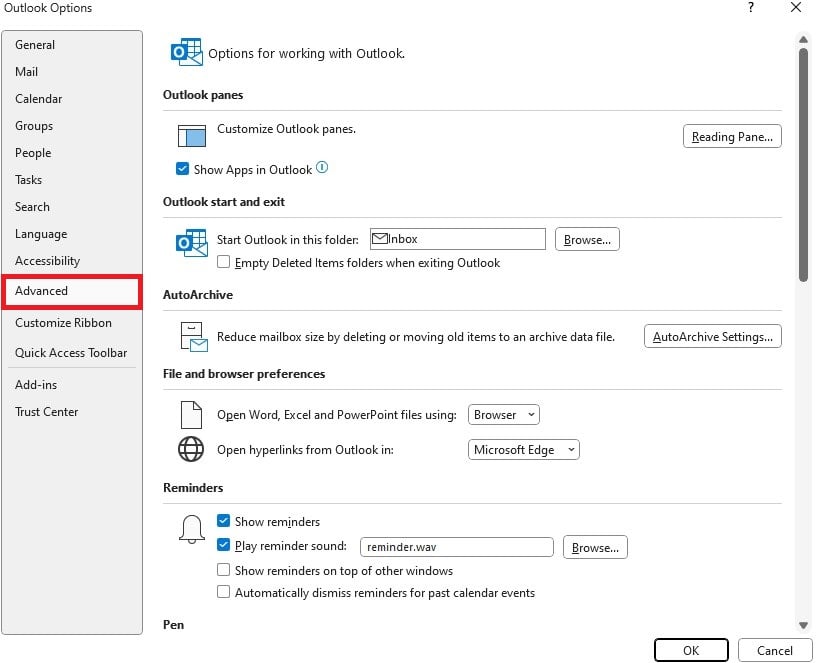
6. Click on “AutoArchive Settings.”
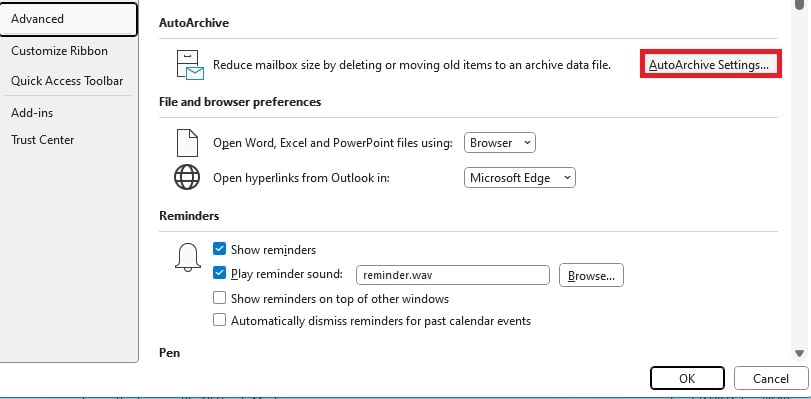
7. Choose how often you want AutoArchive to run and set other preferences such as how old items should be before they are archived.
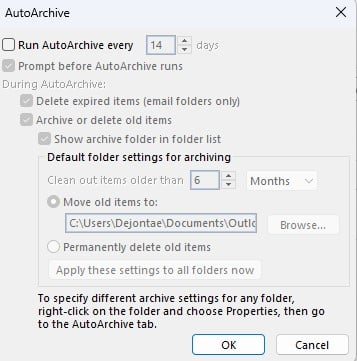
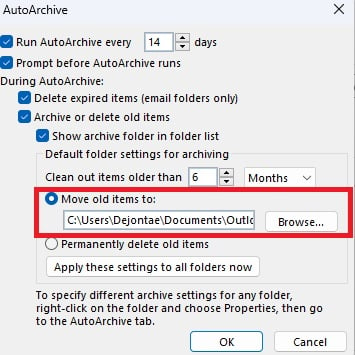
8. Ensure the “Move old items to” option points to the PST file you created.
Why Backup Outlook Emails?
Backing up Outlook emails is important to prevent data loss and secure emails because all email accounts are vulnerable. Moreover, when you switch to a new email service or migrate to a different email client, having backups of your old emails makes the transition smoother
Finally, some industries and organizations are required to retain email records for a certain period to comply with legal or regulatory requirements. Backup copies can help you meet these obligations.
How to Restore Outlook Emails from a Backup
Restoring your emails from a backup ensures that you can quickly recover your data in case of any errors or issues with Outlook. Below is a step-by-step guide.
1. Open Outlook.
2. Go to File > Open & Export > Import/Export.

3. Select Import from another program or file and click Next.

4. Choose Outlook Data File (.pst) and browse to your backup file.

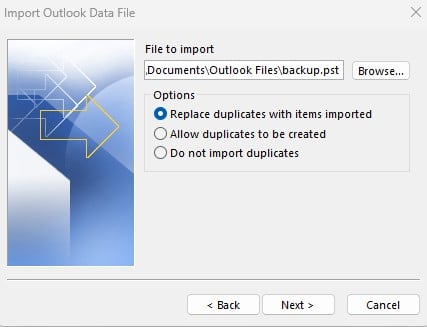
5. Select whether you want to:
- Replace duplicates
- Allow duplicates
- Skip duplicates

6. Pick the folder to import into (usually your main mailbox or Inbox).
7. Click Finish.
Your backed-up emails will now appear in Outlook.
What is a PST file in Outlook?
A PST (Personal Storage Table) file is an Outlook data file that stores your emails, calendar events, and other items. It acts as a local archive and allows you to manage your email data.
Best Practices for Email Backups
Protecting your data should be a primary concern for any computer user. Given the critical nature of email communications in both personal and professional realms, it’s critical to have backup strategies for your emails.
Below are a few best practices for email backup:
1. Perform Regular Backups
Regularly updating your backups ensures you have the most recent copy of your data safe and secure. Creating a schedule is a proactive way to keep your data backed up regularly.
Depending on the volume of emails and changes you have, determine how often you should back up. Daily backups may be recommended for business users, while weekly might suffice for personal use. You can use reminders or even alarms to remind you to perform backups.
Always have more than one backup and store them in different locations. This diversifies the risk and ensures that another can be used if one backup fails or becomes inaccessible.
2. Use Secure Storage Solutions
One simple method is to store your backup on an external hard drive. Ensure it’s encrypted and stored in a safe location. Alternatively, you can utilize cloud solutions such as OneDrive or Dropbox to provide accessibility from anywhere.
Ensure you use strong passwords and two-factor authentication. Network-attached storage (NAS) might also be a good investment for businesses, offering centralized storage that can be accessed over a secure network.
3. Restore Your Backup Often
Every once in a while, you should try restoring from your backup to ensure the data is intact and retrievable. Keeping your Outlook and backup software updated ensures compatibility when performing a restore.
4. Manage Storage Space
Instead of backing up every email, consider archiving older emails. Outlook has an Archiving feature that can reduce the size of your mailbox.
Regularly saving and then removing large attachments from emails can also help to minimize the size of your backup. Lastly, always rotate and replace older backups with newer ones.
Which Backup Method Should You Use?
- Need a one-off copy before switching computers? → PST export (classic Outlook, or new Outlook via Settings > Files > Export)
- Need to restore a PST? → classic Outlook – new Outlook can’t import
- Small business, low data per user, want it simple? → Microsoft 365 Backup ($0.15/GB/month)
- Need Teams chat, Entra ID, or 7-year retention? → third-party ($2–$7/user/month)
- Regulated industry / ransomware exposure? → third-party stored outside the tenant
- Just need to shrink the mailbox? → Archive – but understand it’s not a backup
Conclusion
In the digital age, emails often contain significant professional and personal information that individuals and businesses cannot afford to lose, as loss of vital communication can lead to both personal and professional setbacks. We hope this guide provided sufficient information on backing up, exporting, and restoring your Outlook emails. Using the simple steps in the methods mentioned above, you can confidently safeguard your emails and enjoy peace of mind.
FAQ
Can I back up all my emails from Outlook?
Can you back up Outlook emails to an external hard drive?
How do I retrieve all my Outlook emails?
1. Open Outlook and go to “File” in the top-left corner.
2. Select “Open & Export” and choose “Import/Export.”
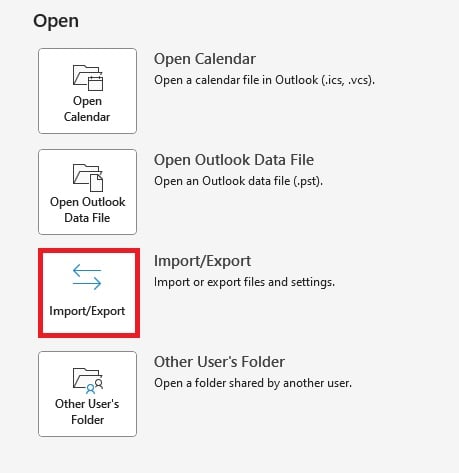
3. Choose “Import from another program or file” and click “Next.”
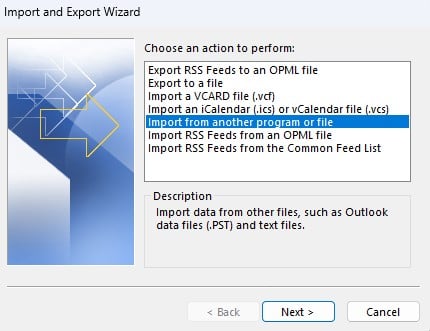
4. Select “Outlook Data File (.pst)” and click “Next.”
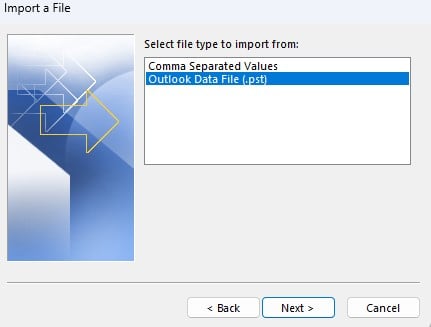
5. Click “Browse” and navigate to your PST file’s location. Select the file and click “Open.”
6. Choose the appropriate option for handling duplicates and click “Next.”
7. Select the destination folder, usually the root folder (your email address), and ensure “Include subfolders” is checked. Click “Finish.”
8. Outlook will begin importing your emails from the PST file.
Where Are All My Outlook Emails Stored?
Outlook emails are stored in different locations based on the type of account you are using. For Microsoft Exchange and IMAP accounts, emails are primarily stored on the mail server, with local copies kept in an Offline Outlook Data File (.ost) on your computer. The default location for these .ost files on Windows is within the user’s AppData folder.
Does Microsoft back up my Outlook emails?
No. Microsoft keeps the service running and holds deleted items for a short window (14–30 days in Exchange Online), but under the Shared Responsibility Model, protecting and recovering your data is your job. Microsoft’s Service Agreement explicitly recommends third-party backup.
How do I export a PST in the new Outlook?
Settings > Files > Export > Get started, then follow the wizard. Note you can’t import a PST back into the new Outlook – use classic Outlook to restore.
Why can’t I find Import/Export in my Outlook?
You’re likely in the new Outlook. The wizard is a classic-Outlook feature. Switch the “New Outlook” toggle off, or use Settings > Files > Export to export only.
Is a PST file a real backup?
Only partially. It’s a point-in-time copy of one mailbox. It won’t protect against ransomware, a departed employee’s data purge, or anything you don’t notice before your next export.
What’s the difference between archiving and backing up Outlook?
Archiving moves old mail out of the mailbox to reduce size; backup copies it to an independent, restorable location. AutoArchive moves – it doesn’t copy.
How long does Microsoft 365 keep deleted emails?
Roughly 14–30 days by default in Exchange Online, depending on configuration. SharePoint and OneDrive recycle bins hold 93 days.
How much does Microsoft 365 Backup cost?
About $0.15 per GB per month, with up to one year of retention, billed via Azure pay-as-you-go.
Can I password-protect an Outlook backup?
Yes from classic Outlook – you’re offered a password when creating the .pst. New Outlook’s export doesn’t yet support password-protected PSTs.
Where are Outlook emails stored on my computer?
Exchange and IMAP accounts keep a cached copy in an .ost file under your AppData folder. The .ost isn’t portable and can’t be used as a backup – only .pst can.