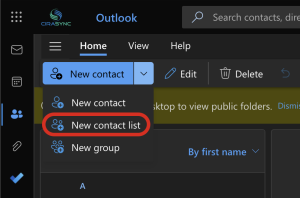


You want to automate contact sync for Microsoft 365 users because this is certainly happening in your organization:
- Outdated contact info leads to excessive IT tickets
- New hires struggle to connect with staff
- IT resolves sync problems across multiple platforms
Manual corrections are not scalable, and ad hoc scripts often create long-term maintenance work.
By using a structured sync method, you achieve better control, increased consistency, and reduce the number of tickets.
Why Contact Sync Keeps Turning into a Helpdesk Problem
Microsoft 365 stores essential contact details like names, titles, phone numbers, departments, and locations. However, users still miss calls or search for updated numbers, often resulting in IT support requests.
This occurs because mobile devices, by default, do not integrate the Microsoft 365 directory into the native Contacts application.
Users search Outlook for numbers, copy and paste them into the dialer, and repeat this process regularly. This method fails when caller ID, offline access, or quick lock screen dialing is needed.
Automation fixes that gap when you push the right set of Microsoft 365 contacts to the right users, on a schedule, without manual saves and exports.
Define What Automated Contact Sync Means in Microsoft 365
When you automate contact sync, you do three things consistently:
- Select a source of truth: Administrators typically use Microsoft Entra ID and Exchange Online to manage identities and attributes effectively.
- Make contacts accessible where users expect them: Most people rely on their iOS or Android Contacts app and phone dialer, rather than searching through Outlook directories.
- Maintain up-to-date contacts automatically: Contact details are updated whenever job titles or phone numbers change, and contacts are removed when roles shift or someone departs.
If your “sync” requires users to manually save contacts or export a CSV each month, it’s not automated; it’s just a recurring manual task in disguise.
Pick the Right Contact Set
A full directory dump sounds convenient but also creates noise if it’s not necessary.
Before you automate anything, decide what you want users to see on their phones:
Option A: Sync the full Global Address List
This works when:
- Your org stays small enough that “everyone” still helps people daily
- Frontline teams call across departments often
- You want maximum caller ID coverage
This backfires when:
- Users scroll past hundreds or thousands of names they never need
- You include shared mailboxes, conference rooms, service accounts, or contractors in the same pool
- You allow outdated or half-filled profiles to enter the directory
Option B: Sync Role-Based Subsets
This usually works better. You can map contact sets to teams or regions, for example:
- Sales gets sales leadership, sales ops, solutions engineering, finance, legal
- Support gets customer success, on-call rotations, escalation contacts
- Field teams get dispatch, supervisors, site managers, safety, vendors
Option C: Sync “People I Work With” Plus a Small Directory Subset
Many organizations reach this stage following several pilot programs. Users maintain a concise directory for caller identification and quick dialing, while using Outlook to search to access less frequently used contacts.
Start smaller than you think. You can always expand. Shrinking a noisy contact set later is more time-consuming.
The Main Ways Teams Automate Microsoft 365 Contact Sync
You have a few realistic paths. None of them win every scenario.
1) Use Outlook Mobile as the Directory
How it works
- Users install Outlook mobile.
- Users search for coworkers in the directory when needed.
- IT avoids contact injection into the native Contacts app.
Best for
- High security environments that prefer minimal data on devices
- Orgs that accept “no caller ID” as the tradeoff
- Users who already live in Outlook all day
Where it hurts
- Users want caller ID, quick dial, and offline access
- Users make calls from the dialer, not from inside Outlook
2) Rely on Personal Mailbox Contacts, and Ask Users to Manage Them
How it works
- Users save contacts inside Outlook or their mailbox.
- Devices sync those contacts through the account.
Best for
- Very small orgs
- Individual users who only need a short list
Where it hurts
- Users save different versions of the same person
- Data drifts fast, especially with job changes and phone number updates
- IT supports the fallout anyway
3) Build Your Own Sync Using Microsoft Graph and Automation Jobs
How it works
- You pull user data from Entra ID / Exchange via Microsoft Graph.
- You write logic that decides who receives which contacts.
- You push contacts into a destination where users’ devices can consume (often through mailbox contacts, or through a managed app flow, depending on your approach).
Best for
- Teams with engineering resources and long-term ownership
- Orgs with unusual routing rules and custom needs
Where it hurts
- You own the edge cases forever: duplicates, deletions, throttling, token renewal, schema changes, odd phone formats, international numbers
- You need a real monitoring and support plan, not “someone will check the logs”
4) Use a Dedicated Contact-Sync Platform Designed for Microsoft 365 Directories
How it works
- IT connects Microsoft 365 as the source.
- IT maps groups to contact sets.
- The platform syncs contacts users on a schedule, and it updates changes automatically.
Best for
- IT teams that want predictable contact delivery without building and maintaining custom code
- Orgs that care about caller ID and dialer workflows
- Teams that want group-based contact scoping
Where it hurts
- You still need good directory hygiene, because automation syncs bad data faster
- You must evaluate vendors carefully on security, permissions, and data handling
| Approach | What users get | What IT owns | Typical failure mode |
| Outlook directory search only | Search inside Outlook | App rollout and support docs | Users still want caller ID and native dialer access |
| Manual personal contacts | Contacts users saved | User education and ticket cleanup | Drift and duplicates |
| Custom Graph automation | Whatever you build | Everything, forever | Maintenance debt and edge cases |
| Dedicated sync tool | Native contacts plus scheduled updates (scope depends on tool) | Configuration and monitoring | Noisy contact sets if you sync too much |
Example of a Dedicated Platform: CiraSync
CiraSync fits this “dedicated contact-sync platform” approach. You connect CiraSync to Microsoft 365 and decide who gets what by mapping Entra ID users or groups to specific contact sets.
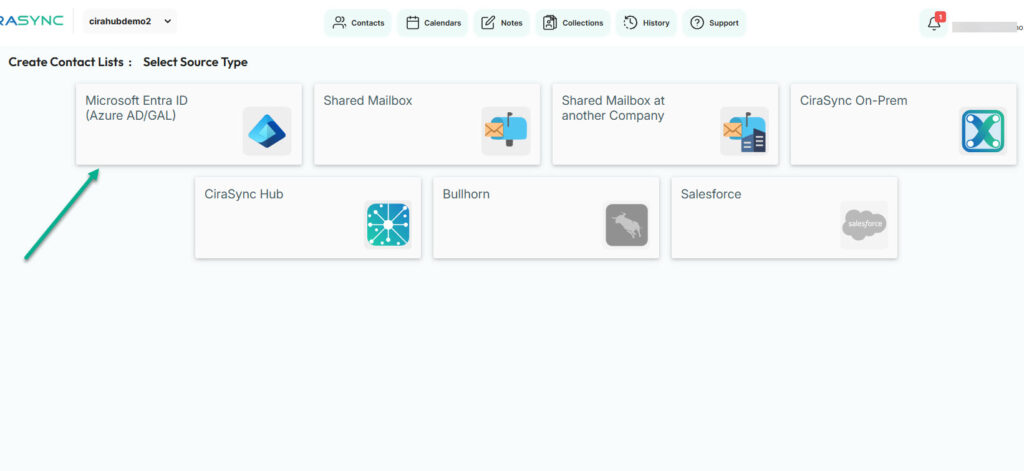
After that, CiraSync runs syncs on the schedule you choose, pushes contacts to users’ phones, and keeps those contacts current when phone numbers, titles, or other fields change.
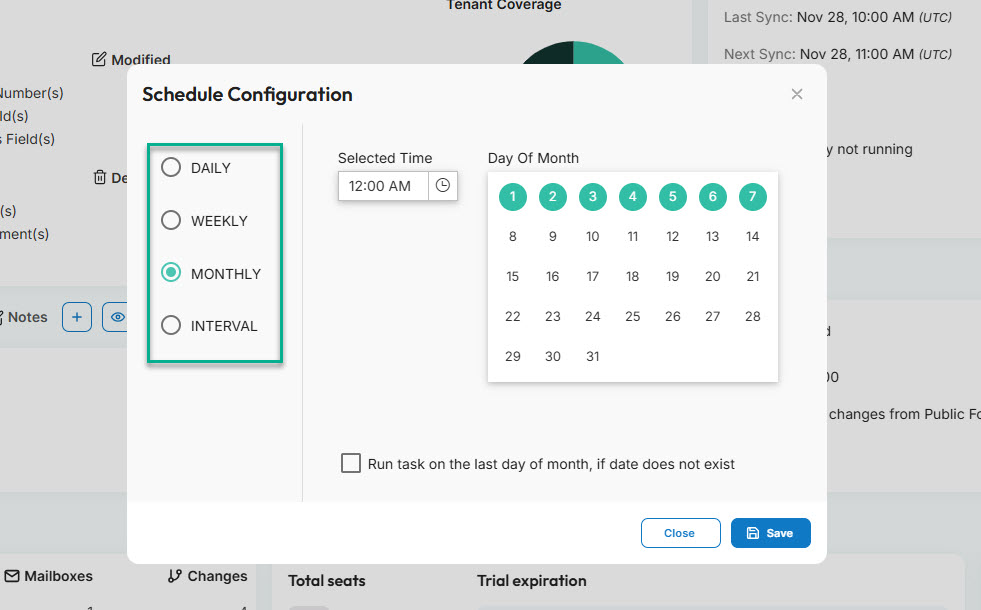
If your users care about caller ID and quick dial from the native phone app (and yes, most people do), CiraSync keeps that experience consistent without asking users to save contacts manually.
It also keeps scope under control, because you can sync the right contacts to the right teams instead of dumping the entire directory on everyone.
FAQ
Microsoft 365 gives user’s directory search through Outlook and other apps, but most setups do not push the full directory into the native Contacts app by default. Users often rely on app-based search unless IT implements a specific sync approach.
Can we sync only certain departments or teams?
Yes. You can scope automation through groups and rules, so users receive only the contacts they need, instead of the full directory.
How often should we run contact sync?
Pick a schedule that matches how often your org changes phone numbers, titles, and teams. Many orgs start with a few sync runs per day, then adjust based on support feedback and business urgency.
Will automation remove contacts when someone leaves?
It can, if your approach handles removals and group changes. Make deletions part of the plan from day one.
What data should we avoid syncing to phones?
Start with what users need to call and identify people. Avoid dumping extra attributes that add noise, and respect privacy policies for BYOD devices.
Can we do this without Intune?
Yes. Intune helps with app control and device policy but contact sync automation can also run through other approaches, including dedicated sync platforms or custom automation.
What causes most contact sync failures?
Bad directory data, overly broad contact scope, and unclear expectations about timing cause most problems. Fix those, and the tech side feels much easier.
How do we prevent syncing conference rooms and shared mailboxes?
Use group scoping and filtering rules that include only real user accounts, or only accounts that meet specific attribute requirements.