...
Home > Blog Articles > Calendar Synchronization > How to Create and Share Public Folder Calendars with Outlook Desktop
Share on share on Facebook share on Twitter share on Facebook share by email

How EWS Retirement Affects Public Folder Calendars

Microsoft is retiring Exchange Web Services in Exchange Online. Phased disablement begins on October 1, 2026. Tenants that have not explicitly configured temporary continued EWS access can begin seeing EWS calls blocked from that date. EWS will be fully and permanently disabled in Exchange Online on April 1, 2027.

Public Folders require special attention because Microsoft has stated that Microsoft Graph will not provide a direct replacement API for programmatically creating, reading, updating, or deleting Public Folder data. Public Folder users can continue to access supported folders through Outlook, but third-party applications that depend on EWS for direct Exchange Online Public Folder access need a migration strategy.

This retirement applies to Exchange Online. EWS in on-premises Exchange Server is not being retired as part of this Exchange Online change.

Before relying on any third-party Public Folder integration beyond 2026, identify whether it uses EWS and confirm the vendor’s migration plan and supported replacement data source.

Read the instructions or check out the video below to learn how to create and share a Public Folder Calendar with Outlook Desktop:

watch this video
How to Create and Share Public Folder Calendars
Outlook

TL;DR

To create a public folder calendar: classic Outlook for Windows only – right-click Public Folders → New Folder → set “Folder contains” to Calendar Items. To share it: right-click the calendar → Properties → Permissions → Add → set a permission level. It can only be shared to mail-enabled accounts.

New Outlook and Outlook on the web: Supported Exchange Online Public Folder calendars can be added directly to Favorites. Neither client provides the full creation and hierarchy-management capabilities available in classic Outlook.

Before relying on this for 2026 and beyond: Microsoft recommends a Microsoft 365 Group’s shared calendar for new team calendars instead, and EWS retirement (October 1, 2026) restricts programmatic third-party access to Public Folder calendar data – check any sync tool’s Graph migration plan before depending on it.

How to Create and Share Public Folder Calendars on Outlook Desktop

Creating the Public Folder Calendar

  1. Log in to Outlook Desktop.
  2. Click the ellipsis at the bottom of the left-hand navigation panel.
  3. Click Folder to switch to the Outlook Folder View. (See figure below.)
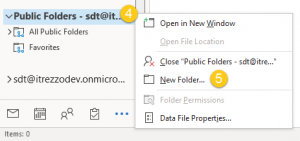
  4. Right-click Public Folders.
  5. Click New Folder. (See figure below).
     NOTE: You will need to be Owner or the Publishing Editor/Author of the parent folder to create new subfolders.
  6. Name the new folder. In this example, the new folder in this example is called Birthdays. 
  7. Select Calendar Items under Folder contains.
  8. Select where to place the folder. In this example, the folder is placed in All Public Folders. 
  9. Click OK. (See figure below.)
  10. Double-click the new subfolder in the left-hand navigation panel.
  11. Click New Appointment or New Meeting at the top-left corner of the window to start adding content to the folder.

Content goes here

Sharing the Public Folder Calendar

NOTE: You can only share a calendar to a mail-enabled account.

  1. Right-click the calendar you created in the Creating the Calendar section of this guide.
  2. Click Properties. 
  3. Go to the Permissions Tab
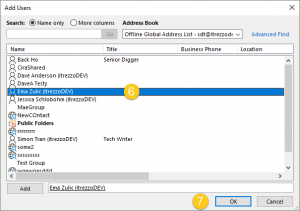
  4. Click the Add button.  (See figure below.)
  5. Search for the user(s)/user group(s) you want to share the calendar with.
  6. Double-click on a name to add.
  7. Click OK. (See figure below.)
  8. Click the drop-down arrow in Permission Level.
  9. Choose the permission level to assign to the added user. In this example, the permission level will be changed to Editor. 
  10. Click OK to share your calendar. (See figure below.)
    NOTE: You can only share a Public Folder Calendar to a mail-enabled account.
    NOTE:If you are an on-premise Exchange user, check out the itrezzo solution![/box

    If you’d like to learn how to share an Outlook Calendar from the web, learn how to here. Likewise if you’d like to do it with desktop, do so here.

Does a Public Folder Calendar Work in New Outlook, Outlook on the Web, or Mac?

Client Current guidance
Classic Outlook for Windows Use classic Outlook for Windows to create the Public Folder calendar and perform the full folder-management workflow described in this guide.
New Outlook for Windows Public Folder support is partial. Users can add supported Exchange Online Public Folders directly to Favorites by right-clicking the account and selecting Add public folder to Favorites. New Outlook does not provide the same full Public Folder hierarchy-management experience as classic Outlook.
Outlook on the web Exchange Online Public Folders are supported with limitations. Users can add supported folders to Favorites and perform item-level actions where permissions allow, but they cannot create or delete the Public Folder structure.
Hybrid or on-premises Public Folders New Outlook does not provide the same full Public Folder hierarchy-management experience as classic Outlook. Public Folders deployed in Exchange on-premises or hybrid Exchange environments cannot be accessed from new Outlook for Windows.
Outlook for Mac The current Outlook for Mac does not support Exchange Public Folders. Legacy Outlook for Mac can access them, but legacy Outlook for Mac stops working with Exchange Online mailboxes in October 2026, so it should not be treated as a long-term Exchange Online strategy.

Is a Public Folder Calendar Still the Right Choice in 2026?

Public Folders remain supported in Exchange Online and Exchange Server. They are not being shut down for normal Outlook users. However, a new team calendar does not automatically need to be a Public Folder calendar. Microsoft 365 Groups and shared mailbox calendars are often easier to use across modern Outlook clients and can be better choices for new deployments.

Situation Recommended approach
Starting fresh and need a team calendar Evaluate a Microsoft 365 Group calendar first if the team also benefits from a shared inbox, membership, files, and collaboration features.
Need a shared calendar without the broader Group workspace Evaluate a shared mailbox calendar, especially when the team needs a mailbox-backed calendar that works well with Microsoft Graph-based integrations.
Existing Public Folder calendar is established and works well Keep it for user access if it still meets the workflow, but review third-party integration dependencies before the EWS retirement deadlines.
Need deep Public Folder hierarchy and classic Exchange folder permissions A Public Folder calendar can remain appropriate, especially in existing environments where that structure is already operational.
Need broad modern-client and mobile integration with minimal workarounds Prefer a Microsoft 365 Group or shared mailbox calendar unless a specific Public Folder requirement exists.

Public Folder Calendar Not Showing in New Outlook?

If an Exchange Online Public Folder calendar is missing in new Outlook, first confirm that the mailbox and Public Folder are in a supported configuration and that the user has permission to the folder. In new Outlook, right-click the Exchange account and choose Add public folder to Favorites, then select the calendar. If the option or folder is unavailable, confirm whether the organization is using an unsupported on-premises or hybrid Public Folder configuration and use classic Outlook where required.

Also confirm that the issue is Public Folder access rather than calendar permissions. A user can have Outlook access to Exchange while still lacking the folder-level permissions needed to view or edit a specific Public Folder calendar.

soc2comliant
GDPR