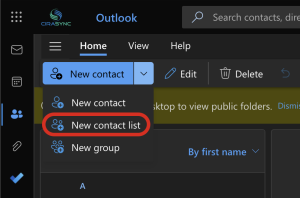


Shared calendars only work when everyone sees the same updates. But Microsoft 365 does not always push those changes to mobile devices. That creates confusion and missed events.
CiraSync fixes this by syncing shared calendars directly to every phone. You choose a calendar, select who needs it, and let the system handle updates.
It keeps schedules accurate without extra steps or reminders. If your team depends on shared calendars, this guide shows how to sync them properly.
How to Sync Microsoft 365 Shared Calendars with CiraSync
Syncing a shared calendar with CiraSync only takes a few steps.
- You start by selecting the calendar you want to push, whether it lives in a shared mailbox, a Microsoft 365 group, or a public folder.
- Then you choose the users or groups who should receive that calendar on their phones.
- After that, set how often or when you want it to be synced.
Once you save the configuration, CiraSync publishes the calendar directly to every selected device. Any updates made in Microsoft 365 show up on phones automatically, so schedules stay consistent without anyone accepting invites or managing extra calendars.
Now let’s see how you can easily do it in CiraSync.
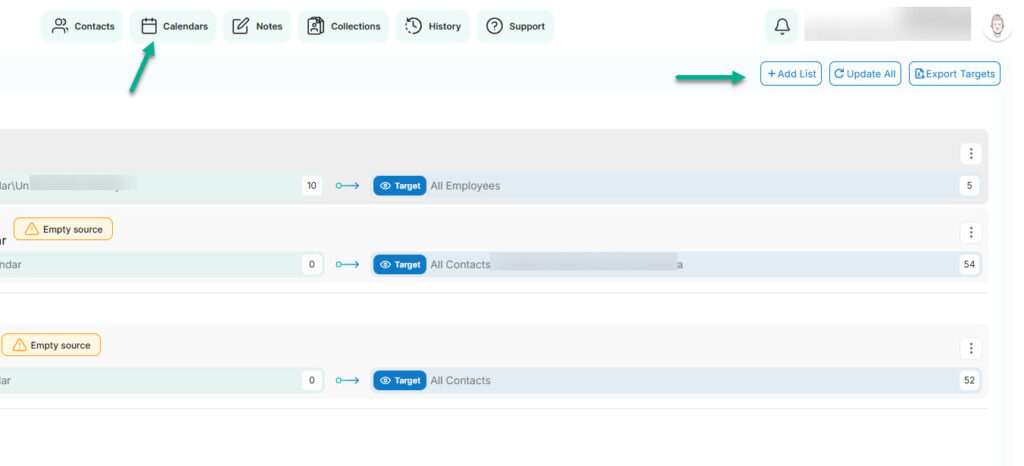
Start by clicking Calendar > Add List from your dashboard.
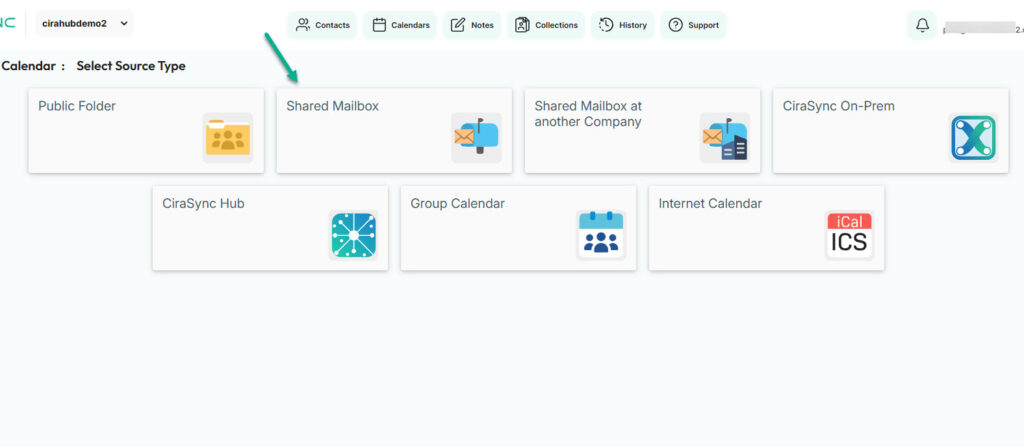
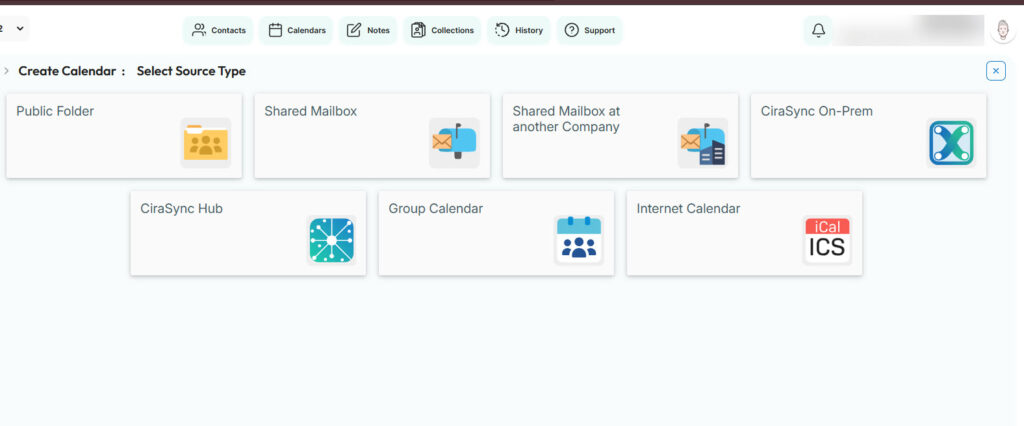
Next, choose the calendar source type. It can be a Public Folder, shared mailbox, group calendar, or an internal calendar (iCal). You can even sync a shared calendar from another company.
Let’s select a shared mailbox for this tutorial.
CiraSync will pull the shared mailbox data and let you pick the calendars you want to share.
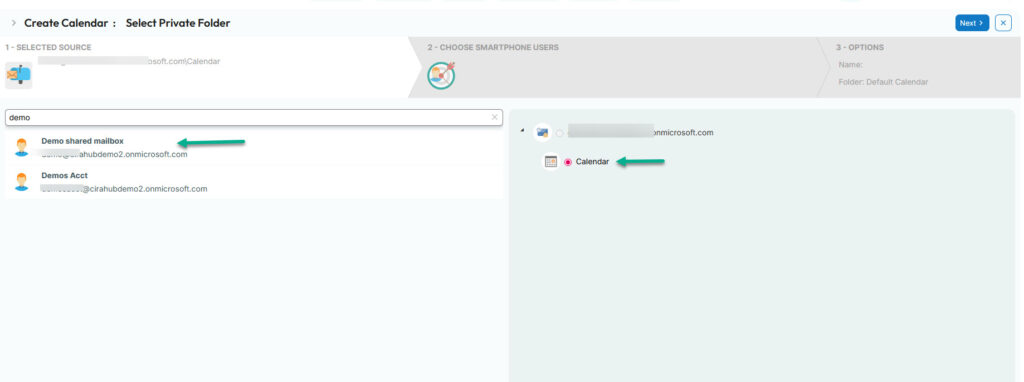
Next, choose the smartphone users. These are the people or groups who will receive the calendar data.
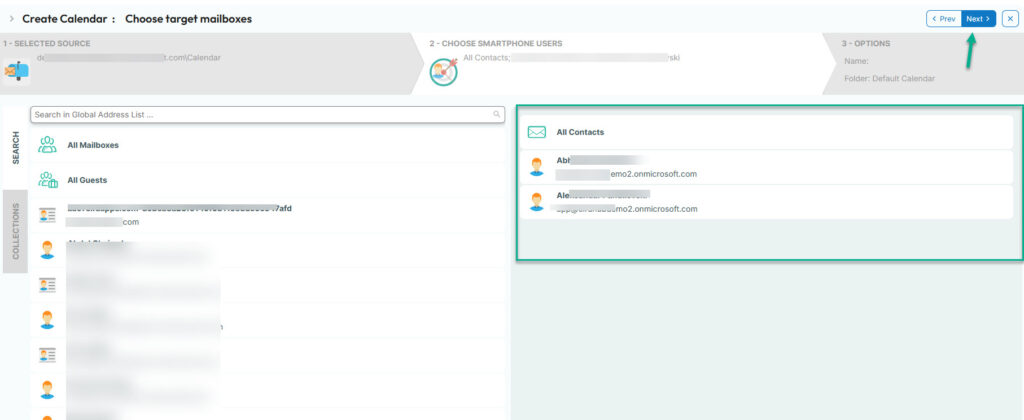
The settings tab lets you customize the syncing experience to your liking. For example, you can sync reminders or omit private items. You could also sync attachments or retain obsolete items.
Once you are done customizing your sync, click Save.
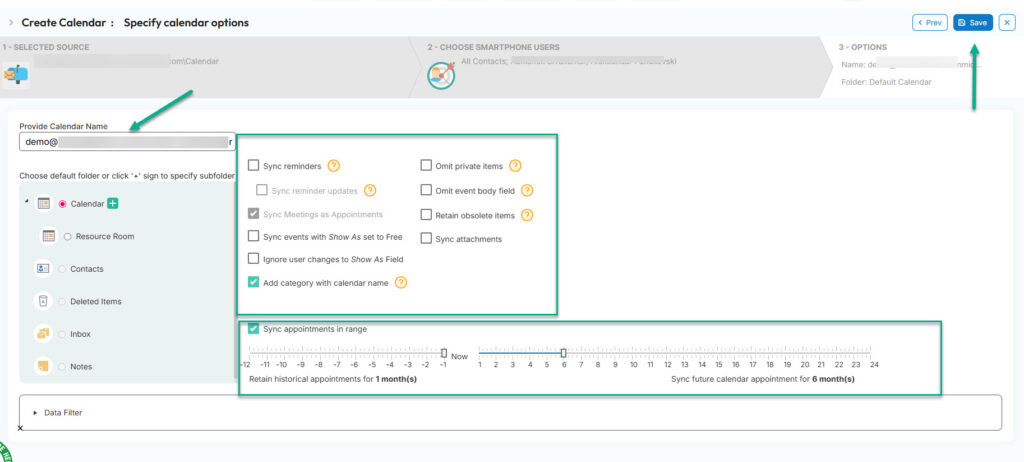
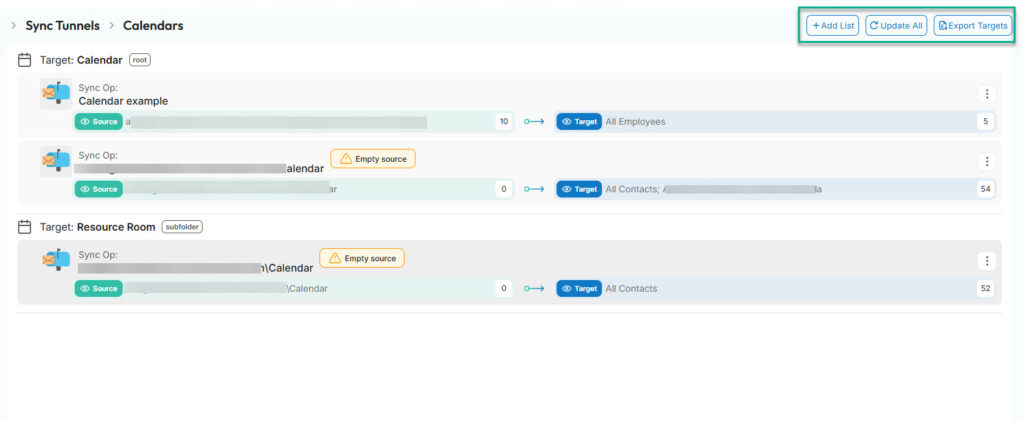
Cirasync will redirect you to the Calendar Sync Tunnel. Here, you’ll see all existing syncs. Update all of them, export the users you’re syncing to, or start a new sync from scratch.
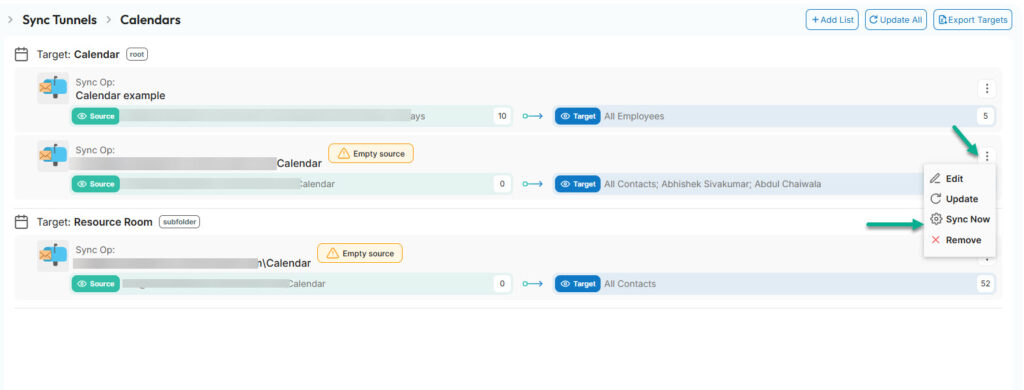
Click the three dots menu next to the calendar sync you just created, and press Sync Now.
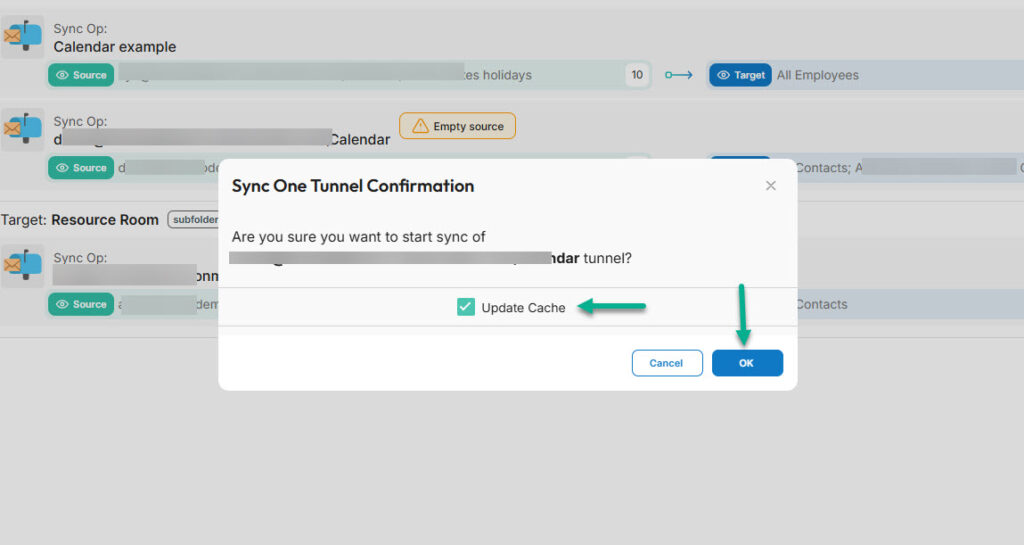
Finally, check Update Cache and click Ok. And there you go, you just synced calendars to mobile devices with CiraSync.
Sync Microsoft 365 Shared Calendar With CiraSync: Best Practices
1. Choose the Right Calendar Source
Make sure you’re syncing from the correct location in Microsoft 365. Shared mailboxes, group calendars, and public folders all work, but picking the wrong one can lead to confusion when events don’t match what people expect.
2. Keep Calendar Permissions Clean
Before syncing, double-check who has permission to add or edit events. A messy permission setup often leads to duplicate entries, accidental edits, or missing updates.
3. Use Groups Instead of Individual Users
Whenever possible, sync calendars to Microsoft 365 groups rather than choosing users one by one. It keeps things cleaner, and new team members get the right calendars automatically.
4. Set a Reasonable Sync Frequency
You don’t need updates every few minutes. A steady refresh interval keeps calendars accurate without unnecessary processing behind the scenes.
With CiraSync, you can automatically sync Calendar events daily, weekly, monthly, or with an interval.
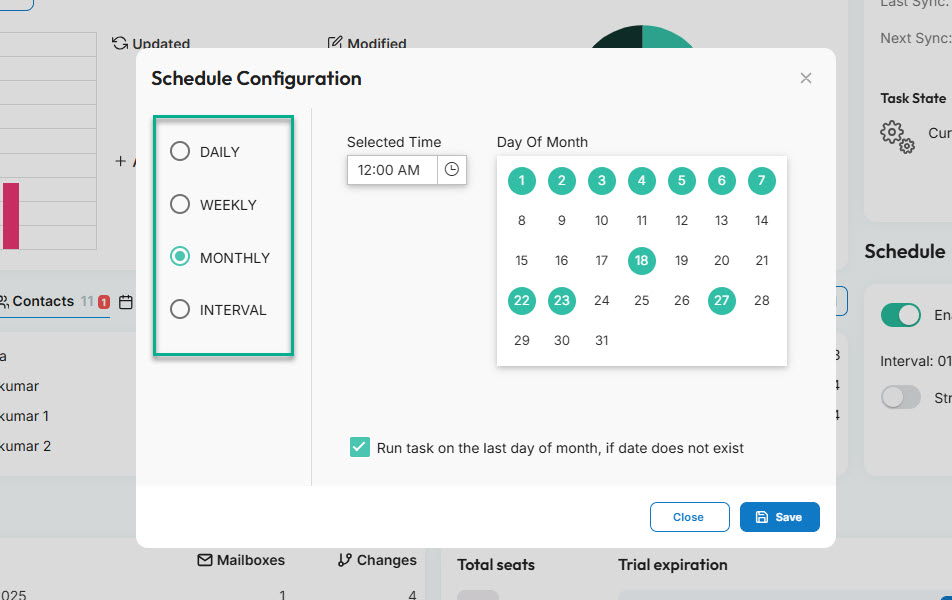
- Daily — Once per day (e.g., 12:00 PM)
- Weekly — Select the days (e.g., Monday, Wednesday, and Friday at 09:00 AM)
- Monthly — Select the days of the month (e.g., 6th, 10th, and 18th at 10:00 AM)
- Interval — Choose a time interval (e.g., every one hour)
5. Review Your Calendars Regularly
Teams change. Projects end. People move roles. Review your synced calendars regularly to ensure you’re not pushing outdated information or maintaining calendars no one uses.
Sync Shared Calendars With CiraSync
Syncing shared calendars should not feel like ongoing maintenance, and CiraSync removes most of that effort.
Once you set it up, updates go to every device automatically. Your team always sees the latest schedule on their phones. No extra invites, no messy duplicates.
It keeps everyone aligned during busy days. If you want shared calendars to work smoothly across Microsoft 365, CiraSync makes it simple.