


If your team uses Microsoft 365, you’ve probably dealt with the little annoyances that pile up over time.
- Outdated contacts on phones.
- Missed appointments because a shared calendar didn’t update.
- Caller ID showing random numbers you don’t recognize.
CiraSync solves all of that by automatically syncing contacts and calendars across every employee’s device.
You set it up once, choose what you want to sync, and the system keeps everything updated in the background. It’s simple, reliable, and removes many small headaches that slow teams down.
In this guide, you’ll see what CiraSync is, how it works, and how to use it. We’ll also share important features that will save you 1500+ IT hours per year, just like they did for Skender.
Let’s get started!
What is CiraSync?
CiraSync is a cloud solution for automatically syncing shared contacts and calendars from Microsoft 365 to employee smartphones. It pulls information from sources like the Global Address List, shared mailboxes, public folders, and contact lists, then keeps every device updated without manual work.
Employees get accurate caller ID, up-to-date team directories, and the right calendars on their phones, while IT teams reduce support tickets and avoid one-off fixes.
It’s a simple way to make sure everyone has the information they need, exactly where they expect it.
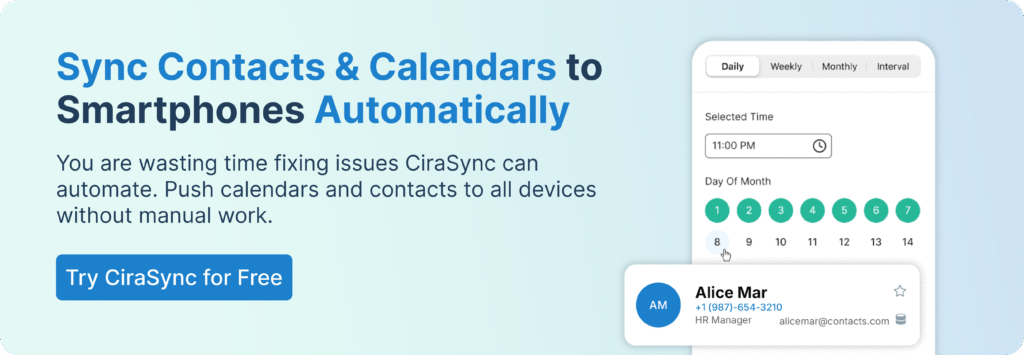
How to Use CiraSync? Step-by-Step
Contact Syncing
Contact syncing in CiraSync starts with choosing the source you want to push from Microsoft 365. That could be the Global Address List, a shared mailbox, a public folder, or even a specific contact list your team relies on.
You pick who should receive those contacts, set the sync direction, and decide how often it should refresh.
After that, CiraSync does the heavy lifting. Every user’s phone gets the latest version automatically, so caller ID works, numbers stay accurate, and no one is stuck updating contacts manually ever again.
A good example is The Morse Group. Their field employees needed fast access to accurate numbers on their phones, but keeping contacts up to date across devices was a constant chore.
After setting up CiraSync, their entire directory synced to every phone without anyone touching it. What used to create daily friction essentially disappeared, and their IT team got back hours each week because the updates ran themselves.
Let’s check out how CiraSync syncs contacts to mobile devices.
Here is what your CiraSync dashboard would look like. On the left side, you’ll see sync tunnels, sync history, mailboxes, reporting, and more.
At the center of the dashboard, CiraSync shows a sync summary, and the last and next sync dates, to name a few.
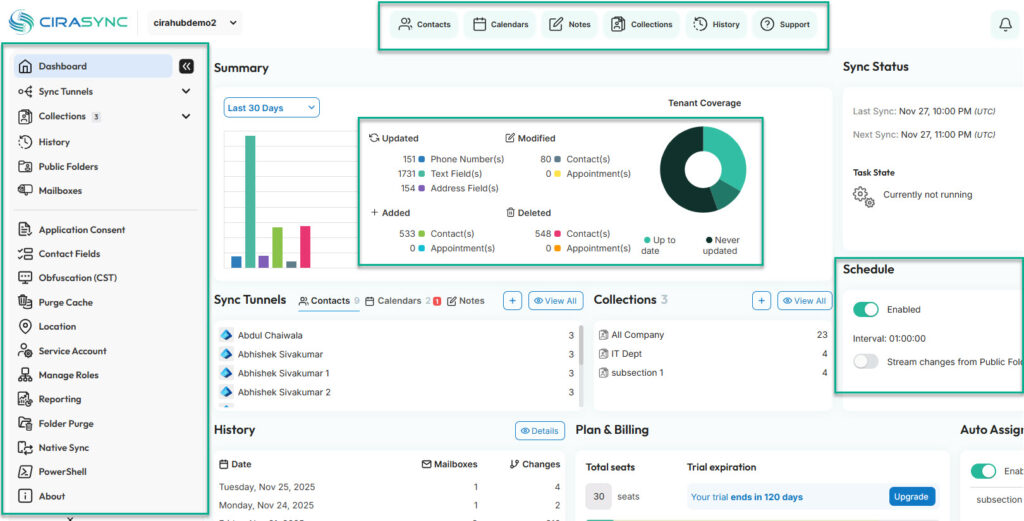
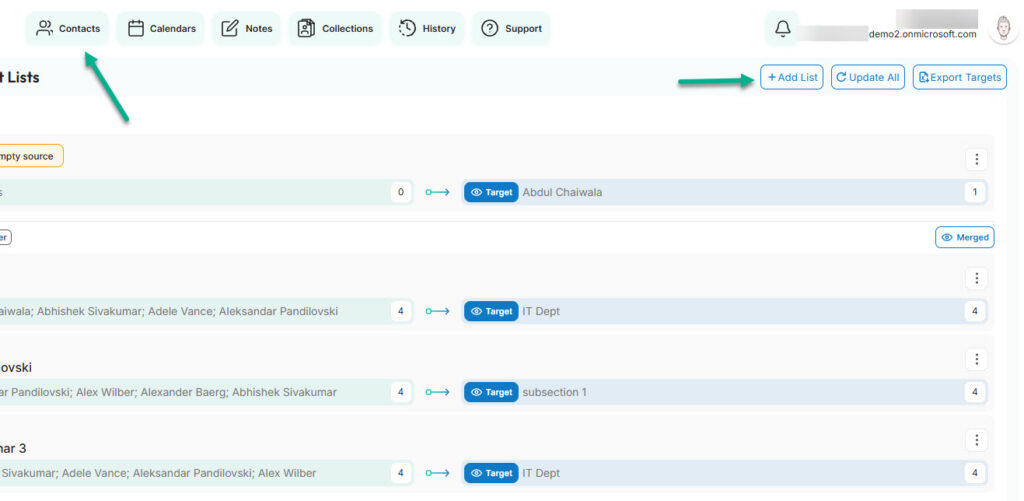
Click Contacts at the top > Add List.
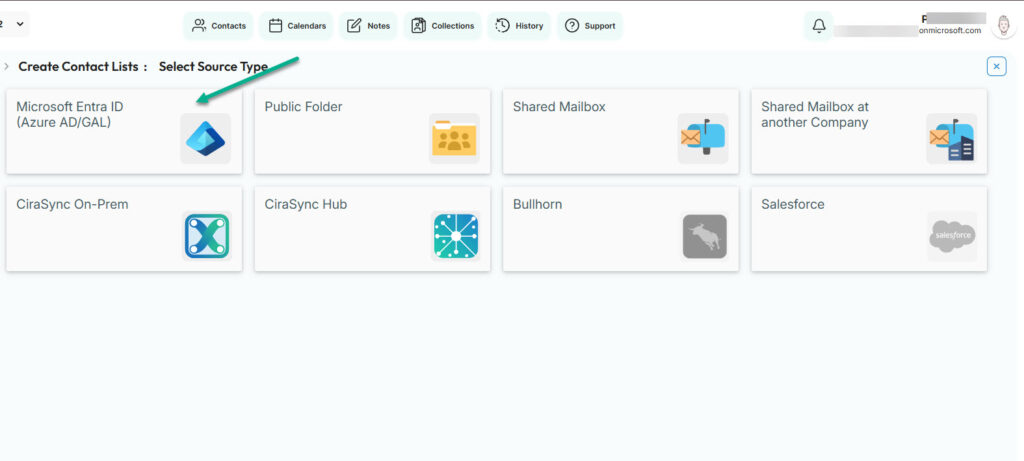
Choose the source. It can be Entra ID (GAL), Public Folders, Shared Mailboxes, Salesforce, and more. We will go with the Global Address List (GAL) for this tutorial.
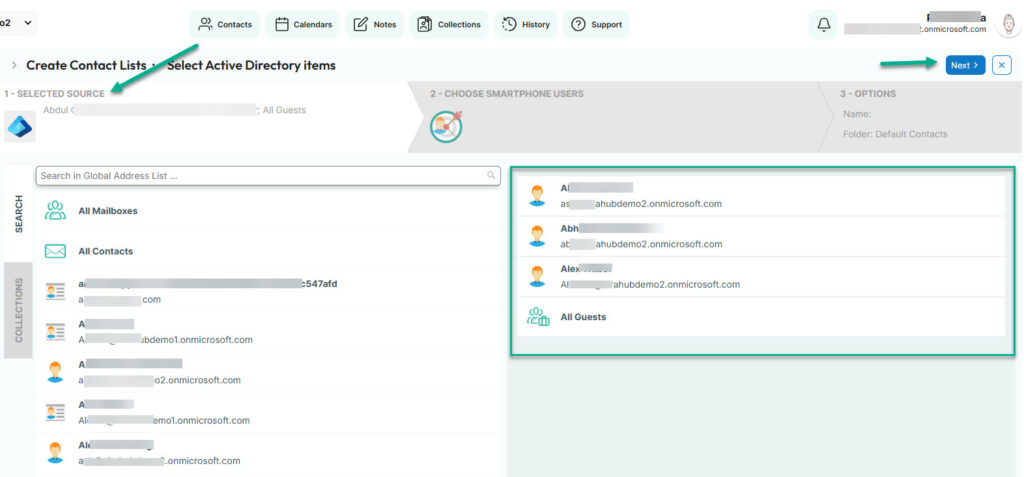
Now, select the GAL contact list or users you want to sync. You can sync one or more employees or the entire contact list. Click Next.
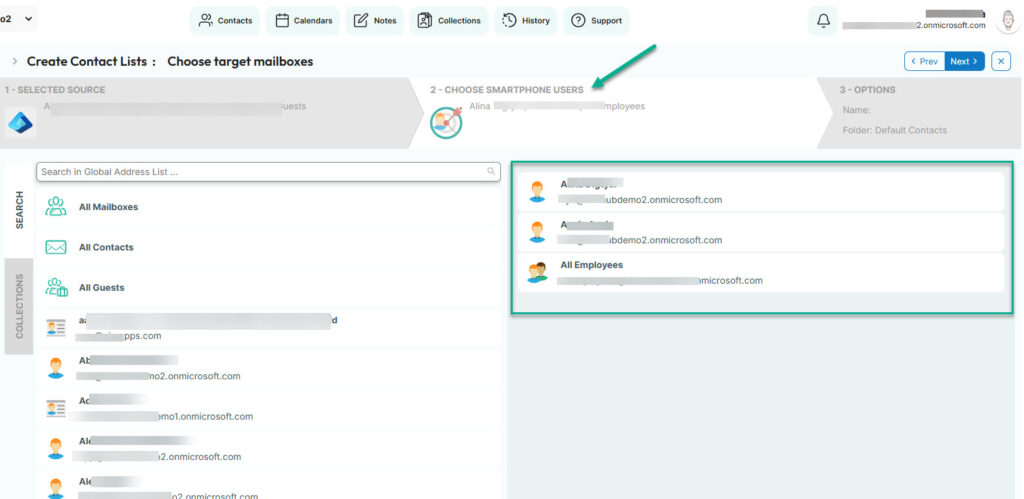
Let’s choose the smartphone users. These are the people you want to sync the contacts to. It could be leaders in your organization, a department, or all employees.
In my case, we will sync to all employees and two external users.
It’s time to make CiraSync work the way you want.
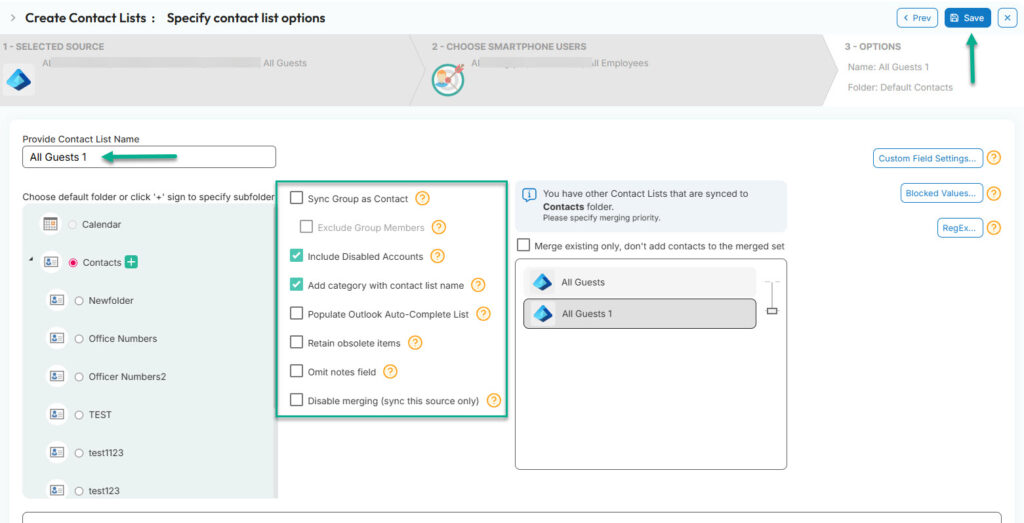
For example, CiraSync will not sync disabled accounts. This means that if you disable accounts in the GAL, CiraSync won’t sync them to smartphones. But you can still sync them by checking the “Include Disabled Accounts” box.
You can also retain obsolete items, omit note fields, or disable merging.
Once you are satisfied with the settings, name the contact list and click Save.
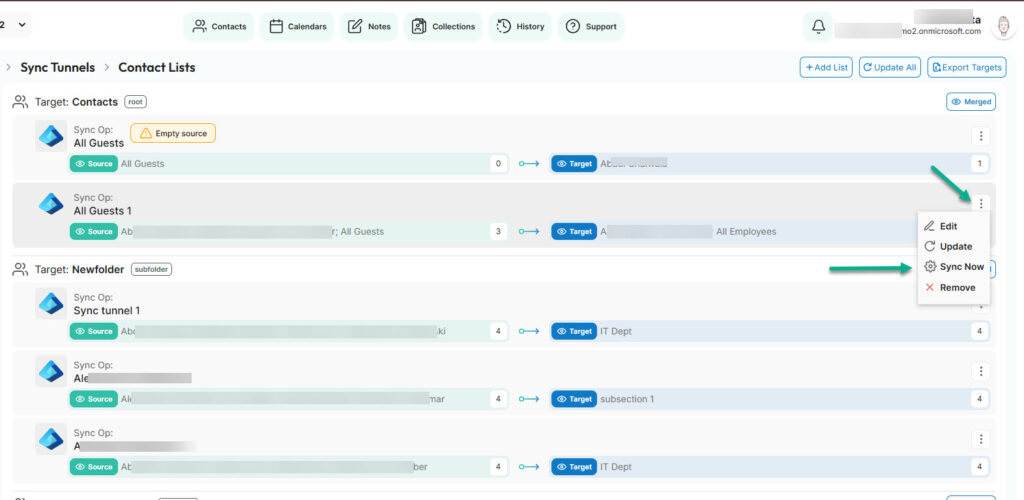
CiraSync will redirect you to Sync Tunnels, where you’ll see the tunnel you just created. Press Sync Now.
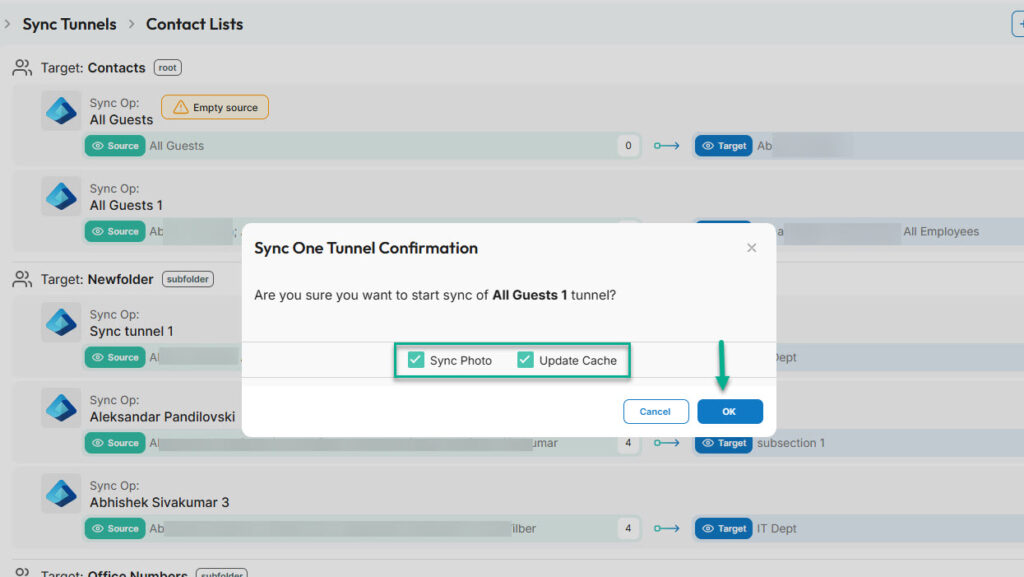
Finally, check Update Cache and Sync Photo (if you want to sync profile pictures as well), then click OK.
And voilà, you just synced GAL contacts to smartphones. No more complaints from employees or endless IT tickets that waste your time.
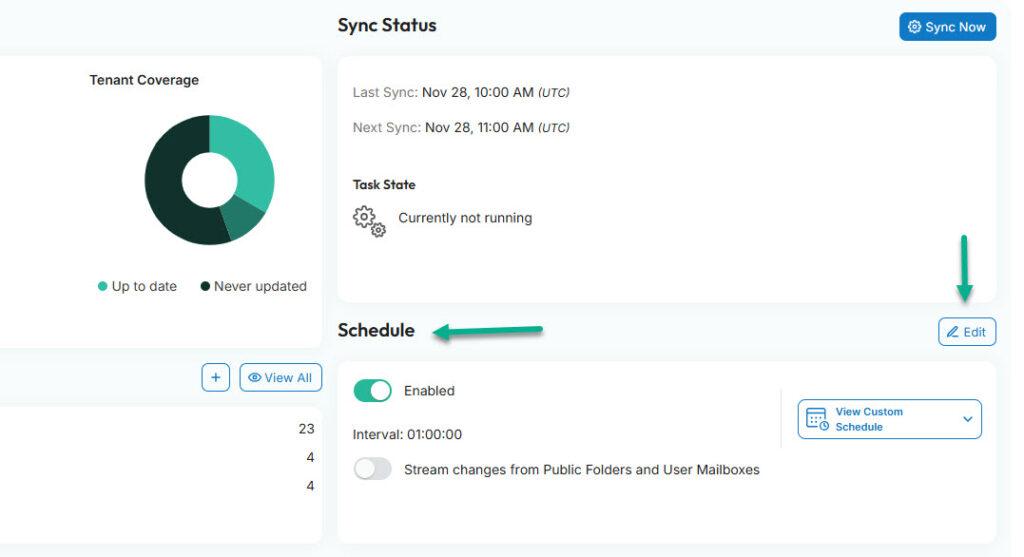
If you go to the main dashboard, you can select when you want CiraSync to sync the data, but we will see this feature later in this article.
Calendar Syncing
Calendar syncing works almost the same way, but it focuses on shared schedules that your team needs on their phones.
You pick the calendar you want to sync, choose the users or groups who should receive it, and set the refresh schedule.
CiraSync then publishes that calendar directly to each person’s device, so field teams, managers, or on-call staff always see the latest updates.
If someone changes an event in Microsoft 365, it shows up on everyone’s phone automatically. No invites to accept, no duplicate calendars, and no missed appointments because something didn’t sync.
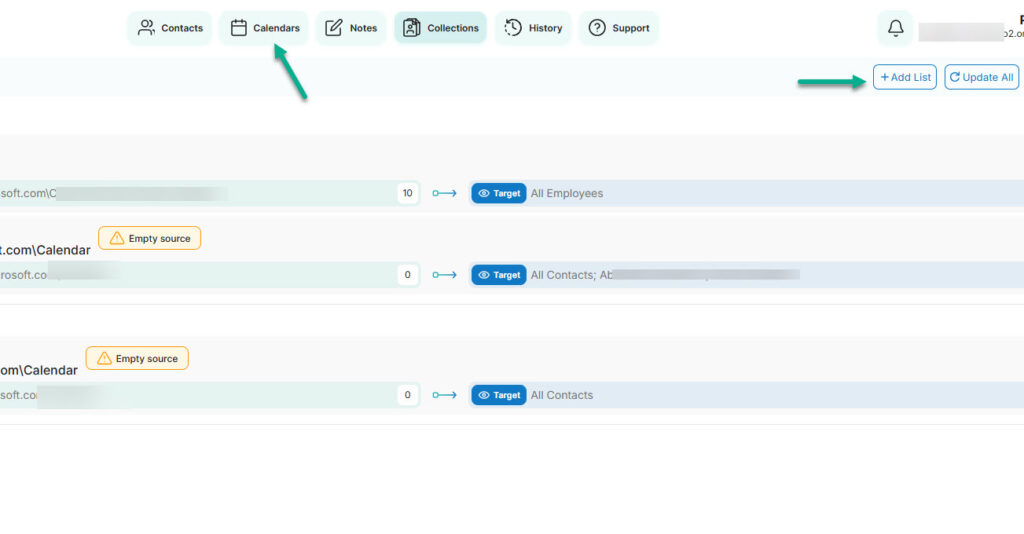
From the dashboard, click Calendars > Add List.
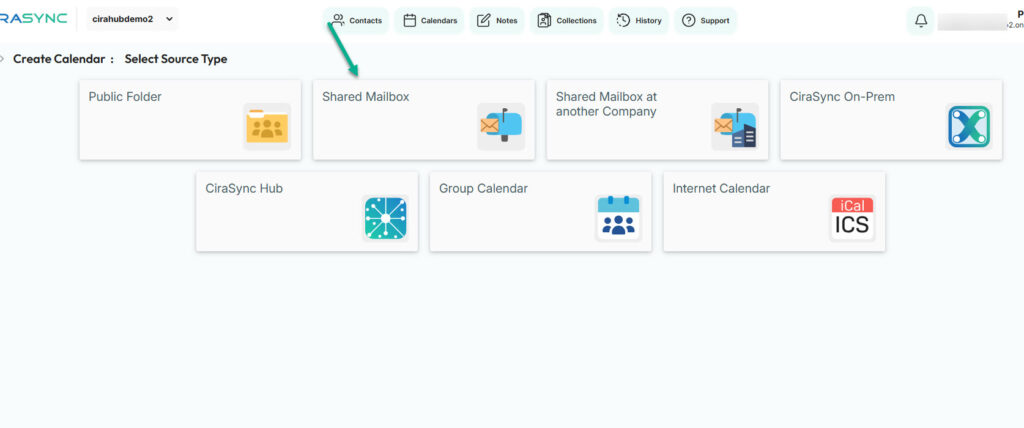
Choose the calendar source type: Public Folder, Shared Mailbox, Group Calendar, iCal, etc. Let’s go with a shared mailbox.
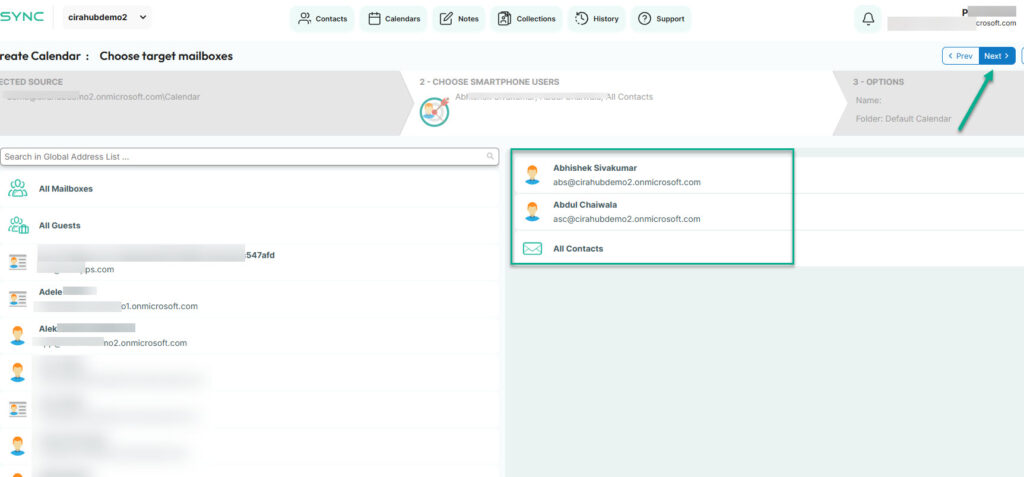
We want to sync the Demo Shared Mailbox’s calendar.
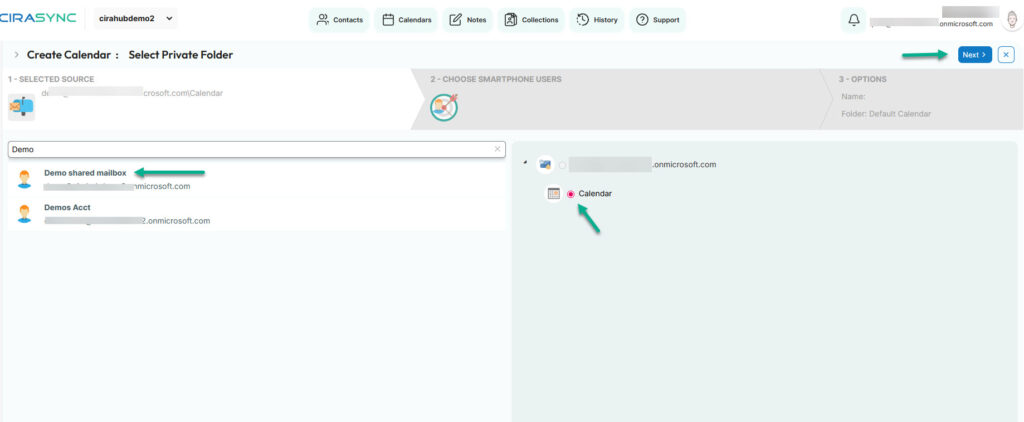
We can share the date with specific employees or groups.
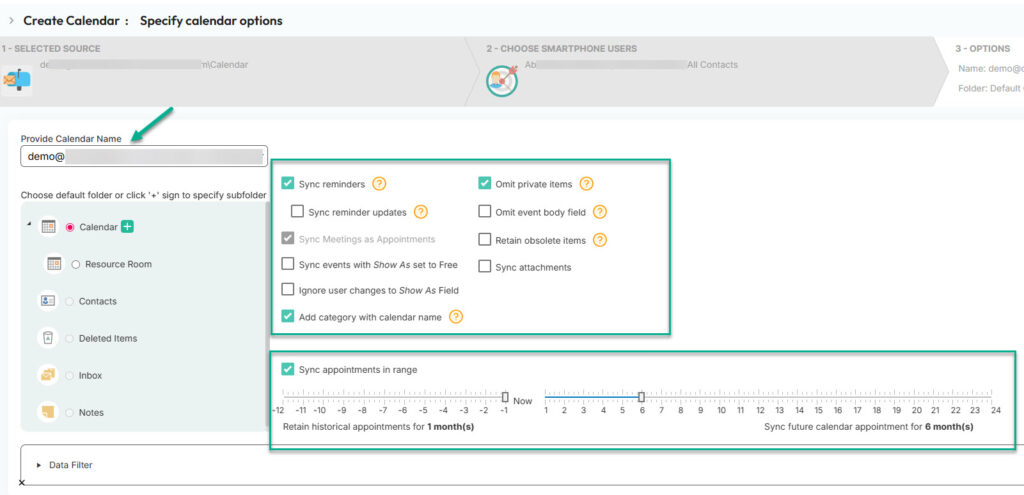
Just like with contact syncing, you also have additional settings to make your calendar sync seamless. For instance, you can sync reminders, omit private items, sync attachments, or retain obsolete items.
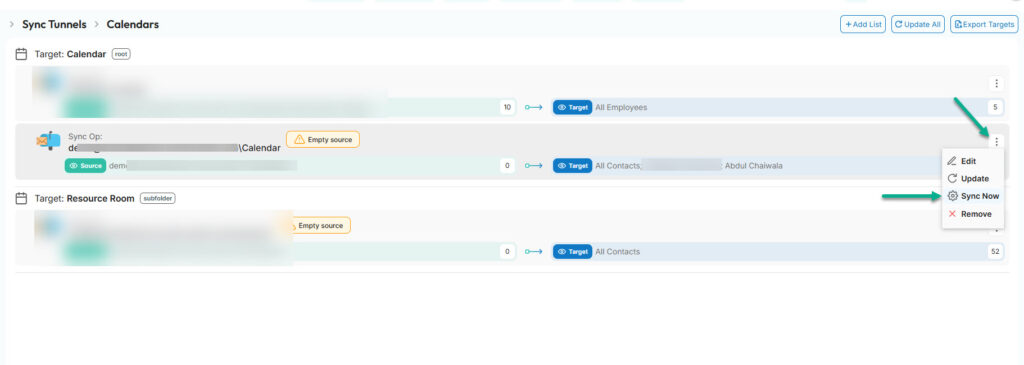
You’ll be redirected to the Sync Tunnel interface. Press Sync Now to share the data with connected devices.
Key Features of CiraSync
CiraSync offers exactly what IT admins need to be the superheroes of their organization. Let’s review some key features.
1. Sync Schedule
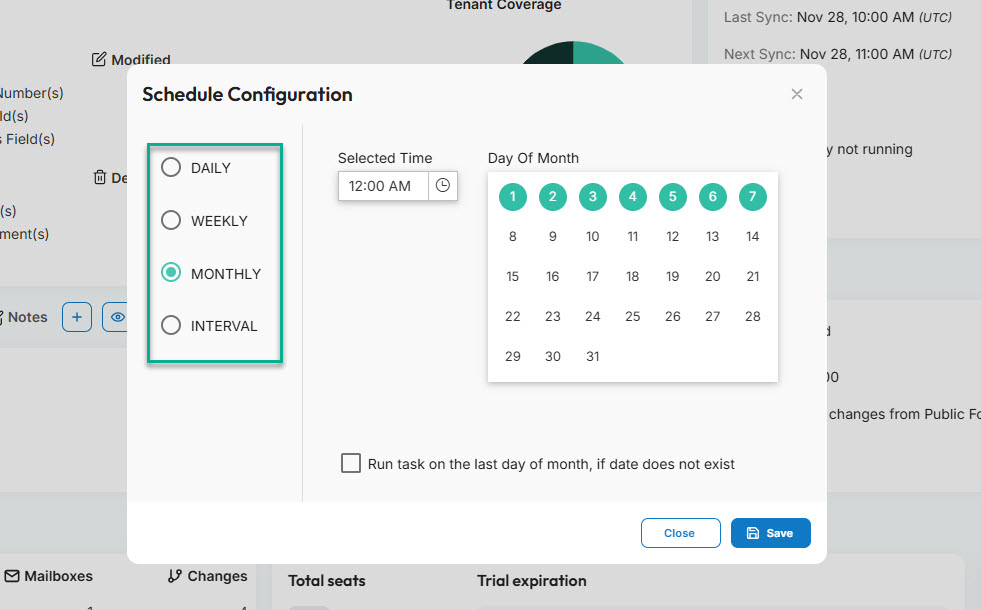
Just like the name entails, Sync Schedule lets you choose when data is synced automatically. You can find it in the main dashboard.
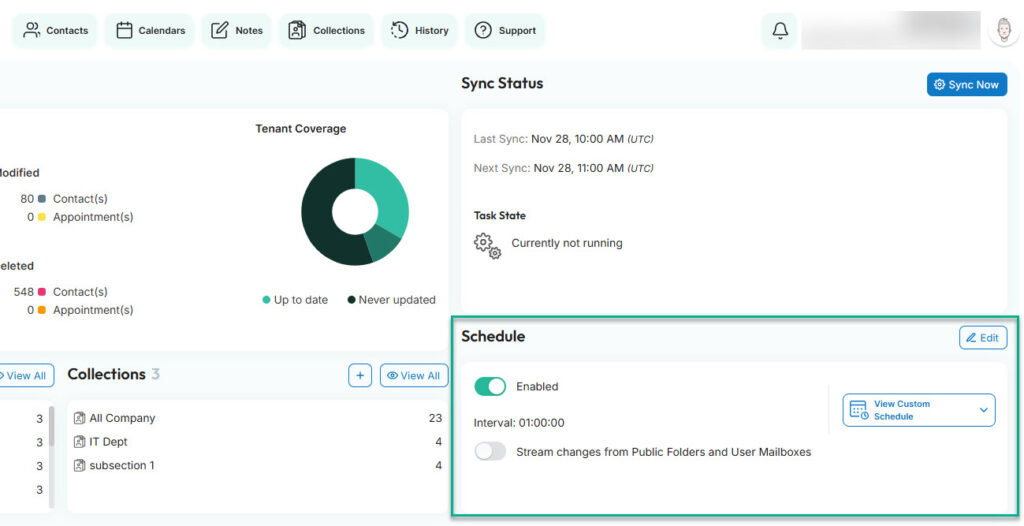
With CiraSync, you can sync data
- Daily — Once per day (e.g., 12:00 PM)
- Weekly — Select the days (e.g., Monday, Wednesday, and Friday at 09:00 AM)
- Monthly — Select the days of the month (e.g., 6th, 10th, and 18th at 10:00 AM)
- Interval — Choose a time interval (e.g., every one hour)
2. Sync Summary
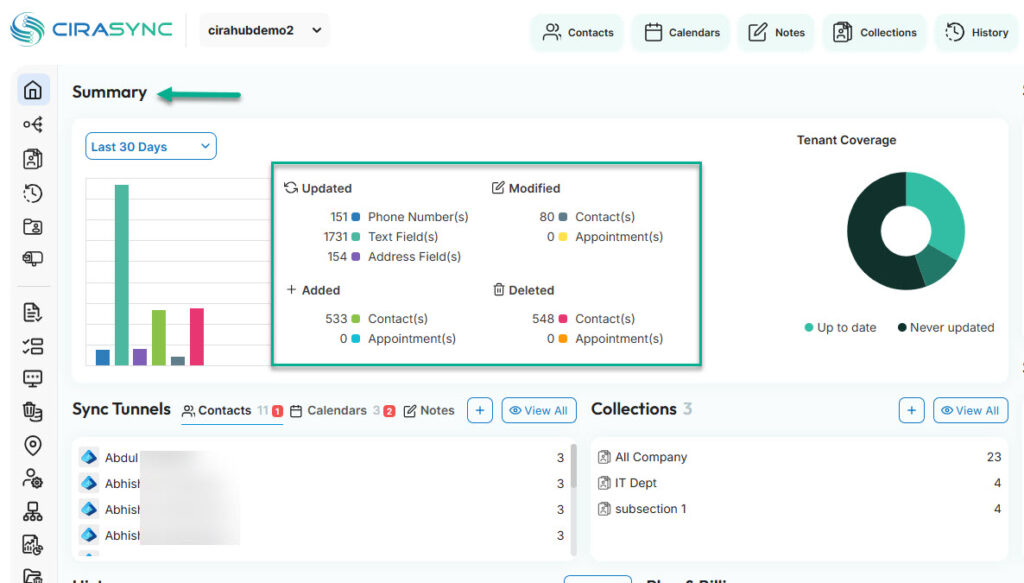
The Summary in CraSync shows relevant data within the selected timeframe. For example, in the last 30 days, CiraSync updated 151 phone numbers, added 533 contacts, and deleted 548 outdated contacts.
3. Manage Roles
IT administrators will love this feature. It allows them to add and assign roles to members in CiraSync.
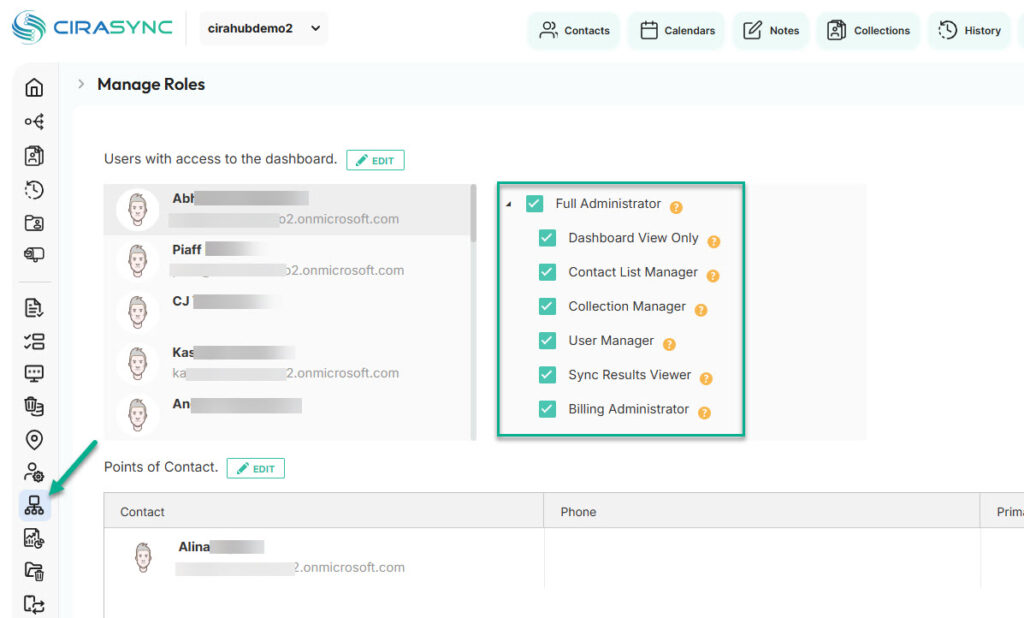
- Full administrator: Can do anything
- Dashboard View Only: Can view only the dashboard
- Contact List Manager: Can create, update, and delete contact lists
- Collection Manager: Can create, update, and delete collections
- User Manager: Can license, delicense, run auto-license, and sync tasks on specific users and the entire tenant
- Sync Results Viewer: Has access to the View Sync Results menu item on the Mailboxes section
- Billing Administrator: Can view dashboard, licenses, request sales quotes, and buy licenses
CiraSync: The Best Contact and Calendar Syncing Tool
CiraSync removes the messy, manual work that usually comes with keeping contacts and calendars updated on employee phones.
Once you set it up, it runs quietly in the background and makes sure every device always has the latest information.
Teams get accurate caller ID, dependable schedules, and fewer last-minute surprises. IT gets fewer tickets and a solution that works at scale without extra maintenance.
If you rely on Microsoft 365 and want everything to stay synced automatically, CiraSync is the simplest way to make that happen.