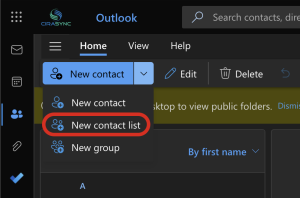


Mobile Direct enables IT administrators to push contacts directly to iOS devices using the CardDAV protocol and Microsoft Intune, without requiring any third-party phone apps.
This approach ensures managed contacts and compliance with MDM policies.
Why CardDAV?
- Native Support: CardDAV is an HTTP protocol natively supported by Apple devices—clean and efficient for iOS.
- No User Involvement: Customers love CardDAV for its simplicity; configuration is handled entirely by IT.
- Direct Communication: CardDAV connects directly to CiraSync Cloud, avoiding third-party dependencies.
- One-Way Sync: Contacts are pushed down to devices for call and SMS resolution—ideal for managed environments.
- Managed Contacts: Contacts synced via CardDAV are managed through MDM, unlike third-party apps that store contacts in the primary container.
- Security Advantage: No need to pass user tokens to third-party apps, reducing security risks.
- Policy Compliance: Third-party apps often require Exchange Online blanket permissions, which organizations cannot selectively revoke without losing control.
Key Benefits
- Works for users targeted by a CiraSync tunnel as well as users without an Exchange mailbox (e.g., field workers).
- Licensing uses Object ID (Unique ID) embedded in the configuration URL.
Mobile Direct Setup Instructions
Let’s see how to set up Mobile Direct in both CiraSync and Microsoft Intune and sync contacts to iOS devices.
Mobile Direct In CiraSync Cloud
1. Create a CiraSync Sync Tunnel.
2. In Step 3 of tunnel creation, enable ‘Mobile Direct’.
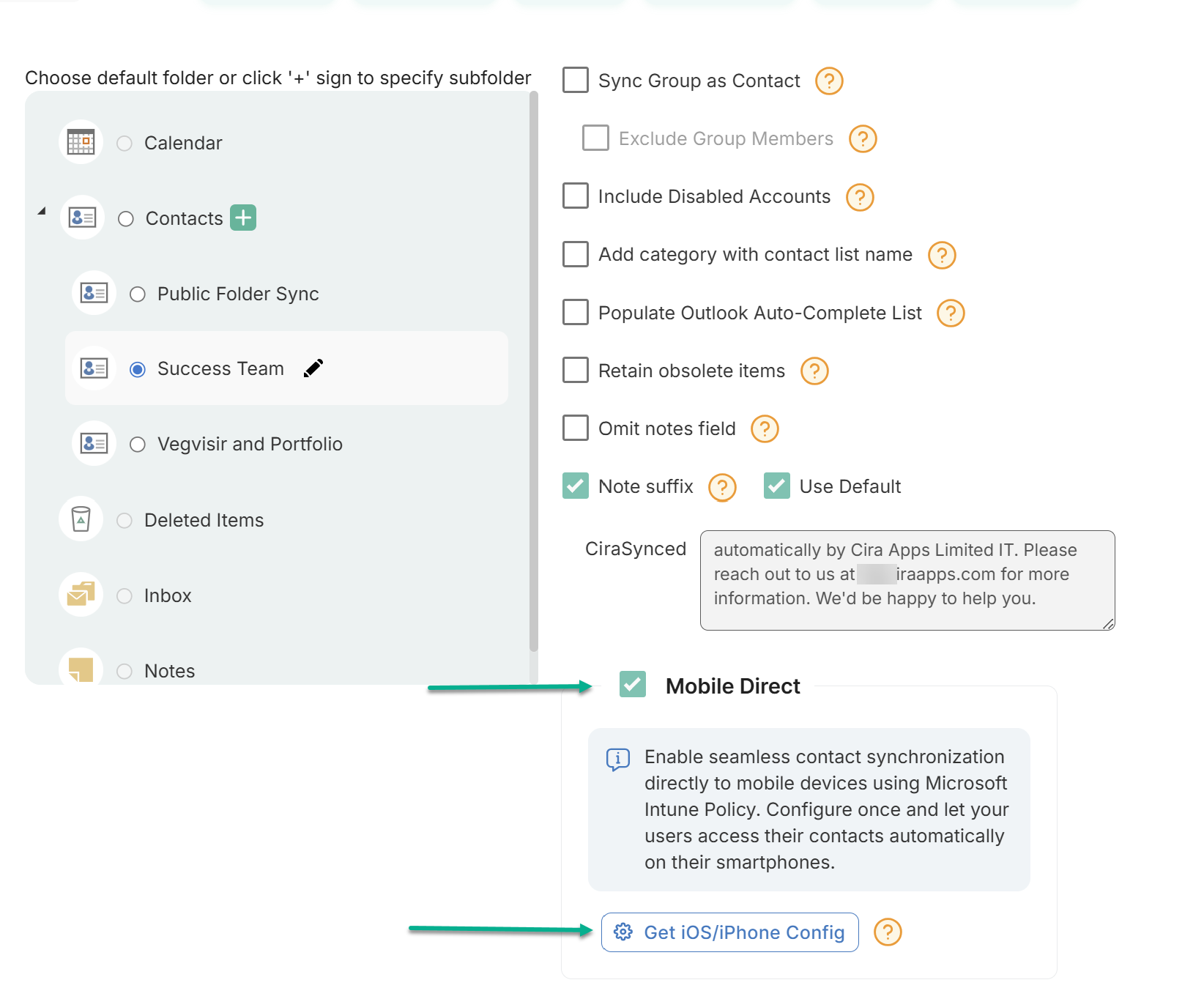
3. Click ‘Get iOS/iPhone Config’ to download the Intune configuration file.
4. Save the configuration file.
Mobile Direct In Microsoft Intune
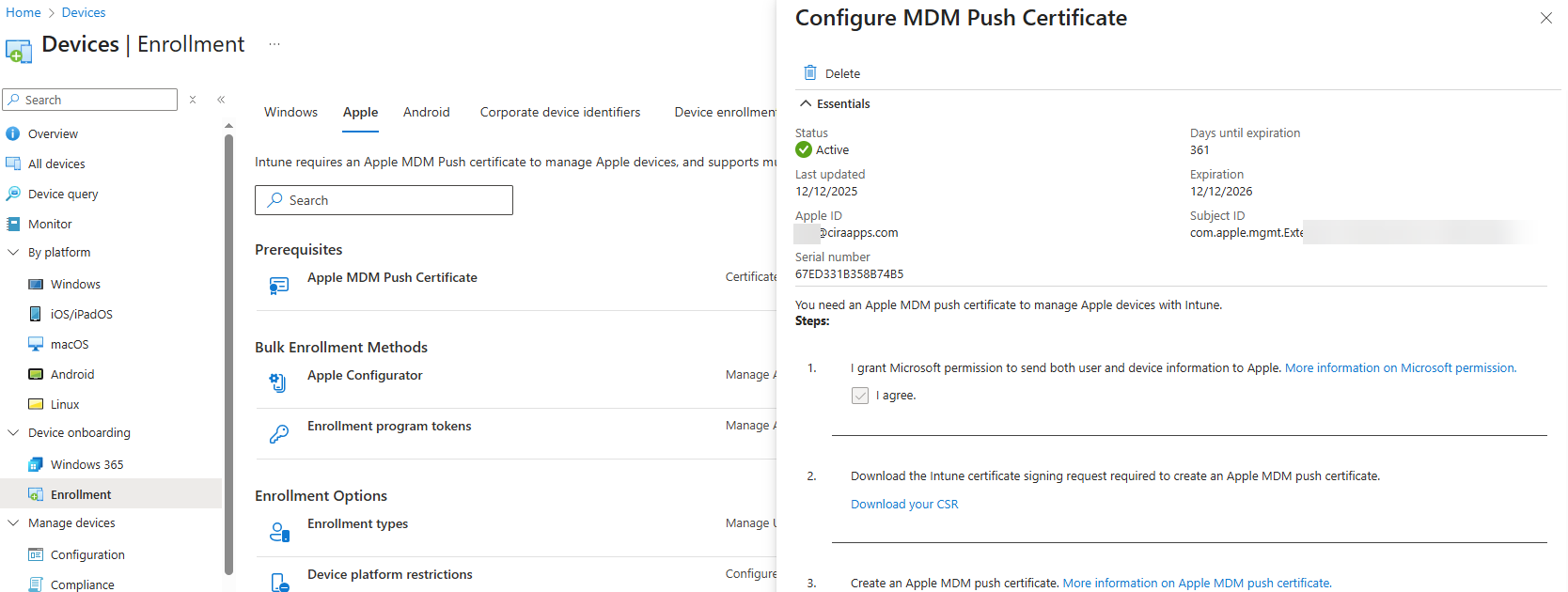
1. Ensure that the Device Apple enrollment is Active
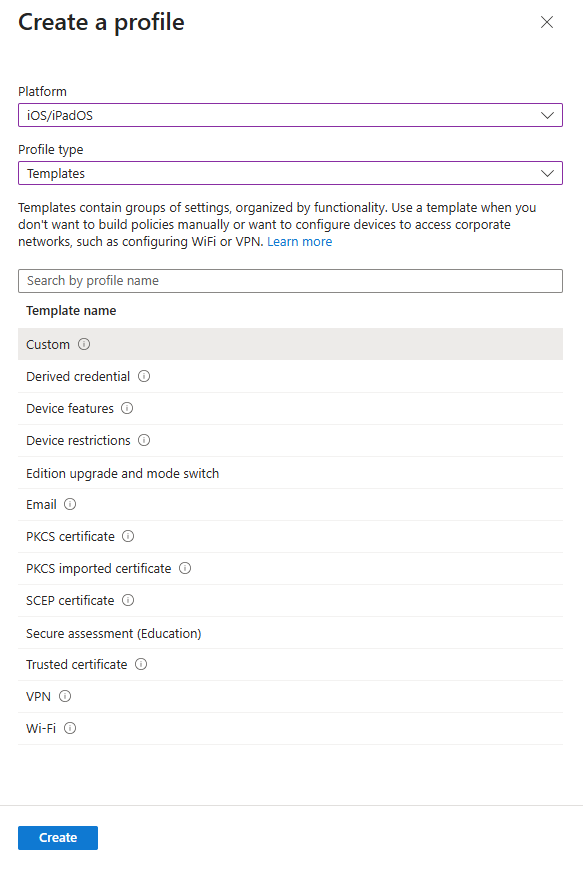
2. Create a new policy for iOS: Profile Type – Templates; Template Name – Custom.
3. Name the policy.
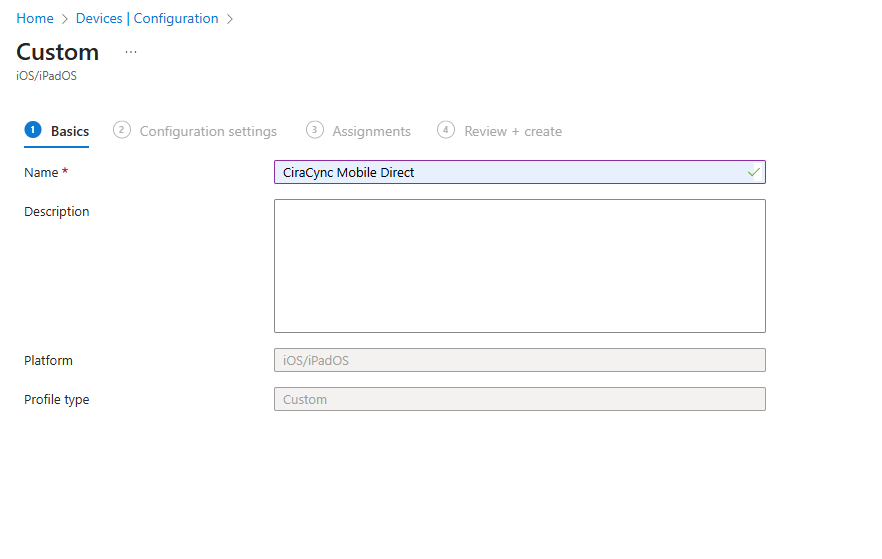
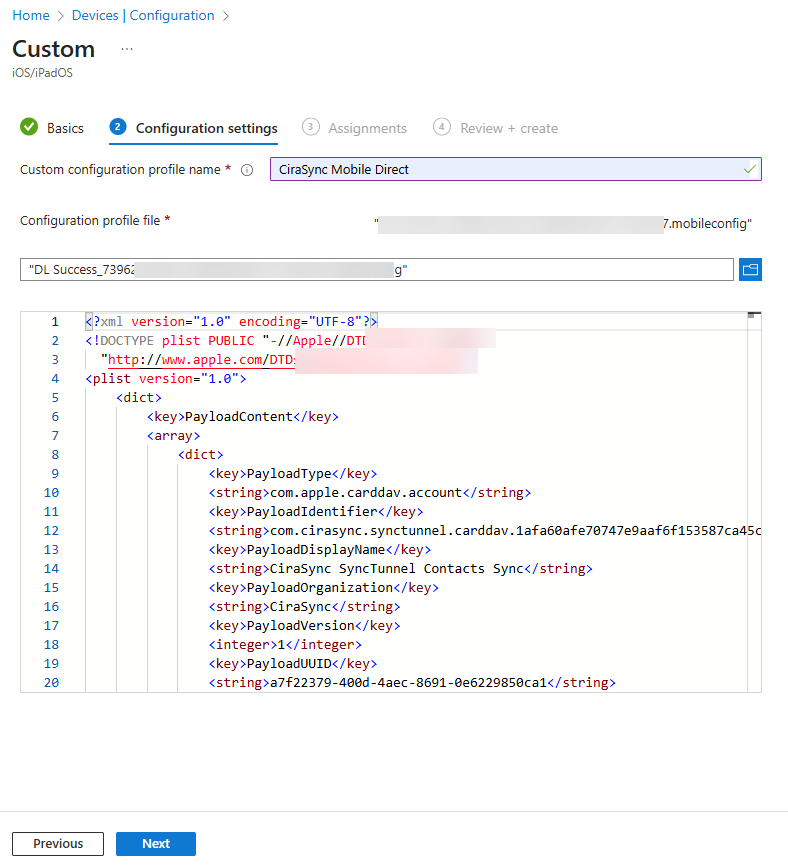
4. Upload the configuration profile file (contains CardDAV principal URL, sync tunnel info, user ID, device ID, and password for secure access).
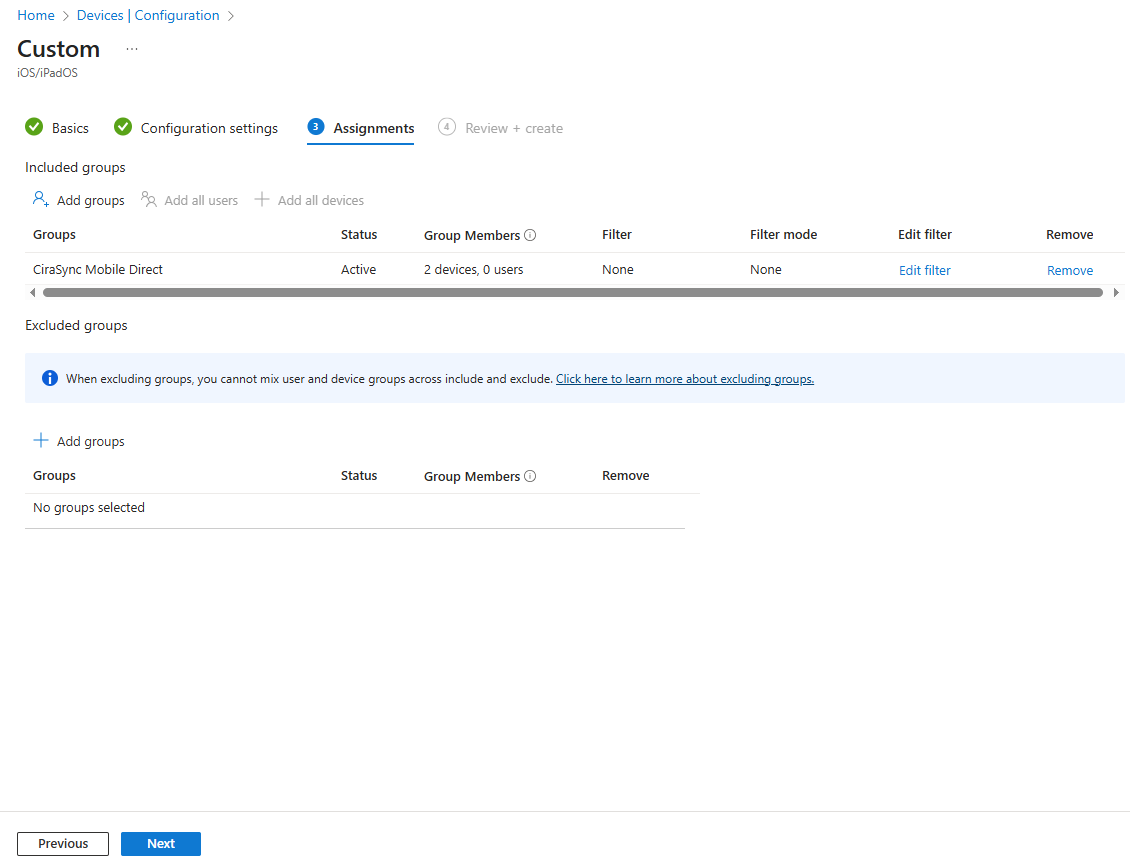
5. Click Next, add the target group, users or devices, then click Create.
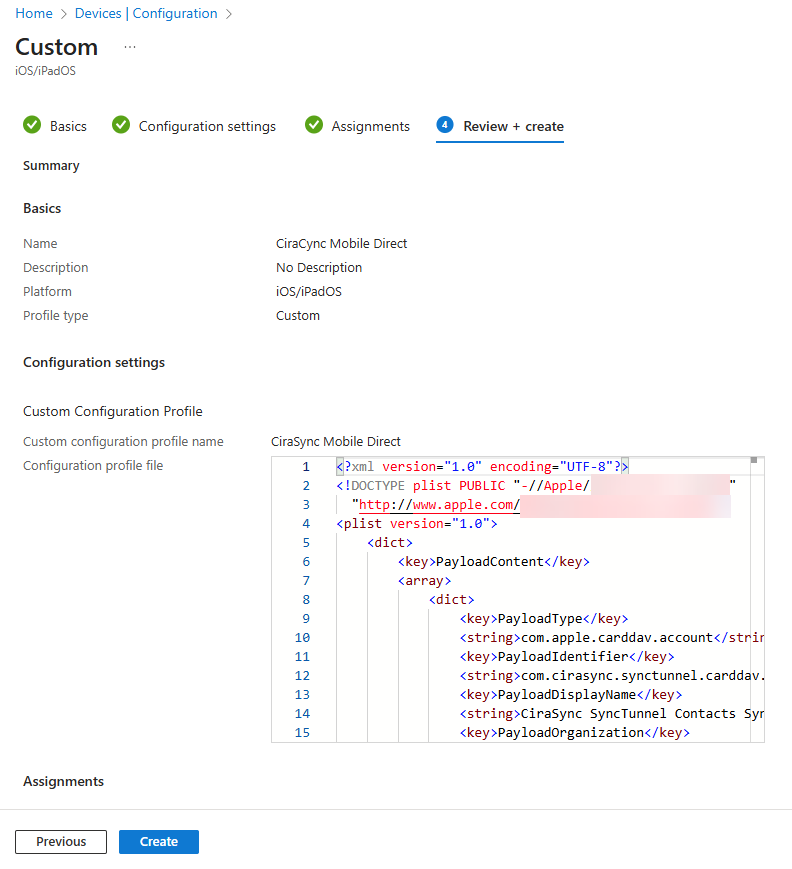
6. Review configuration and select Create.
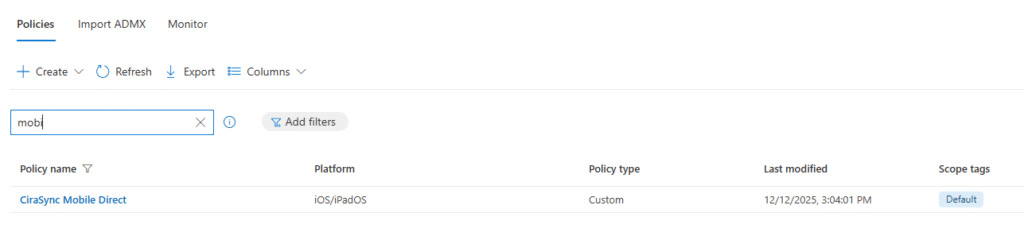
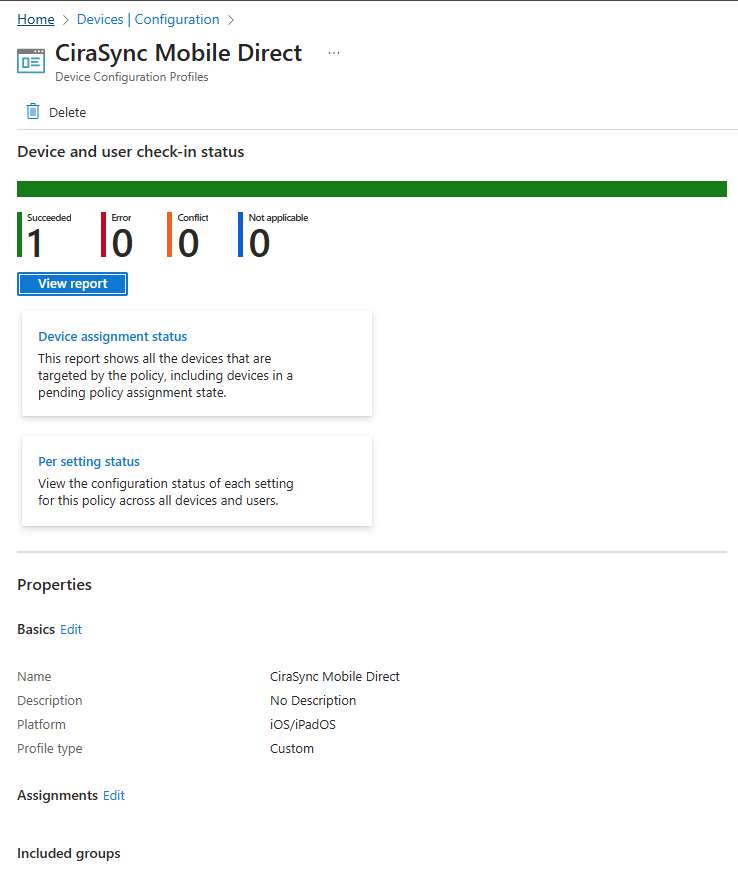
7. Verify if policy is created and applied to target devices
Policy applies to all targeted devices.
On the Device
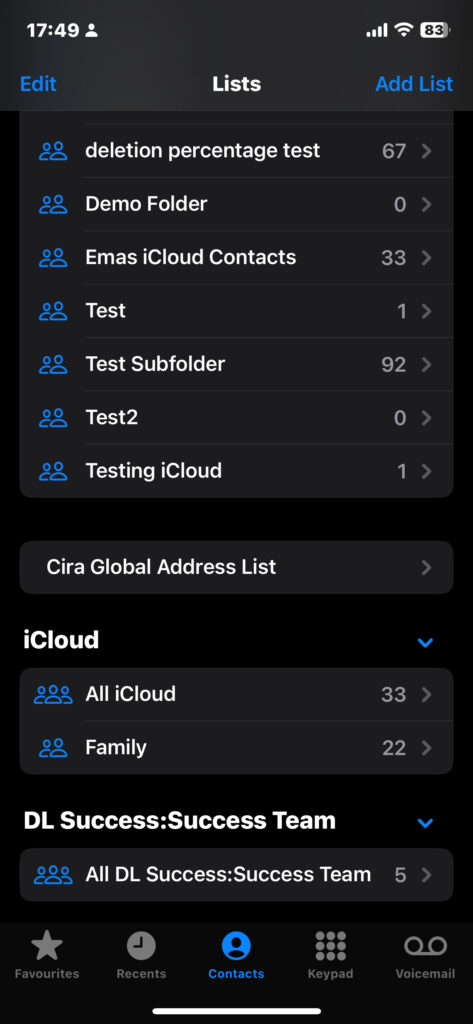
An account will appear under Contacts: Default Contacts with the user’s email address.
How Contacts Sync from Source to iOS Devices
The process of delivering contacts from the source to iOS devices works as follows:
1. Caching Source Data
The CiraSync tunnel caches contact data from the source according to the configured CiraSync schedule—this can be daily, weekly, or monthly.
2. Pushing Contacts to iOS
Mobile Direct uses the CardDAV protocol to push contacts to the iOS device. This follows the device’s “Fetch New Data” settings, which can be configured to:
Check at intervals of 15, 30, or 60 minutes, or manually.
Use Push technology (if supported by the server) to deliver updates as frequently as possible.
5. Handling Changes on the Device
If a user edits or accidentally deletes a contact on the phone, these changes will not persist. At the next sync interval, the entire contact set from the source will overwrite the device’s contacts.
What’s Coming Next
CardDAV support for Native Sync: A separate Intune configuration allowing users to select which contact folders to sync (default and subfolders). Users will have the ability to choose folders via a self-service portal.
Support
For assistance with configuration, contact help@cirasync.com.